

July 13, 2026
Screen Time Management: A Practical Guide for 2026
Take control of your phone with a practical screen time management guide. Learn to assess usage, set goals, and use visual tools to reduce distractions.
You pick up your phone for one quick check. Then you answer a message, open social media, tap into email, drift into a video, and look up twenty minutes later wondering where your focus went. The struggle with screen time isn’t typically due to laziness; it stems from digital life being designed as frictionless, constant, and rewarding in tiny bursts.
That’s why good screen time management isn’t about banning devices or pretending your phone is the enemy. It’s about separating useful screen use from reflexive screen use, then building a life where the better choice is easier to see and easier to repeat. Restriction matters, but replacement matters more. And for many people, especially those with ADHD or long-running goals, visible progress works better than shame.
Table of Contents
- First Understand Your Digital Habits
- Set Intentional and Realistic Goals
- Build a System of Digital Friction
- Replace Scrolling with Meaningful Activities
- Visualize Progress with Glanceable Widgets
- Common Screen Time Management Hurdles
First Understand Your Digital Habits
Feeling overwhelmed by your own phone use isn’t irrational. Screen exposure is now a structural part of modern life. One roundup of recent data says people aged 16 to 64 spend about 6 hours and 40 minutes per day on screens in 2025, mobile devices account for 53% of total screen time globally, and that can amount to roughly 42% of waking hours worldwide according to these screen time statistics. If your attention feels under pressure, that pressure is real.
The cost isn’t just personal annoyance. The economic and health burden of excessive screen time was estimated at $151 billion in combined costs to health systems and productivity for American workers in 2023, and nearly 70% of the global workforce suffers from computer vision syndrome according to this report summary on screen time at work. That’s a strong reason to stop guessing and start measuring.
Start with a real baseline
Before you change anything, run a one-week audit with the tools already on your device.
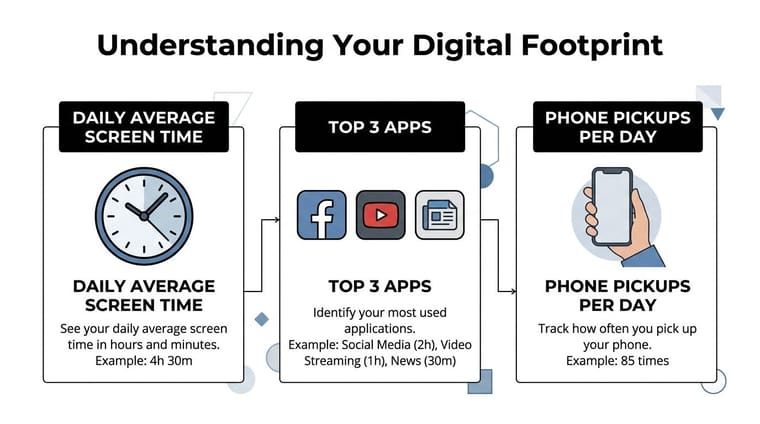
On iPhone, use Screen Time. On Android, use Digital Wellbeing. On Mac, your browser tabs and desktop habits often matter just as much as your phone, so it also helps to review smarter Mac productivity methods if your workday keeps pulling you back to a larger screen.
Look for patterns, not guilt.
- Daily average: Check your total time by day, not just one unusually good or bad day.
- Top apps: Identify the few apps that dominate your attention.
- Pickups and opens: Note when you reach for your phone most often.
- Notification triggers: See which categories pull you in. Messaging, news, social, shopping, or email usually create very different behaviors.
- Time of day: Morning drift, afternoon fatigue, and late-night scrolling need different solutions.
If you want a practical breakdown of what to review inside your device settings, this guide to a screen time reduction app approach is a useful companion.
Practical rule: Don’t start by setting limits. Start by identifying your repeat loops.
What to look for in your audit
Many believe their problem is “too many hours.” Often, the problem is fragmented attention. You don’t need a perfect spreadsheet. You need to answer three questions:
| Question | What to check | Why it matters |
|---|---|---|
| What am I doing? | Top apps and categories | Some screen time is useful. Some is just frictionless escape. |
| When do I do it? | Time-of-day spikes | Habits tied to fatigue or boredom need a different fix than work-related use. |
| What starts it? | Notifications, boredom, avoidance, stress | The trigger tells you what to change first. |
A good audit usually reveals one uncomfortable truth. Your screen use isn’t random. It’s patterned. Once you can see that pattern, screen time management becomes practical instead of moralistic.
Set Intentional and Realistic Goals
The worst goal is “I should use my phone less.” It sounds serious, but it’s too vague to guide behavior. Real change starts when you decide what kind of screen time you want more of, what kind you want less of, and what limits fit your life.
Separate useful screen time from empty screen time
Not all screen time does the same thing to your day. That distinction matters. Research found no significant association between total screen time and academic performance, but non-academic screen time showed a strong negative correlation with marks (ρ = -0.575, p < 0.001) while academic screen time was positively correlated (ρ = 0.541, p < 0.001) in this published study. Blanket reduction sounds disciplined, but it can cut the useful part along with the wasteful part.
That means your goal shouldn’t be “fewer screens.” It should be something more precise:
- Protect work and study use
- Reduce passive scrolling
- Set boundaries around entertainment drift
- Keep essential communication available without letting it expand all day
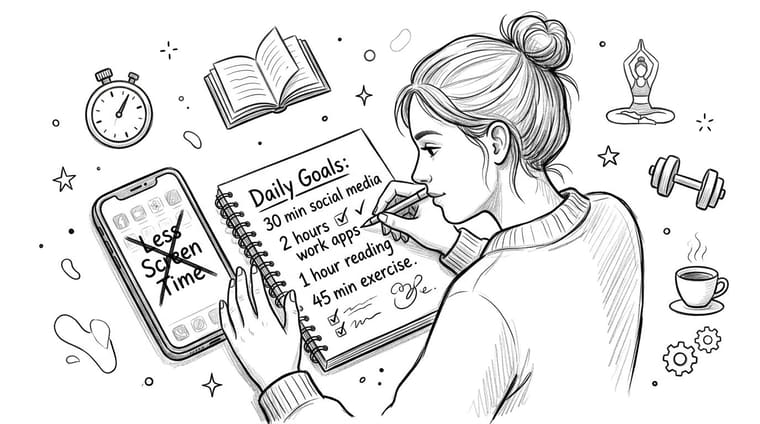
A student might keep lecture videos, flashcards, and research time untouched while capping social apps. A manager might allow Slack, calendar, and customer communication during work hours but put firm limits on news, short-form video, and late-night email checking.
Useful screen time supports a role, a goal, or a relationship. Empty screen time usually starts as relief and ends as residue.
Build a digital budget you can keep
Think in categories, not fantasies. A workable digital budget gives each kind of use a place.
Try a simple planning grid like this:
| Category | Keep, limit, or move | Example |
|---|---|---|
| Work and study | Keep | Documents, research, messaging with purpose |
| Admin | Limit and batch | Banking, email cleanup, scheduling |
| Entertainment | Limit | Video, gaming, social feeds |
| Connection | Keep with boundaries | Calling friends, group chats, family photos |
| Compulsion apps | Tightest cap | The apps you open without deciding |
A few goal styles tend to stick better than dramatic detox plans:
- Time-boxing: “Social media only after dinner.”
- Context rules: “No phone in bed.”
- Category caps: “Streaming only after my workout.”
- Replacement goals: “When I want to scroll at lunch, I walk first.”
If your current habits are intense, don’t try to become a different person by Monday. Tighten one category at a time. That’s slower, but it holds.
Build a System of Digital Friction
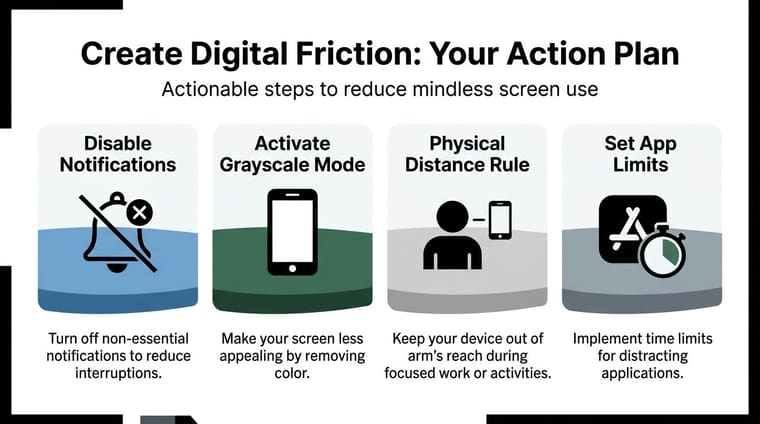
Willpower fades fastest when your phone is nearby, colorful, buzzing, and one tap away from reward. That’s why the most effective screen time management changes are often environmental. You make unwanted behavior slightly harder, and wanted behavior slightly easier.
The data on this is revealing. The average user checks their phone 58 times daily, and 50% of screen sessions start within 3 minutes of the previous one according to this RescueTime analysis. That’s not one long decision. It’s a recurrence loop.
Attack the loop, not just the total
A daily cap can help, but it often fails because the damage is done in fragments. Ten seconds here. Two minutes there. A fast check that turns into another fast check. If you only watch the total hours, you’ll miss the mechanism that keeps restarting attention loss.
Your first job is to interrupt re-entry.
- Log out of sticky apps: If you have to manually sign in, the habit loses speed.
- Delete the worst offenders from your phone: Keep them available on a laptop if needed.
- Turn off non-critical notifications: Most alerts are not urgent. They are invitations.
- Create physical distance: A phone in another room changes behavior more than often realized.
- Use grayscale mode: It doesn’t solve everything, but it can make the screen less magnetic.
A friction checklist that works in real life
People often overcomplicate this. Start with the settings and placements that remove automaticity.
Notifications audit
Keep only what absolutely deserves interruption. For most adults, that’s usually direct communication from a small set of people and a limited group of necessary services.
Home screen cleanup
Move distracting apps off the first screen. Better yet, remove them from the phone and access them only through a browser on a computer.
Phone-free zones
Pick places where your phone doesn’t belong. Common examples include the dining table, the bathroom, and the bedroom.
Phone-free transitions
The moments before sleep, after waking, and between tasks are where scrolling often sneaks in. Protect those transitions first.
A short walkthrough can help if you want another demonstration of how reducing cues changes behavior:
Remove convenience from the habit you want less of. Add convenience to the habit you want more of.
Use intervals to reset attention
For many people, the issue isn’t just the phone. It’s the constant switching between digital tasks. One practical fix is to work in clear intervals with deliberate breaks, so attention stops leaking all day. If that sounds useful, this guide to a timer interval app setup offers a clean way to structure focused blocks without turning your day into a punishment system.
The point of friction isn’t to make life annoying. It’s to slow the reflex long enough for your intention to catch up.
Replace Scrolling with Meaningful Activities
Cutting screen time creates empty space. If you don’t decide what belongs there, your old habit will rush back in. That’s why reduction alone is fragile. Replacement is what makes it stable.
What replacement looks like in ordinary moments
A student gets stuck after a study block and reaches for TikTok. Instead of aiming for heroic self-control, they build a tiny substitute routine: stand up, refill water, walk once around the building, then come back. The phone urge passes because the body moved and the break had a shape.
A professional hits that mid-afternoon dip and starts opening news, then email, then social feeds. A better replacement isn’t “be more disciplined.” It’s having a pre-decided menu: make tea, do a five-minute reset walk, listen to one saved podcast segment, or clear one physical surface on the desk.
At home, evenings are where many people lose the most time. Not because they lack ambition, but because they’re tired. That means replacements have to be easy, not impressive. A complicated hobby station hidden in a closet won’t beat a glowing feed. A book on the sofa, a recipe you already know, a short stretch routine, or a walk with one neighbor usually has a better chance.
If your replacement requires more activation energy than scrolling, you won’t use it consistently.
Build your own offline menu
Make a list you can use when your brain is tired. Keep it visible. Don’t try to invent alternatives in the moment.
Try three categories:
- Quick resets: Walk outside, stretch, tidy one area, make coffee, water plants
- Pleasant low-effort options: Audiobook, simple cooking, coloring, journaling, music
- Deeper evening activities: Reading, board games, long walk, calling a friend, hobby time
The best replacement habits share two traits. They’re easy to start, and they feel good before they become “productive.” If the substitute only feels virtuous and never enjoyable, scrolling will win.
Visualize Progress with Glanceable Widgets
Most screen time tools are built around failure. You hit a limit, get a warning, and feel behind. That can work for a few days. It usually stops working when your brain gets tired, stressed, or bored.
A better approach is to make progress visible.
Why progress beats punishment
For users with ADHD or people tracking long-term goals, stop counters can induce shame, whereas progress counters provide the dopamine hit needed for consistency, and visualizing productive time is an underserved strategy in digital wellness according to this discussion of progress counters and motivation. That idea matches what many people experience in practice. When the system only tells you what not to do, it creates resistance. When it shows you what you’re building, it creates momentum.
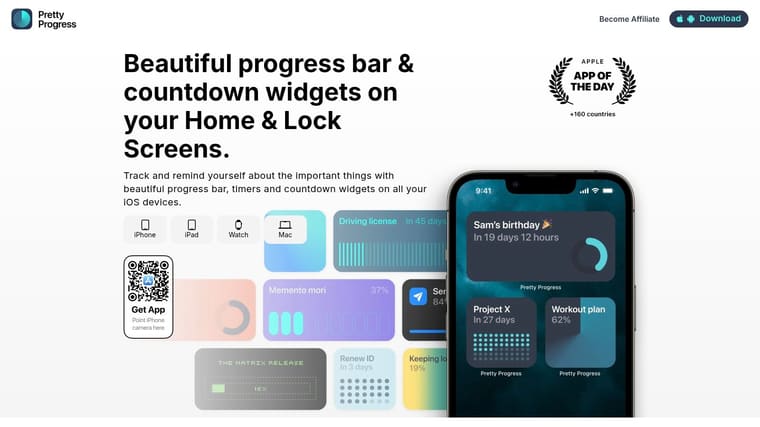
That’s especially useful when the change is gradual. If your only signal is “I used my phone too much again,” you’re likely to quit. If your signal is “I protected my first hour this morning” or “I’ve hit my screen-free evening target three days in a row,” your brain has something concrete to hold onto.
What to visualize on your home and lock screen
This works best when the cue is glanceable. You shouldn’t need to open a dashboard and study a chart. You should be able to see your goal in a second.
A few formats work well:
| Visual | Best for | Example |
|---|---|---|
| Progress bar | Daily consistency | Screen-free morning, reading streak, focused work block |
| Countdown | Transitions and anticipation | Time until walk break, gym session, dinner, bedtime |
| Milestone tracker | Long goals | Exam prep season, project phase, semester finish |
| Saved time framing | Positive reinforcement | Time reclaimed for offline plans |
Instead of staring at a shrinking allowance, you see something that’s growing. That small shift changes the emotional tone of the habit.
One especially practical use is pairing a visual with a replacement routine. If your lock screen shows a countdown to your evening walk or your reading window, the offline activity becomes more real before you even start it. If you want ideas for making those cues visible where you’ll notice them, this guide to a home screen timer setup shows how a persistent visual can anchor behavior better than another buried app notification.
You can also frame success around what you want to preserve:
- Morning calm
- Focused study
- Screen-free meals
- Wind-down time before bed
- Weekend hours for real-world plans
A visible reminder of progress does more than track behavior. It changes what your day feels like you’re moving toward.
The strongest systems don’t just block distraction. They make your preferred life easier to picture.
Common Screen Time Management Hurdles
How do I manage screen time if my job is online
Use role-based rules, not total abstinence. Keep work apps and task-specific tools available. Tighten the channels that create drift, such as social feeds, personal browsing, shopping tabs, and reflexive inbox checking. If your work is screen-heavy, the target is intentional use, visual breaks, and fewer unnecessary transitions.
Also pay attention to eye strain. If long workdays leave your eyes dry, tired, or blurry, take regular visual breaks and adjust your screen setup to reduce unnecessary strain.
What if people expect me to reply immediately
Set expectation boundaries in plain language. Tell coworkers when you check messages. Tell friends that you may reply later in the evening. Most pressure eases once people know your pattern. The people who expect instant access to you at all times usually benefit from boundaries the most.
What if I had a bad week and slipped back
Don’t restart with punishment. Review what changed. Were you tired, stressed, sick, overloaded, or avoiding something hard? Then fix the trigger, not your character. Return to one small rule that worked before, such as no phone in bed or no social apps before lunch.
Are the rules different for kids and adults
Yes. Adults manage their own environment and workload, while kids depend on shared routines and family boundaries. But one principle applies to both: the content, context, and purpose matter more than a simplistic “all screens are bad” mindset. A device used for learning, creativity, or connection is different from one used for constant passive stimulation.
Good screen time management is rarely dramatic. It’s built from a baseline, a few firm rules, better replacements, and visible progress. That’s what makes it durable.
If you want a gentler way to stay consistent, Pretty Progress helps you turn goals into glanceable countdowns and progress bars on your Home and Lock Screen. It’s a strong fit if you’re trying to protect screen-free time, build better routines, or stay motivated by visible progress instead of another set of guilt-based alerts.





