

May 4, 2026
Timer Interval App: Your Guide to Productivity & Focus
Discover what a timer interval app is and how to use it beyond fitness. Learn key features and workflows for Pomodoro, studying, and focus with our guide.
You open your phone to check one message. Ten minutes later, you’ve replied to two emails, skimmed a doc, switched to your calendar, and forgotten the task you meant to start. By late afternoon, the day feels full but oddly unfinished.
That’s the problem a timer interval app solves. Not by forcing more discipline, but by giving your attention a shape. Instead of deciding every few minutes what to do next, you let the timer carry that load for you.
Interval timers are often associated with workouts. Search results are packed with HIIT, Tabata, and boxing rounds. But there’s a clear gap in practical guidance for using these apps for focus, ADHD support, habit building, and deadline tracking, as noted by Intervals Pro’s discussion of non-fitness timer use cases. That missed category is exactly where these tools become useful in everyday life.
Table of Contents
- Why Your Day Feels So Unfocused
- What Exactly Is a Timer Interval App
- Key Features That Boost Productivity
- Popular Use Cases Beyond the Gym
- Setting Up Your First Productivity Timer
- How to Choose the Right Timer App for You
Why Your Day Feels So Unfocused
A lot of unfocused days don’t look lazy. They look busy.
You answer Slack. Then you jump into a browser tab. Then you remember an overdue form. Then a text arrives. Then you start your real work, but only for a few minutes before your brain asks, “Should I check email first?” By evening, you’ve worked all day and still don’t feel settled.
The issue usually isn’t effort. It’s constant task switching and a lack of visible boundaries around your time. When the day has no clear start, stop, and transition points, your brain has to keep making tiny decisions. Those decisions add up.
The hidden cost of open-ended work
Open-ended tasks expand. “Work on report” can mean five minutes or two hours. “Study later” can slide into “study tonight.” Without a container, the task keeps renegotiating with you.
That’s why people often pair time blocks with environmental cues. Some use a playlist, some use noise-canceling headphones, and some lean on visual systems. If background sound helps you settle in, the cognitive tools of lofi can work well alongside a timer because both create a repeatable focus ritual.
A timer doesn’t just measure time. It marks a decision you no longer need to keep making.
For people who struggle with attention regulation, this matters even more. A visual countdown can reduce the “when do I stop?” and “how much is left?” anxiety that makes starting harder in the first place. If that sounds familiar, this guide on how to focus with ADHD is a useful companion to interval-based work sessions.
Why interval timers fit real life
A normal timer handles one chunk. An interval timer handles a sequence.
That sequence can be fitness-related, but it can just as easily be:
- Focused work: a block for writing, then a break
- Admin time: inbox cleanup, then reset
- Reading: a short session every night
- Fasting: a long countdown followed by an eating window
- Project pacing: work sprint, review, and restart
The reason this category gets overlooked is simple. Most timer interval app content still lives in the workout world. Everyday users miss a tool that could make studying, planning, and habit tracking much easier.
What Exactly Is a Timer Interval App
A timer interval app is a timer that moves through multiple phases automatically.
Think of a regular timer as one hourglass. You flip it once, and it runs until the sand is gone. An interval timer is a row of hourglasses that flip themselves in order. Work. Break. Work again. Longer break. Repeat.
That’s the key idea. You’re not timing one thing. You’re timing a pattern.
A simple way to think about it
Most interval setups have three basic parts:
- A focus or work period
- A rest or transition period
- A repeat count
That’s all you need to run a Pomodoro session, a reading routine, a practice block, or a household reset.
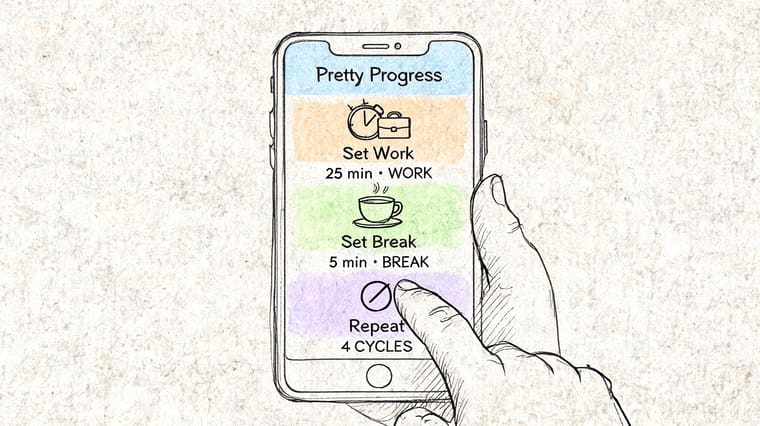
A simple example looks like this:
- 25 minutes writing
- 5 minutes break
- Repeat 4 rounds
A more flexible one could be:
- 15 minutes email
- 30 minutes deep work
- 10 minutes admin
- 5 minutes reset
The app handles the switches so you don’t have to keep checking the clock.
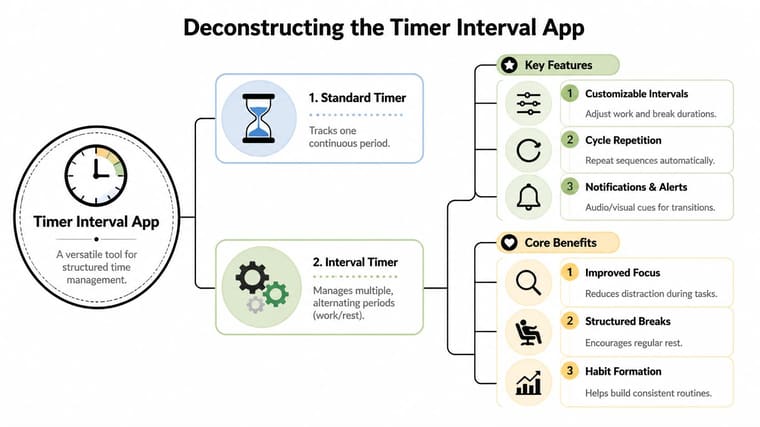
If you already use the Pomodoro time management method, you’re already thinking in intervals. The app just automates the rhythm.
Why the workout origin still matters
The modern pattern came from fitness apps for HIIT and Tabata. Early examples like Interval Timer - Tabata Timer established the genre with customizable sets, countdowns, work and rest periods, and background operation, and it became a top free option with millions of downloads according to its App Store listing.
That history matters because it proves the format is stable. These apps were built for situations where people can’t stare at a screen. Running, lifting, boxing, stretching. The same design choices help during work:
- Audio cues tell you when to switch
- Background operation keeps the timer going
- Simple presets remove setup friction
- Visual states make progress easy to read at a glance
Practical rule: If a timer is reliable enough for a workout, it’s usually reliable enough for focused work.
The activity changes. The structure doesn’t. A sprint is still a sprint whether you’re doing burpees, writing a paper, or cleaning your inbox.
Key Features That Boost Productivity
Not every timer helps you focus. Some just count down. The useful ones reduce friction before, during, and between tasks.
The best productivity-oriented setups do one important thing well. They make the next action obvious.
The features that reduce mental friction
Named intervals help more than people expect. “25:00” is abstract. “Draft intro” is specific. “Break” is different from “Walk” or “Stretch.” Labels turn time blocks into instructions.
Saved presets matter because repetition matters. If you need to rebuild your routine every day, you’ll stop using it. A preset called “Morning Study” or “Shutdown Routine” lets you tap once and begin.
Audio and vibration cues remove the need to monitor the screen. Advanced interval timers can be configured with up to 99 rounds and distinct intervals, with voice notifications and auditory cues for transitions. That setup can reduce cognitive load by an estimated 20 to 30% in workout adherence studies, according to Custom Interval Timer on Google Play. In work sessions, the same idea applies qualitatively. The timer carries the transitions so your brain can stay on the task.
Essential Features in a Modern Timer App
| Feature | Why It Matters for Productivity |
|---|---|
| Custom interval names | Helps you see “Write,” “Review,” or “Break” instead of generic time blocks |
| Preset saving | Lets you reuse common routines without rebuilding them |
| Sound or vibration alerts | Signals transitions without forcing screen checks |
| Background running | Keeps the routine going while you use other apps |
| Repeat cycles | Useful for Pomodoro sessions, study drills, or admin sprints |
| Visual color changes | Makes it easy to tell whether you’re in focus mode or break mode |
| Lock Screen or Home Screen visibility | Keeps progress visible so the timer stays part of your environment |
Here’s the deeper point. Good timer design removes negotiation.
When you can see a timer on a widget, hear a cue when a block ends, and tap into a saved routine, you stop asking yourself, “Should I keep going?” or “How long should this break be?” The structure is already set.
Why glanceable design changes behavior
Many non-fitness users often get stuck. They download a capable interval app, but they still have to open it constantly. That weakens the habit.
A timer works better when it lives in your environment, not buried in a folder. A visible countdown on your Home Screen, Lock Screen, watch, or desktop acts like a quiet accountability partner.
- For ADHD users: visible progress helps make time feel real
- For students: a persistent countdown protects study blocks from drift
- For remote workers: a visible break timer helps prevent overwork
- For habit builders: seeing the timer often keeps the routine active in memory
A plain stopwatch tells you how long something has been running. A well-designed timer interval app tells you what phase you’re in and what comes next.
Popular Use Cases Beyond the Gym
The easiest way to understand a timer interval app is to see it in ordinary life.
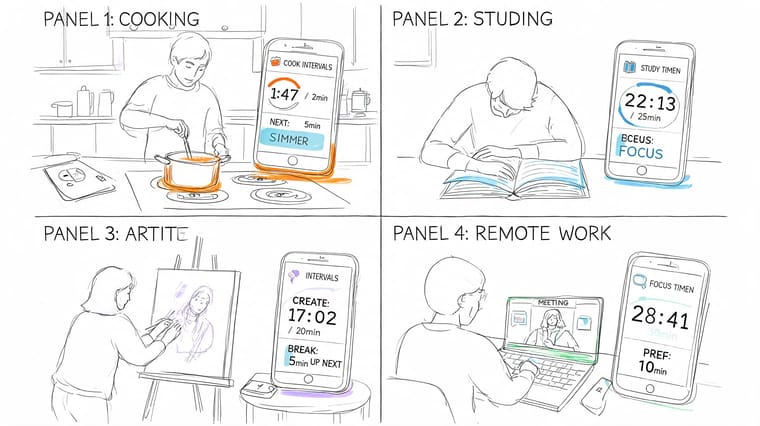
Studying and deep work
A student sits down to review lecture notes. Without structure, one chapter turns into half-reading, half-scrolling, and a lot of checking the time. With intervals, the session has edges.
They set:
- 25 minutes study
- 5 minutes break
- Repeat for a few rounds
That simple pattern lowers the emotional weight of “study for hours.” You only have to start one block.
A remote worker can use the same logic differently. Maybe they run:
- 45 minutes deep work
- 10 minutes break
- 15 minutes email cleanup
Now the timer is acting like a lightweight project manager. It’s not just tracking duration. It’s guiding sequence.
Features like full-screen color-coding and background notifications can provide glanceable feedback and boost protocol adherence by 15 to 25%, according to this interval timer guide. While that source discusses workouts, the same visual cue idea is useful for Pomodoro sessions and focus support because you can tell your current state from across the room.
If you can see the timer without touching your phone, you interrupt yourself less.
Here’s a quick visual walkthrough of interval timing in action:
Habits and long windows
Not every interval is short.
Someone building a reading habit might use a single evening block. A meditation practice might use a calm start bell, a quiet session, and a closing bell. A parent might set a tidy-up routine before bed with one short work block and one reset block.
Longer timers are helpful too. Fasting is a good example. Instead of “remembering” when a window ends, you can track a long countdown and let the visual progress bar do the remembering for you. The same applies to:
- Laundry cycles
- Cooking stages
- Screen-free evenings
- Creative practice blocks
- Household resets
What matters is that the timer gives the activity a visible boundary.
Why this works for consistency
People often fail at routines because the routine is vague. “Read more” is vague. “Read for one timed block after dinner” is concrete.
The timer doesn’t create motivation out of nowhere. It creates a small agreement you can keep.
That’s why interval timers fit so many non-fitness tasks. They turn intention into a pattern. And patterns are easier to repeat than moods.
Setting Up Your First Productivity Timer
The easiest way to start is with one short workflow and one long one. One teaches focus. The other teaches trust. You stop mentally tracking time because the timer handles it for you.
For short work cycles, a classic focus timer works well. For lifestyle routines, a visible countdown is often better than a repeating session buried inside an app.
A simple focus timer
Start with one task you avoid because it feels too big. Writing, reading, reviewing notes, or clearing email all work.
Set it up like this:
-
Choose the task Name the block clearly. “Write draft” works better than “work.”
-
Set a focus length Use a short block if starting is hard. Many people begin with a Pomodoro-style session.
-
Add a break Keep it short and real. Stand up, refill water, stretch, or stare out the window.
-
Decide whether to repeat If you need a longer session, run several rounds. If you’re just building momentum, one round is enough.
-
Make the timer visible If you use a widget-based countdown tool, put it somewhere you’ll see it. This guide to a Home Screen timer setup shows why placement matters as much as duration.
A useful trick is to make the break visually distinct from the work block. Different color states, labels, or sounds help your brain switch cleanly instead of dragging work stress into the rest period.
A longer countdown for fasting or routines
Some goals don’t need repeating rounds. They need an always-visible window.
A countdown app such as Pretty Progress can be used for this kind of setup because it lets you configure start and end dates and show the result as a widget on Home or Lock Screen. That makes it useful for non-fitness intervals like fasting windows, deadlines, events, or personal routines.
Here’s a simple fasting-style setup:
-
Pick the start time For example, when your eating window closes
-
Set the end time This becomes the visible target for the next window
-
Choose a design A plain bar, high-contrast layout, or minimal theme usually reads fastest
-
Add the widget Put it on a screen you check often so the countdown becomes ambient information
Small habit rule: Make the timer easier to see than the app is to open.
The same approach works for reading streaks, project deadlines, exam dates, or “time until shutdown” routines in the evening.
Common setup mistakes
A few traps show up again and again:
- Starting too long: If the first session feels heavy, shorten it
- Using vague labels: “Task” won’t help when you’re distracted
- Hiding the timer: Out of sight usually means out of mind
- Skipping the break plan: A break needs a purpose or it turns into drift
Your first timer shouldn’t be clever. It should be obvious.
How to Choose the Right Timer App for You
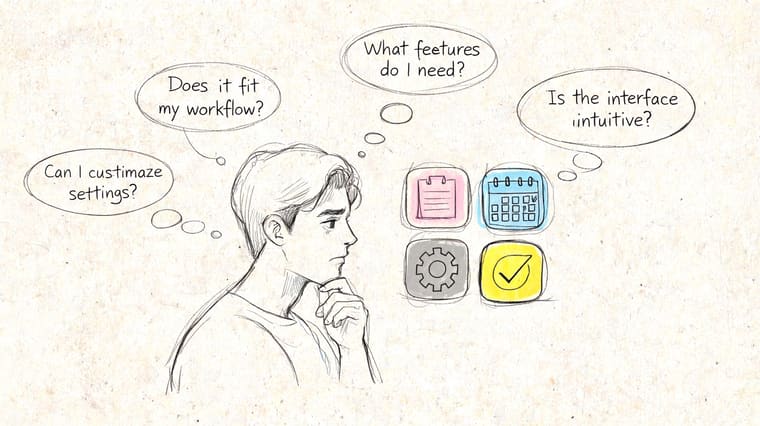
Users generally don’t need the app with the most settings. They need the one they’ll keep opening.
That choice depends less on features in isolation and more on the job you need done. A student cramming for exams needs something different from a person tracking fasting windows or an ADHD user who needs visible cues all day.
Start with your real use case
Ask yourself a few direct questions:
- Do you need repeating work and break cycles? A classic interval timer will fit better.
- Do you need a long visible countdown? A widget-first countdown app may make more sense.
- Do labels and visual states matter? If yes, don’t settle for a generic stopwatch.
- Do you rely on external cues? Prioritize sound, vibration, and persistent visibility.
- Do you need support for attention regulation? A broader digital toolkit for ADHD adults can help you combine timers with other supportive tools.
If ADHD-friendly app design is part of your decision, this roundup of apps for people with ADHD can help you compare timer-based tools with other focus aids.
Choose for the moment you usually fail. Not for the ideal version of your routine.
Match the app to your platform and style
Platform matters too. The timer app market is diverse, and Android holds over 70% of smartphone share in many regions, which contributes to a large pool of minimalist, often ad-supported timer apps, while Apple ecosystems often emphasize deeper integration and design-focused experiences, as noted in the Google Play context on interval timer apps.
That doesn’t mean one platform is better. It means you should expect different app philosophies.
Some people want:
- Minimal setup
- Big buttons
- Basic presets
- No visual flair
Others want:
- Widgets
- Polished themes
- Cross-device visibility
- A timer that feels like part of their environment
If your timer only works when you remember to open it, it’s easy to ignore. If it sits on your screen, its progress visible, it becomes part of how you move through the day.
The right timer interval app is the one that makes time feel tangible. Once that happens, focus gets easier, breaks get cleaner, and routines stop depending on mood.
If you want a visual timer that stays in view instead of hiding inside an app drawer, Pretty Progress offers countdowns and progress widgets for Home and Lock Screens across Apple devices and Android. It’s a practical fit for deadlines, fasting windows, study milestones, and other non-fitness intervals where glanceable progress helps you stay consistent.





