
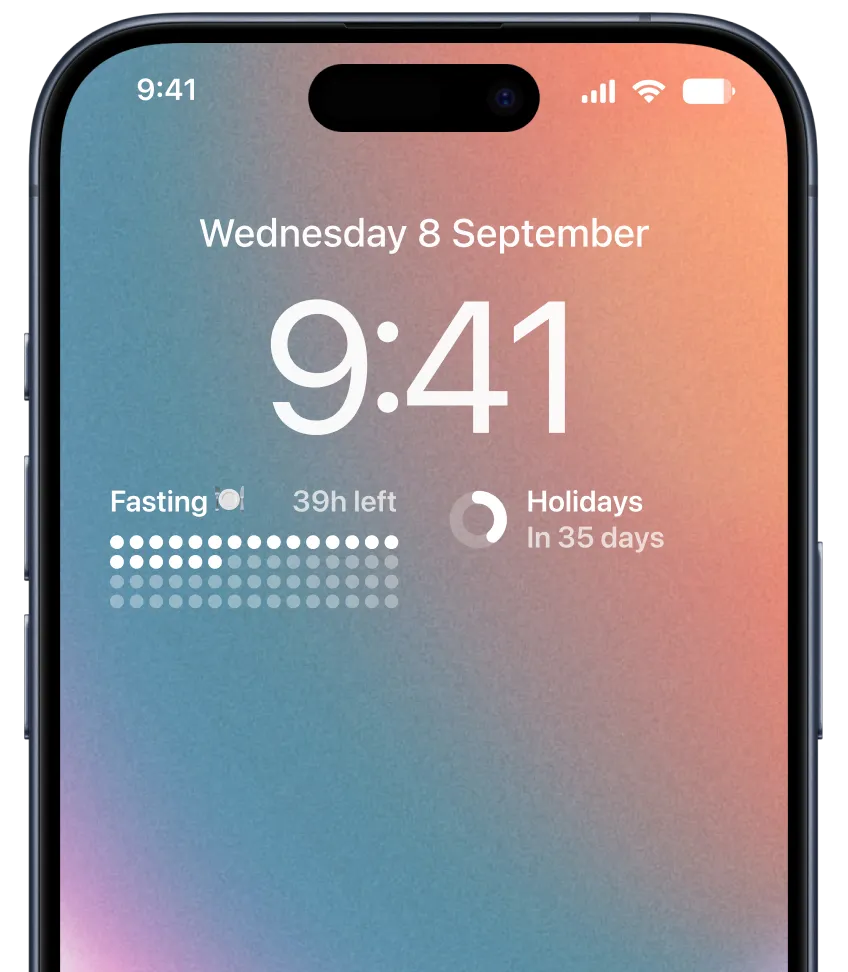
Watch the video guide
STEP 1
Create or customize your countdown widget in Pretty Progress.
1
Open Pretty Progress.
2
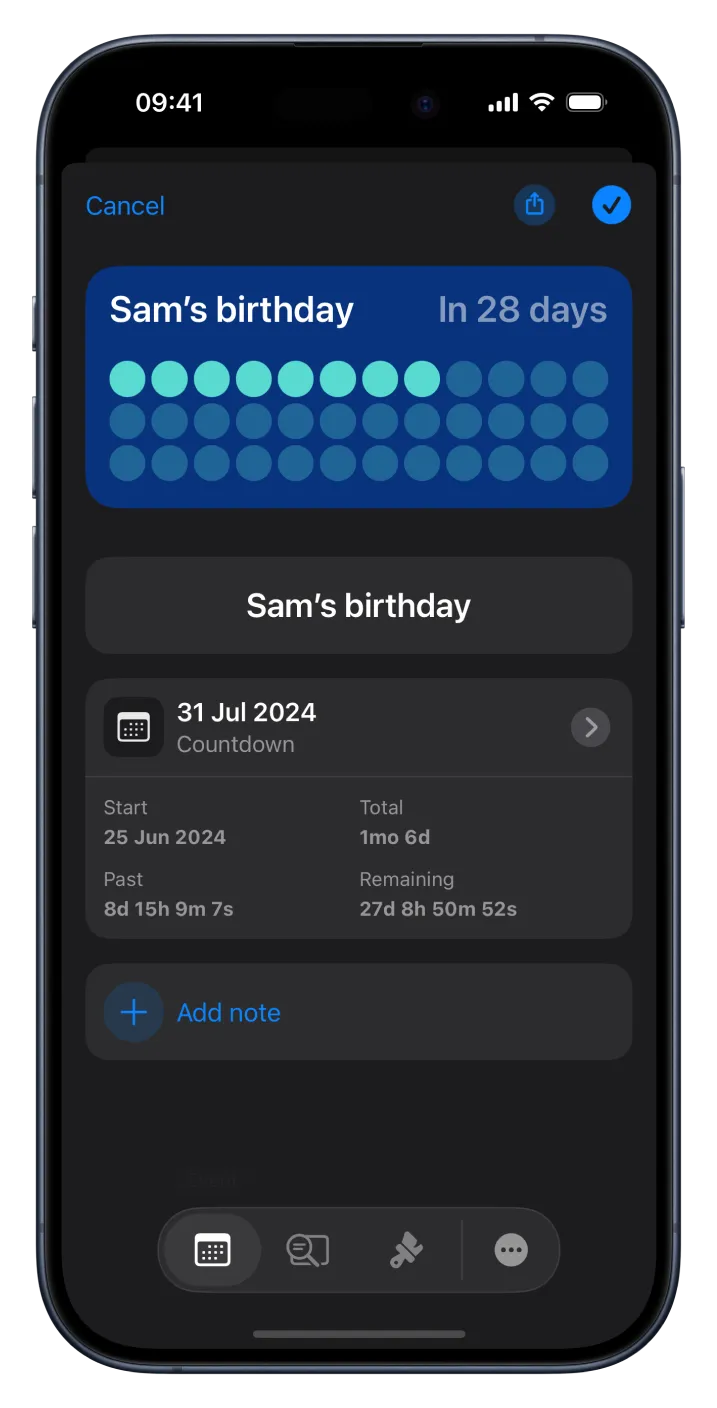
Tap the (+) button to create a new countdown. You can also select and edit an existing countdown or duplicate one from the Library screen.
3
Tap the date selector and choose the type of progress you want to create: “Countdown”, “Count up”, or “Timer”.
4
Select the starting date. The default starting date is the date when you create the countdown.
5
For a countdown, enter the final date or deadline. A count up can be created without an end date. For a timer, select how much time you want to count.
6
Optionally choose whether the countdown or timer repeats, set its frequency, and add personal notes.
7
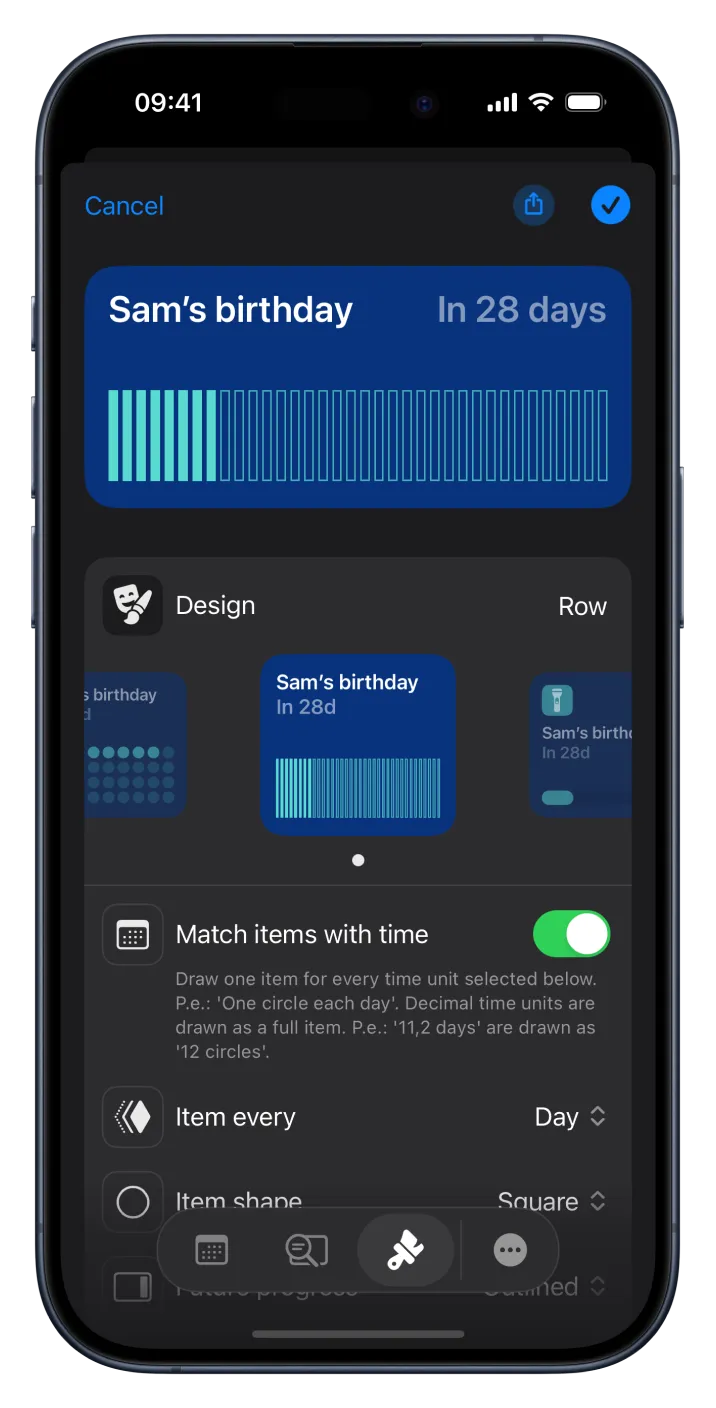
In the second tab of the bottom menu, choose how time is displayed: a single unit, several units, or a percentage.
8
You can also choose whether to show an accessory indicator to make the passage of time easier to understand.
9
In the third tab, personalize the countdown using the available designs. Each design has different customization options.
10
When you are happy with the result, tap the checkmark button to save the event.
11
Your countdown will appear on the Pretty Progress Home Screen with your other countdowns.
STEP 2
Add your countdown widget to your iPhone Lock Screen
1
Lock your iPhone and tap the screen to wake it.
2
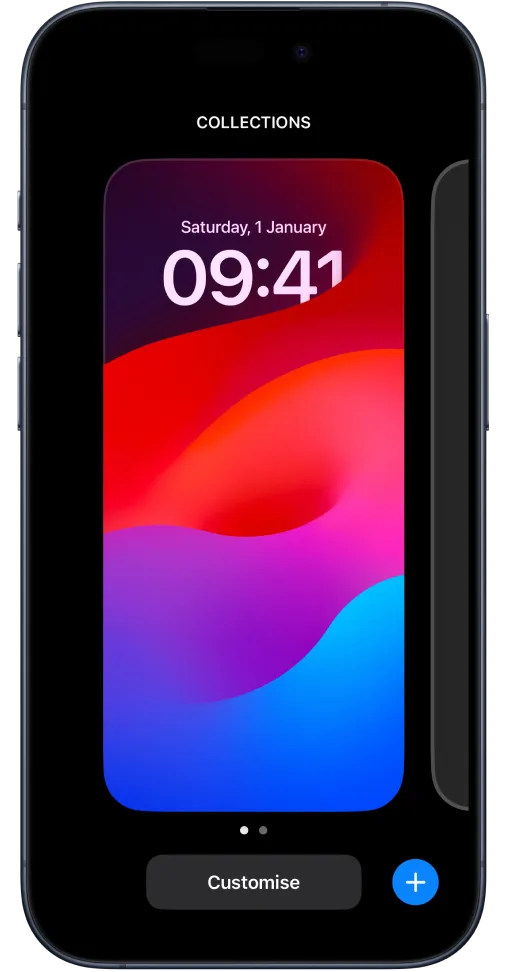
Touch and hold the Lock Screen until the customization gallery opens.
3
Tap “Customize” at the bottom of the screen.
4
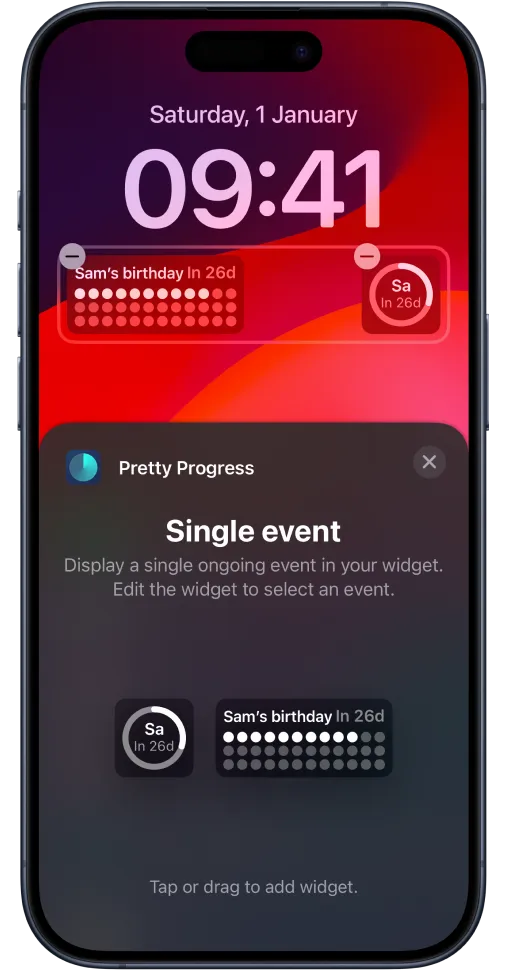
Tap the “Add Widgets” area to open the list of available apps and widgets.
5
Find Pretty Progress in the list and tap the app name.
6
Choose a countdown widget size and tap it. The widget will appear in the widget area.
7
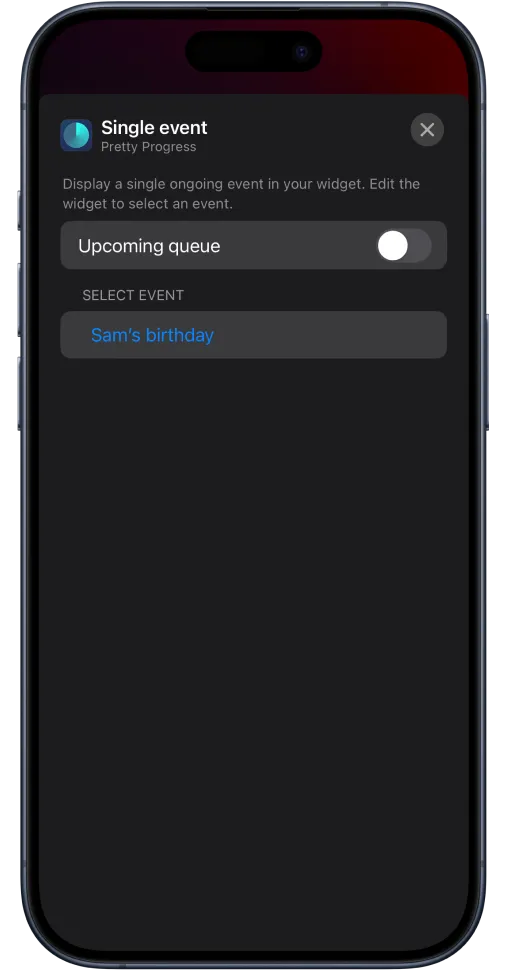
The nearest event appears by default. Tap the widget and choose another event if needed.
8
You can rearrange Lock Screen widgets while the phone remains in customization mode.
9
Tap “Done” when you finish.
Download today for free
Track important moments with beautiful countdown and progress bar widgets.




