

August 13, 2026
Time Blocking for Productivity: A Practical Setup Guide
Learn time blocking for productivity with a step-by-step setup, weekly templates, ADHD-friendly adaptations, and tips to measure and improve your schedule.
You’re in the middle of a workday that’s already gone sideways. Slack keeps lighting up, a draft is half-finished, two meetings just ate the morning, and the deadline you meant to protect is now staring at you from the corner of the calendar like it owns the place.
That’s exactly where time blocking for productivity earns its keep. It’s not a neat little planning trick for people with peaceful calendars, it’s a way to pre-commit attention so your day stops getting decided by whatever pings last. In a 2023 study of 1,000 knowledge workers, people using time blocking finished 2.8 times more high-priority tasks per week, reported 34% lower end-of-day stress, and had 60% fewer missed deadlines on multi-week projects, compared with list-only workers (study summary).
The point isn’t to make your schedule rigid. The point is to make your work startable.
Table of Contents
- What Time Blocking Is and Why It Works
- Setting Up Your First Time Block System
- Sample Daily and Weekly Block Templates
- Common Challenges and How to Fix Them
- ADHD-Friendly Adaptations and Visual Cues
- Measuring Progress and Iterating Weekly
- Your First Week With Time Blocking
What Time Blocking Is and Why It Works
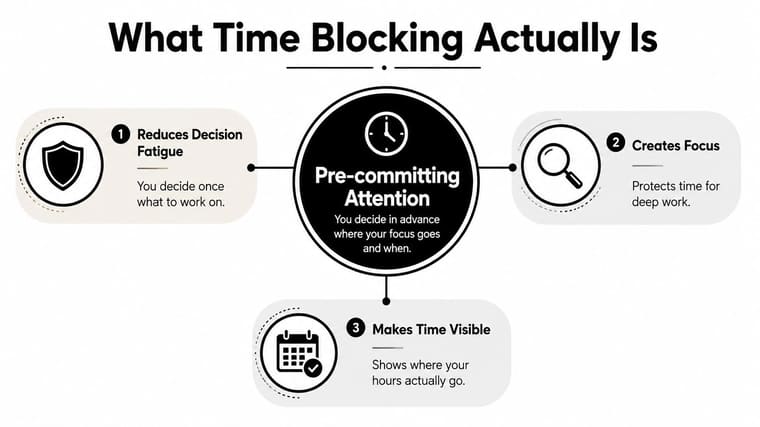
Time blocking is simple in practice and ruthless in effect. You take a task, decide when it will happen, and put it on the calendar before the day starts drifting away from you. That is different from a to-do list, which tells you what matters but leaves the when vague enough for procrastination to win.
The key shift is from intention to commitment
People think they need more discipline. They do not. They need fewer open decisions.
A calendar block turns “I should do this today” into a visible appointment with your own work. That changes behavior fast. When you can see the block, you are less likely to negotiate with yourself every ten minutes, and the result is less decision fatigue, less task shuffling, and more actual output. A 2024 time-management survey found time blocking was the most popular specialist system, used by 5% of respondents, while only 1% used the Eisenhower Matrix directly, even though 92% used at least part of that system (time management statistics). People want something concrete enough to survive a messy day.
Practical rule: if a task keeps getting delayed, it does not belong on a floating list. It belongs on the calendar with a start time.
That is also why time blocking works better than abstract priority frameworks for many people. The calendar makes work visible, which is the whole point when the day is crowded, the meeting pattern changes, and deadlines are scattered across tools. If you need a partner resource for that kind of setup, calendar alignment for leaders fits the job, especially when the core problem is keeping priorities visible instead of merely planned (calendar alignment for leaders).
Pretty Progress widgets fit into the same logic. They keep deadlines visible inside the workday without adding more mental clutter, so your plan stays in view even when the calendar gets messy.
Setting Up Your First Time Block System
Open your calendar and look at what happened last week. That is the right starting point. A time block system that survives a messy real calendar has to reflect interruptions, shifting meetings, and the work that always takes longer than you hoped.
Build defaults from real durations
Pick one normal workday and track how long recurring tasks really take. Email, admin, writing, review, meeting prep, and follow-up all have patterns. Once you see those patterns, set default block sizes that match the work instead of forcing everything into the same neat box.
A good starting point for deep work is a 60 to 90 minute block, because it gives you enough runway to make progress without turning the calendar into a cage. Then leave the day partly open. Filling only 60 to 75% of the day keeps the system usable when a meeting shifts or an urgent request lands out of nowhere. A calendar that looks “full” usually breaks by lunch.
Use a pre-block checklist before each focused slot. Close unrelated tabs. Set a timer. Write down the expected finish time. That small ritual cuts friction because starting becomes mechanical instead of emotional.
If you want a system that holds up when your attention gets pulled in different directions, the useful frame is executive function improvement strategies, since the problem is usually follow-through, not effort (executive function improvement strategies).
Pretty Progress widgets fit here too. Put deadlines in view without adding more mental clutter, so the plan stays visible while the day keeps changing.
Set the block before the mood. Mood is unreliable. The calendar is the part that still works at 2:47 p.m.
Start with a few blocks that match real work, not an idealized version of it. Give each block a clear job, leave slack for the unexpected, and make the next action obvious when one block ends.
Sample Daily and Weekly Block Templates
A good template doesn’t look perfect. It looks believable. If you’ve got a knowledge-work job, your blocks need to survive meetings, email, interruptions, and the weird dead zones that happen after lunch when everyone pretends to be available but nobody wants to make a decision.
A Monday that actually fits a real calendar
| Time | Block Type | Example Task | Why It Works |
|---|---|---|---|
| 8:30 to 10:00 | Deep work | Draft the client proposal | The day starts with the hardest thinking, before email starts pulling attention away |
| 10:00 to 10:30 | Admin batch | Send replies, file notes, check task list | Small admin work stays contained instead of leaking across the day |
| 10:30 to 12:00 | Meeting cluster | Team stand-up, project review | Meetings are grouped so they don’t fragment the whole afternoon |
| 12:00 to 1:00 | Lunch and reset | Leave the desk, no screen | A clean break keeps the second half of the day usable |
| 1:00 to 2:30 | Focus block | Edit the draft or build the deck | The work gets a fresh slot instead of competing with the morning |
| 2:30 to 3:00 | Transition | Review notes, update next actions | This protects the next block from carrying unfinished clutter |
| 3:00 to 4:00 | Email batch | Inbox cleanup, follow-ups | Email gets its own container, not your entire afternoon |
| 4:00 to 4:30 | Shutdown ritual | Set tomorrow’s top block, close loops | You end with clarity instead of carrying the day home |
For a more granular look at break timing inside these blocks, the work break timer resource is a useful companion if you want the pause itself to become visible.
A weekly layout that keeps hard thinking in the right places
Monday and Tuesday should carry your heaviest thinking if those are your sharpest days. Put writing, planning, analysis, or strategy there. Push repetitive admin and routine follow-up to the lower-energy parts of the week, because that’s the work that survives when attention is thinner.
A common mistake is treating every day like it should support every type of task equally. It doesn’t. A weekly template should distribute the mental load, not pretend you’re the same person at 8 a.m. on Monday and 4 p.m. on Friday.
Common Challenges and How to Fix Them
The method fails when you pretend the calendar is clean. Real work is messy, interruptions happen, meetings spill, and overcommitment shows up fast. Build for that reality or the system breaks by midweek.
Three problems show up fast
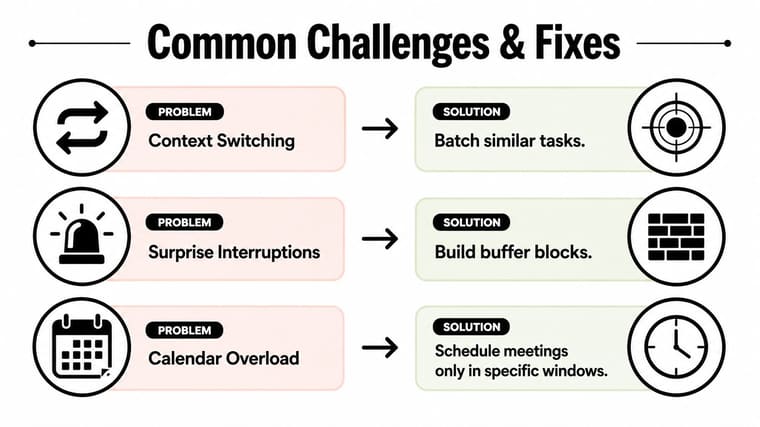
Context switching is the first killer. You jump from writing to Slack to email to a meeting, and every switch taxes attention. The fix is task batching, which means grouping similar work into one block so your brain stops paying the switching cost over and over.
Surprise interruptions are the second. A manager pings, a client needs something, a meeting runs long. The fix is flex blocks, not the vague advice to “add more buffer.” Flex blocks are intentional open spaces in the week, and they absorb disruption without forcing you to rewrite the entire day.
Calendar overload is the third, and it wrecks people fast. If your schedule is already packed with meetings, stop trying to wedge deep work between every call. Cluster meetings into specific windows so the rest of the day stays usable.
A practical calibration rule I’ve seen is simple. Start with a short trial, then compare how many minutes spill past the block against how many minutes you scheduled. If that overrun ratio keeps climbing past 10%, your default blocks are too tight and need to grow. Keep using that adjustment loop until the schedule reflects how long the work actually takes.
Don’t blame yourself first. Check the calendar design first.
The better fix is usually structural. Put meetings in clusters, protect a few flex blocks, and review the week before the schedule hardens into chaos. That is the version of time blocking that survives a real job and a real calendar.
ADHD-Friendly Adaptations and Visual Cues
Time blocking helps with planning, but planning is only half the battle. For people with attention and energy regulation challenges, including ADHD, the harder part is follow-through. That’s where visual cues and low-friction reminders matter more than willpower.
Make the next block impossible to forget
Task batching helps because it reduces the number of transitions your brain has to manage. Energy-aware planning helps because not every hour has the same cognitive budget. But the upgrade is making the current block visible without opening a calendar app.
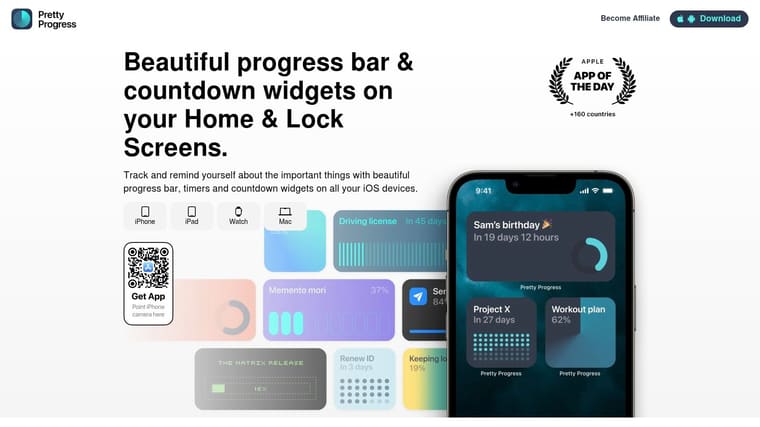
That’s where Pretty Progress fits naturally as one option. It creates countdown and progress widgets for Home Screen, Lock Screen, Apple Watch, and Mac, so the block you’re in stays visible while you work. If you use a timer-style widget for a focus session, you don’t have to keep checking your calendar to remember what happens next. You just glance.
The design part matters too. A Swiss Style widget is clean when you want almost no visual noise. Minimal keeps the display blunt and practical. Aqua adds enough color to make the cue stand out without turning your screen into a distraction magnet.
A useful companion for this setup is the internal guide on visual reminders for ADHD, because the point isn’t just to remind yourself. It’s to reduce the number of times you need to remember.
External cues work better than extra effort
If you’re trying to push through procrastination patterns, the issue is often not laziness. It’s task initiation. A practical ADHD task-management guide like ADHD task management help can help you think about the transition from intention to movement in a more realistic way.
The strongest setup is the one that repeats the same cue in more than one place. Home Screen, Lock Screen, and watch glance together do more than a motivational burst ever will. Time blocking becomes sustainable when the reminder lives outside your head.
Measuring Progress and Iterating Weekly
If you never review the system, you’ll end up defending a broken schedule because it feels organized. That’s nonsense. A weekly review is where time blocking stops being a concept and starts behaving like a system.
Track only the numbers that matter
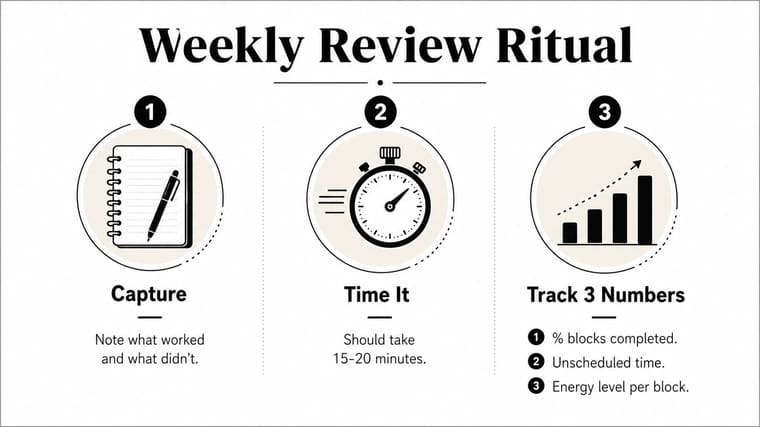
The review doesn’t need to be long. Fifteen minutes is enough if you’re honest. Capture what worked, note what didn’t, and then look at three things only, completion rate for high-priority tasks, overrun ratio, and missed deadlines.
Those three numbers tell you almost everything you need. If completion is up and deadlines are being met, your blocks are probably sized well. If the overrun ratio keeps creeping up, your blocks are too optimistic. If deadlines are slipping even when the calendar looks full, you’ve built a schedule that is busy but not effective.
The weekly ritual should be boring on purpose. You’re not trying to reinvent your whole life every Sunday. You’re adjusting block sizes, moving recurring meetings, and deciding which task categories deserve more protection next week.
When automation helps, use it. If the calendar is doing too much manual lifting, or if rescheduling keeps becoming its own job, then AI-assisted scheduling or a simpler template is a better move than trying to become more disciplined. Discipline is useful. A brittle system still breaks.
Review the system, not your character.
That’s the job here. Get the calendar to tell the truth, then use next week’s blocks to answer it better.
Your First Week With Time Blocking
Don’t try to master the whole method in seven days. Protect two blocks, install one visual cue, and run one Sunday review. That’s enough to start changing how the week feels.
Use the how to plan your week guide if you want a cleaner weekly reset, but keep the first week small. The two habits that matter most are protecting one deep work block each day and reviewing the calendar once a week. Everything else is support.
Here’s the short version.
- Protect two blocks: pick the work that keeps getting delayed and give it a fixed home.
- Add one visual cue: use a widget, timer, or lock-screen reminder so the current block stays visible.
- Review once: check what overran, what got completed, and what needs a bigger or smaller block.
Success in week one doesn’t look perfect. It looks like fewer decisions, fewer surprises, and a calendar that reflects reality a little more clearly. Start smaller than feels comfortable. The people who keep time blocking are the ones who leave room for the day to breathe.
If you want a cleaner way to keep deadlines visible without adding more mental clutter, try Pretty Progress. It turns time blocks, countdowns, and milestones into glanceable widgets on your devices, so the plan stays in view while you work. Use it to keep your current block visible, and let the calendar do less talking.





