

October 18, 2026
Days Till November 1: A Simple Countdown Guide
Track days till November 1 with a clear countdown guide, widget setup tips, and Pretty Progress styling ideas for always-on reminders.
The exact number of days till November 1 changes daily; once November 1 arrives, there are 60 days left in the year. Put the countdown on your screen so you can check it without doing the math again.
Why look up a deadline repeatedly when you could keep a reminder beside the apps you already open? A useful countdown doesn’t just answer a date question. It tells you what you’re working toward, stays visible, and uses a counting convention you understand.
Table of Contents
- Why the Countdown Changes Every Day
- What November 1 Actually Marks
- Setting Up Your Pretty Progress Widget
- Picking a Theme and Style That Fits Your Reason
- Layering Widgets So the Date Stays Visible
- Avoiding Off-by-One and Timezone Surprises
- Quick-Start Checklist and Reusing the Setup
Why the Countdown Changes Every Day
A search result gives you a snapshot. A countdown widget gives you a number tied to your selected date and local calendar. Choose the target year first, because November 1 this year and the next occurrence of November 1 aren’t always the same target.
Think of a date-only countdown as counting calendar boundaries between today and your destination. When your local calendar moves to tomorrow, the displayed distance should change accordingly. Someone viewing the same target from another time zone may already be on a different calendar date.
Set the destination before choosing the display
Start with the upcoming November 1 if you’re planning an event that hasn’t happened yet. If you’re tracking a specific exam, campaign, or anniversary, use its intended year rather than accepting a default.
Then decide what you need to see:
- Days remaining suits preparation, studying, and long-running projects.
- A progress bar suits a goal with a meaningful start date.
- Exact time remaining suits a scheduled event with a definite start time.
Practical rule: Use days unless the hour would change what you do next.
November 1 is the 305th day of a standard year and the 306th in a leap year, with the same year-end remainder mentioned above, according to the calendar entry for November 1. That makes it a useful checkpoint for unfinished annual goals, not just holiday planning.
Don’t save a screenshot of today’s answer and expect it to stay useful. Give the countdown a permanent place on your screen, with a label that explains why the date matters.
What November 1 Actually Marks
Name the occasion, not just the date. A widget labeled “November” makes you remember the context each time you glance at it. “Race day” or “Family remembrance” gives you that context immediately.
The date combines religious observances, national anniversaries, and personal plans. This map offers a broad overview; choose the branch that matches your reason.
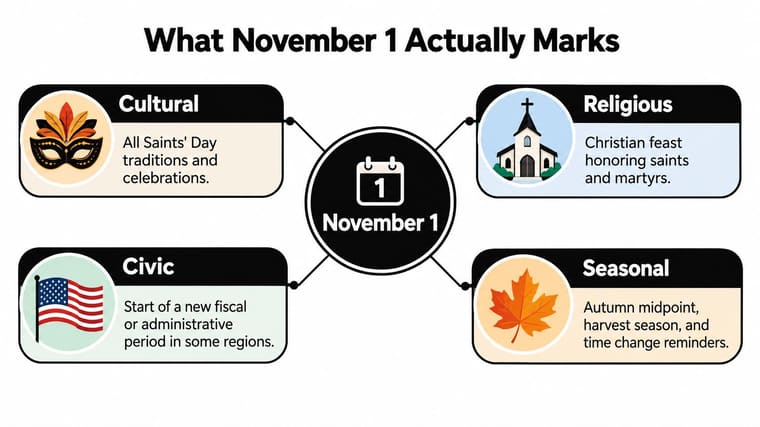
Match the label to the occasion
All Saints’ Day honors known and unknown saints and is a public holiday in more than 30 countries. November 1 also begins Day of the Dead observances in Mexico and parts of Latin America; Antigua and Barbuda’s independence in 1981 and Algeria’s independence milestone in 1954 fall on the date too, as recorded in the November 1 observances and historical chronology.
The November 2026 holiday calendar identifies World Vegan Day, the opening of Native American Heritage Month in the United States, and the scheduled New York City Marathon on November 1, 2026. It also lists 440 November observances across more than 230 countries and 3,300 locations, a good reason not to treat a date alone as an event description.
For a religious observance, choose a respectful label and restrained design. For a race, use the event name and confirm the organizer’s start time before adding an hourly timer. For a personal deadline, describe the action: “Submit application” beats “Important date.”
If your countdown leads to a birthday gathering, plan the practical details alongside it. EventUploader’s option to collect party photos from guests is a separate resource for organizing memories after everyone arrives.
Your widget should tell you what you’re preparing for, not make you decode a calendar entry.
Setting Up Your Pretty Progress Widget
Pretty Progress is one option for customizable countdown and progress widgets; a calendar reminder or another countdown app may suit you if you only need a basic date alert. For a persistent visual reminder, start with the countdown itself and leave decorative adjustments until it works.
Use the screenshot to orient yourself before editing.
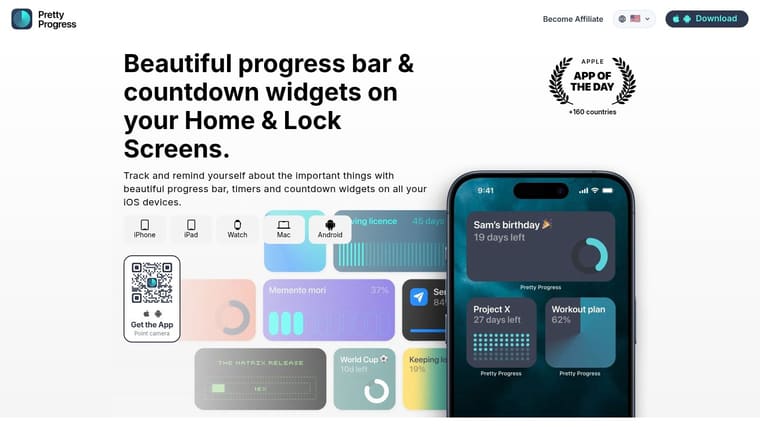
Configure the date before the design
Download the app, create a countdown, and open its design editor. Set the end date to November 1 of the current year if that’s your intended milestone, then select days as the display unit.
- Give it a useful name. Use the occasion or action you selected.
- Choose the finish boundary. Decide whether you’re waiting for the day to begin or tracking through the occasion.
- Set a meaningful start date. If you want a progress bar, use the beginning of your preparation period.
- Add it to your screen. Choose a supported Home or Lock Screen placement and select the countdown you created.
For date storage and exchange, ISO 8601’s YYYY-MM-DD format avoids ambiguous date strings; reliable calendar calculations must also define their endpoint rules, as explained in this date-difference and counting-convention guide. You don’t need to manage the app’s internal storage, but you should check the displayed month, day, and year.
This walkthrough provides a visual companion to the setup.
Use the Home Screen timer guide for placement help. PRO adds deeper styling controls, but it isn’t required for a working countdown.
For a celebration involving gifts, EasyRegistry’s registry planning tools can support the planning separately. Keep the widget focused on the deadline rather than turning it into a task list.
Once configured, the countdown updates as time passes. You shouldn’t need to reopen the editor just to change the remaining-day number.
Picking a Theme and Style That Fits Your Reason
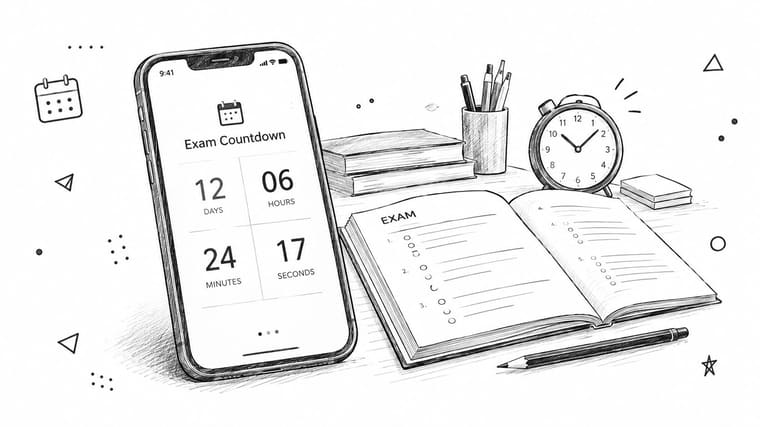
An exam countdown shouldn’t compete with your wallpaper. A celebration countdown can afford more personality. Choose for readability first, mood second.
This study setup illustrates the kind of context where a quiet, legible widget makes sense.
| Your reason | Theme to try | Adjustment I’d make |
|---|---|---|
| Exam or work deadline | Swiss Style or Minimal | Keep the number prominent and the palette restrained |
| Fitness or habit milestone | Aqua | Use a clear bar shape and a recognizable activity icon |
| Nostalgic personal goal | Retro OS | Keep the playful style, but shorten the label |
| Race or family celebration | Gradient-heavy design | Choose distinct text and background colors |
For work and exams, remove anything that distracts from the remaining time. A simple bar and a short label are usually more useful than a decorative icon that squeezes the text. Check the design against your actual wallpaper, not just the editor’s preview.
Make the widget readable where it lives
For fitness or habit goals, a softer palette can make the reminder feel less like an overdue assignment. Use an icon that matches the activity, but don’t rely on the icon alone to explain the target.
For personal milestones, Retro OS can add character without requiring a complicated layout. Celebrations are a reasonable place for gradients, provided the countdown stays easy to read.
Design check: Glance at the screen from your normal viewing distance. If you have to lean closer, simplify it.
The widget design guide is useful when you want to refine colors, layout, or bar styling. Change the setting that fixes the problem rather than adjusting everything at once.
Don’t spend your planning energy auditioning every theme. Pick a readable design, put it on your screen, and return to the goal it represents.
Layering Widgets So the Date Stays Visible
I’d rather place a reminder where I’ll see it than add another notification I’ll dismiss. Use complementary placements, with each showing only the detail that suits its location.
This layout illustrates a phone-and-watch approach.
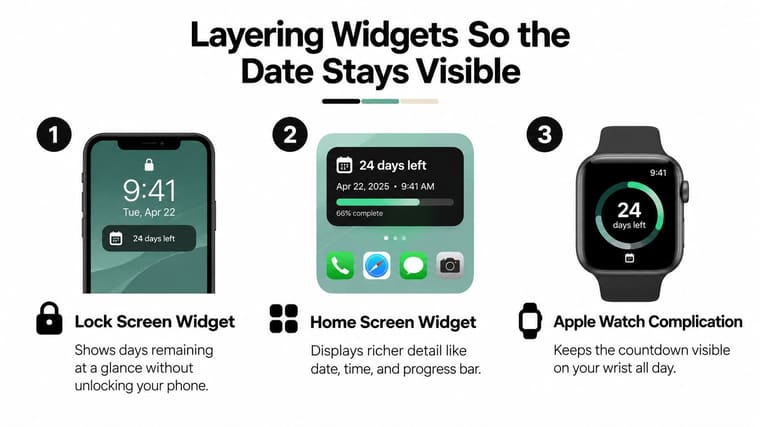
Give each surface a job
- Lock Screen should prioritize the remaining days. It’s the quick check, not the place for a lengthy event description.
- Home Screen can carry the occasion name and progress bar. Put it near apps you use, not on a page you rarely visit.
- Apple Watch or Mac can provide another glanceable placement where supported. Choose your wrist for an active routine or your desktop for study and work.
Use a compact widget alongside a larger one if the layout remains comfortable. If you use a widget stack, keep compatible sizes within the stack and make sure the countdown isn’t hidden behind something you check more often.
For Android, follow the same placement logic using the widget options your device supports. Don’t assume every phone offers identical Lock Screen controls.
The point isn’t to copy the same busy design everywhere. A small display should answer “How much time remains?” while a larger display can also show what you’re approaching.
Review the layout during an ordinary day. If you never notice the reminder, move it closer to your usual app-opening path. If it distracts you whenever you open your phone, reduce its visual weight rather than deleting it.
Avoiding Off-by-One and Timezone Surprises
A countdown can look wrong even when it follows its chosen rules. Check the counting convention before changing the date.
Exclusive counting measures the calendar distance to the target. Inclusive counting treats both today and the target date as counted days, so its displayed total is higher. Neither convention helps if the widget’s label leaves you guessing which it uses.
Separate calendar days from elapsed hours
A date-only reminder and an exact-duration timer answer different questions. For ordinary preparation, use calendar days; for a scheduled start, select the event’s time zone and a definite target time.
In U.S. locations observing daylight saving time, clocks move from 2:00 a.m. back to 1:00 a.m. on the first Sunday of November; in 2026, that transition is scheduled for November 1, according to NIST’s daylight saving time guidance. That repeated hour matters to an hourly timer spanning the transition, but not to the identity of the calendar date.
The Sunday target also matters if you need business days rather than calendar days. Select the relevant jurisdiction’s weekends and holidays instead of treating every remaining date as a working day.
Don’t change a deadline to compensate for a display setting you haven’t checked.
Check the widget the morning after an expected date rollover. If something looks off, inspect:
- Time zone for a mismatch between your location and the event.
- Endpoint setting for inclusive counting or a through-the-day finish.
- Selected dates for an unintended year or start date.
The October countdown guide offers a related date-countdown reference. Keep the same counting convention when you reuse your setup so comparisons remain understandable.
Quick-Start Checklist and Reusing the Setup
Finish the practical setup before polishing it. Your countdown should be understandable, visible, and attached to the right milestone.
- Confirm the reason. Write a label that names the event or required action.
- Check the target. Verify the intended November date and year.
- Choose the theme. Favor readable text over decorative detail.
- Place the reminder. Use complementary screens without crowding your layout.
- Verify the display. Check the count and finish boundary before relying on it.
When the occasion passes, edit the existing countdown for your next exam, race, holiday, or project deadline. Keep the design that worked, but reconsider the label and start date rather than carrying them forward blindly.
Leave the widget somewhere you naturally glance. A carefully styled reminder on your last Home Screen page isn’t doing much for you.
Visit Pretty Progress to create a customizable countdown and progress widget for your November milestone. Set the target date, choose a readable theme, and add it to your screen so your next glance shows what you’re preparing for.





