

October 15, 2026
Days Until Oct 1: Live Calculator and Countdown Guide
Find out the exact days until Oct 1 with our live calculator. Learn how countdowns handle time zones, leap years, and whether today counts.
There are 14 days, 6 hours, 32 minutes, and 18 seconds until the next October 1 at 00:00 in your local time if this year’s October 1 is still ahead. If today is already October 1 where you are, that target becomes next year’s October 1 instead.
A countdown like that looks simple, but it hides a few choices. Are you counting to midnight in your own time zone, to the start of a workday, or to a specific event time? Are you counting the current day as included or excluded? Those small decisions can change the answer, which is why a good October 1 countdown is really a lesson in date math, time zones, and clear definitions.
Table of Contents
- The Countdown Right Now
- How the Countdown Is Calculated
- Why the Same Date Means Different Days in Different Places
- Inclusive vs Exclusive Counting
- Business Days, Weekends, and Local Holidays
- Turning the Countdown Into a Pretty Progress Widget
- Quick Checklist to Verify Any Countdown
The Countdown Right Now
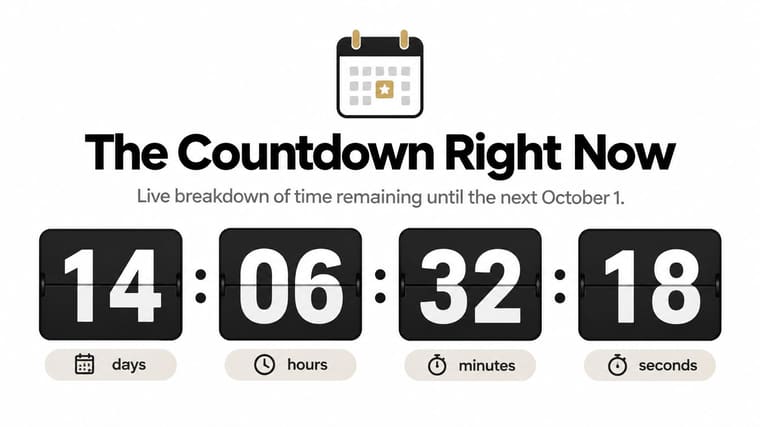
The live number people search for is usually just “how long until October 1,” but the honest answer is a clock, not a fixed fact. A reliable countdown updates as the time changes, and it should clearly point to the next October 1 at local midnight so there’s no confusion about which date is being measured.
That date is more meaningful than it first looks. October 1 is the 274th day of a standard 365-day year, and there are 91 days after it. In a leap year, it becomes the 275th day, but the number of days after it is still 91 because the leap day appears earlier in the year. That calendar position makes October 1 a useful progress marker, especially when you want a quick sense of how much of the year has already passed.
If you’re checking a tool like the Pretty Progress date countdown calculator, the useful part isn’t just the number. It’s whether the tool tells you what it’s counting toward, in which time zone, and whether the countdown is showing calendar days, hours, or both.
Practical rule: if a countdown doesn’t say which October 1 it means, it isn’t really complete yet.
How the Countdown Is Calculated
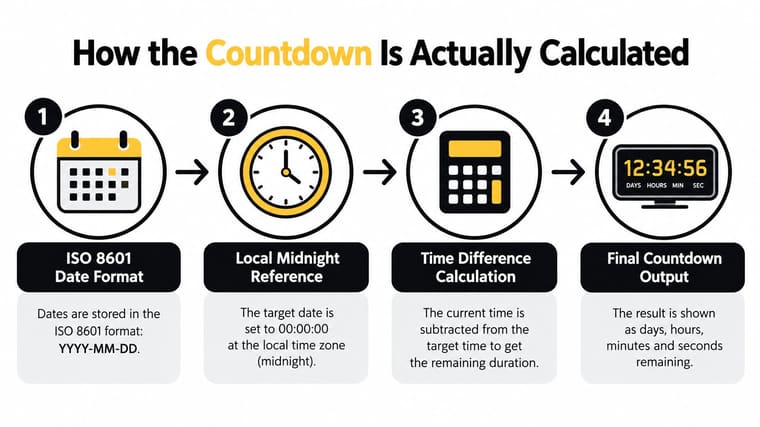
A clear countdown starts with one question: which October 1 are you counting toward? A date picker or calendar system should turn that answer into a single unambiguous date, such as 2026-10-01, instead of relying on a shorthand like 10/01 that can be read differently in different places. A reliable countdown should convert both dates into a common calendar-day scale and subtract them.
That subtraction is the core of the calculation. First, the current date is converted into a day index. October 1 is converted the same way. Then the countdown subtracts the current value from the target value to get the remaining calendar distance.
A recurring yearly countdown needs one extra choice. If October 1 has already passed, the target should be the next October 1 after today. The same next-occurrence logic applies to other repeating milestones, including counting down to retirement. That keeps the result tied to the next real event, not the one that has already gone by.
Month lengths are why this matters. September and October do not contain the same number of days, and leap years change the calendar structure again. A direct subtraction based on normalized dates avoids those traps and keeps the count consistent across month boundaries.
For a practical interface, a countdown timer for assessments uses the same idea. The display only works well when the target date is fixed, the day count is clear, and the result is labeled in a way that matches what the user expects.
Why the Same Date Means Different Days in Different Places
A countdown only works once you pin down where October 1 starts. October 1 at 00:00 in one city is not the same instant as October 1 at 00:00 in another, and that difference appears before daylight-saving changes enter the picture.
Time zones change the answer
New York, London, and Tokyo can all show “October 1” on the calendar, yet the moment that date begins arrives at different local times. A countdown built for one place can look wrong in another because the start of the day is tied to the local time zone, not just the date label. Near the International Date Line, local time can differ from UTC, so treating UTC midnight as if it were local midnight can produce the wrong result.
Daylight-saving time changes elapsed hours
A countdown that tracks hours, minutes, and seconds also has to separate calendar days from elapsed hours. NIST notes that local offsets can shift by an hour when daylight-saving time begins or ends, so a countdown from now to local midnight can span 23 or 25 elapsed hours across a transition even though the calendar difference is still one day. For a full walkthrough of shifting clocks, see our guide to the daylight-saving time adjustment. That’s why time-zone-aware countdowns need UTC-based instants for hours, minutes, and seconds.
If a countdown looks strange for part of the day, the clock may be right and the assumption may be wrong. That often happens when someone travels, changes time zones, or crosses midnight while the page is still open.
Inclusive vs Exclusive Counting
Two countdowns can disagree by one day and both be reasonable. The difference is usually whether the start day is counted.
Exclusive counting
Exclusive counting treats today as day 0. If October 1 is ten calendar days away, the countdown shows 10. This is the most common approach in timers because it measures what’s left after the current day is underway.
Inclusive counting
Inclusive counting treats today as day 1. If October 1 is ten days away by a wall calendar, an inclusive countdown may show 11 because it counts the current day as part of the total. That can feel more natural for school deadlines, trips, or events where people think in whole dates instead of elapsed time.
If two apps disagree by one day, check whether one of them is counting today and the other isn’t.
A simple rule helps here. If you want a countdown that feels like a clock, use exclusive counting. If you want something that reads more like a calendar plan, inclusive counting may feel better. The important part is consistency, because the same date can look “wrong” when the convention is just different.
Business Days, Weekends, and Local Holidays
A calendar countdown tells you how much time is left. It does not tell you how much of that time you can use.
October 1 sits inside different holiday patterns around the world. In China, it marks National Day, and places such as Hong Kong and Macau also observe public holidays around that date. China’s National Day begins a multi-day Golden Week period, and October 1 is also tied to public holidays in other countries and regions. A deadline near October 1 can therefore land beside weekends or holidays that do nothing for your preparation.
Calendar time vs working time
A useful question for a launch, visa filing, exam prep, or team deadline is often how many workdays remain. Calendar time and working time are not the same. A stretch that looks long on a page can leave only a few days for actual work once weekends and holidays are removed.
| Reader profile | Example window | Calendar days remaining | Working days remaining | Public holidays in window |
|---|---|---|---|---|
| Student planning an assignment | Sep 22 to Oct 1, 2026, in a normal school week | 9 | 7 | 1, if Oct 1 is a holiday there |
| Office team preparing a release | Same date window in a standard work schedule | 9 | 7 | 1, if the local market observes Oct 1 |
| Traveler organizing paperwork | Same date window in the relevant country | 9 | 7 | 1, if local rules treat Oct 1 as a holiday |
| Family planning a trip | Same date window with weekday planning time removed for weekends | 9 | 7 | 1, if the destination observes it |
That kind of table makes the point plainly. The date gap stays the same, but the useful time changes once non-working days enter the picture. A calendar number is still useful, though it is only the first layer.
Turning the Countdown Into a Pretty Progress Widget
A countdown becomes easier to trust when the target date is visible all day. I opened Pretty Progress, chose October 1 as the annual target, and set it to show the next October 1 in my time zone. Then I picked a theme, added the widget to the Home Screen, and checked that the year matched the October 1 I meant. That last check matters, because a countdown only works when the date is specific.
The setup also supports exact duration displays and custom excluded dates. That helps when October 1 is a deadline, a launch date, or the start of a holiday period, since the widget can stay on screen without another app open.

Once the widget is on the Home Screen, the countdown updates in place, so October 1 stays visible without reopening the app. That is the simple advantage here. A date you keep checking in a browser can turn into a reminder you can glance at on an iPhone, iPad, Apple Watch, Mac, or Android device.
If you want a reminder that stays visible instead of disappearing when a tab closes, this kind of widget fits the job well. It turns one date calculation into something you can keep seeing.
Quick Checklist to Verify Any Countdown
Before trusting a “days until October 1” result, check five things.
- Which year is it counting to? If the page doesn’t say the year, the answer may be ambiguous.
- Which time zone is used? A local midnight in one place isn’t the same instant everywhere.
- Is today counted? Inclusive and exclusive counting can differ by one day.
- Is daylight-saving time involved? If so, hours can shift even when the calendar day does not.
- Is it calendar time or working time? Weekends and holidays can shrink the useful window.
A countdown is only as clear as its assumptions.
When those details are visible, the number becomes useful instead of mysterious. When they’re hidden, even a correct answer can feel wrong.
If you want a countdown that stays clear about the year, the time zone, and the way it counts, visit Pretty Progress and set up an October 1 widget that keeps the date visible on your Home or Lock Screen. It’s a simple way to turn a one-time calculation into an always-on reminder you can glance at all day.





