

August 30, 2026
2 Days Till My Birthday: Build a Countdown Widget Fast
2 days till my birthday? Build a Pretty Progress countdown widget for iPhone, iPad, Apple Watch, Mac, or Android in minutes, plus easy theming tips.
You’re two days out, your birthday is suddenly all anyone can talk about, and the original “I’ll sort it later” plan has become a little uncomfortable. Dinner needs confirming, messages need scheduling, and your phone still shows nothing more useful than a calendar dot. A live countdown fixes that gap by turning the final stretch into something you can see, personalize, and act on.
Table of Contents
- Why Two Days Out Is the Sweet Spot for a Countdown
- Setting Up Your Birthday Countdown in Pretty Progress
- Adding the Widget Across Every Device
- Picking a Theme That Fits the Moment
- Small Customization Tweaks With Big Visual Impact
- Making the Final 48 Hours Count
Why Two Days Out Is the Sweet Spot for a Countdown
The final 48 hours feel different from the vague anticipation of a birthday next week. Cake plans become real, group chats pick up speed, and small decisions stop being optional. A static calendar reminder tells you the date. A live ticker tells you how close the moment is right now.
For a quick glanceable setup across Apple and Android surfaces, Pretty Progress lets you create a dated event, style it, and place the remaining time on your screens. The countdown updates live, so the number keeps shrinking during the day without a manual refresh. That matters when you’re checking your phone between errands, work, and birthday messages.
Make the countdown visible without creating noise
Put the widget somewhere you already look. On an iPhone, that might be the Lock Screen. On an Android phone, it might be the Home Screen beside your calendar and messages. On supported Apple surfaces, Lock Screen and Always-On Display placement can keep the countdown visible without requiring a full authentication.
Use Days Remaining as the main display during this window. “2 days,” then “1 day,” then the celebration message is easier to process than a crowded timer packed with every available unit.
The psychology supports that choice. In research reported by Harvard Business Review, people who counted down from 25 to 1 perceived the task as 20% shorter than people who counted up from 1 to 25. The actual duration didn’t change. The visible direction of the numbers changed how the wait felt.
Practical rule: Use the countdown to make the wait feel manageable, then attach one small action to each glance.
Pretty Progress also handles the date after it passes by switching to a celebration message, so you won’t need to delete the event or clean up the widget after the birthday. The setup path is pleasantly short: choose the event, add the widget, pick a look, and let it run.
Setting Up Your Birthday Countdown in Pretty Progress
You can get from “2 days till my birthday” to a working widget in a couple of minutes if you enter the dates carefully. The important detail is setting the event window correctly, because the app needs a start date and an end date to calculate the remaining progress.
Follow this setup path
-
Download the app: Install Pretty Progress from the App Store or Google Play. If the app asks for notification access, allow it so scheduled birthday prompts can arrive on time.
-
Create the event: Tap the plus icon, open the event presets, and choose Birthday. Give the event a clear name, such as “My Birthday” or “Maya’s Birthday,” so you’ll recognize it if you create other countdowns later.
-
Enter the dates: Set the start date to today and the end date to your birthday. Turn on Show remaining days and Days elapsed if you want a little more context than a single number.
-
Choose the main metric: Select Days Remaining as the primary metric. That keeps the display immediately readable during the final two days, especially on a compact Lock Screen widget.
-
Schedule useful alerts: Enable notifications and choose a morning alert plus an evening nudge. Keep the message tied to an action, such as confirming dinner or sending a reminder to someone joining the celebration.
-
Save and place it: Save the event, return to your device’s Home Screen, and add the Pretty Progress widget from the widget gallery.
If you want a broader walkthrough of the app’s countdown features before setting up the birthday event, use this simple countdown app guide.
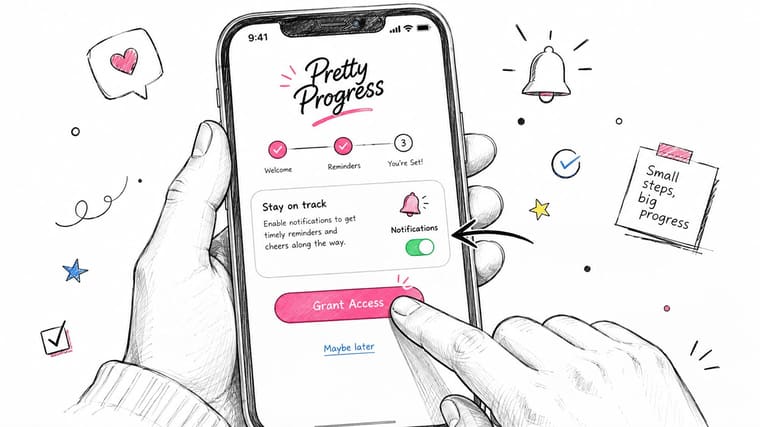
Check the final date twice before saving. A countdown that reaches the celebration message on the wrong day is technically working, but emotionally useless.
Adding the Widget Across Every Device
A countdown only earns its place when it appears where you naturally check. Don’t bury it inside an app you rarely open. Put it on the surface that already handles your daily glances.
iPhone Home Screen
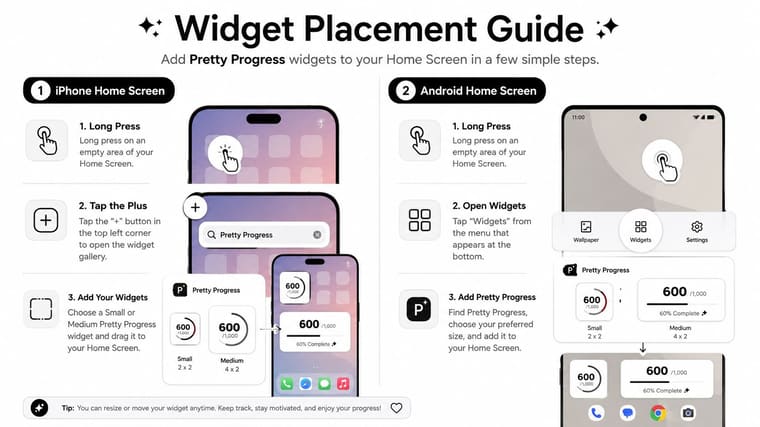
Long-press an empty area on the Home Screen until the icons move. Tap the plus icon, search for Pretty Progress, choose the small or medium widget, and place it where your eyes land first, ideally above the dock or beside your calendar.
Choose the small widget if you want the number to stay quiet. Choose medium if the event name, progress bar, and remaining count need room to breathe. The medium format is also easier to read when your phone is on a desk rather than in your hand.
iPhone Lock Screen
Long-press the Lock Screen, tap Customize, choose the Lock Screen, and tap the widget zone beneath the time. Select the Pretty Progress complication and save the layout.
This is my preferred placement for the final two days. You see the countdown before opening messages, so the number becomes part of your normal morning glance instead of another notification competing for attention.
For more ideas on balancing utility and style, browse this guide to Home Screen timer widgets.
iPad
Add the medium widget to the Home Screen or sidebar, depending on how you use your iPad. A sidebar placement works well if the tablet is your planning device, because the birthday countdown can sit beside notes, messages, or a dinner plan without taking over the screen.
Apple Watch
Open the Watch app on your iPhone, choose a watch face that supports complications, and add Pretty Progress to an available slot. A Modular face gives the countdown enough room to act as a wrist-sized ticker, while a smaller slot works if you want the event to remain understated.
The Watch placement is useful when your phone is charging or tucked away. A quick wrist glance can remind you to confirm the booking or send the message you promised.
Mac
Open the macOS widget gallery and add Pretty Progress to the desktop or Notification Center. Put it near your calendar or task widgets, not in a hidden corner. A birthday countdown works best when it appears alongside the planning context that turns anticipation into action.
Android Home Screen
Long-press an empty area on the Home Screen, choose Widgets, find Pretty Progress, then drag the widget onto the grid. Resize it until the number and event name remain clear without crowding your app icons.
Android Lock Screen support varies by device maker, so test the placement on your specific Pixel or Samsung setup rather than assuming every phone exposes the same widget options. If the Lock Screen doesn’t cooperate, the Home Screen is still a strong fallback, especially when you place it beside your calendar or messaging app.
Watch the placement demonstration after adding the first widget, then adjust its size based on readability. The goal isn’t to fill every surface. It’s to create one reliable glance point and, if useful, one secondary reminder on another device.
Picking a Theme That Fits the Moment
A birthday countdown shouldn’t look like an unrelated project deadline. Pretty Progress includes Swiss Style, Minimal, Aqua, and Retro OS, and each theme suits a different device surface and personality.
| Theme | Best Surface | Mood | Best For |
|---|---|---|---|
| Swiss Style | iPhone Lock Screen | Crisp, graphic, celebratory | Minimal layouts that still want color |
| Minimal | Apple Watch or compact widget | Quiet and focused | Letting the number dominate |
| Aqua | iPhone Home Screen or iPad | Glossy and energetic | Matching photos, colorful icons, and personal flair |
| Retro OS | Android Home Screen or Mac | Playful and nostalgic | Gamers, pixel fans, and throwback setups |
Swiss Style is the safest choice when you want personality without visual clutter. Its black, white, and red geometry reads cleanly on a Lock Screen and still feels birthday-appropriate.
Minimal goes further by stripping the design back. Pick it when the remaining number is the whole point, especially on an Apple Watch or a small widget surrounded by busy app icons.
Aqua brings translucent gradients and brighter color, so it belongs on a personal Home Screen where a little visual energy won’t distract you. It pairs naturally with photos and colorful app stacks.
Retro OS is the fun option. Pixel-style type and chunky progress bars make the countdown feel like a tiny game, which is ideal if the birthday person enjoys gaming or nostalgia.
If the birthday includes gift planning, a themed widget can sit beside a practical birthday registry with EasyRegistry, giving guests one clear place to coordinate ideas instead of sending scattered messages. For more iPhone-specific styling, see these iPhone aesthetic widget ideas.
My recommendation is simple: choose Swiss Style for shared or work-adjacent screens, Minimal for quiet utility, Aqua for personal flair, and Retro OS when the design should start a conversation.
Small Customization Tweaks With Big Visual Impact
Heavy customization can make a countdown harder to read. In the final two days, the widget needs to communicate instantly, so make one or two deliberate changes rather than turning it into a design experiment.
Start with the bar size. Choose Thin when the widget sits between dense app icons or inside a compact Lock Screen layout. Leave it at Standard on a sparse Home Screen, where the progress bar can give the countdown a little ceremony, almost like unwrapping a present visually.
Keep the color system disciplined
Pick one accent color that matches the birthday mood. Cherry red feels classic and energetic. Cobalt blue looks sharper and cooler. Warm gold adds a celebratory touch without relying on a loud rainbow palette.
If your selected theme supports gradients, use two shades from the same color family. A pale blue fading into cobalt feels intentional. Blue fading into red, green, and gold at once usually turns the widget into noise.
The icon is the easiest festive upgrade. Swap in a present, balloon, or cake-style glyph so the event has a recognizable entry point at a tap. You don’t need a long label explaining what the widget does. The event name, date, and remaining number already provide the context.
Design rule: If the countdown takes longer to understand than the birthday plans, remove a decoration.
For a clean two-day setup, I’d use Swiss Style with a red accent, Minimal with warm gold, Aqua with a restrained blue gradient, or Retro OS with its default pixel personality. Make the widget feel like the birthday, but keep “2 days” readable at a glance.
Making the Final 48 Hours Count
The widget should change what you do, not just decorate your screen. Schedule one alert for the day before and another for the morning of the birthday, then attach a specific task to each one. Confirm dinner, buy the gift, charge the phone for photos, or send the message you’ve been postponing.
Reminder timing matters. A randomized field study on self-set goal reminders found that prompts delivered during a regular working period increased a productivity index by 0.08 standard deviations, while late reminders had no effect, as reported in the University of Chicago Becker Friedman Institute working paper. The practical lesson is clear: send the prompt early enough for the person to do something with it.
If notification noise bothers you, use a morning alert and an evening nudge rather than constant pings. Research on batching smartphone notifications found that grouping alerts into three daily batches improved happiness and reduced stress during a 14-day field experiment, according to this notification batching study. Your birthday countdown doesn’t need to become another source of interruption.
Share a screenshot of the themed widget with anyone counting down with you. If you still need a present, a focused list of birthday gift ideas she will love can help turn the remaining time into a decision instead of another open tab.
Before you put the phone down, check four things:
- Widget visibility: It’s on the Lock Screen or your usual Home Screen glance point.
- Tomorrow’s alert: The one-day-out notification is scheduled for a useful time.
- Birthday styling: The accent color and icon match the mood.
- Shared anticipation: You’ve sent the screenshot or widget setup to the person celebrating with you.
Those small steps turn “2 days till my birthday” from a passive thought into a tidy plan for the final stretch.
Pretty Progress gives you customizable countdown and progress widgets for iPhone, iPad, Apple Watch, Mac, and Android, with themes, colors, bars, layouts, and icons you can adjust to fit the occasion. Visit Pretty Progress, create your birthday event, and put the final two-day countdown somewhere you’ll see it.





