

October 9, 2026
Widget Design: A Complete Guide to Glanceable Progress
Master widget design for Home and Lock Screens. Learn layout, typography, color, accessibility, and build beautiful countdown widgets
You glance at your phone while walking into a meeting. The calendar widget shows a block of color, the fitness widget shows a ring, and the weather widget shows a tiny symbol. You recognize the apps, but you still don’t know what matters right now. That moment captures the central challenge of widget design: users often look for less than two seconds, and your widget must make its primary message understandable before attention moves elsewhere.
A widget isn’t a miniature app screen. It’s a carefully edited signal placed on a surface users already visit. The strongest designs make progress, deadlines, and next actions obvious without asking users to open anything.
Table of Contents
- Why Widget Design Is Its Own Discipline
- The Four Pillars of Glanceable Widget Design
- Platform Differences in Widget Design
- Designing Progress and Countdown Widgets
- Pretty Progress and a Real-World Widget Design Example
- Accessibility in Widget Design
- Widget Design Checklist and Next Steps
Why Widget Design Is Its Own Discipline
A full app can explain itself gradually. It can use onboarding, navigation, empty states, tooltips, and scrolling. A widget has none of that patience. It sits among other visual elements, competes with wallpaper and notifications, and expects the user to understand its purpose almost immediately.
That makes the two-second rule a useful design test. If someone can’t identify the widget’s primary value within roughly two seconds of a glance, the design is asking too much. The test isn’t whether every detail is visible. It’s whether the most important answer is visible first.
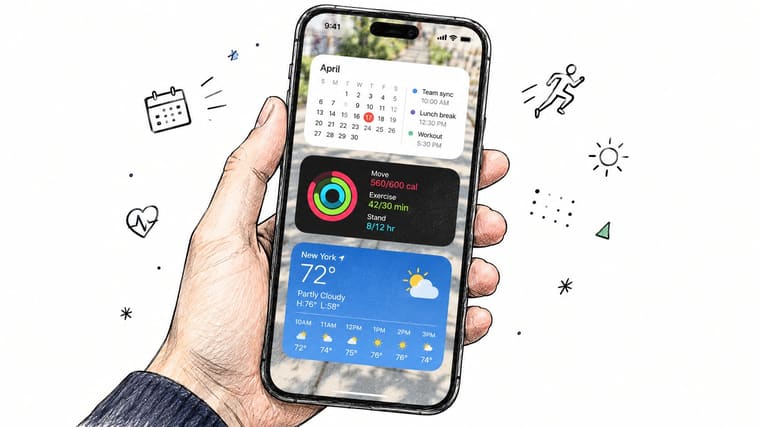
Think of a widget as a billboard, not a newspaper. A billboard presents one message with supporting context. A newspaper offers many stories and expects deliberate reading. If a deadline widget tries to show the event name, exact date, remaining days, remaining hours, completion percentage, notes, category, and several controls at once, it may contain useful information while communicating almost nothing.
The context changes the design
Widgets differ from apps in three important ways:
- They’re always visible. A user may see a widget without intending to use your product. Its hierarchy must work without a launch screen or explanation.
- They refresh periodically. Widget platforms are designed for scheduled, energy-efficient updates rather than continuous rendering. Apple describes WidgetKit as a timeline-based system, and the operating system may adjust refresh behavior according to power and usage conditions in its widget design guidance.
- They occupy limited space. Small surfaces force a decision about what to remove, not merely how to arrange everything.
This discipline became especially visible after Apple introduced Home Screen widgets with iOS 14 on September 16, 2020. During the following two months, five leading U.S. iPhone widget apps recorded approximately 13 million App Store installs, with weekly downloads peaking at 3.8 million during the week of September 21. Sensor Tower estimated that these apps had reached 15% of U.S. iPhones, while their combined global installs reached approximately 45 million, as reported in its analysis of iPhone widget apps.
Practical rule: Decide the one question your widget answers, then design every element around that answer.
For a countdown, the question might be, “How long is left?” For a goal tracker, it might be, “Am I on track?” For a calendar, it might be, “What happens next?” Once the answer is clear, visual design becomes information architecture. Layout, type, color, and controls stop being decoration and start serving comprehension.
The Four Pillars of Glanceable Widget Design
A glanceable widget depends on four connected decisions: layout, typography, color, and spacing. Weakness in one pillar can undermine the others. A strong color palette can’t rescue an unclear hierarchy, and excellent typography can’t fix a layout that presents six competing priorities.
A 2021 survey of 80 smartphone users found that 63.75% reported using widgets to customize their device’s visual interface. That compared with 61.25% who used groups or folders and 57.50% who used other organizational arrangements, according to the published survey. The sample isn’t a global market estimate, but it does reinforce an important design point: users treat widgets as both tools and parts of their personal visual environment.
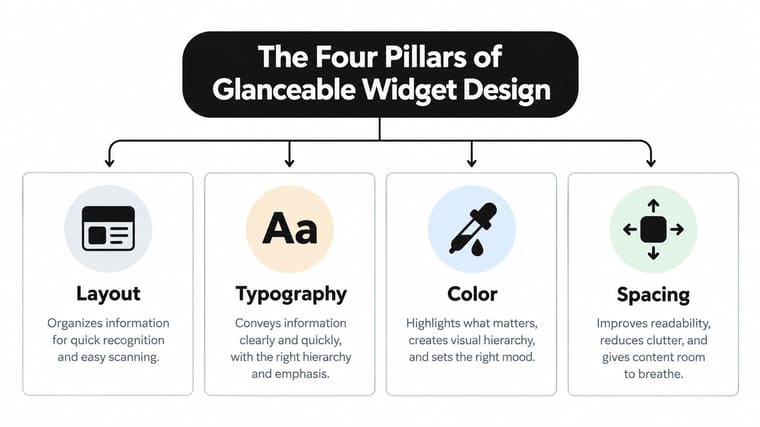
Start with layout
Put the primary value where the eye lands first. A cluttered deadline widget might show a title, date, countdown, progress bar, category, description, and three action icons. A clearer version might show:
3 days
Exam deadline
The second version communicates more because it asks the eye to interpret less. Use one dominant metric, one supporting label, and only the control that users need most often. Move secondary information into the app.
Build typography around hierarchy
The primary metric should feel unmistakably primary. A practical starting point is to make it at least twice the visual size of supporting text, then adjust after testing on the smallest supported widget family. Use tabular numerals for changing values such as countdown digits. Tabular numerals reserve equal widths, so the layout doesn’t jump as values change.
Avoid using many font weights to create hierarchy. Size, position, contrast, and whitespace usually communicate priority more cleanly than a collection of bold and semibold treatments.
Let color explain, not decorate
A widget can use a 60-30-10 balance as a starting point: roughly 60% background, 30% primary data color, and 10% accent. Treat this as a visual proportion, not a law. More important, keep the palette restrained and ensure the message survives without color.
A progress bar that uses green for complete and red for behind schedule should also include a label, shape, icon, or position change. Users shouldn’t need to decode your palette before understanding their status.
Use spacing to separate meaning
An 8dp grid gives you a practical spacing language. It helps related items sit together and gives separate concepts enough breathing room. If the event title, number, bar, and controls all sit at nearly the same distance, the widget feels noisy because the eye can’t tell which elements belong together.
Use larger gaps between information groups and smaller gaps inside a group. Then check the result at the smallest widget size. A layout that feels spacious in a large family may become crowded when reduced.
For a practical view of how interface patterns can support commitment and follow-through, commit mode features can provide useful product context, even though the same glanceability principles still apply.
Use this quick audit before shipping:
| Pillar | Pass condition |
|---|---|
| Layout | One primary answer is visible first |
| Typography | The main value clearly outweighs supporting text |
| Color | Meaning remains clear without hue alone |
| Spacing | Related content groups together without crowding |
Platform Differences in Widget Design
A widget shouldn’t look identical everywhere. It should mean the same thing everywhere.
iOS, Android, watchOS, and macOS provide different surfaces, sizing systems, update behavior, and accessibility APIs. The mistake junior designers often make is treating the iPhone layout as a master canvas and shrinking it for every other device. That preserves pixels while losing usability.
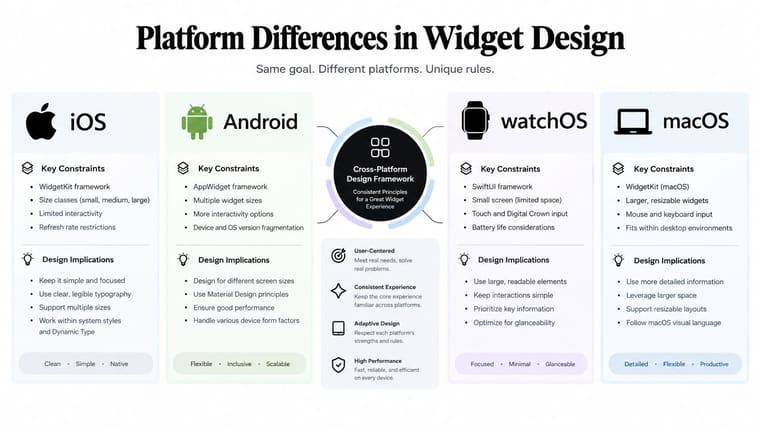
Preserve the meaning, adapt the surface
On iOS, WidgetKit uses scheduled timeline entries rather than treating a widget as a continuously animated app. Build around meaningful state changes, such as a date boundary, a milestone, or a deadline, instead of assuming the system will redraw every passing second. A Lock Screen widget also demands a tighter answer than a Home Screen widget because the available space and viewing context differ.
Android widgets use a host-controlled surface with resizing behavior that can vary across launchers and devices. Design for content priorities that survive resizing. Interactive controls can be useful, but each action must earn its space and remain easy to activate.
watchOS changes the visual problem again. A small circular or compact complication may need one status, one number, or one symbol. A dense rectangular composition from a phone rarely survives intact. macOS gives you more room, but users still expect quick scanning, so don’t fill the larger canvas just because you can.
| Surface | Design question |
|---|---|
| iPhone Home Screen | What should the user understand before opening the app? |
| iPhone Lock Screen | What is the shortest useful status? |
| Android Home Screen | How does the hierarchy survive resizing and launcher differences? |
| Apple Watch | What single value works in a compact glance? |
| Mac desktop | Which details benefit from additional space without becoming a dashboard? |
Accessibility also requires separate platform passes. VoiceOver and TalkBack don’t interpret interfaces in exactly the same way, so test semantic labels and reading order on real devices rather than assuming one implementation transfers perfectly. A broader platform accessibility comparison is useful when you need to plan those differences.
Design for semantic consistency, not pixel consistency. Keep the event, status, hierarchy, and trust signals consistent. Change the layout when the surface requires it.
The same principle appears outside progress tracking. A live chat widget may need to expose a conversation state on one surface and a single unread indicator on another. The interaction changes, but the user still needs a clear answer about whether attention is required.
For iPhone-specific implementation decisions, the guide on how to add a countdown widget on your iPhone is a useful reference for connecting configuration with the final Home Screen placement.
Designing Progress and Countdown Widgets
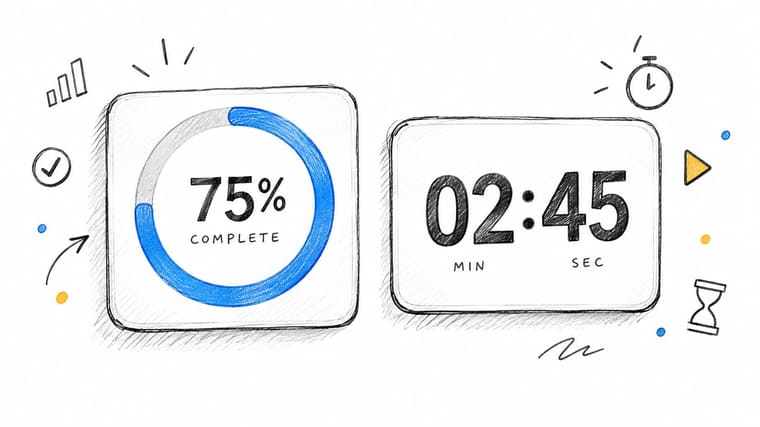
Progress and countdown widgets look simple because their core data is simple. The design challenge is deciding which representation helps the user act.
Start with the progress bar. A filled bar works well when the user needs to compare completed work with remaining work. An outlined bar creates a lighter visual presence and can suit a calm, persistent widget. Rounded ends feel friendly and forgiving, while squared corners create a more measured, technical tone. A gradient can signal movement or personalization, but a solid fill often communicates status faster.
Choose the right time granularity
A countdown shouldn’t display every available unit merely because the data exists. Show the largest meaningful unit and one subordinate unit:
3 days 4 hours
That is easier to scan than 76 hours, while a display such as days, hours, minutes, and seconds usually creates visual noise unless the user is actively watching a short event. Use the context to decide. A long-term exam deadline needs days. A short fasting window may need hours and minutes.
Milestone labels add meaning to an otherwise abstract number. Instead of presenting “Year Progress: 67%,” use a phrase such as:
67%
Summer goals on track
The label explains why the number deserves attention. It also gives the widget an emotional or practical anchor without requiring a longer explanation.
Separate time display from data refresh
The operating system can render date-sensitive text where supported, while your widget supplies scheduled entries for meaningful state changes. A yearly progress widget may only need milestone updates and a system-rendered remaining-time presentation. A deadline tracker should consider the deadline itself, date boundaries, and other semantic transitions.
Don’t present apparently live information if the underlying data may be stale. If users are likely to look more often than the widget can refresh, show when the data was last updated. That small disclosure protects trust.
For a detailed implementation example, see this guide on how to make a progress bar.
Consider a fasting-window widget:
- Define the event. Store a start time, an end time, and the current state.
- Choose the primary answer. During the window, show remaining time. Outside it, show the next start.
- Add progress context. Use a bar or ring, but pair it with a text percentage or status.
- Select the right precision. Use hours and minutes when the window is short, and remove seconds unless they affect a real action.
- Schedule semantic changes. Refresh around the start, end, and date transitions rather than requesting continuous animation.
- Test stale states. Confirm that the widget explains what it shows if a refresh is delayed.
The design succeeds when a user can answer “Where am I in the window?” without opening the app.
Pretty Progress and a Real-World Widget Design Example
A useful way to evaluate a widget system is to follow one event from setup to daily use. Pretty Progress provides customizable countdown and progress widgets for iPhone, iPad, Apple Watch, Mac, and Android, with options for themes, colors, icons, layouts, fonts, sizes, shapes, and progress styles.
The theme system offers a starting point instead of forcing users to make every decision from a blank canvas. Swiss Style can establish a structured, typographic direction. Minimal can reduce visual competition. Aqua and Retro OS can create more distinctive personalities while keeping the component choices coherent. Curated themes are valuable because they limit combinations that would otherwise produce accidental clutter.
A deadline setup from start to finish
Begin by choosing the deadline’s role. If the user mainly needs remaining time, select a countdown arrangement. If they also need to see completion toward a start and end interval, use a progress treatment.
Then work through the design choices in order:
- Choose a theme: Start with a coherent palette and layout.
- Set the dates: Define the start and end boundaries so progress has a clear meaning.
- Select the bar style: Use a fill or ring when completion matters, and avoid adding a bar merely because the template supports one.
- Pick an icon: Choose an icon that reinforces the event. If the label already explains it, keep the icon quiet.
- Adjust the layout: Check whether the number, label, and progress indicator still read in the smallest widget family.
- Place the widget: Add it to the Home Screen, Lock Screen, StandBy, Apple Watch, Mac desktop, or Android surface where the reminder will be useful.
The deeper styling controls, custom gradients, and additional widget families make sense when a user has already identified a specific design problem. A gradient can distinguish multiple goals. A different family can expose more context on a larger surface. A shape adjustment can help a bar fit the visual language of a personal Home Screen. Each control should answer a question, not just add another setting.
The same decision framework applies to goals on a watch. A compact status needs stronger prioritization than a phone layout, which is why the guide to an Apple Watch goal tracker is a useful related example. The design isn’t successful because every platform receives the same arrangement. It’s successful when the user’s answer survives each transition.
Accessibility in Widget Design
Accessibility isn’t a finishing layer for widgets. A small surface, fleeting attention, and distracting surroundings make clear semantics more important, not less.
A progress bar that looks obvious to a sighted user may be announced by VoiceOver or TalkBack as “progress bar” with no useful context. Give it a meaningful label such as “Exam deadline, 3 days remaining, 72 percent complete.” The spoken status should communicate the event, remaining time, and progress without requiring the user to infer meaning from a color or shape.
Android guidance recommends communicating meaning through more than color, using options such as text, position, shape, size, pattern, or haptic feedback. It also emphasizes meaningful labels for interactive elements in its accessibility principles.
Design for different ways of perceiving
A red-to-green status treatment can fail users with color-vision differences. Pair color with a text state, icon, pattern, or position. A “behind schedule” label is more reliable than a red fill alone.
Text scaling creates another common failure. If a widget truncates its primary message when text becomes larger, the user loses the very information the widget exists to provide. Keep labels short, test larger text settings, and decide in advance what disappears first.
For interactive controls, Android accessibility guidance recommends touch targets of at least 48 × 48 dp, with roughly 8 dp of separation between neighboring targets, as described in its touch target guidance. The visible icon can be smaller, but its clickable container shouldn’t be.
Use this test list:
- VoiceOver: Confirm the reading order and spoken status on a real iPhone.
- TalkBack: Check labels, focus movement, and action names on Android.
- Low vision: Increase text size and inspect contrast and truncation.
- Color differences: Remove color and verify that status still makes sense.
- Dyslexia and cognitive load: Reduce abbreviations and avoid decorative text that competes with the answer.
- ADHD and distraction: Make the next relevant status obvious without requiring exploration.
- Motor impairments: Test control spacing and activation reliability.
A practical mobile accessibility guide can help teams build broader testing habits, but widget-specific semantics still need deliberate design.
An accessibility toggle can’t repair an information architecture that only makes sense visually.
Widget Design Checklist and Next Steps
Use this checklist during design review. Mark each item pass or fail, then fix the failures before polishing the theme.
Layout
- One primary answer: Pass if the widget communicates one main status immediately.
- Clear hierarchy: Pass if the primary number or message dominates supporting details.
- 8dp spacing logic: Pass if related content groups together and separate concepts have breathing room.
Typography
- Strong size contrast: Pass if the primary metric is visibly larger than its label.
- Stable numerals: Pass if changing countdown digits don’t cause distracting layout shifts.
- Limited weights: Pass if hierarchy doesn’t depend on a collection of competing font treatments.
Color
- Controlled palette: Pass if the background, data color, and accent have distinct roles.
- Independent status cues: Pass if progress remains understandable without color.
- Readable contrast: Pass if text and indicators remain clear across light, dark, and tinted surfaces.
Accessibility
- Spoken meaning: Pass if VoiceOver and TalkBack announce the event and status, not just the component type.
- Touch footprint: Pass if interactive controls meet the recommended target size and remain separated.
- Text scaling: Pass if the primary answer remains available when text becomes larger.
- Platform testing: Pass if you test iOS and Android independently on physical devices.
Start with an existing widget and run this audit without defending the current design. Then build one focused progress widget, using a single event and one primary status. Finally, test it on a physical device with enlarged text, reduced color dependence, and delayed refresh conditions. Those checks reveal problems that a simulator and a static design file often hide.
If you’re deciding how to place a widget on a specific surface, consult the relevant platform documentation and the FAQ for implementation questions that don’t fit the visual framework. The best widget is not the one with the most controls. It’s the one that answers the user’s immediate question before attention moves on.
Pretty Progress lets you create customizable countdown and progress widgets for Home Screens, Lock Screens, Apple Watch, Mac, and Android, with themes and controls for colors, gradients, layouts, icons, sizes, and shapes. Visit Pretty Progress to configure one focused event, place it on the surface you check most, and test your widget design against the glanceability principles in this guide.





