

October 2, 2026
10 Widget Themes for iPhone to Try
Explore 10 widget themes for iPhone, from Swiss and Minimal to Aqua and Retro OS, with styling tips and ways to recreate them in Pretty Progress.
The best widget theme for iPhone isn’t just the prettiest one. It’s the style that makes your tracked goal recognizable and readable in a second, whether you’re checking a deadline on the Home Screen or glancing at a countdown on the Lock Screen. Pretty Progress gives you a practical starting point with themes such as Swiss Style, Minimal, Aqua, and Retro OS, then lets you adjust colors, gradients, bar shape, size, layout, and icons.
This guide matches 10 widget themes for iPhone with specific tracking purposes. Each section includes a repeatable recipe for recreating the look in Pretty Progress, with decisions for contrast, layout, typography, icons, progress settings, and screen placement. You’ll find minimal styles for clarity, expressive options for motivation, and more decorative directions for personality.
Quick route through the guide:
- Minimal Monochrome for distraction-free deadlines
- Colorful Gradient for motivating milestones
- Retro OS for personal projects
- Swiss Style for professional tracking
- Glassmorphism for polished Lock Screens
- Neumorphic for calm personal goals
- Bold Typography for instant readability
- Nature-Inspired for wellness and habits
- High-Contrast Dark Mode for night use
- Data Visualization for trends and patterns
Table of Contents
- 1. Minimal Monochrome Widget Theme
- 2. Colorful Gradient Widget Theme
- 3. Retro OS Widget Theme
- 4. Swiss Style Widget Theme
- 5. Glassmorphism Widget Theme
- 6. Neumorphic Widget Theme
- 7. Bold Typography Widget Theme
- 8. Nature-Inspired Widget Theme
- 9. High-Contrast Dark Mode Widget Theme
- 10. Data Visualization Widget Theme
- 10 iPhone Widget Themes Comparison
- Turn Inspiration Into a Better iPhone Setup
1. Minimal Monochrome Widget Theme
A monochrome theme works best when your priority is clarity without visual noise. Use it for a project deadline, an exam date, a payment reminder, or any goal you need to check often without turning your Home Screen into a dashboard.
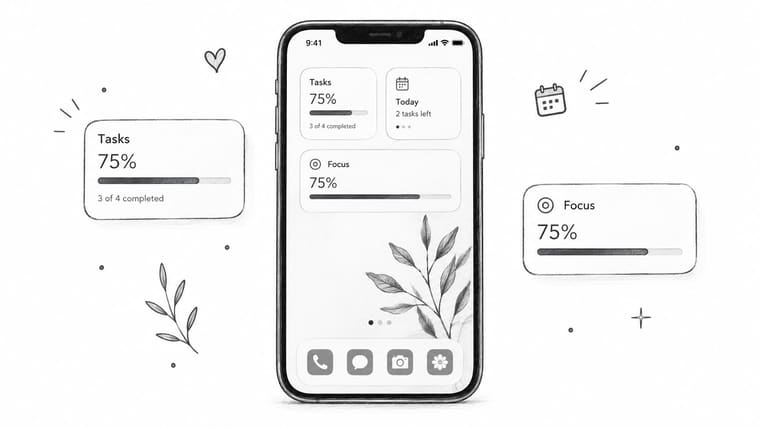
Start with a black, white, or gray background and one contrasting progress color. In Pretty Progress, choose a simple bar shape, remove decorative gradients, and use a compact label such as “Exam,” “Launch,” or “Trip.” A dark bar on a light wallpaper gives you a formal appearance, while a white bar on a black wallpaper creates stronger visual emphasis.
Build the hierarchy carefully
Use the largest widget size for one deadline that deserves attention. Keep the title in a regular system font and make the remaining time or percentage heavier. If you add a second widget, reduce its stroke width or use a lighter gray so the two goals don’t compete.
Place the primary widget near the top of the Home Screen, close to the apps you use for planning. On the Lock Screen, use a rectangular widget if you need a short label and progress bar, or a circular widget for a compact percentage. Apple recommends treating Lock Screen widgets as glanceable information rather than app launchers, and supports inline, circular, and rectangular shapes for iPhone Lock Screen widgets in its widget design guidance.
Practical rule: If the wallpaper changes, the widget should still work. Test the same monochrome setup on both light and dark backgrounds before you commit.
For more layout ideas, compare this approach with a practical guide to aesthetic iPhone widgets. Monochrome looks polished, but it can become too quiet for habits that need emotional motivation. Use a slightly brighter accent for goals you’re likely to ignore.
2. Colorful Gradient Widget Theme
A gradient theme turns a plain progress bar into a visible reward. It suits long-term goals, fitness targets, creative projects, and countdowns to enjoyable events, where color can make progress feel more energizing.
Choose two or three related colors rather than combining every bright shade available. An Aqua-style recipe might move from deep blue at the start of the bar to turquoise at the completed end. For a study goal, use violet into pink. For a summer trip, use coral into orange. The colors should support the meaning of the goal, not compete with the label.
Keep the screen from becoming noisy
Gradients work especially well in a medium or large Home Screen widget, where the transition has room to appear. Choose a horizontal or diagonal bar, set the icon to something immediately recognizable, and keep the text white or very dark depending on the background. A simple suitcase icon can identify travel, while a dumbbell, book, or paintbrush can clarify the goal without adding another sentence.
Use one colorful widget for a high-priority goal and keep neighboring widgets calmer. A screen filled with competing gradients makes each goal less recognizable. You can also rotate a seasonal palette, but keep the layout and icon consistent so the tracker remains familiar.
On the Lock Screen, use a circular progress widget when the color itself is the main signal. Use a rectangular version when you need both a title and a date. Apple’s guidance emphasizes legibility in small widget surfaces and reduced-luminance states, so check that the label remains readable when the display is dimmed.
Gradients should guide the eye toward the progress state, not hide the number you’re checking.
The trade-off is maintenance. A vivid gradient may look exciting at setup but feel tiring if it clashes with a new wallpaper. If that happens, keep the same bar shape and icon while changing only the palette.
3. Retro OS Widget Theme
Retro OS styling gives a personal project a sense of character. It’s a strong fit for a game release, a creative challenge, a movie countdown, a hobby milestone, or a nostalgic event. It’s less suitable for a work deadline that needs to feel calm and serious.
Choose a blocky interface, a saturated accent, and a compact system-inspired font. In Pretty Progress, set the bar to a rectangular shape, use a solid fill, and add an icon that feels period-appropriate. A pixel-style computer icon works for a coding project. A floppy disk or game controller can make a personal challenge feel intentional rather than generic.
Use nostalgia as an accent
Retro elements work best when the rest of the screen supports them. Pair the widget with a period-appropriate wallpaper and a restrained icon set. You don’t need to recreate every detail of an old operating system. One or two strong cues, such as a beveled border, primary-color panel, or pixel-inspired label, will usually communicate the style.
Put the widget on the Home Screen in a medium size, where the decorative frame has room to breathe. On the Lock Screen, simplify the design and use a rectangular widget with a short label. Small retro text can become difficult to read, especially when the widget is tinted or viewed against a busy wallpaper.
For a deadline, set the progress range from the actual start date to the fixed end date. For an open-ended habit, use a recurring period or a clearly defined target so the visual bar has a meaningful direction. Retro styling can make a vague goal feel fun, but it can’t fix an unclear measurement.
One retro widget creates a focal point. A whole screen of unrelated retro elements usually looks scattered.
The main trade-off is seriousness. Use this theme when personality helps you return to the goal. If the countdown represents a critical deadline, choose a higher-contrast layout and a simpler label than you might use for a recreational project.
4. Swiss Style Widget Theme
Swiss Style is built for precision, deadlines, work planning, and professional presentations. It relies on clean typography, geometric alignment, generous spacing, and a clear relationship between the label and the progress indicator.
Choose a restrained palette with one accent color. In Pretty Progress, select a straight bar, use a medium or large widget, and align the title, dates, and percentage to a consistent edge. Avoid decorative icons unless they add real scanning value. A small calendar icon can support a deadline, but an ornamental symbol will weaken the structured look.
Make spacing do the work
Swiss-inspired design creates hierarchy through size, position, and weight, not a collection of bright colors. Use a heavier weight for the remaining time, a smaller weight for the event name, and enough padding to keep the content from touching the bar. San Francisco works well when you want the widget to feel native to iPhone. A clean geometric typeface can add character, but readability should win.
Place a Swiss Style widget on the first Home Screen page if you check the goal throughout the day. Use the Lock Screen when the information is time-sensitive and you want it available without opening the phone. A rectangular Lock Screen widget gives you space for a short title and progress bar, while an inline widget suits a compact date or countdown.
Apple’s widget guidance treats small surfaces as glanceable and recommends clear hierarchy, short text, and resilient contrast. That makes Swiss Style a practical choice, not just a visual reference. The design reduces decisions at the moment of checking.
The weakness is emotional neutrality. Swiss Style won’t necessarily make a long personal goal feel exciting. It works because it makes information dependable. Use a more expressive theme if motivation, rather than precision, is the main problem.
5. Glassmorphism Widget Theme
Glassmorphism suits users who want a modern, layered Home Screen or Lock Screen. It pairs translucent surfaces, soft blur, subtle gradients, and shadows with a wallpaper that remains visible behind the widget.
Choose a dark or low-detail wallpaper first. Then select a semi-transparent widget background, white or near-white text, and one accent color for the progress bar. In Pretty Progress, use a rounded bar and a soft gradient rather than a hard block of color. A small cloud icon can support a travel countdown, while a simple star or flag can identify a personal milestone.
Protect the information layer
Glassmorphism fails when the wallpaper becomes more prominent than the data. Test the widget over the exact image you plan to use, not a sample background. If the text disappears over bright areas, darken the wallpaper, add a stronger surface tint, or switch to a solid background.
Use one large glass-style widget on the Home Screen, preferably over a quiet part of the wallpaper. On the Lock Screen, a circular widget can provide a subtle progress signal, while a rectangular widget is better for a title and remaining time. Don’t layer several translucent widgets over detailed imagery. Their edges and labels can merge together.
Apple’s design guidance also stresses contrast for readability, including in reduced-luminance Always-On states. A glass effect should therefore be treated as a surface treatment, not as the main information system. The progress value must remain clear when the background is dimmed or visually simplified.
This style has a high visual payoff but needs more testing than Minimal or Swiss Style. It can look premium in one wallpaper and unreadable in another. Keep the icon simple, reduce the number of text elements, and let the background provide atmosphere.
6. Neumorphic Widget Theme
Neumorphism creates a soft, tactile appearance through subtle highlights and shadows. It’s a good match for meditation, journaling, reading, self-care, and personal routines, where the widget should feel calm rather than urgent.
Start with a light neutral background such as warm gray, cream, or a muted blue. Choose a bar and panel from the same color family, then use a gentle shadow to separate the progress surface from the background. In Pretty Progress, select a rounded bar, reduce the visual intensity of the icon, and use a short label such as “Read,” “Breathe,” or “Write.”
Choose softness without losing contrast
Neumorphic interfaces can become too subtle. If the bar, label, and background are nearly identical, the widget may look refined but stop communicating progress. Increase contrast for the percentage or remaining time, even if the surrounding surfaces stay soft.
A medium Home Screen widget gives the style enough room for the shadow treatment. For the Lock Screen, use a circular widget with a strong outline or a rectangular widget with a clear internal bar. Avoid placing it over a textured wallpaper. A flat, light background supports the illusion better and makes the content easier to scan.
Use a meaningful icon, but keep it small. A leaf can represent a wellness routine, a book can mark reading, and a moon can identify an evening practice. The icon should reinforce the tracking purpose instead of becoming a decorative badge.
Neumorphism’s trade-off is urgency. It’s not the best choice for a deadline you must not miss, because the soft contrast can reduce immediate impact. It works when returning to the goal should feel pleasant and low-friction. If the widget needs to interrupt your attention, choose Bold Typography or High-Contrast Dark Mode instead.
7. Bold Typography Widget Theme
Bold Typography makes the number, date, or remaining time the main design element. Use it for countdowns, exam dates, product launches, travel, and any goal where the primary question is, “How much time is left?”
In Pretty Progress, choose a large widget, a strong type weight, and a high-contrast background. Keep the label smaller, but don’t remove it. “Days left” without the event name can be clear in the moment and confusing later when several countdowns compete on the same screen.
Build for fast reading
Use font weight variation to create a simple hierarchy. Make the remaining number heavy, the unit slightly lighter, and the event name regular. Keep line height open enough that the digits don’t visually run together. A single accent color can highlight the bar or number, but too many colors compete with the typography.
The Home Screen is the natural placement for a large countdown that you check repeatedly. On the Lock Screen, use the circular shape for a number-only reminder or the rectangular shape when the event name matters. Inline placement works for short text, but it isn’t the right choice for a detailed countdown.
Set the start date carefully. A progress bar only means something when the start and end points reflect the period you want to track. For a project, use the date you began rather than the date you installed the app. For an event, choose a start point that makes the percentage meaningful.
The benefit is immediate comprehension. The cost is visual dominance. A large number can overwhelm a carefully arranged Home Screen, so give it one clear position and reduce competing widgets nearby.
8. Nature-Inspired Widget Theme
A nature-inspired theme works well for wellness goals, walking, exercise, hydration, meditation, plant care, and habit building. Earth tones and organic shapes make the tracking experience feel grounded, especially when the goal is long-term and repetitive.
Choose colors from one natural family, such as sage and forest green, sand and terracotta, or sky blue and muted teal. In Pretty Progress, use a rounded or gently curved bar, a botanical or weather-related icon, and a soft background that matches the wallpaper. A leaf can represent a habit, while a mountain can suggest a larger personal challenge.
Make the metaphor useful
The visual metaphor should clarify the goal. A sprout icon makes sense for a new habit, but it says little about a tax deadline. Match the icon to the action you want to remember. For a walking goal, use a shoe or path. For a fasting window, choose an appropriate time or moon symbol. For plant care, use a leaf or watering icon.
Place the widget on the Home Screen near health, fitness, or journaling apps. A medium widget can show the goal name and bar without becoming a decorative panel. On the Lock Screen, use a circular widget for a quiet reminder or a rectangular widget when you need the habit label visible.
Seasonal palettes can keep the setup fresh, but don’t change the structure every time. Keep the icon position, bar shape, and label consistent while adjusting colors. That preserves recognition and limits theme fatigue.
Nature-inspired design has one important trade-off. Muted colors can blend into background wallpapers. Use a darker text color on pale backgrounds, a light text color on dark backgrounds, and enough separation around the bar to maintain readability.
9. High-Contrast Dark Mode Widget Theme
High-contrast dark mode is designed for nighttime checking, gaming goals, music-related countdowns, and users who prefer a dark Home Screen. The recipe is simple: use a deep background, bright text, and one or two accent colors that make the progress state obvious.
In Pretty Progress, select a dark panel or transparent dark background, then choose a bright cyan, green, orange, or violet for the bar. Keep the icon in the same accent family and avoid adding a separate color for every metric. A dark background with a neon green bar can signal a fitness goal, while violet or blue can suit a creative project.
Control the accents
Use the largest widget for a deadline that needs attention, but keep the rest of the screen restrained. A dark wallpaper with a bright widget already creates strong contrast. Adding colorful app icons, multiple gradients, and several neon bars can make the screen feel busy rather than focused.
For the Lock Screen, use a rectangular widget when the label and remaining time are both important. Choose a circular widget for a single progress signal. Test the setup in a bright room and at night. Colors that look balanced in darkness may appear harsh in daylight.
Apple’s customization guidance includes light and dark appearance options as well as newer clear and tinted approaches, so a widget theme should be checked across the system appearance you use. A dark-only design may need a separate light variant if your phone changes appearance automatically. This Home Screen customization guide can help you coordinate the widget with the rest of the layout.
The main advantage is legibility. The main risk is fatigue. Keep the palette deliberate, use generous spacing, and let one goal provide the visual focus.
10. Data Visualization Widget Theme
Data Visualization is the right direction when you care about patterns, trends, averages, and repeated performance, not only one final date. It suits fitness progress, study hours, writing output, savings routines, and other goals where the history explains more than the current percentage.
Choose a chart or progress treatment that matches the question. A line-like visual works for change over time. A bar works for comparing completed units. A circular indicator works for a single target. In Pretty Progress, use the largest available widget when the design includes a label, current value, and progress shape. Keep the icon functional, such as a book for study or a dumbbell for training.
Show context without overloading the widget
Include only the information you’ll use. A current value and goal may be enough for a daily target. Add an average or previous period only if it changes your decision. Too many values turn a glanceable widget into a small report that requires interpretation.
Place analytical widgets on the Home Screen, where you have room to compare them with related apps. A compact Lock Screen widget can show the current progress signal, but detailed history belongs in the app or a larger Home Screen layout. Use consistent colors, reserving one accent for improvement and a neutral tone for the baseline.
The distinction matters because progress bars answer “How far along am I?” Trend visuals answer “Is my behavior changing?” Apple Health, Stocks, Streaks, and fitness apps use different forms of visual history for this reason. Choose the simpler treatment when you only need a deadline reminder.
See a guide to the best Home Screen widgets for ideas on combining a progress widget with supporting information. For a visual demonstration of the difference between simple bars and data-focused layouts:
10 iPhone Widget Themes Comparison
| Theme | Implementation 🔄 | Resources ⚡ | Expected Outcomes ⭐ | Ideal Use Cases 📊 | Tips 💡 |
|---|---|---|---|---|---|
| Minimal Monochrome Widget Theme | Low, simple palettes, typography only | Low, minimal rendering & battery use | Clean, highly readable, professional look | Lock Screen, work devices, timeless setups | Vary stroke widths; test on light/dark wallpapers |
| Colorful Gradient Widget Theme | Medium, gradient creation & contrast tuning | Medium–High, richer color rendering, OLED cost | Highly engaging and motivational visual appeal | Habit tracking, youth-facing apps, lock-screen accents | Limit to 3–4 gradients; test against wallpapers |
| Retro OS Widget Theme | Medium, custom fonts, skeuomorphic assets | Medium, bespoke graphics and assets | Distinctive nostalgic personality, memorable | Personal retro setups, thematic home screens | Use sparingly; ensure text contrast for legibility |
| Swiss Style Widget Theme | Medium–High, precise grids and alignment | Low–Medium, simple colors, typographic focus | Extremely clear, professional, information-first | Business/academic contexts, shared screenshots | Create hierarchy by size, pair with system fonts |
| Glassmorphism Widget Theme | High, backdrop blur, layered translucency | High, GPU/OS-level blur may affect older devices | Premium, modern depth that blends with wallpapers | Lock Screens with textured wallpapers, premium apps | Test on target wallpapers; use high‑contrast text |
| Neumorphic Widget Theme | Medium–High, subtle shadows/highlights tuning | Medium, careful shadow rendering & contrast checks | Soft, tactile depth; understated sophistication | Personal/hobby goals, intimate UI experiences | Stick to muted palettes; verify accessibility contrast |
| Bold Typography Widget Theme | Low–Medium, font assets and sizing rules | Low, minimal graphics, text-driven | Maximum legibility and quick comprehension | Accessibility-focused, quick‑glance dashboards | Use dynamic type; vary weights for hierarchy |
| Nature-Inspired Widget Theme | Medium, illustrations and organic shapes | Medium, textured assets and color palettes | Calming, emotionally resonant; motivational for wellness | Wellness, habit-building, eco-conscious apps | Pair with botanical wallpapers; rotate seasonal colors |
| High-Contrast Dark Mode Widget Theme | Low–Medium, dark palettes + accent tuning | Low (OLED-efficient), bright accents on black | Striking visibility and energy efficiency on OLED | Dark‑mode users, gaming/music, night use cases | Limit accents to 1–2 colors; meet WCAG contrast |
| Data Visualization Widget Theme | High, charting logic, data aggregation | High, data processing, larger UI real estate | Rich contextual insights; trend detection over time | Analytical users, finance, fitness trends | Limit metrics per widget; choose charts to match data |
Turn Inspiration Into a Better iPhone Setup
The most useful way to choose among these widget themes for iPhone is to start with the tracking purpose, not the wallpaper.
For clarity, choose Minimal Monochrome, Swiss Style, or Bold Typography. Minimal Monochrome removes distractions and keeps the screen formal. Swiss Style gives professional deadlines a clear grid and strong spacing. Bold Typography makes a countdown readable before you’ve had time to interpret the rest of the screen.
For motivation, choose Aqua-style gradients, Nature-Inspired colors, or another Colorful Gradient treatment. These styles add emotional energy to goals you need to revisit repeatedly. Use them for fitness, creative projects, habits, travel, and other milestones where a visible sense of movement helps you return to the task.
For personality, choose Retro OS, Glassmorphism, or Neumorphism. Retro OS gives personal projects a playful identity. Glassmorphism creates a layered, contemporary appearance when the wallpaper is controlled. Neumorphism makes wellness and hobby tracking feel softer. Each style needs more testing than a simple monochrome layout, especially when contrast, wallpaper detail, and system appearance change.
For trend-focused tracking, choose Data Visualization. It’s the best fit when current progress isn’t enough and you need to notice patterns over time. Keep the chart or visual encoding focused on one useful question. A widget that shows too much data may look polished but take longer to understand than a simple bar.
Use this selection sequence:
- Choose the goal: Decide whether you’re tracking a deadline, habit, milestone, routine, or trend.
- Choose the placement: Use the Home Screen for larger context and the Lock Screen for a fast reminder.
- Pick a readable palette: Test the text and bar against the actual wallpaper, not a blank preview.
- Set the bar shape and size: Use a large rectangular layout for labels and context, or a circular layout for a compact signal.
- Add a meaningful icon: Choose a symbol that identifies the goal without replacing the label.
- Set the dates or progress range: Make sure the start and end points describe the period you want to measure.
- Review the setup at a glance: If you need to stop and decode it, simplify the design.
Apple’s widget guidance describes widgets as glanceable surfaces, and that principle should control every customization decision. A theme can be beautiful, but it won’t help if the progress state disappears into a wallpaper, the label is too small, or the design demands more attention than the goal deserves. Adoption is also not automatic. TidBITS found that “Don’t Use” was the most common response in its widget poll, while only 14% of respondents said they used Home Screen and Lock Screen widgets heavily, as reported in its widget usage coverage. A useful theme needs to make the value of checking obvious.
Mobile placement remains important for repeated micro-checks. A survey-based summary reported that 35% of users viewed widgets on iPhone or iPad multiple times a day, compared with 9% on Mac, according to the summarized widget engagement research. That supports a practical approach: keep the mobile layout compact, make the progress signal unmistakable, and avoid decorative complexity that slows down recognition.
When you’re ready to build the setup, open Pretty Progress, choose a starting theme, configure the start and end dates, then adjust the colors, gradient, bar size, shape, layout, and icon. Add the finished widget to the Home Screen or Lock Screen and check it under the wallpaper and system appearance you normally use. Consistency and glanceable clarity will matter longer than following the newest visual trend.
Pretty Progress turns countdowns and progress bars into customizable widgets for iPhone, iPad, Apple Watch, Mac, and Android, with themes that can be adapted to the tracking purpose and screen placement. Choose a starting style, set the dates, tune the colors and layout, and add a visual reminder that stays connected to the goal. Visit Pretty Progress to create a widget theme that looks good and remains useful after the first setup.





