

May 29, 2026
Best Customizable Widget Apps iPhone in 2026
Discover the top customizable widget apps iphone for aesthetics, productivity, and countdowns. Your 2026 guide.
Your Home Screen probably looks one of two ways right now. Either it’s still close to Apple’s default grid, or you’ve tried to customize it and ended up with a mix of widgets that look good for a day and then become visual clutter. That’s a significant problem with customizable widget apps on iPhone. Most of them are easy to install, but not all of them stay useful once the novelty wears off.
Apple’s widget system has also changed a lot. What started as a limited Home Screen feature in iOS 14 grew into a much broader customization system, and coverage of iOS 18 highlights free-form placement plus more control over colors, fonts, shapes, and animations through the evolving widget ecosystem and app support (Rokform on the evolution of iPhone widgets). That matters because widgets aren’t just decorative anymore. On iPhone, they can now act like a persistent layer for deadlines, shortcuts, health stats, photos, and social updates.
The catch is adoption is still mixed. A 2024 poll summary from TidBITS says roughly 50% of users never use widgets at all, while only 25% to 50% use them with any regularity (TidBITS widget adoption summary). In practice, that means good widget apps need to do one thing well: communicate value at a glance.
Table of Contents
- 1. Pretty Progress
- 2. Widgetsmith
- 3. Widgy
- 4. Color Widgets
- 5. Widgetable
- 6. Launcher with Multiple Widgets
- 7. Lock Launcher
- 8. Photo Widget Simple
- 9. ScreenKit
- 10. Widget Wizard
- Top 10 iPhone Custom Widget Apps, Feature Comparison
- How to Choose
- Your iPhone, Your Rules
1. Pretty Progress
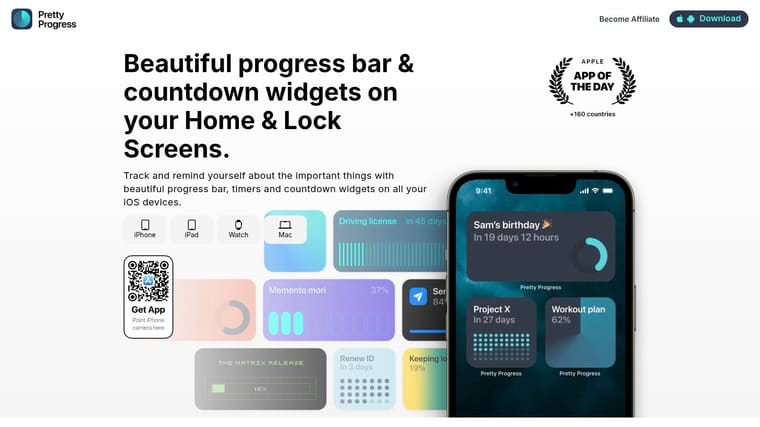
You glance at your Home Screen between meetings and need one answer fast. How many days are left until the deadline, how far through the fasting window are you, or how much of the year has already burned off? Pretty Progress is built for that job.
This app fits the productivity side of widget customization better than the aesthetic side. It can still look polished, but its real value is focus. Instead of turning one widget into a crowded dashboard, it keeps attention on a single metric you want to see several times a day.
Best for visible deadlines and goal tracking
Pretty Progress is strongest when the widget itself needs to create urgency. Exam countdowns, launch dates, habit streak timing, age tracking, fasting windows, and year progress all make sense here because the format shows motion, not just information.
That difference matters in real use. Static date widgets fade into the background fast. Progress bars and countdowns hold attention longer because they change every time you look.
The visual side is also handled well. Built-in themes like Swiss Style, Minimal, Aqua, Retro OS, and The Grid give you usable starting points without forcing you into a full DIY design workflow. If you want ideas for matching this style with the rest of your setup, this guide to iPhone aesthetic widget ideas is a useful reference.
Practical rule: Use a motion-based widget for goals you tend to ignore. Visible progress creates better friction than a plain calendar tile.
What works in real use
After testing a lot of widget apps, I usually split them into three buckets. Apps for looks, apps for utility, and apps that try to do everything. Pretty Progress stays in its lane, which is part of why it works.
A few details make it easier to live with:
- Good fit for recurring personal metrics: Date math, business-day calculations, exact age, and intermittent fasting tools save setup time.
- Easy to style without overbuilding: You can adjust colors, gradients, bar size, shape, layout, and icons, with more styling options available through the PRO upgrade.
- Better as a companion than a control center: It works well beside a task manager or calendar app. It does not replace either one.
There is a trade-off. If you want a widget app for shortcuts, stacked data, or highly social features, other apps in this list will cover that better. If your main goal is to keep one deadline or habit visible enough that you act on it, Pretty Progress earns its spot.
2. Widgetsmith
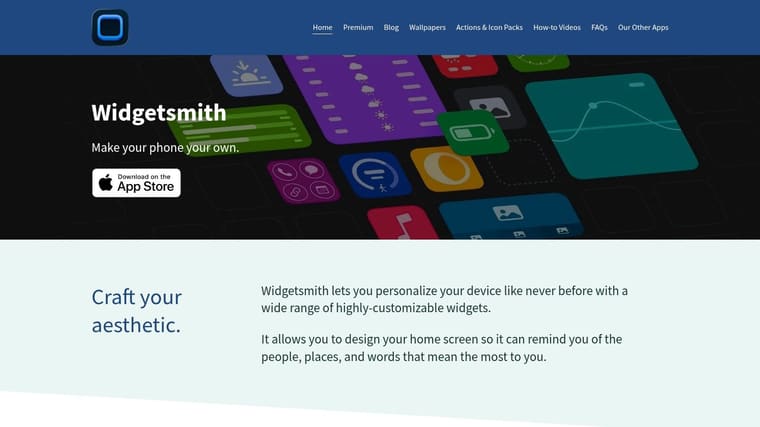
Widgetsmith is still the default recommendation when someone wants broad iPhone widget customization without diving into a full design editor. That’s not because it’s the simplest app in this category. It’s because it covers a lot of ground well.
Apple’s App Store listing presents Widgetsmith as a free app with in-app purchases, and it’s explicitly positioned as a customizable widget builder through the Widgetsmith App Store page. Independent guides also describe support for small, medium, and large widgets across display types like time, date, photos, weather, reminders, health, tides, and astronomy. That’s a huge range for one app.
Best for broad customization without starting from scratch
Widgetsmith sits in the middle ground between template apps and advanced editors. You get enough control over styling and content to build a personal setup, but you usually don’t have to micromanage every layer.
That’s why it’s often the safest first install for people exploring aesthetic setups. If you’re trying to match icons, wallpapers, and widgets into one coherent look, this roundup of iPhone aesthetic widget ideas pairs well with what Widgetsmith does best.
A few real trade-offs matter:
- Best part: Wide widget variety, Lock Screen support, and a massive community of tutorials.
- Annoyance: Some premium features, including more advanced weather features and ad removal, sit behind the paid tier.
- Reality check: Widget refresh behavior on iOS can still be imperfect, and that isn’t always the app’s fault.
Widgetsmith is best when you want a little of everything. It isn’t my top pick for pure countdown motivation or deep layer-based design, but it’s one of the most flexible all-rounders available.
3. Widgy
Widgy is for people who open a widget app and immediately think, “I want to move everything around myself.” It feels closer to a design tool than a theme catalog. That’s exactly why some users love it and others bounce off it in ten minutes.
The app’s strength is creative control through its App Store presence at Widgy Widgets Home Lock Watch. You can build widgets with layers, pull in live data, use transparency effects, and tap into a strong sharing community through imported layouts.
Best for people who want full control
If Widgetsmith is the broad mainstream choice, Widgy is the tinkerer pick. It’s a better fit for users who want to build custom dashboards, combine data sources, and fine-tune spacing, icon placement, and visual hierarchy themselves.
That freedom comes with a steeper learning curve. This isn’t the app I’d hand to someone who wants results in five minutes. But if you’ve already spent time with Home Screen customization, Widgy can produce layouts that more template-driven apps cannot.
Most people don’t need maximum flexibility. People who do usually know it within the first five minutes.
For inspiration, this gallery of best Home Screen widgets for iPhone setups gives a sense of the styles users often try to recreate with apps like Widgy.
My practical take is simple:
- Choose Widgy if: You want bespoke layouts, community-made imports, and don’t mind learning the editor.
- Skip Widgy if: You mainly want quick setup, polished presets, or one clear purpose like countdown tracking.
It rewards patience. It doesn’t reward indecision.
4. Color Widgets
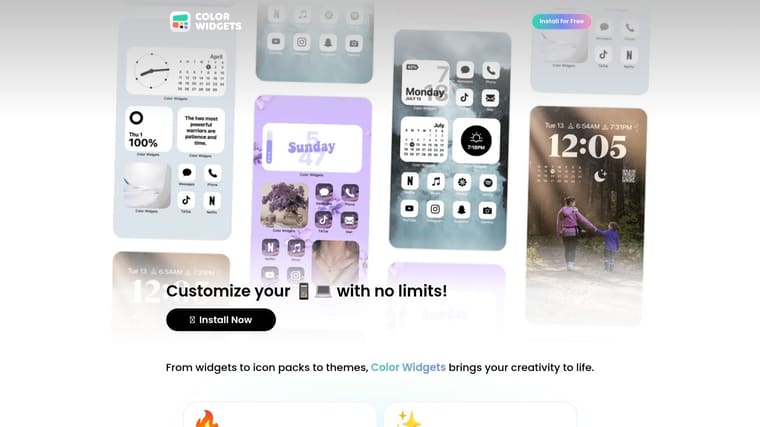
You change your wallpaper, the icons still clash, and the Home Screen looks half-finished. Color Widgets exists for that specific problem.
You can browse the app and its theme-heavy approach through Color Widgets. The app is built around speed. Pick a theme, match the icons, drop in a clock or calendar widget, and your screen looks coordinated without much setup. Compared with apps that ask you to build every layer yourself, Color Widgets is closer to a styling kit.
Best for fast aesthetic setups
Color Widgets fits the aesthetics category better than the productivity one. I recommend it to people who want a polished screen in one evening, not users who plan to fine-tune data blocks, spacing rules, or widget logic over time.
That trade-off matters. The app gives you plenty of templates, seasonal packs, and themed bundles, which is great if you want decisions made for you. It feels tighter and faster than a blank-canvas editor. Once you start wanting exact control over layout behavior, though, the ceiling shows up quickly.
What stands out in practice:
- Fast setup: Good for matching widgets, icons, and wallpaper without a long setup session.
- Strong visual payoff: Theme packs make it easy to build a cohesive Home Screen instead of mixing unrelated widgets.
- Limited depth: Customization is lighter than in builder-style apps, so advanced users may outgrow it.
- Free-tier friction: The App Store listing notes ads, and many premium-looking packs require Pro.
Color Widgets works best for readers choosing by use case and putting appearance first. If your goal is a stylish Home Screen with minimal effort, it earns its spot on this list. If your goal is a personal dashboard that behaves exactly the way you want, another app in this roundup will fit better.
5. Widgetable
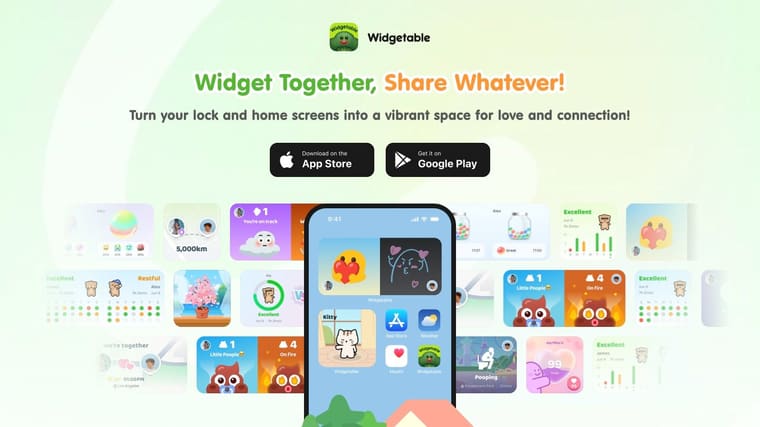
Most widget apps are either aesthetic or practical. Widgetable takes a different route and makes widgets social. That alone puts it in a separate category.
You can explore its shared-widget focus at Widgetable. The app leans into friend, couple, and shared-home-screen interactions with mood widgets, distance widgets, virtual pets, and other widgets that change based on another person’s activity or input.
Best for social widgets
Widgetable makes the most sense if you want your Home Screen to feel alive, not just organized. A shared pet, status widget, or relationship-focused tile gives the screen a sense of motion that static theme apps can’t really match.
That said, this is a niche kind of usefulness. If you aren’t using the social layer, a lot of the app’s charm disappears. Then you’re left with a more ordinary customization app, often with more in-app purchase pressure than utility-first alternatives.
Recent coverage of widget trends also points to a shift from decoration toward behavior cues like countdowns and productivity widgets, while still noting that mainstream coverage often under-explains what helps people follow through (2026 widget roundup discussion on behavior-focused widgets). Widgetable goes in a different direction. It makes widgets engaging because another person is involved.
Shared widgets are fun when they create a habit. They’re distracting when they just add motion with no purpose.
I’d pick Widgetable for couples, close friends, or users who get bored with static screens. I wouldn’t pick it as a serious productivity setup.
6. Launcher with Multiple Widgets
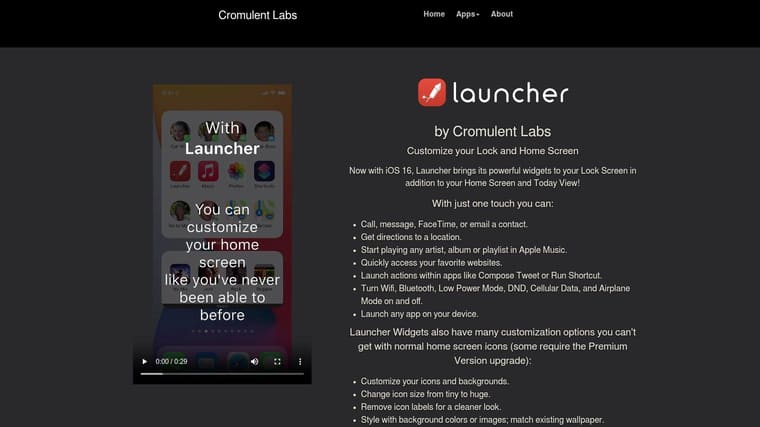
Launcher has been around long enough that it feels less like a trend app and more like part of the iPhone power-user toolkit. Its job is clear: put actions on your Home Screen and Lock Screen so you tap once and move on.
Cromulent Labs lays out that workflow at Launcher with Multiple Widgets. The app focuses on app launches, contacts, web links, Shortcuts actions, and utility-style access rather than visual theming.
Best for power-user shortcuts
If you use Shortcuts, call the same contacts often, open the same note, route to the same address, or trigger the same routine every day, Launcher is excellent. It reduces friction in a way aesthetic widget apps usually don’t.
Its best features are practical rather than flashy:
- Fast actions: Open apps, URLs, contacts, and workflows directly from a widget.
- Context-friendly layouts: Time- or location-based views are useful when you want the widget to behave differently during the day.
- Less ideal for theme lovers: It isn’t built around coordinated icon packs and wallpaper-heavy aesthetics.
This is the app for people who care more about what a widget does than how it looks. That’s a smaller group than social media suggests, but it’s also the group that tends to keep widgets installed long term.
7. Lock Launcher
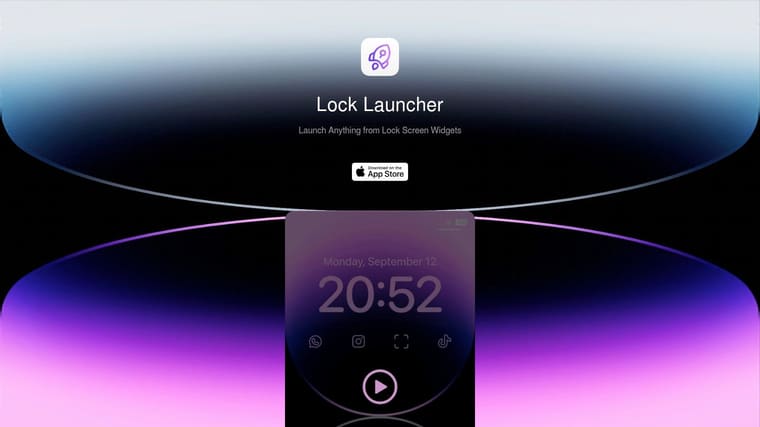
Lock Launcher takes the same action-first philosophy as Launcher and pushes it closer to the Lock Screen. If your habit is accessing your phone to do the same few things over and over, this app cuts out steps.
Its latest feature direction is presented at Lock Launcher. The app supports Lock Screen launchers, Dynamic Island behavior, Live Activities, transparent Home Screen widgets, and quick utility access.
Best for fast actions from the Lock Screen
I like Lock Launcher most for specific routines. Open a grocery list. Jump into a work chat. Trigger a Shortcut. Launch a navigation app. That’s where it earns its place.
Where it falls short is visual warmth. This isn’t the app you install because you want your Home Screen to feel curated. You install it because you want one-tap speed.
A practical warning matters here. Setup friction is real across many widget apps, especially when transparent effects, per-widget editing, Home Screen placement, or app mixing enters the picture. Coverage of widget setup points out that users often have to learn non-obvious steps like placing widgets on specific pages, editing widget-specific settings, and in some cases creating a matching screenshot for transparent styles (widget setup walkthrough highlighting common friction points).
Lock Launcher is worth it if utility beats polish for you. If not, it’ll feel a bit mechanical.
8. Photo Widget Simple
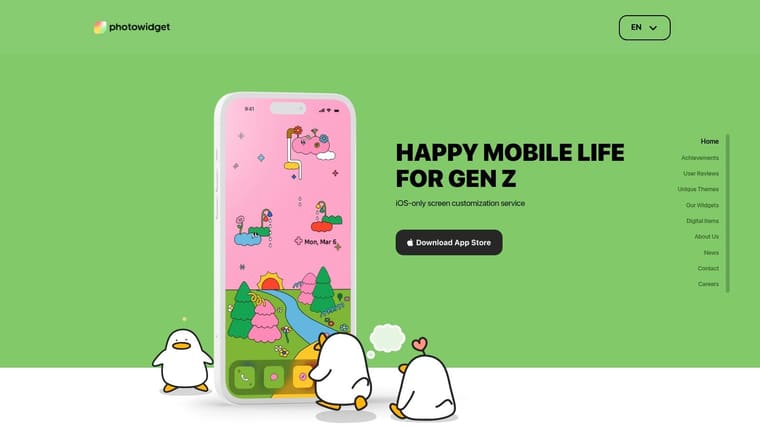
Photo Widget: Simple does exactly what many people want from a customization app. It gets personal content onto the screen fast. Photos, countdowns, clocks, calendar blocks, memo widgets, and simple to-do style tiles all fit naturally into that goal.
The app’s product site at PhotoWidget makes its positioning clear. This is about approachable Home Screen styling with lots of ready-made options rather than advanced widget engineering.
Best for photo-first customization
Some users don’t want a dashboard. They want their phone to feel more personal. Photo Widget: Simple is strong for that audience because photos carry emotional value that abstract widgets don’t.
Its strengths are easy to feel in use:
- Fast setup: Good for users who don’t want to learn an editor.
- Broad mix of widget types: More practical than a pure photo frame app.
- Clear limit: It isn’t as granular as Widgy or as behavior-focused as Pretty Progress.
This is the app I would hand to someone customizing an iPhone for the first time. It offers enough variety to be fun, but not so much complexity that setup becomes a project.
9. ScreenKit
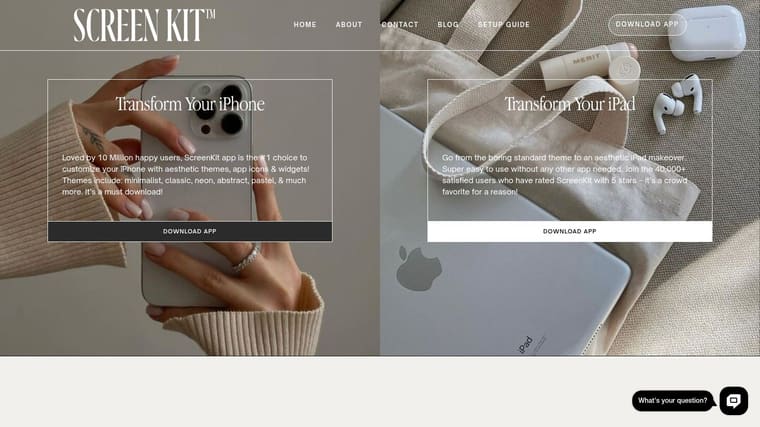
ScreenKit is for users who don’t want to assemble a theme piece by piece. They want the wallpaper, icons, and widgets to already match. That bundled approach is the whole product.
You can browse its designer-made theme packs at ScreenKit. The app packages coordinated themes with widgets, icons, and wallpapers so the setup feels more like applying a style kit than building a system.
Best for cohesive theme packs
The biggest advantage here is consistency. A lot of widget setups fail because users mix parts from different apps and end up with mismatched colors, typography, and spacing. ScreenKit avoids that by giving you a pre-built visual language.
That also creates the main downside. Once you outgrow presets, ScreenKit can feel restrictive. It’s polished, but it doesn’t invite the same kind of deep experimentation as Widgy or utility shaping as Launcher.
A cohesive setup usually beats a more powerful setup that never gets finished.
Choose ScreenKit if your main goal is a complete visual overhaul with minimal design effort. Skip it if you want to fine-tune every detail yourself.
10. Widget Wizard
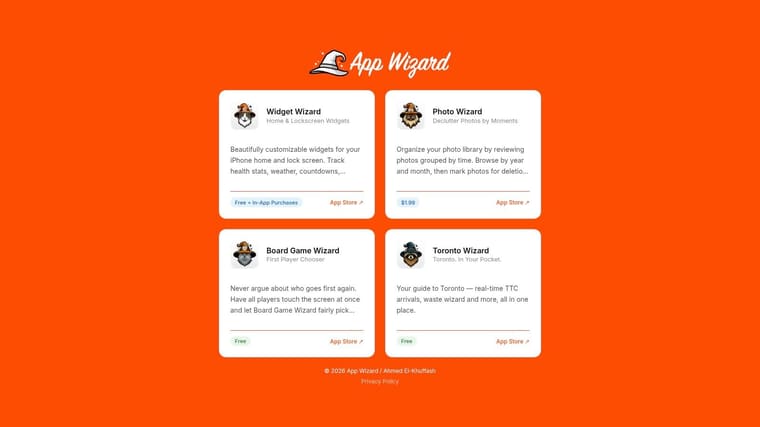
Widget Wizard is one of the more practical tools in this category. It leans toward information density, especially for people who want a compact, glanceable setup instead of large decorative cards.
The app’s positioning at Widget Wizard centers on combining multiple information sources into one widget and supporting Home Screen and Lock Screen utility layouts.
Best for dense utility layouts
Its composite-widget approach is smart. Instead of filling a page with separate calendar, reminders, and health widgets, you can consolidate more information into a smaller footprint. That matters on iPhone, where every slot on the Home Screen competes for attention.
This app isn’t trying to win the theme contest. It’s trying to reduce clutter.
Here are the practical trade-offs:
- Strong fit: People who want more information in less space.
- Good value style: One-time Pro purchase appeals to users who dislike subscriptions.
- Not ideal for aesthetics-first setups: The visual style is more functional than expressive.
For users who want customizable widget apps on iPhone to act like compact dashboards, Widget Wizard deserves more attention than it usually gets.
Top 10 iPhone Custom Widget Apps, Feature Comparison
| App | Core features | UX & Quality (★) | Pricing & Value (💰) | Best for (👥) | Unique selling point (✨) |
|---|---|---|---|---|---|
| Pretty Progress 🏆 | Customizable progress bars & countdowns across iPhone/iPad/Watch/Mac/Android | ★★★★★ • Polished, zero‑ads, responsive dev | 💰 Free + PRO IAP | 👥 Goal‑oriented users wanting glanceable motivation | ✨ Curated themes + built‑in date/fasting calculators, cross‑device widgets |
| Widgetsmith | Wide widget types (photos, weather, activity, countdowns) | ★★★★☆ • Large community; occasional refresh quirks | 💰 Free + Premium | 👥 Customizers & community learners | ✨ Extensive widget gallery & how‑to resources |
| Widgy | Layer‑based editor, live data, Watch & Dynamic Island support | ★★★★☆ • Extremely flexible; steeper learning curve | 💰 One‑time IAPs | 👥 Designers & power builders | ✨ Photoshop‑like layer editor + community designs |
| Color Widgets | Large template gallery, health & multi‑countdowns | ★★★★ • Fast setup; ads on free tier | 💰 Free (ads) + Pro | 👥 Casual customizers wanting quick themes | ✨ Ready‑made seasonal templates |
| Widgetable | Shared/interactive widgets (mood, pets, distance) | ★★★★ • Social, engaging but ad‑heavy | 💰 Free + IAPs (ads) | 👥 Friends/couples who want shared widgets | ✨ Socially synced widgets & virtual pets |
| Launcher (Cromulent Labs) | Tap‑to‑launch app/contact/URL/Shortcut; time/location views | ★★★★ • Mature, power‑user focused | 💰 Free + Premium IAPs | 👥 Power users & Shortcut automators | ✨ Deep Shortcuts & time/location widget views |
| Lock Launcher | Lock Screen/Live Activity launchers; transparent widgets | ★★★★ • Fast, utility‑first UX | 💰 Free + IAPs | 👥 Action‑first users wanting one‑tap access | ✨ Lock Screen/Dynamic Island launchers |
| Photo Widget: Simple | Photo, countdown, calendar, clock, memo, to‑do widgets | ★★★★ • Quick setup; large user base | 💰 Free + paid packs | 👥 Photo‑centric customizers | ✨ Photo‑first widgets with many templates |
| ScreenKit – App Icons & Widgets | Bundled icon packs, widgets & wallpapers; designer themes | ★★★★ • Cohesive themes; easy apply | 💰 Free + one‑time unlock | 👥 Users wanting cohesive aesthetic overhauls | ✨ Hundreds of coordinated designer theme sets |
| Widget Wizard | Composite widgets mixing calendar, reminders, health | ★★★★ • Info‑dense, efficient glanceability | 💰 One‑time Pro unlock | 👥 Productivity & health‑focused users | ✨ Composite multi‑source tiles for compact dashboards |
How to Choose
Pick based on the job, not the screenshot
Many users choose widget apps the wrong way. They pick the prettiest screenshot in the App Store, install the app, spend time matching colors, and then realize the widget doesn’t help them do anything they care about.
A better filter is use-case first. In practice, these apps break down into a few clear groups:
- For motivation and time awareness: Pretty Progress
- For broad, mainstream customization: Widgetsmith
- For build-it-yourself layouts: Widgy
- For theme packs and visual makeovers: Color Widgets, ScreenKit, Photo Widget: Simple
- For social or shared experiences: Widgetable
- For action-first workflows: Launcher and Lock Launcher
- For compact utility dashboards: Widget Wizard
There’s also a market reason this category keeps expanding. Grand View Research values the global utility app market at USD 4.7 billion in 2021 and projects growth to USD 7.8 billion by 2028, at a 7.5% CAGR (Grand View Research utility app market report). The practical takeaway isn’t just that widget apps are popular. It’s that the most durable ones solve repeated daily problems, not just aesthetic ones.
The setup friction is real
The second thing to think about is tolerance for setup. Some apps feel finished in minutes. Others need time, trial and error, maybe even a screenshot trick for transparent effects or some Shortcuts work to get the exact look you want.
That’s why I usually suggest this rule of thumb:
- Choose templates if you want speed: Color Widgets, Photo Widget: Simple, ScreenKit
- Choose editors if you want control: Widgy, Widgetsmith
- Choose focused tools if you want one job done well: Pretty Progress, Launcher, Lock Launcher, Widget Wizard, Widgetable
If you’re still unsure, start with the app that matches your most frequent glance. Not your ideal self. Your actual behavior. If you check deadlines all day, use a countdown tool. If you open the same apps repeatedly, use a launcher. If you want your screen to feel personal, start with photos or theme packs.
Your iPhone, Your Rules
The best customizable widget apps for iPhone don’t all solve the same problem, and that’s why comparing them as if they’re interchangeable doesn’t help much. Some are built for aesthetics. Some are built for speed. Some are built for motivation. A few try to do all of it, but usually one strength stands out more than the rest.
Pretty Progress is the one I’d point to for visible countdowns, progress bars, and long-term goals that need constant visual reinforcement. Widgetsmith remains a strong all-purpose pick when you want range and community support. Widgy is the right choice when you want to build something more bespoke. Launcher and Lock Launcher are practical tools for shaving taps off your day. ScreenKit, Color Widgets, and Photo Widget: Simple are easier wins for users who care most about visual polish. Widgetable is the outlier for social interaction, and Widget Wizard is the quiet utility pick for dense information layouts.
The bigger shift is that widgets now deserve to be treated as part of your interface, not as decoration around it. Apple’s expansion of widget flexibility across recent iOS versions made that possible, and third-party apps have turned it into a real category. Some people still won’t use widgets regularly, and that’s fine. But if you do, the best setup usually isn’t the flashiest one. It’s the one that saves time, reduces friction, or keeps something important visible without asking for extra effort.
That’s why it’s worth being honest about what you want from your Home Screen. Most users don’t need ten widget apps. They need one good one that matches the way they already use their phone.
Start small. Add one widget that earns its spot. If it helps after a week, keep building around it. If it doesn’t, remove it and try a different type. That’s the advantage of iPhone customization now. You aren’t stuck with one model. You can make the screen fit your routines, your attention, and your taste.
And once you get that right, your Home Screen stops being a static grid and starts acting like a dashboard you use.
If you want a widget app that keeps deadlines, routines, and milestones visible without clutter, try Pretty Progress. It’s a strong fit for anyone who wants elegant countdown and progress widgets on iPhone, iPad, Apple Watch, Mac, and Android, especially if visual motivation works better than another notification.





