

September 26, 2026
Focus Timer App Guide: Boost Your Productivity
Discover how a focus timer app can transform your productivity. Learn key features, workflows like Pomodoro, and tips for students and ADHD users.
A focus timer app breaks work into timed intervals, typically using the Pomodoro Technique, to minimize distractions and sustain concentration. The classic setup is 25 minutes of work followed by about 5 minutes of rest, but the right interval depends on the task and your attention span.
You probably opened this guide after a familiar failure: you started a report, revision session, or coding task, then checked one notification. A quick reply became email, email became a browser tab, and the timer in your head stopped being useful. The problem usually isn’t that you lack discipline. Your tools are competing for your attention, and a timer only helps when it works reliably and fits the way you work.
The practical answer is simple. Choose a timer with preset cycles, session logging, and dependable alerts. Start with a structured interval, then adjust it if the timer interrupts flow or leaves you too much room to drift. A focus timer should reduce decisions, not add another productivity project.
Table of Contents
- The Distraction Trap and the Timer Solution
- Why Focus Timer Apps Actually Work
- Choosing Your Workflow, Pomodoro, Deep Work, and Beyond
- Setting Up Your Focus Timer for Success
- Visualizing Progress with Pretty Progress
- Tailoring Timers for Students and ADHD
- Troubleshooting Common Timer App Issues
- Building a Sustainable Focus Habit
The Distraction Trap and the Timer Solution
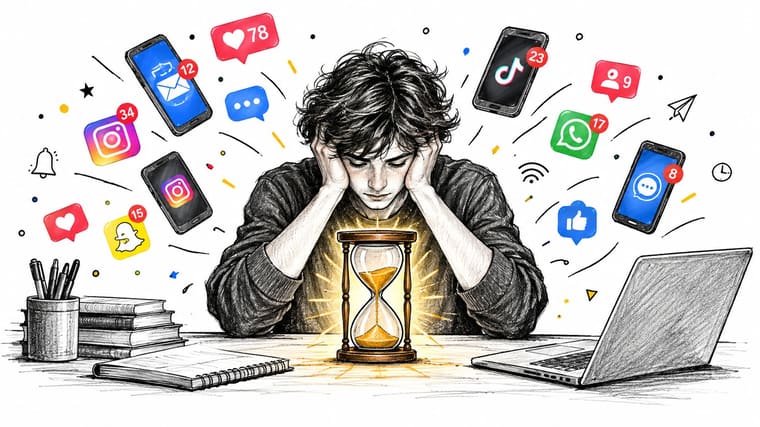
You sit down with one clear intention: finish the report before lunch. Your phone lights up. A team message arrives. You open email to check whether the message needs a reply, notice an unrelated subject line, and follow a link that has nothing to do with the report. By the time you return to the document, the original thought has gone cold.
Digital interruption makes this pattern hard to avoid. An analysis of 50,000 workers found that the average knowledge worker checked communication tools every 6 minutes, while 40 minutes was the longest stretch they could go without checking email during the workday, according to SHRM’s analysis of digital distractions. A separate report cited by SHRM found that workers toggled between apps and websites about 1,200 times per day, spending nearly 4 hours per week, or 9% of work time, just resetting concentration, as reported in the same source.
The timer creates a clear boundary
A focus timer app gives your attention an external boundary. Instead of relying on a vague promise to work “for a while,” you commit to one defined interval. During that interval, the rule is narrow: keep the report open, capture unrelated thoughts somewhere else, and postpone non-urgent checking until the break.
That boundary matters because restarting concentration costs more than the interruption itself. A 2026 productivity compilation reported that employees were interrupted every 3 minutes and 5 seconds on average, and that regaining focus took over 23 minutes after each interruption, according to the workplace productivity report. The timer doesn’t remove every distraction. It makes the next focused action obvious.
Practical rule: Use the timer to protect the start of a task, not to prove how long you can suffer without a break.
The best setup feels almost boring. Start a session, work on one defined output, take the scheduled break, and record what you completed. If you need aggressive blocking, pair the timer with a website or app blocker. If your main problem is beginning, a visible countdown may be enough.
Why Focus Timer Apps Actually Work
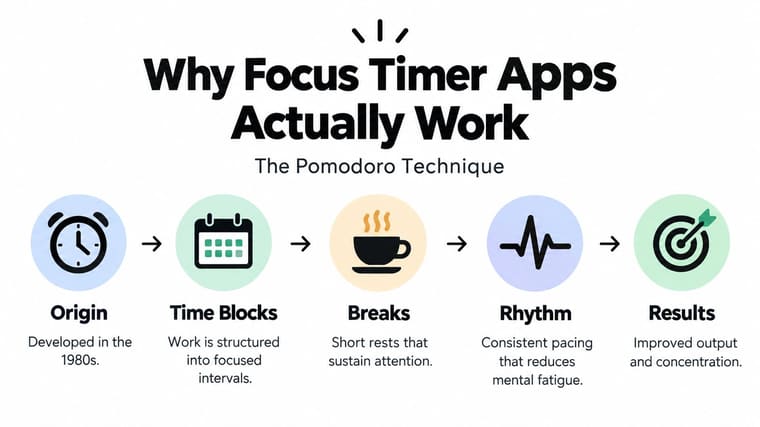
The Pomodoro Technique, developed in the 1980s, structures work into timed focus intervals separated by short breaks. Its commonly cited format is 25 minutes of work and about 5 minutes of rest, a design that remains useful because it turns an abstract intention into a short, visible commitment. You don’t have to motivate yourself to concentrate indefinitely. You only need to begin the current block.
The behavioral advantage is reduced initiation friction. “Write the proposal” feels large and undefined. “Draft the opening argument until the timer ends” gives you a smaller action with a clear finish line. The countdown also acts as a low-level cue. When you reach for another tab, the remaining time reminds you that the distraction has a cost.
What the evidence supports
The case for timers is strongest when stated modestly. They offer structure, reduce the number of decisions during work, and create a repeatable rhythm. One independent personal exploration using the Focus Keeper app reported a 46% decrease in distractions, along with improved perceived motivation and focus, after timed focus sessions and breaks were adopted, as described in the UCLA student study.
That result doesn’t mean every user will experience the same change. It does show why the method can feel effective: the app combines a starting cue, a defined work boundary, a planned recovery period, and a record of completed effort. Those pieces support behavior without requiring constant willpower.
The timer also changes how you judge a work session. Instead of asking whether you felt focused all morning, you can ask whether you completed the interval and what you produced. For practical workflows, that shift is more useful than chasing a perfect state of concentration.
Watch the embedded explanation if you prefer a visual walkthrough of the method:
For additional tactics that complement timed sessions, use this guide to ways to increase productivity. The important distinction is that a timer supports the work. It doesn’t decide the task, remove every interruption, or replace a realistic plan.
Choosing Your Workflow, Pomodoro, Deep Work, and Beyond
The classic Pomodoro cycle is a strong default, not a law. It works well when the task has natural units, such as reviewing flashcards, clearing a defined set of messages, outlining an article, or making small coding changes. The short break gives you a planned stopping point before fatigue turns into avoidance.
Long-form work can need a different shape. Writing, analysis, design, and software architecture often involve a ramp-up period. If the timer rings just as the useful idea appears, a rigid stop can create more friction than it removes. For these tasks, use a longer custom interval or a flowtime approach. Start the timer, work until concentration naturally drops, then take a break and log the actual duration.
Match the method to the work
| Workflow | Useful when | Main trade-off |
|---|---|---|
| Pomodoro | You need a clear starting cue and regular recovery | The interval may interrupt emerging flow |
| Deep-work block | The task needs uninterrupted reasoning | A long block can feel difficult to start |
| Custom intervals | Your energy or task structure changes during the day | More setup creates more decisions |
| Flowtime | You want to stop when attention fades naturally | It offers less protection against drifting |
A student revising a defined topic might begin with 25/5. A developer debugging a complex issue could choose a longer block, then use a short timer only for the next concrete milestone. A project manager handling shallow administrative work may prefer short bursts because the tasks already have clear boundaries.
The useful distinction isn’t “strict timer versus no timer.” It’s whether the timer protects the kind of attention the task requires. This focus vs shallow tasks guide provides helpful context for deciding whether a task deserves uninterrupted concentration or a shorter, repeatable cycle.
A timer should create the right boundary around the work, not force every kind of work into the same box.
If you want to compare interval-based tools and workflows, review this explanation of a timer interval app. Keep the first experiment small. Choose one workflow for a specific task, run it for several sessions, and change only one setting when something fails.
Setting Up Your Focus Timer for Success
Installing an app takes a minute. Making it dependable requires a deliberate setup, especially if you work across a phone, computer, or watch.
Configure the minimum useful system
-
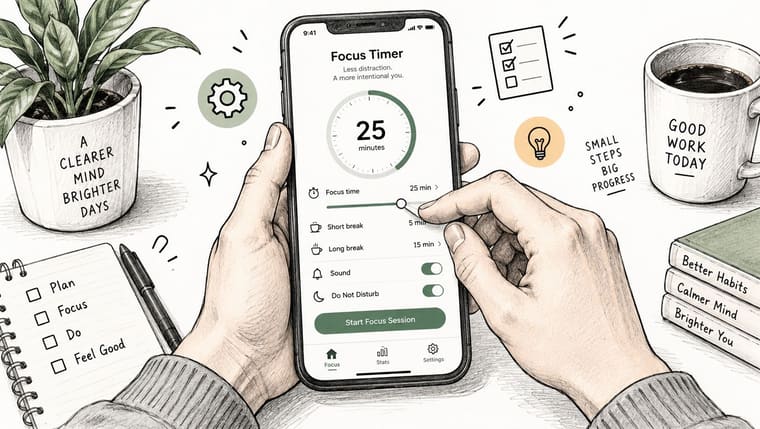
Choose a starting cycle. Begin with the familiar 25-minute work session and about 5-minute break, then adjust only after you have observed how it fits your task. Presets are valuable because they remove repeated setup decisions.
-
Name the output. “Work on taxes” is weak. “Reconcile the March receipts” gives the session a finish condition. Put that label in the task field if the app supports it, or write it beside the timer.
-
Turn on session logging. A record of completed sessions helps you see whether the routine is becoming usable. Major app-store examples commonly combine work and break presets with automatic recording of completed sessions, as shown by this focus timer listing on Google Play.
-
Test the alert before real work. Start a short test session and lock your device. Confirm that the completion alert appears where you expect it. A timer that finishes without a sound isn’t a small design flaw. It breaks the trust required for a daily workflow.
-
Reduce competing prompts. Silence non-essential notifications, close unrelated tabs, and decide where incoming tasks will go. A notes page or paper pad is often enough. The point is to capture interruptions without acting on them.
Use the timer in a recurring context, such as the first writing block of the day, an exam revision session, or the hour after lunch when messages tend to expand. Keep the setup stable until the behavior feels automatic. Feature-heavy apps can be useful for blocking or analytics, but every extra setting is another opportunity to stop and configure instead of working.
Visualizing Progress with Pretty Progress
A conventional focus timer answers one question, how long is left in this session. A progress widget answers a broader one, how far am I from the outcome I care about. That distinction matters when the work spans several sessions, a deadline, an exam period, or a long project.
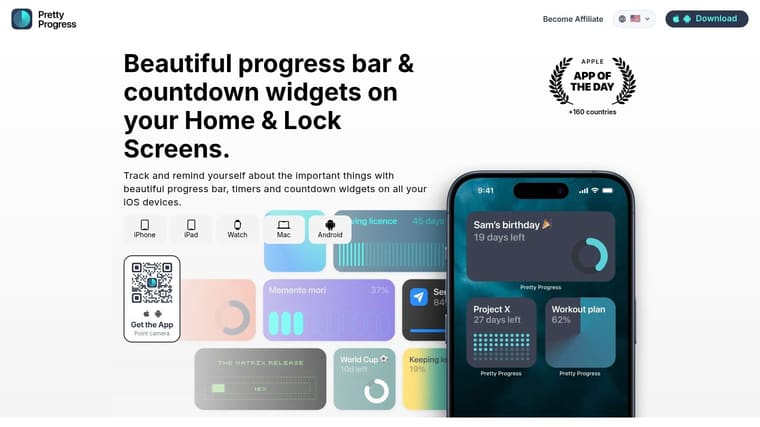
Pretty Progress can create customizable countdown and progress widgets for iPhone, iPad, Apple Watch, Mac, and Android, with the widget placed on a Home Screen or Lock Screen. Instead of opening a timer app every time you need context, you can keep a visual reminder in the same place where you already check the time.
Use a widget beside the timer
Set the focus session in your dedicated timer, then use the widget for the larger horizon. For example, a student can keep an exam countdown visible while running separate study intervals. A professional can display a project deadline while using shorter sessions for drafting, research, and review.
The visual cue is deliberately quieter than a stream of alerts. It doesn’t need to interrupt the current task. It keeps the target visible, which can help you choose the next action when a break ends.
Pretty Progress supports customizable themes, colors, gradients, bar sizes, layouts, and icons. That flexibility is useful when the default app style creates visual clutter or when you want separate widgets for deadlines and recurring goals. The practical boundary is clear: it complements a focus timer, but it doesn’t replace the need to select a work interval, define an output, and protect the session from interruptions.
Use one widget for one meaningful horizon. If every task gets a separate countdown, the screen becomes another dashboard to maintain. A single visible deadline paired with a simple interval routine is easier to trust.
Tailoring Timers for Students and ADHD
The standard 25-minute interval won’t suit every brain or every assignment. Some people lose momentum during the break, while others find the starting block too demanding. For students and people with ADHD, the useful setting is the one that lowers the barrier to beginning without making the session so short that it becomes constant administration.
Start with a smaller commitment if the task feels unreachable. A short interval can make opening the book, document, or coding environment less intimidating. Once starting becomes easier, extend the work period when concentration supports it. Break length also deserves adjustment. A break that turns into an open-ended phone session defeats the structure, so use a defined activity and a clear return cue.
Rigid when it helps, flexible when it doesn’t
Strict cycles work best when you need external boundaries. They can prevent a student from spending an entire evening on one easy chapter or help someone with ADHD contain an intimidating task inside a manageable unit. They’re less useful when the alert arrives during productive flow or when the user spends more time changing settings than doing the work.
Flowtime offers a practical alternative. Work until attention drops, pause, and record what happened. The approach respects natural concentration, but it needs a stopping rule. Without one, “I work better in flow” can become permission to continue until exhaustion or to drift without noticing.
Evidence in this area needs careful interpretation. A review of ADHD productivity apps notes that Pomodoro is only one model, that many users need shorter customizable intervals, and that focus apps have limited direct trial evidence compared with stimulant medication, as discussed in this ADHD productivity app review.
Students should also separate task types. Use a strict interval for memorization or administrative work, a longer block for essays or problem-solving, and a flexible session for creative work. If you want motivation support designed around ADHD-related friction, see the ADHD motivation app guide, then test the smallest change that makes starting easier.
Troubleshooting Common Timer App Issues
A timer can show that a session ended while failing to tell you that it ended. This is one of the fastest ways to abandon an app. Reliability depends on operating-system permissions, notification settings, battery behavior, and whether the session runs locally when the device is offline.
When the completion alert never appears
Check the app’s notification permission first. On Android, also inspect the notification channel’s importance and confirm that the app isn’t restricted by battery optimization or background limits. Support guidance for modern Android versions warns that completion alerts can fail when permission is missing and recommends checking notification-channel importance before a session begins, as explained in this focus timer reliability update.
On iPhone and iPad, review notification delivery, Focus modes, silent settings, and Lock Screen permissions. A widget can display the timer while the completion alert remains suppressed, so test both independently. Don’t wait until a deadline session to discover the difference.
When devices disagree
Cross-device flows introduce another failure point. Decide which device owns the active session, then avoid starting or stopping the same session from multiple devices unless the app explicitly supports that behavior. If the app offers desktop, watch, and mobile companions, test a complete cycle on each device rather than assuming synchronization is automatic.
For offline work, confirm whether the timer uses local countdown logic and whether completed sessions are stored until connectivity returns. If the answer is unclear, use a simple local timer for critical sessions and treat cloud history as secondary. Session records are useful, but an uninterrupted work block matters more than perfect analytics.
Before adopting any app, run this operational test:
- Permission test: Start a session with notifications enabled, lock the device, and wait for completion.
- Interruption test: Switch apps or let the screen sleep, then confirm the timer resumes correctly.
- Offline test: Begin without a connection and check whether the completion event still works.
- Recovery test: Force-close the app, reopen it, and verify whether the active session is preserved.
A dependable focus timer should make failure visible early. If it doesn’t, keep a fallback alarm for sessions where missing the end signal would cause a real problem.
Building a Sustainable Focus Habit
A timer becomes useful when it removes friction from a recurring task. Choose a workflow that matches the work, define one output before starting, and keep notifications and controls simple enough that you won’t negotiate with the app during every session.
Review completed sessions for patterns, not for self-judgment. If rigid intervals interrupt your best thinking, try longer or flowtime-style blocks. If you keep postponing the start, shorten the first commitment. If alerts fail, fix permissions before changing productivity methods.
A practical checklist looks like this:
- One task: Name the result you want from the next session.
- One interval: Pick a work and break length that fits the task.
- One alert path: Test the device that will notify you.
- One record: Log the session or its completed output.
- One adjustment: Change a single setting after reviewing what happened.
For broader planning around demanding projects, this resource on how to manage your time as a offers useful guidance. The timer is the execution layer. Your task choice, environment, and recovery routine determine whether that layer supports a habit or becomes another abandoned app.
Pretty Progress offers customizable countdowns and progress widgets across iPhone, iPad, Apple Watch, Mac, and Android, so you can keep a deadline or goal visible alongside your focus sessions. Create a timer, design the widget, and add it to your screen by visiting Pretty Progress.





