

August 23, 2026
8 Calendar Management Tips for Better Focus in 2026
Use these calendar management tips to plan focused work, protect buffer time, manage deadlines, and stay on track with mobile widgets.
You open your phone and see a day filled with meetings, vague labels like “work on project,” overlapping alerts, and no clear sign of what matters. The calendar is full, but your progress is invisible. By the afternoon, you’ve attended several calls, answered messages between them, and still can’t point to the work that moved your priorities forward.
Good calendar management isn’t about filling every available minute. It’s about making priorities, recovery time, deadlines, and next actions visible on the device you already check throughout the day. That matters in modern workplaces, where 83% of employed Americans depend on a calendar for their day-to-day workflow, and 78% of those calendar-dependent workers report feeling very to extremely productive according to CalendarLabs’ workplace calendar research.
The eight calendar management tips below follow a practical sequence. First, decide what deserves calendar space. Then block meaningful work, create visual categories, protect focus, map deadlines, add breathing room, and review the system. The aim is a calendar that works at a glance, especially on a mobile screen or widget, without turning every small task into another notification.
Table of Contents
- 1. Time Blocking Dedicating Specific Time Slots to Tasks
- 2. The Two-Minute Rule Deciding What Goes on Your Calendar
- 3. Color-Coding and Categories Visual Organization System
- 4. The Priority Matrix Aligning Calendar with Values
- 5. Calendar Blocking for Deep Work Protecting Focused Time
- 6. Buffer Time and Transition Time Building Recovery Into Your Schedule
- 7. Deadline Mapping and Reverse Planning Working Backward from Goals
- 8. Calendar Audits Weekly Reviews and Communication Boundaries
- 8-Point Calendar Management Comparison
- Turn Your Calendar Into a Clearer Control Panel
1. Time Blocking Dedicating Specific Time Slots to Tasks
Saturday morning finds your calendar packed with a proposal draft, two back-to-back calls, and a deadline you cannot quite place. Time blocking gives each priority a visible place to happen. Instead of “finish client proposal,” schedule “draft proposal introduction” during a defined work period. The specific action makes the block easier to start.
Place demanding work when your attention is strongest. If mornings are clearer, reserve them for writing, analysis, coding, or studying. Name the next action in the event title, such as “Draft pricing section,” rather than using a broad label like “Proposal.” That wording reduces the thinking required when the block begins.
Build around real conditions, not an idealized day. Leave space for messages, preparation, meals, travel, and work that runs long. A dense calendar may look productive, but one delayed meeting can force repeated rescheduling. For ADHD, fewer visible blocks often work better than a wall of small appointments. Keep routine details in a task list, and use only the calendar events that need time protection.
Make each block glanceable
On a phone, the title may be all you see in a widget or notification. Put the action first, followed by the project if needed. “Review slides, product launch” scans faster than a long description. Add a location, document link, or brief instruction to the notes, while keeping the title compact.
Connect a block to a visible countdown or progress cue with this guide to time blocking for productivity. A Pretty Progress widget can sit on a Home or Lock Screen and show the remaining time until a deadline or milestone, while the calendar provides the day’s structure. Choose one or two glanceable cues instead of stacking alerts, which can increase visual and notification overload.
Practical rule: Block the work, not every movement. Let the calendar show where focused effort belongs, and keep smaller actions inside the block’s task list.
Review blocks each week. Move recurring work to times when you complete it, shorten blocks that create resistance, and split projects that feel vague. Adjusting the system makes it more useful than trying to plan a perfect day.
2. The Two-Minute Rule Deciding What Goes on Your Calendar
The difference between a sticky note and a calendar event is commitment, not content. A two-minute action usually belongs on a task list, especially when creating an event would take longer than completing the work.
Use the Two-Minute Rule as a filter. If an action takes about two minutes, you are already in the right context, and it will not disrupt priority work, handle it immediately. Reply to a short confirmation while the message is open. File a document while the destination folder is already on screen. Avoid creating reminders for actions you can finish in the same moment.
The rule should not trigger interruptions throughout the day. During a writing block, a “quick” email can break concentration and become a much longer detour. Capture it in a task list or add it to an email batch instead. On a phone, keep that capture step simple, such as a widget shortcut or one inbox task list, so the reminder does not become another notification to manage.
Use a threshold that fits your work
Two minutes is a starting point, not a fixed law. A support team may need to answer short requests quickly, while a developer may need to protect a coding session from every interruption. Set a personal threshold and apply it consistently.
Use these distinctions:
- Do now: The action is brief, needs no research, and will not interrupt priority work.
- Batch later: Several small actions can wait for one administrative session.
- Schedule: The task needs concentration, preparation, coordination, or meaningful time.
- Capture only: It matters, but its duration or best timing is still unclear.
Watch for micro-tasks that return repeatedly. If “send project update” keeps appearing, create a recurring communication block. If “organize downloads” resurfaces each week, set one maintenance session instead of scattering reminders across the calendar.
Keep the calendar for real commitments and dedicated work. Let the task system hold loose actions. For larger goals, a visual countdown or habit cue can keep progress visible in a widget without placing every supporting step on your schedule. Choose a small number of cues so the phone remains glanceable rather than crowded.
3. Color-Coding and Categories Visual Organization System
A useful calendar should answer a few questions before you read every event. How much of today is meetings? Where is focused work? Have you left space for health, family, or recovery? Color-coding helps you answer through visual pattern recognition, but only if the system stays restrained.
Choose categories based on the decisions you need to make. A practical setup might include meetings, focused work, deadlines, personal commitments, and health. You can add project colors if your work requires them, but avoid giving every client, subject, or minor task its own shade. Too many colors turn the calendar into decoration instead of information.
Use labels as well as colors. A color-only system can be difficult for people with color-vision differences, and it becomes less reliable when viewed through different apps or display settings. Event titles such as “FOCUS, write brief” or “DEADLINE, submit application” preserve meaning when the color isn’t visible.
Design for a small screen
Mobile calendars often show only a narrow strip of the week. Strong contrast and short event names matter more than subtle visual detail. Test the calendar in week view and on the widget you use. If two categories look almost identical on your phone, simplify them.
The principles in this visual time management resource can also guide your widget design. Matching a progress widget’s theme to your calendar palette can create a consistent visual language, but don’t make the widget so elaborate that the deadline becomes hard to read.
A color should answer a question, not merely make an event look different.
Review the system when it starts requiring explanation. If you need to consult a legend before understanding your own day, merge categories. Share the legend with family members or teammates only when shared interpretation is important. Personal calendars can remain simple, while collaborative calendars need labels everyone understands.

4. The Priority Matrix Aligning Calendar with Values
Important work rarely announces itself with urgency. It tends to wait until the cost of ignoring it becomes visible. If incoming requests control your calendar, low-impact tasks can crowd out planning, learning, relationships, and projects that prevent future emergencies.
The Eisenhower Matrix divides work into four groups: urgent and important, important but not urgent, urgent but less important, and neither urgent nor important. Apply the categories to decide what happens next. Handle the first group, schedule the second, delegate or streamline the third where possible, and question whether the fourth deserves calendar space.
Review the current week rather than building a theoretical system. Check meetings, deadlines, and existing blocks, then assign each item to a quadrant. A busy calendar may still leave no protected time for important work without an immediate deadline.
Schedule important work before the week fills
Reserve strategic work before accepting optional meetings. Examples include outlining a report, preparing for an exam, improving a process, developing a product, or maintaining an important relationship. These activities often become urgent only after postponement has created a higher cost.
A leadership team can reserve planning time despite operational requests. A student can schedule research and drafting before an essay deadline. A freelancer can protect business development before client administration fills every open period.
Add a countdown widget for a major milestone in this quadrant. The visible date keeps a quiet priority in view without repeated alerts. Calendar blocks define when the work happens, while the widget keeps the destination visible at a glance.
Use fewer cues if the screen becomes crowded. On a phone, show only the next important milestone and the day’s scheduled work. Someone with ADHD may benefit from a single countdown widget and limited calendar notifications, rather than several competing reminders. The goal is a prompt that supports action without creating another source of visual or notification overload.
Review the matrix regularly. Priorities change, and important work can become urgent as conditions shift. Remove blocks that no longer serve the goal. The aim is not to make every hour noble, but to give meaningful work a fair chance against whatever arrives first.
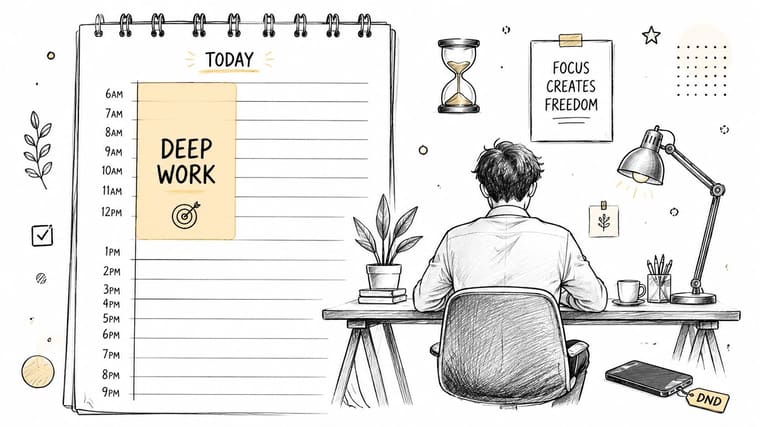
5. Calendar Blocking for Deep Work Protecting Focused Time
A focus block that anyone can book isn’t protected time. Marking an event “deep work” helps, but the system depends on boundaries, communication, and notification settings.
Choose a period when your energy supports demanding work. Reserve it for tasks that suffer under interruption, such as writing, software development, financial analysis, design, or research. Use a specific outcome in the title: “Draft methods section” creates a clearer starting point than “Deep work.”
Treat the block like an external appointment. Set your calendar status to busy, silence email and chat notifications, and close apps that invite checking. If your team needs access to you, publish an alternative route for urgent issues. Without that explanation, colleagues may interpret your unavailability as a lack of responsiveness.
Make focus easier to enter
A short ritual can reduce the friction of starting. Open the same document, use the same desk, put your phone out of reach, or begin with a small visible action. You can work in shorter internal cycles if a long uninterrupted period feels intimidating. The calendar block protects the overall window, while breaks inside it prevent fatigue from turning into avoidance.
Use a deadline widget as a quiet visual cue rather than another alert. If a project has a clear end date, a shrinking progress display can remind you why the block matters without pulling you into an inbox.
The trade-off is flexibility. A rigid block can fail when customer issues, family needs, or urgent work appears. Protect the block by default, but create a clear exception rule. If you move it, reschedule it deliberately instead of letting it disappear.
6. Buffer Time and Transition Time Building Recovery Into Your Schedule
Back-to-back events leave no room for late finishes, notes, travel, or mental switching. Buffer time reserves space to complete one commitment and prepare for the next.
Start with the points in your week that repeatedly create stress. If calls run into the following meeting, add a transition event and mark it unavailable for booking. If focused work ends just before a presentation, reserve time to collect notes, check the key points, and change context.
A mobile calendar should make these gaps visible at a glance. Give the event a clear label, such as “Meeting notes and reset,” and use a neutral color that separates it from work and personal commitments. A calendar widget can then show the recovery space without requiring you to open the full schedule.
Label the space so others respect it
“Transition time” explains the purpose better than an empty gap. Teammates can see why the slot is protected, while an ADHD-friendly color system reduces the need to interpret every blank space. Keep notifications off for routine buffers. Otherwise, the recovery period can create the same visual and alert overload as another appointment.
Short transitions may need only a small gap. A major shift, such as moving from focused analysis to client-facing work, needs more room. Set the buffer based on where your schedule breaks, not on a formula copied from someone else.
Recovery time is scheduled work when it helps you arrive prepared for the next commitment.
Protect flexibility too. A calendar filled with buffers can become misleading if every open space turns into an obligation. Keep some gaps unassigned, and move a buffer deliberately when real emergencies or true urgencies appear. The goal is punctuality, attention, and completion, not another category of appointments.
7. Deadline Mapping and Reverse Planning Working Backward from Goals
Reverse planning starts at the deadline. Work backward through research, drafting, review, testing, and approvals to map each dependency before it becomes a crisis. This approach turns one distant date into calendar actions you can see and schedule.
Write the final delivery date first, then list the phases required to reach it. For a proposal, that may include information gathering, an outline, a draft, stakeholder review, revisions, and submission. Place those phases backward on the calendar, then add smaller work blocks that support each phase.
Check the dependencies before booking time. Final editing requires a usable draft, and testing requires a relevant build. If another person must review the work, assign an internal deadline with room for changes instead of placing the review beside the final submission.
Put milestones where you can see them
Give every phase a specific title and date. “Complete outline” is easier to act on than “Project progress.” Add the final deadline and key milestones to a mobile widget, where a quick glance can show what needs attention without opening a project-management app. For ADHD-friendly planning, display only the next few milestones and keep alerts limited to deadlines or decisions. Too many colors and notifications can turn visibility into overload.
This project deadline tracker guide explains how a countdown can support that visual layer. Before building a timeline for a complex goal, compare the approach with this guide to backward planning.
A reverse plan is a working model, not a promise. If the first phase takes longer than expected, move every dependent milestone immediately. A neat timeline is less useful than an honest one, so leave room for review and rework where the project requires it.
Use this visual walkthrough to follow the sequence:
8. Calendar Audits Weekly Reviews and Communication Boundaries
Tuesday afternoon exposes weak calendar systems quickly. Review the previous week against what happened, then use the findings to shape the next one. A weekly calendar audit creates a short feedback loop between your plan and your working reality.
Choose a consistent review time. Mark events that were useful, wasteful, uncertain, or poorly timed. Look for repeated patterns: meetings that could have been written updates, focus blocks that were repeatedly displaced, deadlines without preparation time, or personal commitments squeezed out by work.
Change one scheduling rule after each review. Shorten a recurring meeting, add preparation time before a weekly presentation, move administrative work to a lower-demand period, or reserve a meeting-free day for your team. A field experiment involving Gap Inc., cited by Soon Works’ scheduling research, reported a 5.1% increase in store labor productivity, associated with a 3.3% sales increase and a 1.8% reduction in labor hours under responsible scheduling practices.
Make boundaries visible to other people
Personal discipline cannot fix a calendar that treats every open slot as available. Tell colleagues when you are unavailable, what qualifies as urgent, and which questions belong in a meeting. Set booking limits and availability windows, then add automatic busy blocks if your calendar platform supports them.
Classify meetings as essential, informational, or habitual. An essential meeting may require real-time decisions. An informational meeting may work better as a written update. A habitual meeting deserves review because it repeats, not because repetition proves value.
Remote work can increase meeting pressure. Keep notifications quiet, use one source of truth, and let a mobile widget show the deadlines or goals you are protecting. Do not display every request. For ADHD-friendly planning, reduce visual clutter to the next few commitments and reserve alerts for deadlines or decisions. CalendarLabs reports that remote workers averaged 239 meetings per year, compared with 161 for in-office workers, in its workplace calendar analysis. Use that finding to examine meeting load, not to fill the widget with more reminders.
8-Point Calendar Management Comparison
| Technique | Complexity 🔄 | Resource / Time ⚡ | Expected Outcomes 📊 | Ideal Use Cases 💡 | Key Advantages ⭐ |
|---|---|---|---|---|---|
| Time Blocking: Dedicating Specific Time Slots to Tasks | Moderate, planning + habit formation 🔄 | Calendar tool + weekly setup; medium ongoing time ⚡ | More focused work; fewer context switches; visible schedule 📊 | Knowledge workers, project work, people needing structure 💡 | Boosts deep focus; prevents overcommitment ⭐ |
| The Two-Minute Rule: Deciding What Goes on Your Calendar | Low, immediate binary rule 🔄 | Minimal time per task; requires discipline; very low overhead ⚡ | Fewer trivial calendar items; quick momentum gains 📊 | Inbox triage, small errands, rapid-response environments 💡 | Reduces calendar bloat; fast wins; lowers decision fatigue ⭐ |
| Color-Coding & Categories: Visual Organization System | Low, simple setup but needs consistency 🔄 | Calendar/platform with color support; small maintenance ⚡ | Rapid at-a-glance workload understanding; easier balance checks 📊 | Teams, families, visual planners, multitopic calendars 💡 | Instant visual clarity; highlights overcommitment ⭐ |
| Priority Matrix (Eisenhower Matrix): Aligning with Values | Moderate, needs honest assessment 🔄 | Time to classify tasks and schedule Quadrant II work; moderate ⚡ | Strategic alignment; more time on important-not-urgent work 📊 | People managing many responsibilities or long-term goals 💡 | Prevents reactive scheduling; improves goal focus ⭐ |
| Calendar Blocking for Deep Work: Protecting Focused Time | High, strict protection and communication required 🔄 | Long uninterrupted blocks (2–4+ hrs); requires boundary setting ⚡ | Higher-quality output; enables flow state; fewer interruptions 📊 | Writers, developers, researchers, creatives needing deep focus 💡 | Maximizes cognitive performance and output quality ⭐ |
| Buffer & Transition Time: Building Recovery Into Your Schedule | Low, easy to add but must be defended 🔄 | Extra unscheduled minutes between items; small time cost ⚡ | Reduced stress; better punctuality; smoother transitions 📊 | Meeting-heavy roles, back-to-back schedules, remote workers 💡 | Absorbs overruns; improves wellbeing and follow-up ability ⭐ |
| Deadline Mapping & Reverse Planning: Working Backward from Goals | High, upfront planning and milestone mapping 🔄 | Significant planning time and coordination; project tracking tools ⚡ | On-time delivery; realistic timelines; clear intermediate milestones 📊 | Product launches, academic projects, complex multi-step work 💡 | Reveals dependencies; prevents last-minute rushes; improves predictability ⭐ |
| Calendar Audits, Weekly Reviews & Boundary Setting | Moderate–High, recurring habit and communication 🔄 | Weekly review time; meetings and policy-setting; moderate ⚡ | Better alignment of time to priorities; fewer low-value commitments 📊 | Managers, teams, long-term planners, anyone improving habits 💡 | Data-driven improvements; stronger boundaries; cultural change ⭐ |
Turn Your Calendar Into a Clearer Control Panel
The best calendar management system doesn’t ask you to remember more. It moves the right information into view at the moment you need it. Your calendar should show commitments, focused work, recovery space, and milestone dates. A task list can hold smaller actions, while a progress widget can keep an important deadline or habit visible without flooding your screen with alerts.
Build the system in a lightweight weekly sequence. Remove tasks that don’t need dedicated calendar space. Sort the remaining commitments by importance and urgency. Reverse-plan major deadlines, then place focused work before optional meetings take the remaining gaps. Add transition time around stressful sequences, apply a restrained color system, and review the results before repeating the same pattern next week.
The design should match how you look at time. Digital calendars are already mainstream, with an ECAL survey reporting that 70% of adults use digital calendars, while 46.7% primarily access them on mobile and 23.3% on desktop as summarized by Exploding Topics. That mobile behavior makes glanceability important. If your titles are too long, your colors are too subtle, or your widgets show too much information, the system creates friction instead of reducing it.
People have been standardizing dates for a long time. The Gregorian reform was introduced by Pope Gregory XIII in 1582, and the reformed calendar was adopted on Friday, October 15, 1582, helping align civil timekeeping more closely with the solar year as described by ANSI. Your tools have changed, but the underlying need remains familiar: place events in a shared structure so you can plan ahead.
Start with one change. Protect a single focus block, add a buffer after your most difficult meeting sequence, or place one deadline widget on your Home or Lock Screen. Use it for a week, notice where it helps and where it fails, then adjust the calendar rather than blaming yourself for not following an ideal plan.
A good calendar is glanceable, flexible, and quiet enough to support action. It shouldn’t demand constant maintenance or turn your day into a wall of alerts. It should show what matters, protect the time required to do it, and give you enough space to recover before the next commitment.
Pretty Progress gives you customizable countdown and progress widgets for deadlines, events, habits, and long-term goals across iPhone, iPad, Apple Watch, Mac, and Android. Add a quiet visual cue to your calendar system and start building a more glanceable day with Pretty Progress.





