

August 15, 2026
Workload Management Systems: A Practical Guide for 2026
Learn how workload management systems help students, professionals, and ADHD users plan, track, and finish work without burnout. Practical steps for 2026.
You open your laptop to finish one important task, then a message asks for a quick answer. A calendar reminder points to a meeting you forgot to prepare for. Two deadlines sit in different apps, and a project someone mentioned last week has never made it onto any list. By the afternoon, you’ve been busy for hours but still aren’t sure what moved forward.
That feeling usually isn’t a character flaw. It’s a missing operating system for your work. A practical workload management system gives incoming work one place to land, helps you decide what deserves attention, puts tasks into realistic time slots, and creates a regular moment to correct the plan.
You don’t need to replace every app or build an enterprise dashboard. Start with the human system first, then add software where it removes friction. This guide moves from that foundation to team and enterprise options, adoption habits, personal adaptations, glanceable reminders, and a simple review process.
Table of Contents
- When Work Starts to Feel Like Whack-a-Mole
- What a Workload Management System Really Is
- The Four Core Components That Hold It Together
- Choosing the Right Scale for Your Life
- Installing a System You Will Actually Use
- How Students, Professionals, and ADHD Users Adapt the Same System
- Glanceable Widgets as the Last Mile of Your System
- Metrics, Reviews, and Your First 30 Days
When Work Starts to Feel Like Whack-a-Mole
The whack-a-mole feeling appears when every request arrives with the same apparent urgency. An email, a client change, a coursework deadline, an appointment, and a recurring admin task all compete for the same attention. You respond to whatever is loudest, then discover that quieter work has become late.
The first useful distinction is between activity and control. Activity means messages answered, tabs opened, and tasks touched. Control means you know what exists, why it matters, when you’ll do it, and what will happen if you can’t.
A workload management system is a repeatable way to create that control. It doesn’t have to be complex. A notebook, a calendar, and a weekly review can work if you use them consistently.
Start with one visible inventory
Write down every open commitment you can remember. Include work, study, household responsibilities, appointments, and promises you’ve made to other people. Don’t organize the list yet. The first job is to stop relying on memory as your storage system.
Then mark each item with four questions:
- What is the outcome? “Prepare presentation” is vague. “Send the final presentation to the client” is clearer.
- When does it matter? Separate a true deadline from a preferred date.
- What’s the next action? A project isn’t actionable until you can name the next physical step.
- Where does it belong? Put the commitment in the tool where you’ll see it.
If thinking has become the main obstacle, a practical guide to breaking the overthinking cycle can help you separate useful planning from repetitive worry. For deadline-heavy weeks, this complementary guide to managing multiple deadlines can help you turn competing dates into a sequence rather than one alarming pile.
Build the smallest useful loop
Your first loop has four movements: capture, prioritize, schedule, and review. Capture prevents forgotten commitments. Prioritizing protects important work from louder interruptions. Scheduling turns intentions into time. Reviewing shows whether your assumptions were realistic.
Start with one inbox and one weekly review. Add complexity only when a specific problem demands it. A system that you understand and use beats an impressive platform you avoid.
What a Workload Management System Really Is
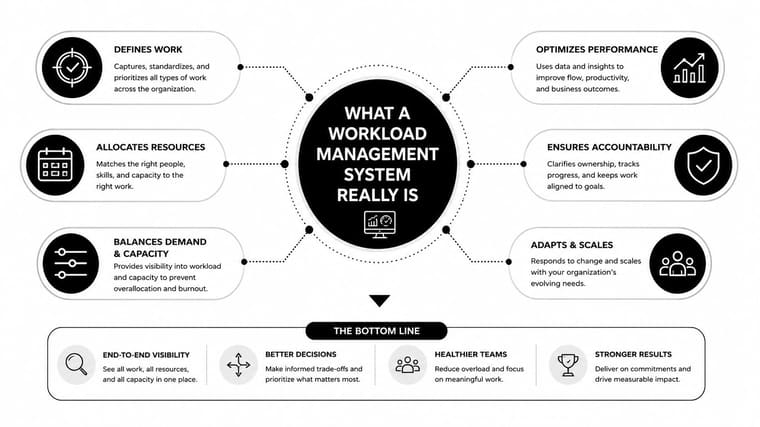
A workload management system is a traffic controller for commitments. Requests arrive from different directions, the controller decides which lanes can move, and a visible board shows where traffic is slowing. In personal work, the “lanes” might be study, client work, administration, and life logistics. In a company, they might be departments, shifts, projects, or computing jobs.
The system has four jobs:
- Collect incoming work so requests don’t disappear in messages or memory.
- Assess demand and capacity so people don’t receive more work than the available time can support.
- Sequence and schedule tasks according to deadlines, dependencies, skills, and priorities.
- Surface exceptions so managers can respond when work is blocked, delayed, or overloaded.
Three useful scales
At the personal scale, you might use a task inbox, calendar, time blocks, and a short daily list. The system answers, “What should I do next, and when can I do it?”
At the team scale, shared boards, capacity views, handoff rules, and regular planning meetings make commitments visible. The system answers, “Who owns this, how much can we accept, and what’s blocked?”
At the enterprise scale, workforce management platforms may combine forecasting, scheduling, staffing optimization, operational reporting, integrations, and policy controls. The system answers, “How should a large operation allocate labor and resources across changing demand?”
The market’s size reflects that broader enterprise use. The global workforce management software market was valued at USD 10.33 billion in 2025 and is projected to reach USD 23.38 billion by 2034, with a 9.5% CAGR from 2026 to 2034, according to Straits Research’s workforce management software market report. North America held 38.4% of the regional share in 2025, according to the same source.
That doesn’t mean you need enterprise software. It means the underlying problem exists at many levels.
A task app alone isn’t a workload system. A calendar alone isn’t one either. A system connects decisions, time, ownership, and feedback. For community organizations comparing software options, a resource on free church management software may also help clarify which administrative functions deserve shared visibility.
The Four Core Components That Hold It Together
Every workable system moves information through the same four stages. The tools may change, but the logic remains stable.
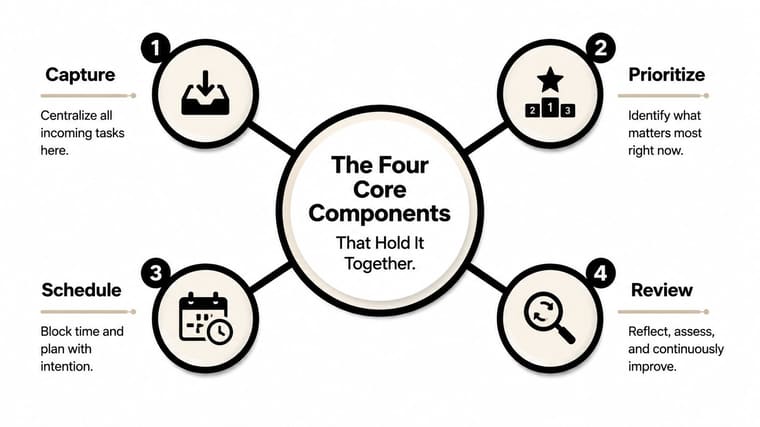
Capture
Capture means placing every commitment into a trusted inbox before you decide what to do with it. A student might record a missed lab deadline, a group project message, a part-time shift, and a dentist appointment in the same intake list.
The inbox doesn’t need perfect categories. It needs completeness. If tasks remain scattered across email flags, chat messages, paper notes, and memory, prioritization starts with detective work.
Prioritize
Prioritizing means deciding what deserves attention first, not declaring everything important. Ask which items have a real consequence, which support a larger outcome, and which can wait without creating trouble.
For the student, the lab deadline may outrank the group project because it has a fixed submission point. The dentist appointment may be mandatory but requires little preparation. The shift belongs on the calendar because it consumes time, even though it isn’t a task to complete.
Practical rule: If you call everything urgent, you haven’t prioritized. You’ve described your stress level.
Schedule
Scheduling turns a ranked list into an appointment with reality. Estimate the work, find available time, and include transitions, preparation, and interruptions. A two-hour assignment shouldn’t occupy a ten-minute gap merely because the gap is visible.
Place fixed commitments first, then add focused work around them. Leave room for the unexpected. A schedule with no recovery space is a delayed plan.
Review
Review is where the system learns. Once a week, check what finished, what moved, what was forgotten, and what took longer than expected. Then adjust dates, break down vague tasks, renegotiate commitments, or remove work that no longer matters.
Most systems fail at capture or review. People create elegant categories but forget to record new requests, or they make a plan and never compare it with what actually happened. Run this self-check: can you list every open commitment, explain today’s priorities, and identify one recurring reason plans fail? If not, strengthen the missing stage before adding another tool.
Choosing the Right Scale for Your Life
The right system is the smallest one that can represent your real workload. A freelancer with a handful of active clients may need a focused personal setup. A five-person team needs shared ownership and capacity awareness. A large operations group may need forecasting, scheduling rules, compliance features, and integrations.
The global market evidence supports this range of use. One estimate places the workforce management market at US$8.9 billion in 2026, projected to reach US$17.5 billion by 2033, with a 10.2% CAGR from 2026 to 2033, while another study values the segment at USD 8.07 billion in 2022 and projects USD 19.35 billion by 2030. These estimates appear in Persistence Market Research’s workforce management analysis. The figures differ because market definitions and methods differ, but both point to sustained adoption beyond a niche audience.
| Scale | Typical Tools | Setup Time | Best For |
|---|---|---|---|
| Personal | Task list, calendar, time blocking, simple Kanban board | Short | Freelancers, students, individual contributors, household planning |
| Team | Shared board, workload view, capacity planning, stand-ups, team calendar | Moderate | Small teams coordinating owners, handoffs, and competing deadlines |
| Enterprise | Workforce management suite, forecasting, scheduling, reporting, integrations, policy controls | Longer | Large operations managing labor, demand, compliance, and cross-system data |
Personal systems
A list works when your main problem is forgetting. Time blocking works when you know what matters but struggle to protect time. A Kanban board works when you need to see work moving through stages such as To do, Doing, Waiting, and Done.
Don’t combine all three immediately. Choose the view that answers your current question. If you’re missing deadlines, begin with capture and calendar dates. If you’re starting too many tasks, use a work-in-progress limit. If your days vanish into meetings, try time blocks.
Team and enterprise systems
Teams need a shared definition of ownership. They also need a way to see capacity before accepting new work. Enterprise platforms earn their complexity when scheduling affects many people, locations, shifts, rules, or operational systems.
A benchmark comparing ReSS, gLite WMS, glideinWMS, and plain Condor-G under common load conditions found that the systems behaved differently under submission pressure. The workload management systems benchmark supports a broader lesson: architecture affects throughput and latency, not just the abstract scheduling policy.
Installing a System You Will Actually Use
Adoption works better as a gradual installation than as a dramatic productivity makeover. Give each layer time to become ordinary before adding the next one.
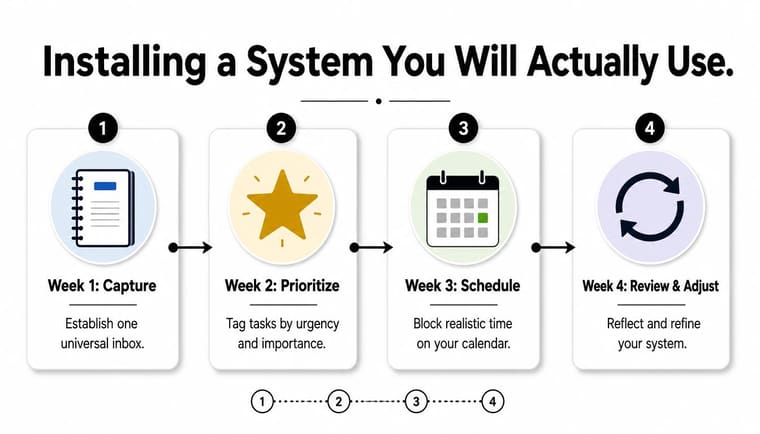
Week one, capture
Choose one universal inbox. It could be a task app, a notebook, or a shared team board. Set one rule: every new commitment goes there before it gets sorted.
At the end of each day, empty obvious duplicates and convert vague notes into clear actions. Don’t build elaborate labels yet. Your first goal is trust.
Week two, prioritize
Add a small priority vocabulary. For example, use now, next, waiting, and later. Keep “now” deliberately small. If a team has more work in progress than its people can reasonably support, the system should make that visible rather than hide it with colorful tags.
Implementation guidance identifies three persistent barriers: defining workload, measuring workload, and managing workload after a problem appears. Aspect’s implementation guide on workforce management trends highlights why organizations often struggle to act: they may lack both usable data and clear intervention guidance.
You can work around that with simple definitions. Define workload as the tasks and commitments assigned to a person or team. Measure it through active items, available time, and approaching deadlines. Manage overload by reducing scope, changing sequence, adding help, or renegotiating the date.
Week three, schedule
Put fixed commitments into the calendar first. Then reserve realistic blocks for priority work. Use your actual energy pattern when possible, and avoid filling every open minute.
For a practical introduction to time blocking for productivity, focus on matching the size of the block to the task rather than creating a visually perfect calendar.
Week four, review and adjust
Hold a weekly review at a predictable time. Ask what was completed, what slipped, which estimates were wrong, and whether the current workload is sustainable.
Use heavier software only when the simple system reveals a real need, such as shared dependencies, complex scheduling, repeated reporting, or resource constraints. Tooling should solve observed friction, not create a new project.
A visual walkthrough can reinforce the sequence:
How Students, Professionals, and ADHD Users Adapt the Same System
A student preparing for finals doesn’t need the same interface as a project manager, but the underlying loop still works. The student captures exam dates, assignments, revision tasks, and personal commitments. A shared calendar holds fixed events, while a short countdown view answers one immediate question: which deadline is approaching next?
The useful adjustment is external visibility. Instead of asking memory to track every exam, the student puts the next important dates where they’re seen during ordinary phone use. A countdown doesn’t replace study planning. It keeps the reason for the plan visible.
A project manager with competing stakeholders
A project manager coordinating several stakeholders might use a Kanban board with columns for intake, active work, waiting for input, review, and complete. Each card needs an owner and a next action. A daily capacity check prevents the manager from treating every new request as immediately acceptable.
The board handles flow. The capacity check handles honesty. If three stakeholders need attention on the same day, the manager can explain the tradeoff before work stalls.
The same logic helps with complex preparation. Guidance on organising MUN prep across conferences is a useful example of separating research, deadlines, materials, and event-specific actions without losing the overall picture.
An ADHD user who needs visible movement
A person with ADHD may find a long, text-heavy list too easy to ignore. The framework doesn’t need to be discarded. It can be adapted with short work intervals, visible task states, alarms, color cues, and a clear next action.
The key is reducing the distance between noticing and starting. A card that says “work on report” creates friction. A card that says “open the draft and write the first paragraph” gives attention somewhere to land.
Use the same four components, but make the signals more immediate. Capture quickly, prioritize visibly, schedule short blocks, and review without self-judgment. The review should diagnose the environment and task design, not turn missed plans into a verdict about the person.
Glanceable Widgets as the Last Mile of Your System
Planning fails when the plan disappears from view. You can capture every task and schedule the week carefully, then lose the thread because the reminder lives inside an app you rarely open.
Glanceable widgets solve a narrow but important problem. They place a deadline, progress indicator, or time counter on a surface you already check, such as a Home Screen, Lock Screen, Apple Watch, or Mac desktop. The cue doesn’t decide your priorities. It keeps a chosen priority present.
Pretty Progress is one example of this layer. It provides customizable countdown and progress widgets across Apple devices and Android, with themes including Swiss Style, Minimal, Aqua, and Retro OS. You can set start and end dates, adjust visual details, and use the display as a persistent reminder for a deadline or longer-term goal.
The useful workflow is simple:
- Choose one meaningful date: Use an exam, launch, renewal, trip, or personal milestone.
- Select a readable display: The widget should communicate at a glance, not become another design task.
- Place it where attention already goes: A Lock Screen cue may work better than a hidden dashboard.
- Keep the source of truth elsewhere: The widget reminds you, while your task system holds the next actions.
For more ideas on placing a timer where you’ll see it, explore this guide to a Home Screen timer. If you use multiple deadlines, give each one a clear visual identity and remove displays that no longer support an active commitment.
A widget is not workload management by itself. It’s the last mile between a carefully designed plan and the moment when you need to act.
Metrics, Reviews, and Your First 30 Days
A system should make work feel more visible, not make you produce a second job of reporting. Track a small set of signals that reveal whether your plan is becoming more reliable.
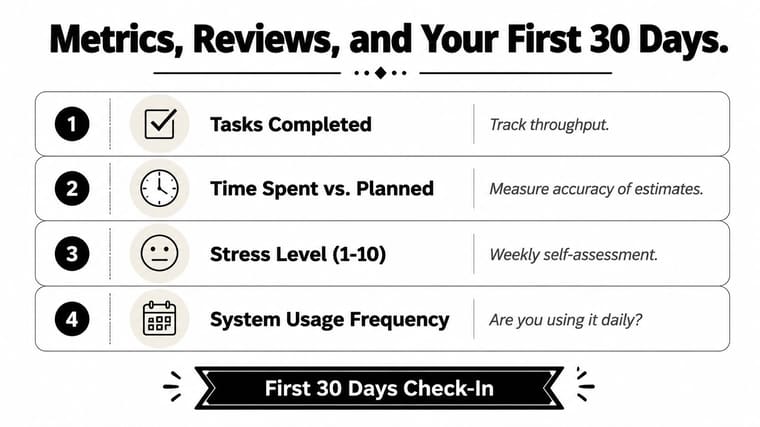
Use these measures:
- On-time rate: Note whether important commitments finished by the agreed date.
- Planned versus actual time: Compare your estimate with the time work really required.
- End-of-day energy: Give your energy a simple personal rating and watch the direction over time.
- Dropped balls: Count forgotten replies, missed handoffs, and commitments that vanished from view.
- System usage: Check whether you captured and reviewed work consistently.
Review once a week. Look for patterns, not isolated failures. If estimates are consistently short, schedule more space or break tasks down. If deadlines are met but energy is collapsing, the workload may be technically manageable but unhealthy. If tasks disappear, improve capture before changing your priority method.
A practical 30-day sequence
Week one: Create one inbox, record every open commitment, and place fixed dates on a calendar.
Week two: Choose a small priority scheme and limit active work. Write the next action for every important item.
Week three: Schedule realistic work blocks and protect at least some space for interruptions and recovery.
Week four: Review completed work, slipped work, estimates, energy, and system usage. Remove rules that add friction and strengthen the habit that prevented the most problems.
Your checklist can stay short: capture new work, choose today’s priorities, schedule the next action, and review the week. If those four behaviors help you miss fewer commitments and make calmer decisions, the system is working. If not, change the smallest component causing the trouble instead of replacing everything.
Pretty Progress turns deadlines, dates, and progress goals into customizable countdown and progress widgets for your Home Screen, Lock Screen, Apple Watch, Mac, and Android devices. Use it as the glanceable reminder layer on top of your workload system, then visit Pretty Progress to set up a visual cue for the commitment you most need to keep visible.





