

September 13, 2026
Fasting Window App: Track Your Fast the Easy Way
Learn how a fasting window app works, set up presets, add widgets, and use Pretty Progress to track intermittent fasting without the clutter.
You’re halfway through a fast, your phone is on the desk, and you only want one answer: how much time is left? Instead, you open an intermittent fasting app and find meal logs, coaching cards, recipe suggestions, streak screens, and several taps before the countdown appears. By the time the timer loads, checking it feels like another task.
A useful fasting window app should reduce that friction. The timer needs to be visible when you need it, quiet when you don’t, and clear enough to understand in a glance. Pretty Progress takes that focused approach, using a customizable countdown and progress widget instead of turning every fast into a full wellness project.
Table of Contents
- When a Fasting Timer Should Just Disappear Into Your Screen
- Setting Up Pretty Progress as Your Fasting Window App
- Building Reusable Fasting Presets for Any Schedule
- Adding Fasting Widgets to Home Screen and Lock Screen
- Using the Fasting Calculator and Why Less Is More
- Design and Habit Tips That Keep You on Track
- Your Daily Fasting Window Routine
When a Fasting Timer Should Just Disappear Into Your Screen
The most important check often happens in the least dramatic moment. You’re at your desk in the morning, coffee beside the keyboard, and you lift your phone for a quick look. You don’t want to record breakfast, answer a coaching prompt, or review yesterday’s eating pattern. You want to see whether your eating window is still closed and when it opens.
That’s where many fasting timers lose me. One type buries the useful information inside a multi-tab dashboard. Another shows a bare countdown but leaves out the start time, end time, or the visual sense of progress that helps you understand the day. Both create unnecessary work, just in different ways.
Practical rule: If checking the timer takes more effort than checking the clock, the app is adding friction to the habit.
A glanceable widget fixes the specific problem. A progress ring, remaining time, and end timestamp can sit on your Home Screen or Lock Screen, so the information is available without opening a separate interface. The app becomes part of the screen you already use instead of another destination competing for attention.
The right amount of information
The ideal fasting timer feels almost invisible. It should surface:
- Current progress: A ring or bar shows where you are in the active fast.
- Time remaining: The countdown answers the immediate question.
- End time: The timestamp helps you plan lunch, dinner, travel, or medication conversations with a clinician.
Everything else should remain optional. Coaching, meal plans, calorie logging, and social feeds can help some users, but they can also make a simple timing routine feel like a demanding program.
A 2025 evaluation of 35 intermittent fasting apps found that every app included a fasting timer, while reminders and fasting tips appeared less consistently. The same evaluation gave the apps an overall average uMARS quality score of 4.35 out of 5, with functionality scoring 4.65 and aesthetics 4.19, evidence that fasting apps have matured beyond basic stopwatch tools (the 2025 evaluation of fasting apps). The opportunity now isn’t adding another screen. It’s making the one essential screen easier to see and easier to ignore when it isn’t needed.
Setting Up Pretty Progress as Your Fasting Window App
Pretty Progress works best when you set it up once, then let the widget handle routine check-ins. The first run takes only a few deliberate choices.
-
Open the app and choose a preset. Use the preset grid to select 16:8, 18:6, OMAD, or a custom schedule. If the preset doesn’t match your day, adjust the start hour, fasting duration, and end time manually. Choosing the right schedule first matters because the widget can only be useful when its countdown reflects your real routine.
-
Tap Start Fast. This begins the active timer immediately. Starting the fast at the moment you finish eating is more reliable than trying to reconstruct the time later.
-
Allow notifications. Notification permission lets the app alert you when the fasting window ends. You can still use the widget without treating notifications as the main experience, but the end-of-fast cue helps prevent guesswork.
-
Add the widget. On iPhone, long-press the Home Screen, tap the plus icon, search for Pretty Progress, and choose a medium or large widget. On Android, long-press an open area, select Widgets, find Pretty Progress, and place the preferred size.

Check the widget before you leave setup
After placing it, watch the display for a minute without reopening the app. The progress ring should advance and the remaining time should change on its own. That small test matters because a widget that requires manual refreshing defeats the purpose of glanceable tracking.
If you also use countdowns for deadlines or routines, the same low-friction principle applies in this guide to simple countdown apps. Keep the fasting display visible, but don’t let setup turn into a customization project. Pick a readable theme, confirm the times, and move on.
The preset grid is useful because tomorrow may not look like today. Save the schedules you repeat, then switch between them instead of rebuilding the timer from scratch.
Building Reusable Fasting Presets for Any Schedule
A single fixed schedule sounds tidy until real life interrupts it. Weekdays may follow one rhythm, weekends another, and travel or shift work can make a custom window more practical. Reusable presets keep those changes from becoming daily arithmetic.
Open the preset editor and create only the routines you expect to use. A practical starting set looks like this:
- Weekday dinner routine: Use a 16:8 preset with an 8 p.m. end time if that matches your usual evening finish.
- Longer fasting day: Save an 18:6 preset for days when a narrower eating window fits your schedule.
- Single-meal routine: Keep an OMAD preset for weekends or other days built around one planned meal.
- Flexible schedule: Create a custom preset for a shift, flight, late dinner, or changing start time.
Each preset should store its own default start time, duration, color theme, and reminder sound. That means switching routines can be a single tap rather than a sequence of edits. The value isn’t the number of choices. It’s having the right choice ready when your calendar changes.
Name the routine, not just the protocol
Labels such as Office Day, Long Lunch, Weekend Meal, or Travel Day can reinforce the situation in which you use the preset. A label that describes your life is easier to recognize than a row of similar hour counts, especially when you’re selecting one quickly.
Don’t create a preset for every possible variation. Too many options recreate the decision fatigue you were trying to remove. Keep the active choices visible, and edit or delete presets that no longer match your schedule.
Once the presets are saved, place the widget where the active routine is easy to identify. A medium display can show the preset name alongside the time information, while a larger display gives the progress ring more space. The point is not to monitor every minute. It’s to make the current plan obvious before you start negotiating with it.
Adding Fasting Widgets to Home Screen and Lock Screen
A saved preset becomes useful when it appears before you open the app. Put the widget on the first Home Screen page and, where your device supports it, in the top area of the Lock Screen. The timer should be part of the same glance that shows your calendar, weather, or next appointment.
Choose the widget size by the question you ask
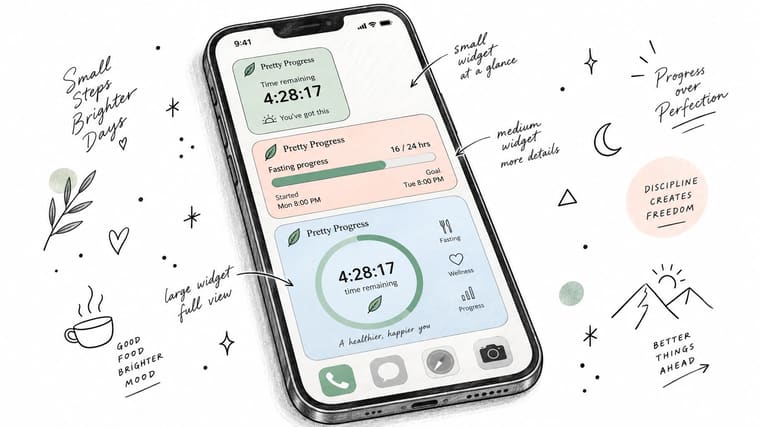
The small Home Screen widget is for a quick check. It shows the remaining time with a thin progress ring, which works when you only need confirmation that the fast is still running.
The medium rectangular option is more informative. It can show the preset name, start timestamp, end timestamp, and percentage complete, giving you both context and progress without opening the app. This is the size I’d use for a first-page placement because it balances visibility with space.
The large widget is for people who want the full visual. It can display the complete ring, start and end times, current time, and one motivational cue. That’s helpful when the countdown is part of a broader morning or workday dashboard, but it can be excessive if you prefer a quieter screen.
For iPhone Lock Screen placement, the rectangular variant is useful for the end timestamp and remaining hours. The circular variant gives you a minimal progress arc for an even faster glance. Android users can use comparable Home Screen and supported Lock Screen options, depending on the device and operating system.
The widget should refresh in real time without a manual reload. Tapping it should open the timer directly, taking you to the control you need instead of a general app dashboard. For broader widget placement ideas, see this practical guide to Home Screen timers.
If you want to see the placement and interaction in motion, this short walkthrough shows the widget experience after setup.
Using the Fasting Calculator and Why Less Is More
A fasting calculator should answer a timing question without making you build a nutrition profile. In Pretty Progress, you can enter the start of your eating window, its end, or the desired fast duration. The calculator then returns the matching fasting window, including the start and end timestamp for the current or next cycle.
That calculation is simple, but simple is exactly what makes it useful. A coaching app may place the same information behind an account screen, recipe library, progress feed, or series of motivational prompts. Those features aren’t automatically bad, but they create extra places for a user to stop before reaching the answer.
Visibility beats decoration
The strongest argument for a minimal fasting window app comes from retention. A real-world analysis of two intermittent fasting apps followed 792,692 users and approximately 26 million recorded fasts. Using a four-week inactivity rule, retention fell to 16.7% at 13 weeks, 6.9% at 26 weeks, and 2.1% at 52 weeks (the real-world analysis of fasting-app users).
Those figures point to a practical design priority. The first weeks need to feel effortless, so the user can start, glance, and continue without repeatedly making decisions. The same analysis found that active users tended to fast around 5 days per week and about 14 hours per fasting day, a useful benchmark for visualizing a repeatable routine rather than pushing extreme targets.
Adherence research supports the same direction. A trial using a 12 p.m. to 8 p.m. eating window with daily reminders completed its 12-week protocol with 100 participants, while a review reported mean adherence of 81.4% for early time-restricted eating and 82.3% for late time-restricted eating. Studies using an 8-hour eating window averaged about 80.2% adherence, and studies lasting 12 to 14 weeks ranged from 68% to 86% (the time-restricted-eating adherence research).
Pretty Progress is therefore better understood as a focused timer and progress-widget tool than as a complete diet platform. If you want a separate calculation for planning an intermittent fasting schedule, the AI Meal Planner fasting calculator can provide another reference point without turning the timer itself into a food diary. For the app’s related timing approach, see its intermittent fasting calorie calculator guide.
Design and Habit Tips That Keep You on Track
The widget should be noticeable enough to work, but not so loud that it becomes another source of pressure. Choose a dark or muted theme for the Lock Screen, especially if you check your phone during meetings or focused work. A quiet ring that updates in place is more sustainable than a bright display demanding attention all day.
Place the fasting widget above one practical companion, such as your calendar or weather. That turns the timer into part of an existing morning glance. You won’t need to create a separate “fasting check” ritual because the information appears alongside something you already inspect.
Use reminders sparingly
Set one recurring reminder close to the start of your eating window. Repeated alerts throughout the fasting period quickly become noise, and alert fatigue makes it easier to disable every notification, including the one that matters.
Use three visual checkpoints instead:
- After waking: Confirm that the fast started at the expected time.
- Mid-afternoon: Check the ring before making an unplanned schedule change.
- Before the window closes: Look at the end time so you can plan the next meal calmly.
Skip streak counters and social feeds if they make the routine feel competitive. A broken fast is information about your day, not a reason to turn the next attempt into punishment. If you want to examine your broader consistency habits, this habit formation evaluation can help you think about what keeps routines visible and repeatable.
Design rule: If the widget disappears from view for two days, the habit is already fading. Move it back to page one.
The best theme is the one you continue seeing. The best reminder is the one you don’t resent. Keep the visual cue persistent, and let the rest of the interface stay quiet.
Your Daily Fasting Window Routine
Finish dinner, select the preset that matches the evening, and tap Start Fast. The widget now carries the schedule while you sleep, so you don’t need to remember the exact start time in the morning.
When you wake up, check the Lock Screen ring with your first phone glance. At lunch, use the Home Screen display to confirm whether you’re still inside the fast and when the eating window begins. Open Pretty Progress only when you need to change the end time, choose another preset, or record that the day didn’t follow the original plan.
When the eating window opens, use the end timestamp as your planning cue rather than waiting for hunger or memory to decide. At the close of the eating period, start the next fast from the same routine. If the schedule changes, edit the active preset instead of abandoning the whole system.
The calculator provides a useful final check when you’re unsure about timing. Enter the relevant eating-window time or desired duration, confirm the resulting start and end timestamps, and then return to the widget. For a broader discussion of intermittent fasting versus small meals, use a qualified health professional and your own response as the guide. Fasting isn’t appropriate for everyone, particularly people who are pregnant, under 18, or have a history of disordered eating, and anyone with a health condition or medication schedule should ask a clinician before changing meal timing.
Quick questions before downloading
Does the app require an account? The available product information doesn’t establish whether an account is required, so check the current setup screen and privacy details before committing.
Does data stay on the device? Don’t assume this without reviewing the current privacy policy. The app’s published product description focuses on widgets, timers, calculators, and a zero-ad experience, but it doesn’t verify a specific storage model here.
What happens if I break a fast? Open the timer, adjust or end the active fast, then start again with the preset that fits the next cycle. A deviation doesn’t require rebuilding every schedule.
Can multiple presets run side by side? You can save multiple routines for quick switching. The active timer should represent the schedule you’re following now, rather than several simultaneous fasting windows.
Pretty Progress gives you a focused fasting countdown, reusable timing options, and glanceable Home Screen and Lock Screen widgets without requiring meal logging to see your progress. Visit Pretty Progress to set up a fasting window that stays visible, stays quiet, and takes less effort to follow.





