

September 11, 2026
Event Countdown Timer Explained and How to Set One Up
Learn what an event countdown timer is, how it works, and how to set up a customizable event countdown timer on iPhone and Android with widgets.
You’re waiting for something important. An exam date sits on your calendar, a product launch is approaching, or a holiday still feels strangely far away. You know the event is coming, but a date written in an app doesn’t always create a sense of movement.
An event countdown timer changes that experience. Instead of showing only a destination, it gives you a shrinking path toward it. Each glance answers a practical question: how much time is left, and what can I do with it?
This guide explains how countdown timers work, why they attract attention, which features matter, and how to set one up on an iPhone or Android device. It also covers two problems many basic guides overlook: timezone confusion and what the timer should do after it reaches zero.
Table of Contents
- Introduction to Event Countdown Timers That Keep You Focused
- What an Event Countdown Timer Is and How It Works
- Why Countdown Timers Grab Attention and Drive Action
- Key Features to Look For in an Event Countdown Timer
- How to Set Up an Event Countdown Timer on iPhone and Android
- Real World Examples of Event Countdown Timers in Action
Introduction to Event Countdown Timers That Keep You Focused
A countdown can make an ordinary day feel connected to a meaningful goal. A student preparing for an exam might see the remaining time while checking messages. A team preparing a launch might keep the deadline visible on a shared screen. Someone looking forward to a trip might use the timer as a small daily reminder that preparation has a purpose.
The useful part isn’t the decoration. It’s the conversion of an abstract future moment into a visible, changing timeline. A calendar says, “The event is on this date.” A countdown says, “This much time remains right now.”
That distinction matters because distant goals are easy to postpone. “I’ll study later” feels harmless when the deadline is only a line on a calendar. A shrinking display gives the goal a place in the present, without requiring you to open a planning app and search through several screens.
Public countdown displays have used this visual language for decades. In 1946, Times Square installed what was described as its first digital display, using a bank of 4,104 incandescent light bulbs. The display remained in use until the early 1970s, helping establish the familiar public language of large-scale time displays and event anticipation (Yodeck’s history of Times Square countdown displays).
Practical rule: A countdown should make the next action easier to remember, not make the event feel more complicated.
By the end of this guide, you’ll be able to choose a suitable display, enter an unambiguous target moment, place the timer where you’ll notice it, and decide whether it should stop, restart, or count upward after the event.
What an Event Countdown Timer Is and How It Works
An event countdown timer is a live calculation between the current moment and a fixed target moment. It isn’t a date label. The timer takes the target date and time, checks the current clock, subtracts one from the other, and presents the remaining interval in a readable format.
Think of it as a fuel gauge for time. A fuel gauge doesn’t tell you only where the destination is. It shows how much usable fuel remains as the vehicle moves. A countdown does something similar, except the quantity decreases according to the clock rather than distance traveled.
The basic ingredients are straightforward:
- Target moment: The exact date, time, and timezone for the event.
- Current time: The device’s clock or a synchronized time reference.
- Time math: The difference between those two moments.
- Display rule: The way the remaining interval appears, such as days, hours, minutes, or seconds.
- Zero behavior: The action taken when the target moment arrives.
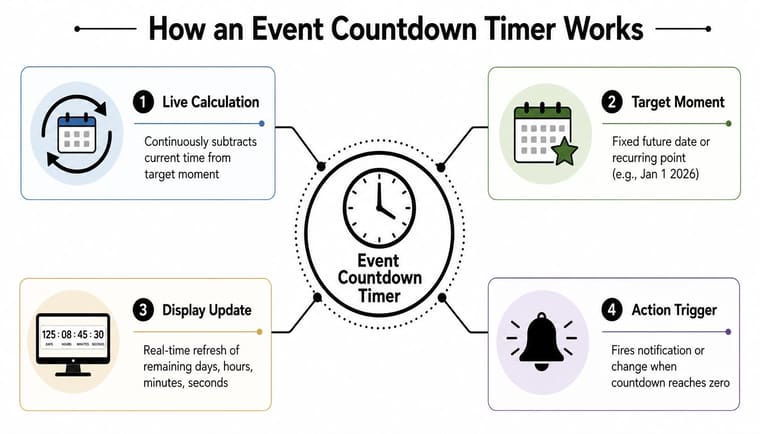
Suppose your target is a specific launch time. The timer shouldn’t subtract from the moment when you last opened the app. It should always calculate from the target itself. That design keeps the result dependable even if the app has been closed or the display hasn’t refreshed recently.
This distinction becomes important on iPhone widgets. Apple’s WidgetKit uses a system-controlled timeline, so widgets don’t refresh on demand every second. Active widgets often refresh around 15 to 60 minutes, while low-power or infrequently used cases can stretch much longer, according to Emrld Labs’ explanation of iOS widgets and Live Activities. A well-designed countdown therefore uses absolute date and time calculations, then renders the result from that target.
The screen may look like it’s ticking continuously, but the underlying widget doesn’t need to execute every second to stay accurate. The display can calculate the correct remaining value whenever the system refreshes it, rather than trusting an old value and counting forward from there.
Why Countdown Timers Grab Attention and Drive Action
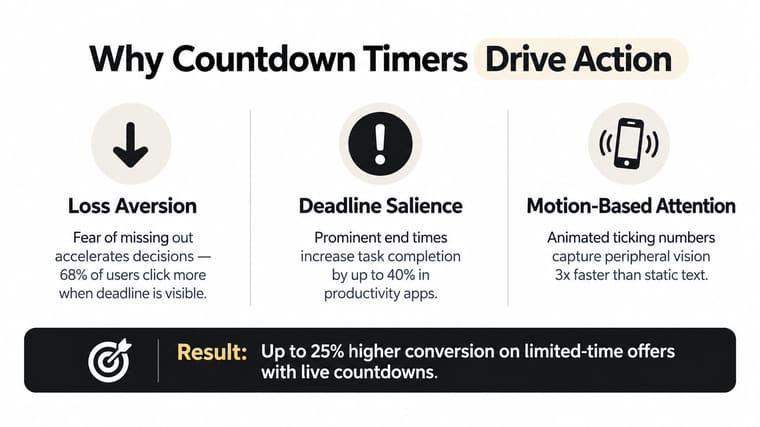
Countdowns work because they give time an ending point. A distant objective has room for delay, while a shrinking interval makes the remaining opportunity easier to notice. This creates deadline salience, or a stronger mental focus on the point when action must happen.
Loss aversion also plays a role. People often react more strongly to losing an opportunity than to gaining an equivalent benefit. A visible timer can make the possible loss of time or access feel immediate, especially when the deadline is real and clearly explained.
Independent UX research summaries report that deadline-backed offers can increase purchase completion by 8 to 14 percent compared with equivalent offers without deadlines (GrowthSuite’s summary of countdown timer psychology). The same source reports that dynamic or ticking time cues can capture attention within about 0.5 seconds, because motion provides a stronger attentional signal than static copy.
Urgency needs a credible deadline
A timer becomes unhelpful when it creates pressure without a meaningful reason. If a sale repeatedly resets, or if a personal goal has an arbitrary end point, people may learn to ignore the signal. The display should represent a genuine milestone, appointment, submission time, or planned transition.
For personal productivity, the timer can support action without being harsh. A student might use it to decide when to begin a study block. A project team might use it to keep preparation visible. A family might use it to build anticipation for an event everyone already cares about.
A ticking display is a prompt, not a plan. Pair it with a next step, such as reviewing notes, packing equipment, or checking a launch checklist.
Visual prominence matters, but bigger isn’t always better. The timer should be easy to read at a glance, with enough contrast between the numbers and background. Seconds can create energy for an imminent event, while days or weeks may be calmer and more useful for a long-term goal.
The strongest use of urgency is honest and specific. Show the exact end moment, explain what happens at zero, and let the timer support a decision the user already understands.
Key Features to Look For in an Event Countdown Timer
Choosing a timer is easier when you separate accuracy, visibility, and control. A simple display may be enough for a one-time reminder, while a widget-based app is more suitable when the countdown needs to remain visible throughout the day.
| Feature | Basic Timer | Advanced Widget App |
|---|---|---|
| Target date and time | Usually supported | Supported with more configuration |
| Time units | Common units such as days or hours | Flexible units, sometimes extending from seconds to months |
| Home Screen access | May require opening the app | Widget can remain visible |
| Lock Screen access | Often unavailable | May support a glanceable Lock Screen widget |
| Themes and layout | Limited styling | Custom themes, colors, bars, and icons |
| Timezone controls | May be basic | More explicit local, UTC, or audience-wide choices |
| After-zero behavior | Stops at zero | Can switch to elapsed time or recur |
The feature checklist
Time units should match the event. A launch happening soon may benefit from hours, minutes, and seconds. A year-long goal may be easier to understand through months, weeks, or days. Avoid showing more precision than the decision requires.
Timezone controls prevent silent errors. A timer needs a calendar date, an exact time, and a timezone mode. Some tools default to midnight when you leave the time blank, which can produce the wrong end moment for people in other cities. The countdown clock graphic guide offers useful context on presenting remaining time clearly.
Widgets reduce friction. Home Screen and Lock Screen placement turns the timer into a glanceable cue. If you must open an app every time, the countdown becomes another task instead of a reminder.
Post-event behavior keeps the display useful. Some timers stop at zero. Others switch to “since the event,” show elapsed time, or reuse the target for a recurring annual occasion. This matters for seasonal events, exams, anniversaries, and launches that need a record after completion. 101 Planners’ countdown timer guidance highlights this often-missed question.
Look for customization that improves recognition rather than adding noise. A consistent color, a clear label, and a readable layout usually matter more than an overloaded design panel.
How to Set Up an Event Countdown Timer on iPhone and Android
The setup process is similar across devices, even though widget menus differ. Using Pretty Progress as an example, start by installing the app and deciding what the timer represents before choosing colors or artwork.
Create the target moment first
- Name the event clearly. Use a label such as “Final exam,” “Product launch,” or “Flight departure.” A precise label prevents confusion when you create several timers.
- Enter the start date if you want progress tracking. A start date lets the display show movement across a broader period, rather than only the time remaining.
- Enter the final date and exact time. Don’t rely on the calendar date alone if the event begins at a particular hour.
- Choose the timezone intentionally. Use local time when the event belongs to one location. For a shared launch or online event, choose a common reference such as UTC, then tell participants which moment you selected.
- Select the display units. Use a broad unit for a distant goal and more detailed units when the event is close.
The timezone step deserves care. If one person creates a timer in local time and another interprets the same date in a different city, the displays can disagree. Write the target as a complete statement, such as “Product launch, 10:00 a.m. New York time,” rather than “launch on Friday.”
Style and place the widget
Choose a visual theme, such as Swiss Style or Minimal, then adjust colors, gradients, bar shape, layout, and icons. Keep the event name legible and avoid a background that competes with the remaining-time figures.
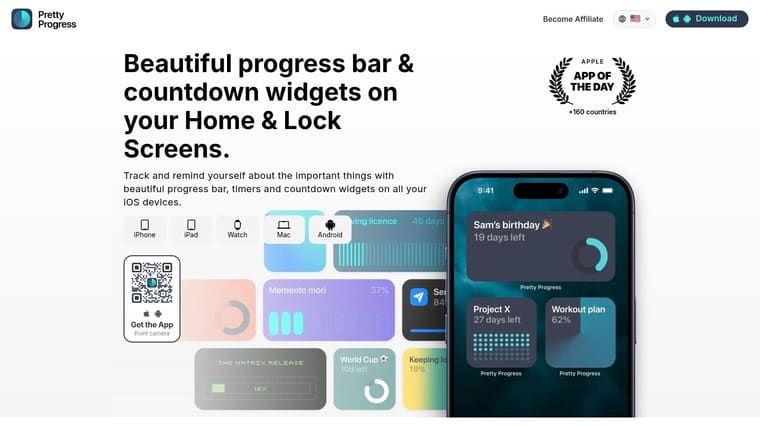
On iPhone, add the widget from the Home Screen editing view or the Lock Screen customization view, then select the countdown you created. The guide to adding a countdown widget on iPhone walks through that placement process.
On Android, press and hold an empty area of the Home Screen, open the widget picker, find the countdown widget, and place it where you’ll see it. The exact menu names vary by device and launcher, but the principle is the same: create the event, choose the widget, then select the event to display.
Before sharing a timer: Test it from another city or timezone setting, confirm the exact target moment, and decide what should appear after zero.
Real World Examples of Event Countdown Timers in Action
A student preparing for an exam might place the timer beside a study checklist. The countdown doesn’t replace revision, but it turns the remaining period into a visible boundary. Each glance can prompt a small decision, such as reviewing a chapter, completing practice questions, or taking a planned break.
A product team can use an event countdown timer for a launch milestone. The label should identify the release moment and the timezone, while the team’s task board holds the detailed work. For a conference, a dedicated conference countdown timer resource can help organizers keep registration, travel, and speaker preparation tied to one shared date.

A fasting timer uses a different kind of target. Instead of counting toward a public event, it marks the end of a personal window. The start and end moments should be explicit, and the display should make it easy to understand whether the timer is counting down to eating time or tracking elapsed time since the window began.
For training goals, a countdown can work alongside a structured routine. Someone building a repeatable plan might pair a timer with free 2026 program templates Strive Workout Log to keep the deadline and the daily actions visible together.
The moment the timer reaches zero, it shouldn’t become useless. You might switch to time since the event, reuse it for the next annual holiday, or display an elapsed-time record for a completed launch. That choice depends on whether the event is a finish line, a recurring milestone, or the beginning of a new phase.
Use the timer as a steady visual cue, then connect it to one concrete action you can take today.
Pretty Progress lets you create customizable countdown and progress widgets for iPhone, iPad, Apple Watch, Mac, and Android, with Home Screen and Lock Screen placement for glanceable reminders. Choose a theme, set the precise start and end moments, and make the event visible without adding another complicated planning system. Visit Pretty Progress to create a countdown for your next deadline, launch, exam, trip, or personal goal.





