

April 29, 2026
Countdown Clock Graphic: A How-To Design Guide for 2026
Learn how to design a stunning countdown clock graphic widget for your iPhone, Mac, and Android. A step-by-step guide using Pretty Progress to track your goals.
You probably have one deadline that keeps floating around your head right now. An exam date. A launch. The day you leave for a trip. The end of a fasting window. A project due date that still feels far away until it suddenly doesn’t.
A calendar entry helps, but it fades into the background fast. A countdown clock graphic does something different. It turns an abstract future date into a visible object you can react to at a glance, especially when it lives on the screens you already check all day.
That’s where most advice falls short. Search results are crowded with static assets and stock illustrations, but there’s a real gap around building dynamic, personalized countdown widgets for devices you use every day. Existing countdown clock graphic coverage overwhelmingly focuses on static visual assets and neglects interactive widget customization for iPhone and Android, with zero search results addressing widget customization for glanceable motivation according to Adobe Stock search findings on countdown clock graphic content.
Table of Contents
- Why a Visual Countdown Changes Everything
- First Steps From Idea to Initial Design
- Mastering Colors Gradients and Icons
- Making Your Countdown Smart and Accurate
- Your Countdown Everywhere iPhone Mac and Android
- Advanced Countdown Techniques and Exporting
- Frequently Asked Questions
Why a Visual Countdown Changes Everything
You check your phone at 8:12 a.m. and see “launch in 11 days” on the screen before email, Slack, or social. That changes the morning. A deadline stops being background information and starts shaping the next decision.
That is the advantage of a countdown clock graphic. It turns time into something visible, persistent, and harder to ignore. A plain calendar entry asks you to remember. A well-designed countdown keeps reminding you, subtly or forcefully, depending on how you set it up.
The effect is bigger than personal productivity. The Doomsday Clock has worked for decades because a single visual marker can compress urgency, risk, and public attention into one familiar image. It was introduced in 1947 and has been adjusted 25 times. It moved furthest from catastrophe at 17 minutes in 1991 and, as of 2026, has reached its closest point at 85 seconds to midnight, according to Statista’s summary of Doomsday Clock development. The power comes from the graphic, not from decorative detail.
Personal countdowns work the same way on a smaller scale. A thesis deadline, race day, exam week, or product launch starts to feel real when time has a shape on your screen.
A good countdown changes today’s behavior, not just the date you are aiming at.
This is also where static design libraries fall short. There are plenty of polished countdown images online, and they can be useful for inspiration or for creating standout social media visuals. But static artwork solves a different problem. It helps you publish a message once. It does not help you live with that deadline across the week, across devices, or across changing levels of urgency.
What static graphics get wrong
A stock countdown image can look great in a post, a slide, or a mockup. In daily use, it has obvious limits.
- It expires fast. A screenshot starts aging the moment you save it.
- It misses the moment of use. A graphic buried in photos or a social draft is not visible when you access your phone.
- It cannot adapt. The same visual treatment does not work equally well for a wedding, a bill due date, and a focused work sprint.
Dynamic widgets fix those trade-offs. In Pretty Progress, the countdown keeps updating, the design stays tied to the event, and the widget lives where you will see it. That matters more than people expect. The best countdown is rarely the fanciest one. It is the one that stays current and stays in view.
What makes a countdown worth keeping
The countdowns that survive past day three usually share the same traits:
- One clear purpose. One event is easier to process than a cluttered dashboard.
- Instant readability. The number, label, and visual emphasis should make sense at a glance.
- The right emotional tone. Deadlines need control. Celebrations can carry more warmth and energy.
- Placement in a high-attention spot. Lock Screen, Home Screen, desktop, or all three.
Good countdown design is not only about accuracy. It is about fit. If the widget feels stressful when you need calm, or too soft when you need pressure, you will stop trusting it. A strong countdown clock graphic gives time a presence that matches the job it needs to do.
First Steps From Idea to Initial Design
The biggest mistake is opening a widget app and picking colors before you decide what the countdown is for. Start with the event, not the style.
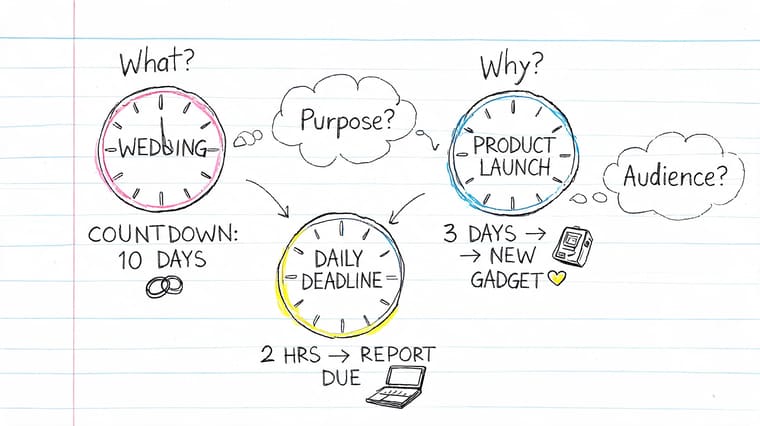
A countdown for a dissertation deadline needs a different mood than a wedding countdown or a movie release. The design should reinforce the behavior you want. Calm focus. Excitement. Daily pressure. Long-range patience.
Start with the emotional job
Before you choose a theme, answer these questions:
-
What am I counting toward?
A deliverable, a life event, a routine, or a recovery period all need different visual treatment. -
What should I feel when I see it?
Urgent, steady, reassured, energized, playful. -
Where will it live most often?
Lock Screen widgets need instant clarity. Desktop widgets can carry more detail. -
Do I need precision or presence?
Some countdowns are about exact time remaining. Others work better as a broad progress bar.
This is why some iconic countdowns stick in memory. The Doomsday Clock became culturally powerful because a single visual represented movement toward a critical threshold over time, not because it had decorative complexity.
Match the theme to the context
Curated themes give you a faster starting point than designing from scratch. The trick is choosing one that fits the countdown’s role.
- Swiss Style works well for work deadlines, launches, application windows, and anything that benefits from restraint. It signals structure.
- Minimal suits long-term goals where you want low visual noise. Good for year progress, savings goals, or study timelines.
- Aqua fits more expressive countdowns. Trips, celebrations, personal milestones, and anything that should feel alive on screen.
- Retro OS adds character and nostalgia. It’s strong for creative projects, media releases, and countdowns you want to feel playful rather than severe.
Practical rule: Pick a theme that matches the consequence of missing the date. The higher the consequence, the simpler the visual should be.
If you also create event teasers or shareable images, it helps to look outside widget design for composition ideas. The guide to creating standout social media visuals is useful for studying contrast, hierarchy, and how to make a graphic readable in a crowded feed. Those same principles carry over to widgets, especially smaller ones.
Build a solid first draft
Your first version doesn’t need personality yet. It needs structure.
A reliable draft usually includes:
- One headline level: the event name should be short and scannable.
- One main metric: days left, percent complete, or a shrinking bar.
- One supporting visual cue: an icon, ring, or color accent.
- Enough empty space: cramped widgets feel harder to trust.
If the first draft already feels busy, adding gradients and icon packs won’t save it. Clean structure first. Character second.
Mastering Colors Gradients and Icons
Once the layout is doing its job, customization starts to matter. This process transforms a generic countdown into one you’ll want to keep on your Home Screen.
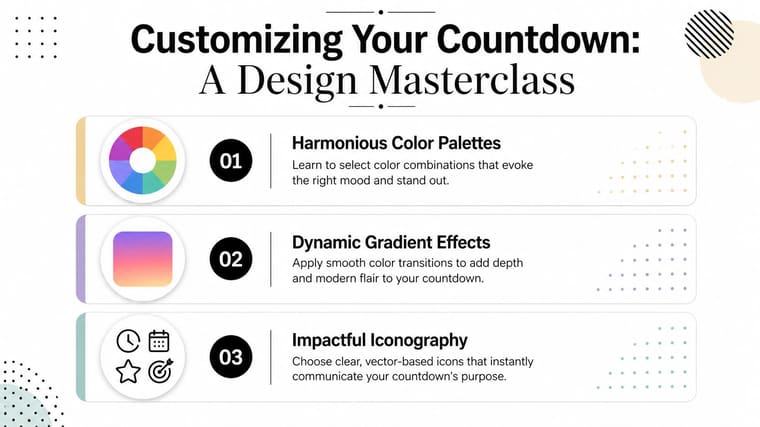
Most countdown clock graphics look forgettable for the same reason. They use loud color for attention, but no hierarchy for readability. On a phone, that fails fast.
Choose colors that match the job
Color should carry meaning before it carries personality.
For deadlines, muted neutrals with one accent usually work better than rainbow gradients. For celebratory countdowns, warmer or brighter palettes can add anticipation without making the widget noisy. For routines like fasting or habit cycles, softer tones often feel easier to live with because you’ll see them many times a day.
A useful shortcut is to pull colors from your wallpaper so the widget feels integrated rather than pasted on top. If you want a fast starting point, RapidNative’s color palette tool is a practical way to generate app-friendly combinations that already feel coherent.
Use gradients with restraint
Gradients can make a countdown feel contemporary, but they also expose weak contrast.
Use them when you want depth, not when you need rescue. A subtle gradient behind a clean time display works. A bright gradient behind tiny labels usually doesn’t.
Here’s what tends to work better:
- Soft transitions: close hues are easier to read and age better.
- One focal area: let the gradient support the bar or background, not every element.
- Strong text contrast: if the numbers don’t pop instantly, simplify.
The best gradients feel intentional from arm’s length. If they only look good when you inspect them closely, they’re too complicated for widget use.
Pick icons that clarify, not decorate
Icons should answer a question in less than a second. What is this countdown for?
A plane for a trip, a book for exams, a dumbbell for training, a clapperboard for a release date. That’s enough. If the icon doesn’t add context, remove it.
Good widget icons share three qualities:
- Simple silhouette
- Consistent visual weight
- Recognizable meaning at small sizes
Avoid overly detailed icons, especially on Lock Screen widgets. Tiny decorative marks often blur into visual dust.
Shape the bar to fit the story
The progress bar itself carries emotional tone.
A thin straight bar feels disciplined. Rounded bars feel softer. Circular progress rings feel self-contained and work well when the widget has limited space. Showing time remaining creates a countdown mindset. Showing time elapsed can feel more rewarding for long projects because it emphasizes what you’ve already built.
That’s where inspiration helps. The collection of countdown timer progress bar examples is useful for comparing visual directions before you settle on one.
A quick customization workflow
When I’m refining a countdown clock graphic, I usually evaluate it in this order:
-
Readability first
Can I tell what it’s tracking without effort? -
Theme second
Does the overall style match the event’s tone? -
Color third
Is there enough contrast, and does the palette feel stable over repeated viewing? -
Icon last
Does it add context, or just consume space?
That order matters. People often reverse it and spend too long polishing details before the countdown is understandable.
Making Your Countdown Smart and Accurate
Good design gets attention. Good timing logic earns trust.
A countdown that feels slightly off, resets in a confusing way, or tracks the wrong window will get ignored no matter how polished it looks. Consequently, the functional side matters more than aesthetics.
Choose the right time logic
The first decision is whether you want to track a fixed end date, a repeating cycle, or a calculated interval. Those are different jobs.
A launch date and an exam use a fixed deadline. A fasting window or work sprint may need a start and end pattern. A business-day target may need date math rather than raw calendar days. That’s why built-in calculators are useful. A tool like the date countdown calculator helps when you need the duration to reflect the actual period you care about, not just the nearest rough estimate.
The second decision is psychological. Should the widget show time remaining or time completed?
- Time remaining works when urgency helps you act.
- Time completed works when momentum keeps you going.
- Percent progress works when you want a neutral middle ground.
If you also build deadline sections for websites, there’s some crossover with implementing countdowns in Elementor projects. The visual rules are similar. Clear labels, obvious hierarchy, and a timer that supports the page rather than overpowering it.
Design for calm, not pressure
Not every user benefits from the same countdown style. That matters a lot for neurodiverse users.
There’s a significant content gap around device-based, always-on countdowns for accessibility, even though ADHD prevalence is estimated at 5% to 7% globally, and visual timers can improve task compliance by up to 40% according to the Texas Education Agency resource on visual countdowns. The practical implication is simple. Some users need a timer that reduces uncertainty, not one that shouts urgency.
That changes the design choices.
- Use calmer colors when the timer is for focus support rather than pressure.
- Reduce visual clutter so the widget doesn’t compete with other stimuli.
- Prefer clear labels over abstract decoration.
- Slow the emotional tone by using steady progress bars instead of aggressive warning colors.
A countdown can support attention without making the screen feel louder.
For many people with ADHD, an always-visible timer works because it removes the need to repeatedly reopen an app and re-orient. The countdown stays present, but not intrusive. That’s a different use case from a promotional timer, and it deserves different design decisions.
A smart countdown isn’t just mathematically correct. It’s behaviorally appropriate.
Your Countdown Everywhere iPhone Mac and Android
A countdown only helps if it shows up where your eyes already go. Don’t treat it like a decorative extra. Treat it like part of your workspace.
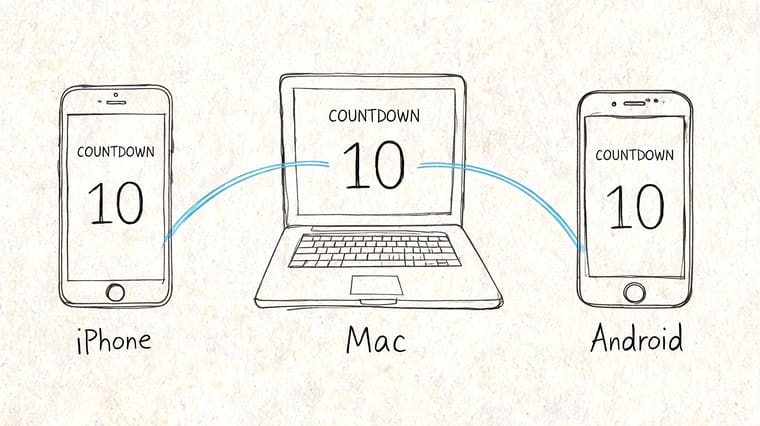
Phone Lock Screens are best for urgency. Home Screens are better for ambient motivation. Desktop placement is ideal for projects that stay open all week. Watch complications work when you need very short, frequent reminders.
Where each widget works best
Use placement based on the behavior you want, not just the device you happen to own.
| Device | Best Placement | Pro Tip |
|---|---|---|
| iPhone | Lock Screen for urgent deadlines | Keep labels short so the countdown is readable in a quick glance |
| iPad | Home Screen near productivity apps | Pair it with calendar or task apps to create a visual planning zone |
| Apple Watch | Complication on the main face | Use this for countdowns that benefit from repeated micro-checks |
| Mac | Desktop or widget area | Best for long projects that need steady visibility during work hours |
| Android | Home Screen top row | Put the countdown where your thumb and eyes naturally land first |
Build a system, not a single screen
The most effective setup usually uses more than one placement.
An exam countdown might live on your Lock Screen and your Mac. A vacation countdown might sit on your Home Screen only. A fasting timer might work better on both phone and watch because it’s checked in short bursts.
That’s why a tool such as Pretty Progress is useful in practice. It creates customizable countdown and progress widgets for iPhone, iPad, Apple Watch, Mac, and Android, which makes it possible to keep the same event visible across different contexts instead of rebuilding the idea separately on each device.
Device-specific setup habits that work
These aren’t hard rules, but they hold up well in real use.
- On iPhone, reserve Lock Screen slots for the one countdown that needs the most immediate attention.
- On Mac, use a calmer design than on your phone. Desktop widgets stay in view longer, so visual noise gets tiring.
- On Apple Watch, simplify aggressively. Time, symbol, and maybe one compact progress treatment is enough.
- On Android, widget size matters more because launcher layouts vary. Test readability before you commit.
If you need examples of how a countdown can live naturally on a phone screen, the ideas in this guide to a home screen timer layout are a useful reference point.
Put short-term urgency on the screen you unlock. Put long-term accountability on the screen you work from.
That split keeps the countdown from becoming wallpaper. It gives each device a job.
Advanced Countdown Techniques and Exporting
Some countdowns should stay personal. Others should travel.
If you’ve built a clean countdown clock graphic, you can reuse it outside your widget setup for announcements, launch reminders, event promos, or progress updates. The trick is knowing when to export a static version and when to animate.
When to export a static version
Static exports work well when the image is meant to communicate a moment, not maintain live accuracy.
Good examples include:
- Instagram Stories announcing an upcoming launch
- team updates showing milestone progress
- event graphics shared in chat or email
- celebratory posts after a countdown reaches zero
For these, the design needs strong hierarchy and clear context. Add the event name, keep the timer legible, and don’t assume people know what the countdown refers to just by looking at the numbers.
How to animate without breaking delivery
Email is where many countdown graphics fall apart.
For animated countdown graphics in emails, the practical method is to split the design into a static background and an animated GIF counter to stay under 1.5MB. According to Optimizely’s countdown timer guidance, this approach improves deliverability by 95% and cuts file size by up to 70% compared with monolithic GIFs.
That trade-off matters because one big all-in-one animation is easier to make, but much harder to deliver reliably. Splitting the background and the changing numbers keeps the visual quality higher and the file lighter.
A practical workflow looks like this:
-
Design the background as a static image
Keep branding, texture, and decorative shapes here. -
Animate only the changing element
Usually the numbers, ring fill, or shrinking bar. -
Keep the timer area visually simple
Complicated backgrounds behind moving digits reduce clarity. -
Prepare a fallback state
Once the countdown ends, swap to a post-deadline message or a static visual.
Animated countdowns work best when motion is confined to the one element that needs to change.
That same principle improves widget design too. Motion should support meaning, not compete with it.
For power users, the upgrade path usually makes sense when you want finer control over styling consistency across multiple countdowns. More layout options, tighter color control, and better theme tuning matter once you start treating countdowns as part of your daily system instead of one-off decorations.
Frequently Asked Questions
Can I use the same countdown across different devices
Yes. The event or deadline can stay the same, while the design should adapt to the screen.
On a phone Lock Screen, I prefer a tighter layout with larger numbers and very little decoration because you only get a quick glance. On a Mac, tablet, or desktop widget, there is more room for supporting detail like a label, icon, progress ring, or secondary date. The smart approach is consistency in meaning, not forcing the exact same composition everywhere.
What’s the main advantage of a countdown widget over a static image
A static image looks finished on day one and starts aging immediately. A countdown widget keeps working.
That difference matters if you want something more useful than a stock graphic. Static countdown art can create a mood, but a live widget gives you context that changes with time, which is the whole point. Pretty Progress fills that gap well because it lets you build countdowns that are personal, current, and shaped for the devices you use during the day.
What should happen when a countdown reaches zero
Give it a next state.
The cleanest options are a completion message, a new milestone, or the next phase of the project. For example, a launch countdown can switch to “Day 1 live,” and an exam countdown can switch to a revision tracker or results date. That small transition keeps the widget useful and prevents it from turning into visual clutter.
Is PRO worth considering
It usually makes sense for people building more than one countdown or trying to keep a consistent visual system across devices.
The free setup can be enough for a single personal timer. PRO starts to pay off when you want finer theme control, better visual consistency, and a faster way to create several widgets without restyling each one from scratch.
If you want a countdown that stays visible on the screens you already use, Pretty Progress lets you build customizable countdown and progress widgets for iPhone, iPad, Apple Watch, Mac, and Android. It’s a practical way to turn deadlines, events, and long-term goals into clear visual reminders instead of background calendar entries.





