

September 8, 2026
Clock Widget for Website How to Add and Customize It
Learn how to add a clock widget for website pages with quick embeds, custom JS builds, time zones, styling, and performance tips.
A visitor lands on your site from Tokyo while your support banner displays a local office time meant for New York. Another visitor sees a countdown that reaches zero at the wrong moment because the browser interpreted the date in its own time zone. The clock looks polished, but it gives both people the wrong information.
That’s why a clock widget for website projects shouldn’t start with colors, fonts, or an embed code. Start with the job. A service business may need a reassuring local-time display beside opening hours. A distributed team may need several city clocks. A product team launching an event may need a countdown tied to one unambiguous instant.
Website widgets are an established part of the web ecosystem. One industry report estimates widgets are detected on 8,646,694 websites, while another reports widgets on 11.5% of tracked websites, with 71% of widget-using sites deploying one widget and 17.7% using two, as summarized in this widget ecosystem reference. The format isn’t a novelty, but a quick embed still has trade-offs around time-zone logic, accessibility, page speed, and design control.
The sections below separate those decisions. Use an embed when you need a simple display quickly. Build your own component when the clock is part of your product experience, brand system, or scheduling logic. For broader planning context, visual time management is useful when a clock needs to support a larger workflow rather than sit on a page as decoration.
Table of Contents
- Why Your Website Needs a Clock Widget Right Now
- Quickest Way to Embed a Clock Widget Without Coding
- How to Build a Custom Digital and Analog Clock Widget
- Handling Time Zones Countdowns and World Clocks Correctly
- Styling for Responsive Design Accessibility and Performance
- Final Checklist and Troubleshooting for Your Clock Widget
Why Your Website Needs a Clock Widget Right Now
A clock earns its space when it answers a question your visitor already has. “Are you open in my time zone?” “When does the webinar start for me?” “How long until registration closes?” If the widget doesn’t answer one of those questions, it’s probably visual noise.
For a local service business, a small clock beside contact details can reinforce the relationship between current time and availability. That can be more useful than showing a generic “business hours” label, especially when the site serves customers across regions. The display should make its reference clear, though. “Local time” and “Office time, London” communicate more than an unlabeled digital readout.
A global team has a different need. A single browser-local clock may help each visitor see their own time, but it won’t tell a remote colleague when a fixed office opens. In that case, named world clocks with explicit locations are safer. A launch page needs another model entirely, because a countdown should point to a fixed event instant instead of continuously interpreting an ambiguous date.
Practical rule: Choose the time source before choosing the visual style.
The implementation choice follows the job. An embed is appropriate for a basic informational clock, a temporary campaign, or a page managed by people who don’t maintain JavaScript. A custom component makes more sense when you need IANA time zones, city selection, brand-specific animation, offline-friendly behavior, or close control over accessibility and loading.
The cost of customization isn’t just development time. You’ll own testing across daylight-saving transitions, mobile layouts, screen readers, browser behavior, and future content changes. A simple clock can stay simple, but only if its meaning is obvious and its time source is correct.
Quickest Way to Embed a Clock Widget Without Coding
If your requirement is a visible clock and nothing more, an embed can get you there quickly. Pick a provider that documents its time-zone behavior, responsive options, loading method, and privacy model. Don’t choose solely from a gallery of attractive faces. A provider that can’t explain whether it uses the visitor’s browser time or a fixed zone is a maintenance risk.
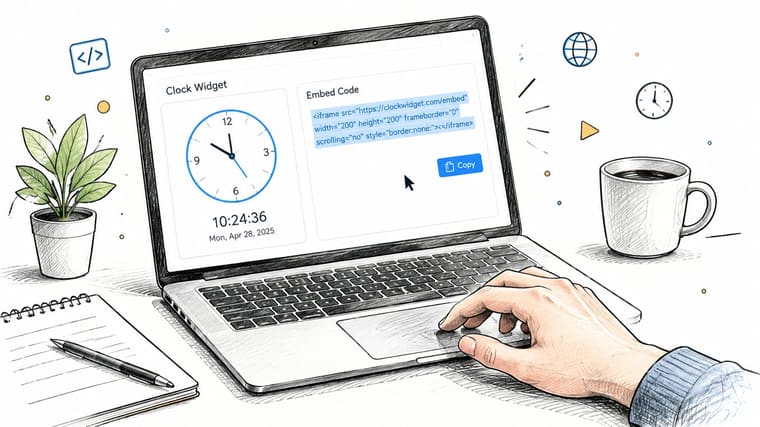
Use the provider’s generated snippet
Most services give you either an iframe or a JavaScript snippet. An iframe isolates the provider’s markup and styling, which reduces conflicts with your site but limits deep customization. A script can blend more naturally into your layout, although it may add third-party code and can be more sensitive to content security and performance policies.
A generic embed pattern looks like this:
<iframe
  title="Current office time"
  src="https://example.com/clock"
  loading="lazy"
  width="240"
  height="80">
</iframe>
Use the provider’s actual generated URL and attributes rather than copying a random snippet. Add a meaningful title to an iframe, reserve its dimensions, and avoid placing a large widget where it can push important content down the page.
Paste it into the right editor
- HTML: Add the snippet inside the page container where the clock belongs, then style the wrapper rather than trying to rewrite the provider’s internal markup.
- WordPress: Use a Custom HTML block, not a visual paragraph block that may escape or alter the code.
- Shopify: Add it to a Custom Liquid section or the relevant theme area, then check that the theme doesn’t strip script elements.
- Webflow: Use an Embed element and confirm the widget renders in the published environment, because editor previews may not execute every external script.
Set the display to 12-hour or 24-hour format only if the provider supports it, and label the time zone when the clock represents an office or event location. For a store header, keep the footprint restrained and static in size. For a dashboard, you can give the clock more visual prominence, but it still needs to work on narrow screens.
Preview the page on a phone before publishing. Check that the digits don’t wrap, the iframe doesn’t overflow its card, and the widget remains understandable when browser text is enlarged. If you need multiple locations, test each one rather than assuming the provider’s city labels map to the zones you intend.
Watch this practical walkthrough for the basic embed workflow:
Stop using the embed when you need exact control over the time source, markup, announcements, or loading behavior. At that point, a small custom component is often easier to reason about than a provider’s opaque script.
How to Build a Custom Digital and Analog Clock Widget
A custom clock should have a narrow responsibility: receive a time, format or draw it, and update only the elements that need to change. Keep the component files separate from page-specific content so you can reuse the clock in a header, dashboard card, or campaign page without copying logic.
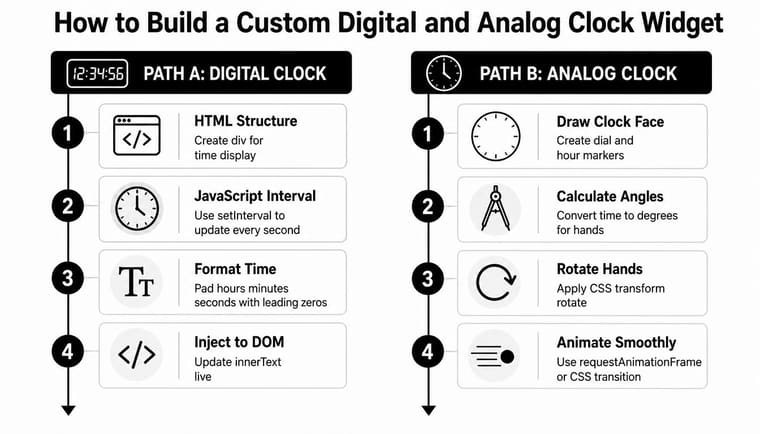
Digital clocks favor clarity
Start with a semantic element and an explicit label:
<div class="clock" data-time-zone="Europe/London">
  <span class="clock__label">London office time</span>
  <time class="clock__value" datetime=""></time>
</div>
Then use Intl.DateTimeFormat so formatting stays separate from the display logic:
const clock = document.querySelector(".clock");
const value = clock.querySelector(".clock__value");
const timeZone = clock.dataset.timeZone;

const formatter = new Intl.DateTimeFormat("en-GB", {
  timeZone,
  hour: "2-digit",
  minute: "2-digit",
  second: "2-digit",
  hourCycle: "h23"
});

function renderClock() {
  const now = new Date();
  value.textContent = formatter.format(now);
  value.dateTime = now.toISOString();
}

renderClock();
const timer = window.setInterval(renderClock, 1000);
The interval is easy to understand and adequate for a display that changes once per second. Clear it when the component is removed in a single-page application. Don’t create separate intervals for every visual detail. One update can refresh the text, label state, and machine-readable datetime value.
CSS variables make theme changes cheap:
.clock {
  --clock-foreground: #111;
  --clock-background: #f4f4f4;
  color: var(--clock-foreground);
  background: var(--clock-background);
  font-variant-numeric: tabular-nums;
  padding: 1rem;
  border-radius: 0.75rem;
}

.clock__value {
  font-size: clamp(1.5rem, 6vw, 3rem);
}
Analog clocks suit visual identities
Canvas gives you direct control over the dial, ticks, and hands. SVG is often easier to inspect and style because each hand can be an element with a transform. For either approach, calculate the hand angles from the current hour, minute, and second, then rotate existing shapes rather than rebuilding the whole DOM.
Use requestAnimationFrame when the second hand should move smoothly. Use a normal interval when a discrete per-second update is enough. Continuous animation consumes more work and can distract users, so reserve it for a design where motion carries meaning.
If your component includes a date or time picker, a separate keyboard nav time picker guide is a useful reference for focus order, keyboard behavior, and input semantics. Those interaction rules don’t automatically come from drawing a clock face.
Keep the analog face decorative unless it communicates required information. Pair it with a text time for clarity, and review the display alongside the flip clock screensaver concept if you’re considering animated numerals or a more expressive visual treatment.
Handling Time Zones Countdowns and World Clocks Correctly
The most common clock mistake isn’t a bad font. It’s using the wrong meaning of “now.”
A visitor-local clock should derive its display from the browser’s current time and locale. An office clock should use a fixed IANA identifier such as America/New_York or Asia/Tokyo. A countdown should use a target instant, ideally represented in a form that includes an offset or is constructed deliberately, rather than relying on a date string that different environments may interpret differently.
| Widget Type | Time Source | Best For |
|---|---|---|
| Local clock | Visitor’s browser time and locale | Personal dashboards and local reminders |
| Fixed-zone clock | An IANA time-zone identifier | Offices, stores, support teams, and scheduled services |
| World clock | A selectable list of IANA zones | Distributed teams and international audiences |
| Countdown | A fixed target instant | Launches, registrations, broadcasts, and deadlines |
IANA zones matter because daylight-saving rules can change the offset during the year. A fixed numeric offset can be correct for one period and wrong later. Intl.DateTimeFormat can format a Date for a selected zone without requiring you to hand-maintain seasonal rules:
function formatInZone(date, timeZone) {
  return new Intl.DateTimeFormat("en-US", {
    timeZone,
    dateStyle: "medium",
    timeStyle: "short"
  }).format(date);
}

const offices = {
  London: "Europe/London",
  Singapore: "Asia/Singapore",
  NewYork: "America/New_York"
};

console.log(formatInZone(new Date(), offices.London));
For a world clock, store the zone identifier as the option value and the friendly city name as the label. Don’t infer a zone from a user-entered city string without a deliberate mapping layer. For a countdown, calculate the remaining duration from the target timestamp and the current timestamp, then clamp negative values to zero and replace the active countdown with a clear completed state.
A web clock is generally a time-of-day display, not a precision timing instrument. NIST’s web clock widget is a useful reminder to distinguish display synchronization from exact timing guarantees. If a deadline has legal, financial, or operational consequences, show the authoritative event time and explain how the countdown relates to it.
Teams coordinating across regions may also need to identify a workable overlap rather than merely display clocks. The calculate golden window for teams guide can help frame that scheduling problem, while this daylight saving time adjustment guide provides additional planning context.
Styling for Responsive Design Accessibility and Performance
A clock may show the correct time and still break the page. Fixed-width faces overflow on phones, dark themes lose readable contrast, live regions repeat every tick, and third-party scripts can move content after the first render.
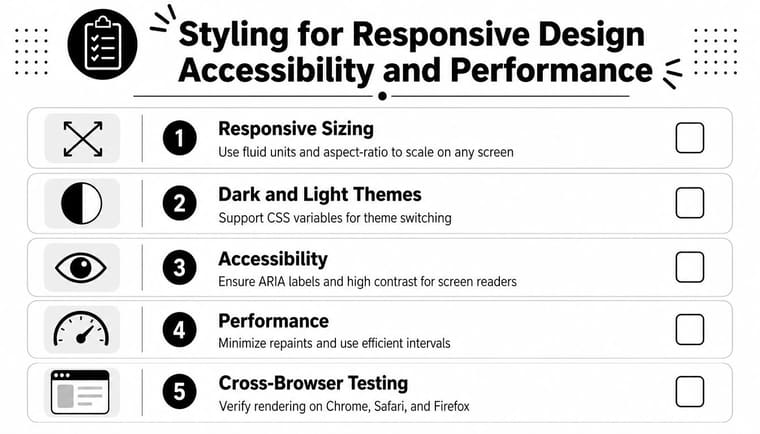
Treat the widget as part of the layout
Use fluid sizing, max-width, and aspect-ratio when the clock needs a stable shape. Reserve its space before JavaScript runs, so late-loaded fonts or markup do not push nearby content. Container queries let a reusable clock card respond to its actual column instead of the full viewport.
Define foreground, background, border, and accent colors as variables, then test light and dark themes separately. Accessibility guidance specifies a contrast ratio of 4.5:1 for normal text and 3:1 for large text, as documented in the eBay time accessibility pattern. Use text or a status label as well as color to show that a countdown has ended.
Separate visual updates from announcements
The display can refresh every second while assistive technology receives only meaningful changes. Announce milestones through a polite live region, with announcements at least 15 seconds apart when timing information matters. Keep the changing clock value out of an assertive live region, or users may hear a constant stream of updates instead of useful status messages.
Test keyboard-only use and screen readers such as NVDA, JAWS, and VoiceOver. A decorative clock may need no interaction. A city selector or pause control needs a visible focus state, an accessible label, and predictable keyboard behavior.
Protect loading performance
Defer scripts that are not needed for the initial view, lazy-load clocks below the fold, and let the page’s main content load first. Avoid code that changes margins, font sizes, or container dimensions after first paint. The third-party widget performance guide notes that heavy JavaScript can delay Largest Contentful Paint, while dynamic layout changes can increase Cumulative Layout Shift.
Run the production page through Lighthouse and PageSpeed Insights, then review Core Web Vitals over time. A self-contained clock with a reserved footprint is easier to tune than one that injects styles, tracking requests, and nested wrappers. Test the widget again after theme, analytics, or font changes, because each can alter layout and announcement behavior.
Final Checklist and Troubleshooting for Your Clock Widget
A reliable launch review should test meaning, not just appearance.
- Wrong location: Confirm that the widget uses the intended IANA zone, not a hard-coded offset or an unlabeled browser default.
- Frozen display: Check whether the script runs after the element exists, whether an exception stops the interval, and whether a deferred script needs a DOM-ready hook.
- Mobile overflow: Remove fixed widths, add a responsive wrapper, and test with enlarged browser text.
- Layout movement: Reserve the widget’s dimensions and remove scripts that inject changing margins or font metrics after paint.
- Screen-reader noise: Keep per-second visual updates out of live announcements and announce only meaningful milestones.
- Countdown confusion: Display the target date, event zone, or completion state so users know what the timer represents.
Before publishing, verify the time source, format, labels, contrast, focus behavior, reduced-motion preference, loading order, and completed countdown state. Test the actual production page in current Chrome, Safari, and Firefox, then repeat the check after theme or analytics changes.
Keep an embed when the job is simple and the provider gives you enough control. Maintain custom code when the clock supports scheduling, brand interaction, or multiple regions, but document the time-zone assumptions and test them whenever date logic changes. For personal countdowns and progress displays, Pretty Progress provides customizable widgets for iPhone, iPad, Apple Watch, Mac, and Android, with countdown, count-up, and timer options for deadlines, events, and goals.
If you’re adding a clock to a site, first define whether visitors need local time, a fixed office time, or a countdown to one event. Then use the simplest reliable implementation, test it across time zones and assistive technologies, and visit Pretty Progress for polished countdown and progress widgets that keep important dates visible beyond the website.





