

October 4, 2026
Watch with Countdown: Apple Watch, Apps, and Hardware Guide
Compare the best watch with countdown options for Apple Watch, Android, and dedicated hardware. Find the perfect timer setup for your needs in 2026.
With global timer demand at about 12 million units in 2024, the best watch with countdown option depends on what you value most: native Apple Watch reliability, deep customization through an app, or distraction-free focus with dedicated hardware. For most Apple Watch owners, the built-in option is the simplest place to start.
You’re probably looking for something simple. You set a countdown for a meeting, exam, flight, workout, fasting window, or project deadline, then expect it to remain visible when you glance at your wrist. Instead, the timer may disappear from view, fail to sync, or force you back into your phone to repair an event that should have worked automatically.
That friction matters more than a long feature list. A countdown that looks attractive but needs regular troubleshooting won’t support a habit, and a reliable timer that can’t remain visible won’t help much with long-term goals. The global market also shows why product choice is becoming more nuanced. Timer value rose to about $789 million in 2024, while the average import price reached about $30 per unit, according to market analysis of global timer demand. The practical lesson is simple: the device category, display method, and product design all affect the experience.
Watch Countdown Approaches at a Glance
| Approach | Best For | Setup Effort | Customization |
|---|---|---|---|
| Native Apple Watch features | Occasional timers, meetings, and simple events | Low | Limited |
| Third-party app widgets | Persistent deadlines, goals, and visual progress | Moderate | High |
| Dedicated countdown hardware | Focus sessions, tactile use, and screen-free routines | Low to moderate | Low |
Table of Contents
- Watch Countdown Approaches at a Glance
- Why Finding a Reliable Watch Countdown Is Harder Than It Should Be
- The Three Ways to Get a Countdown on Your Watch or Screen
- How Apple Watch Native Countdowns Actually Work
- Why App-Based Countdown Widgets Change the Game
- When Dedicated Hardware or Android Options Make Sense
- How to Choose the Right Countdown Approach for Your Life
- Getting Started Without the Common Setup Pitfalls
Why Finding a Reliable Watch Countdown Is Harder Than It Should Be
You’re leaving for an appointment and want a countdown on your wrist. The native timer starts correctly, but once you move through a few apps, the remaining time isn’t always the most visible thing on the watch face. You try an event countdown instead, only to find that the event isn’t selected, the complication is blank, or the watch shows an older item.
That experience isn’t unusual because a watch with countdown can mean three different products. It might be a temporary timer, a watch-face complication linked to an event, or a persistent progress display tied to a goal. Those tools solve different problems, but many comparisons treat them as interchangeable.
Practical rule: Decide whether you need an alarm, a glanceable remaining-time display, or a visual reminder that stays present throughout the day.
Native watch features usually win on initial setup. They’re already installed, use the platform’s own controls, and avoid adding another account or companion app. Their weakness is persistence. A short timer can work perfectly for cooking or exercise, but a deadline countdown needs a display that stays available without repeated navigation.
Third-party apps sit in the middle. They can provide widgets, complications, visual themes, and recurring progress displays, but they introduce more dependencies. You may need to install the phone app, install the watch component separately, select which events appear, and confirm that the display survives a sync or operating system update.
Dedicated hardware takes the opposite position. A physical timer doesn’t depend on a phone connection, notification settings, or watch-face configuration. It can be excellent for focused work or kitchen use, but it won’t automatically follow a project deadline across devices, and it offers little help when you want a polished visual progress bar.
The right choice therefore depends less on whether you own an Apple Watch or Android phone and more on how often you need to see the countdown. Occasional countdowns favor native tools. Persistent motivation favors widgets. Screen-free attention favors hardware.
The Three Ways to Get a Countdown on Your Watch or Screen
Know the field before you choose. The three approaches differ mainly in where the countdown lives, how much setup it demands, and what happens when you want to change the design or use another device.
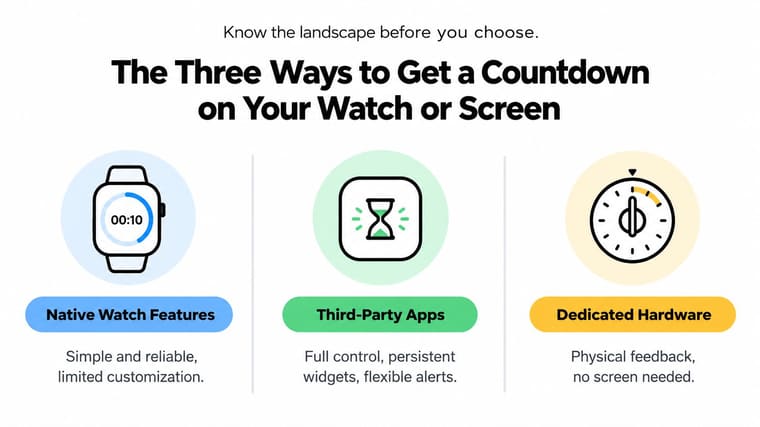
Native watch features are the cleanest option for a short, defined interval. Open the timer, choose a duration, and start it. This approach works well when the alert matters more than the display, such as a workout interval, cooking task, or short break. It becomes less convenient when you want a deadline visible each time you raise your wrist.
Third-party apps are designed for visibility rather than just notification. An app can put the same event on a phone home screen, lock screen, tablet, computer, or watch face, depending on the platform. That makes it more useful for exams, launches, trips, personal milestones, and routines where seeing progress changes what you do next. The trade-off is setup friction. The app has to support the relevant device, sync correctly, and expose a usable complication or widget.
Dedicated hardware removes the smartphone from the loop. A physical dial or standalone display gives you immediate feedback and can make a focus session feel more concrete. It’s less suitable for events that change frequently, because manual updates become part of the routine.
| Approach | Setup Complexity | Reliability Pattern | Main Trade-off |
|---|---|---|---|
| Native watch features | Low | Strong for temporary timers | Limited persistent visibility |
| Third-party apps | Moderate | Strong when device sync is configured correctly | More setup and permissions |
| Dedicated hardware | Low to moderate | Independent of phone and watch sync | Limited flexibility and portability |
Cross-device behavior is the deciding factor for many people. An Apple Watch owner may want a complication, while an Android user may care more about a home-screen widget. Someone trying to reduce phone use may prefer a physical dial, even if an app offers more visual control.
Don’t choose based on the most impressive screenshots. Choose based on the moment when you need the countdown. If you need to glance at it repeatedly, visibility and sync deserve more attention than decorative options.
How Apple Watch Native Countdowns Actually Work
Apple Watch has two native countdown experiences, and confusing them causes much of the frustration. The Timer app handles a duration that runs from a chosen interval to zero. An event countdown, by contrast, depends on an event being configured and displayed through the watch’s available interface.
For a simple timer, the process is straightforward:
- Open the Timer app on Apple Watch.
- Select a preset or set a custom duration.
- Start the timer.
- Return to the timer when you need to check the remaining time.
This works well for cooking, exercise, meditation, and short work blocks. It doesn’t automatically create a permanent countdown to a future date on your watch face. If your real goal is “how long until my exam?” or “how many days until my trip?”, a running timer isn’t the same tool.
Where event setup becomes fragile
Event-based countdowns depend on selection and display settings. You generally need to open the companion Watch app on your iPhone, choose the relevant event or countdown, and enable the setting that allows that event to appear on the watch. The event can exist correctly on the phone while remaining absent from the watch if the watch-side display setting isn’t enabled.
Independent support guidance for a watch countdown app describes several practical requirements, including installing the watch app separately, switching on per-event display controls, and forcing a reload or clearing old events when the watch doesn’t update. That makes this Apple Watch countdown setup guide useful as a troubleshooting reference, even if you ultimately use native tools.
A native setup is usually enough when you have occasional meetings, travel events, or short timers and don’t mind checking an app. It becomes a poor fit when your countdown needs to remain visible as a motivational cue throughout the day.
A countdown isn’t reliable just because it started once. It needs to remain visible after a phone moves away, an event changes, or the watch face refreshes.
Compatibility also matters. Watch-specific features may depend on the installed watch app and the required watchOS version, so an update or an unsupported device can create a failure that looks like a sync problem. Test the display before relying on it for an important deadline.
Why App-Based Countdown Widgets Change the Game
Native timers are good at measuring an interval. App widgets are better at keeping a future moment in view. That distinction matters for students tracking exam deadlines, professionals monitoring project milestones, and people using a countdown to make an abstract goal feel immediate.
A widget can occupy a place you already check, such as the iPhone home screen, lock screen, Mac desktop, or Apple Watch face. Instead of opening an app and searching for an event, you see the remaining time during an ordinary glance. That reduces the number of steps between the reminder and the behavior you want.
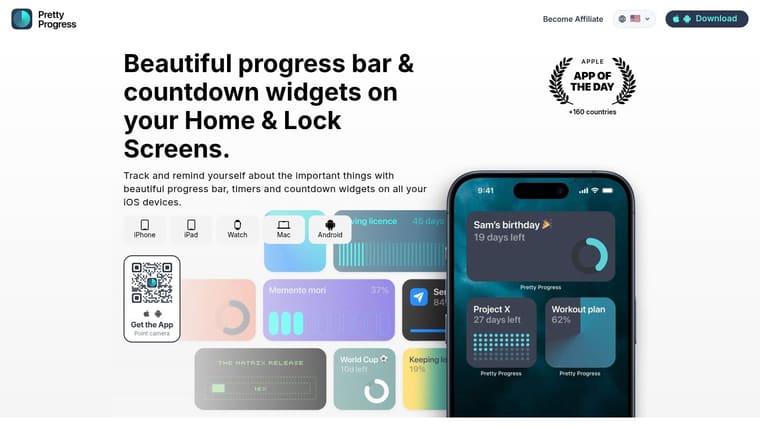
An app such as Pretty Progress supports countdowns and progress displays across iPhone, iPad, Mac, Apple Watch, and Android. It lets users choose themes including Swiss Style, Minimal, Aqua, and Retro OS, then adjust colors, gradients, bar dimensions, layouts, and icons. The value isn’t decoration alone. A display that fits your screen and communicates the deadline clearly is more likely to remain useful than a crowded complication you stop noticing.
Visibility versus maintenance
The strongest app workflow is short. Create the event, choose the start and end dates, style the display, add the widget or complication, and check that the watch receives the selected event. After that, the countdown should function as a passive reminder rather than another task to manage.
| Feature | Native Watch | App Widgets |
|---|---|---|
| Short duration timer | Strong | Strong |
| Future-date countdown | Limited | Strong |
| Persistent home or lock screen display | Limited | Strong |
| Visual themes and layout control | Limited | Strong |
| Cross-device presentation | Platform-dependent | Depends on app support |
| Setup simplicity | Strong | Moderate |
The behavioral use case deserves attention. A countdown can create helpful friction before opening a distracting app, make a deadline concrete, or show progress toward a fasting window. It can also increase pressure if the display feels like a constantly shrinking warning. Google’s Pixel app timer guidance focuses on daily limits that pause apps, while newer digital wellbeing approaches use a pause before opening an app rather than relying only on a hard cutoff. The broader lesson is that a countdown should support a chosen behavior, not merely add urgency.
For a closer look at using a watch as a goal reminder, see this Apple Watch goal tracker guide. The practical test is whether the display helps you act without requiring constant maintenance.
When Dedicated Hardware or Android Options Make Sense
A smartwatch is not automatically the best place for every countdown. If your purpose is to concentrate, a phone-linked display can introduce the same distractions you’re trying to avoid. A physical timer on a desk gives you a clear boundary without messages, feeds, or the temptation to check another app.
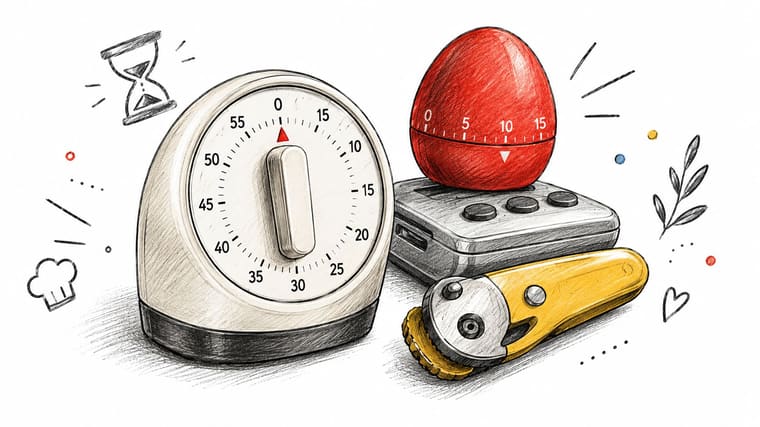
Dedicated hardware works especially well for routines with a defined beginning and end. Use a kitchen timer while cooking, a physical dial during a focus session, or a standalone display when you want a visible limit in a shared room. The tactile control also helps people who find tapping through watch menus too abstract or easy to ignore.
The limitation is flexibility. You’ll have to set the device manually, and it won’t automatically update when a meeting moves or a project deadline changes. It also won’t provide the same long-term visual history or cross-device continuity as a widget. A physical countdown is strongest when independence matters more than customization.
Android and digital wellbeing choices
Android users can use app timers and home-screen widgets, but the exact experience varies by device and software version. A third-party widget may be more useful than a built-in feature when the user needs a future date, a persistent visual bar, or a design that stays prominent without opening an app.
Digital wellbeing changes the recommendation. If you want a hard limit on an app, a platform-level timer can be more appropriate than a decorative countdown. If you want to pause before an impulse, a gentler intervention may work better than an alarm that feels punitive. A countdown can motivate a student toward an exam, but the same visual pressure might increase anxiety for someone already overwhelmed by deadlines.
A physical countdown clock can be a useful alternative when the main challenge is phone distraction. This guide to physical countdown clocks is relevant for comparing visible progress with tactile, screen-free feedback.
Choose hardware when you need separation from your phone, a clear physical signal, or a shared timer that anyone can read. Choose an Android widget when you need portability and customization but don’t require Apple Watch integration.
How to Choose the Right Countdown Approach for Your Life
Start with the event, not the device. A five-minute cooking timer, a flight countdown, a semester deadline, and a daily social media limit all need different forms of feedback. The most reliable choice is the one that matches the moment when you’ll act.
Choose native Apple Watch features when
You already own an Apple Watch and need occasional short timers or straightforward event reminders. You’ll spend less time configuring the system, and you won’t need to maintain another app. Accept that the experience is better for alerts and simple checks than for a persistent, designed countdown on the watch face.
Choose an app widget when
You want the same goal visible across several screens, or you use countdowns as ongoing behavioral cues. This fits exam preparation, project milestones, travel planning, recurring routines, and progress displays that need to stay glanceable. The extra setup is justified if visibility is the main reason you want a countdown in the first place.
Choose dedicated hardware when
Your priority is focus without notifications, phone independence, or tactile control. This works well for desk-based sessions, kitchen tasks, and environments where a physical signal is easier for several people to see. It’s less suitable for changing events and long-term goals that need automatic updates.
Your watch itself can also affect day-to-day comfort. If you’re changing the fit or appearance of an Apple Watch while building a more visible routine, Apple Watch SE bands can help you compare band styles before committing to a setup you’ll wear throughout the day.
A useful decision rule is simplicity first, persistence second, isolation third. Start with native tools if the countdown is occasional. Move to a widget if you keep forgetting to check it. Move to hardware if the phone has become part of the problem.
Getting Started Without the Common Setup Pitfalls
The first setup should be treated like a reliability test, not a cosmetic exercise. Create one countdown that matters, place it where you naturally look, and confirm that it remains correct after ordinary changes such as leaving the phone behind or switching watch faces.
For Apple Watch native features, remove obsolete events before adding new ones. Confirm that the intended event is selected, enable its watch display setting, and reload the watch component if the display remains stale. A clean event list makes it easier to identify whether the problem is selection, synchronization, or the watch face itself.
For an app widget, use this sequence:
- Create one test event: Pick a real deadline or routine, but don’t begin with a large collection of countdowns.
- Place it where your eyes already go: Use the lock screen, home screen, or watch face you check naturally.
- Keep the design legible: Choose a clear bar, label, or remaining-time display before experimenting with decorative styles.
- Check the watch separately: Installing the phone app doesn’t always mean the watch component or complication is ready.
- Test a change: Edit the event, refresh the display, and verify that the new information reaches each device.
Reliability check: If you can’t explain how to repair a stale countdown, don’t depend on it for an important deadline yet.
Dedicated hardware needs a different test. Run it through a complete session, check whether the alarm is audible in the room where you’ll use it, and confirm that the controls are easy to operate without instructions. If it requires too many steps, it probably won’t survive a busy routine.
Avoid creating more countdowns than you can interpret. Several competing widgets can turn a helpful reminder into visual noise, while a single well-placed countdown can become part of your daily rhythm. The best system is the one you’ll still use after the novelty fades.
If you want a customizable countdown that stays visible across your iPhone, iPad, Mac, Apple Watch, or Android screens, explore Pretty Progress. Create a deadline or goal, style its progress display, and test it on the device where you need the reminder most.





