

September 1, 2026
Time Management App for Students: A Buyer's Guide
Find the best time management app for students. Learn key features, workflows, and how to choose a tool that fits your study routine.
You’ve got a lecture in the morning, a lab report due soon, a work shift later, and a society meeting squeezed between them. Your Notes app contains every task, but it doesn’t tell you whether there’s enough actual time left to complete them. By the end of the week, the problem isn’t a lack of effort. It’s that your plan never matched your available hours.
A useful time management app for students should do more than collect tasks. It should help you budget real time, expose approaching deadlines, support focused execution, and keep the most important information visible without forcing you through several apps. This guide gives you a practical way to judge those tools, then shows how a lightweight countdown widget can replace a separate timer app in your daily workflow.
Table of Contents
- The Real Cost of Winging Your Study Week
- What Time Management Actually Means for Students
- The Four Tool Categories Students Actually Use
- Six Features That Separate Apps You Keep From Apps You Delete
- Building a Daily Workflow That Holds Up
- Why a Glanceable Countdown Changes the Habit Loop
- Your One-Week Trial Plan and Final Checklist
The Real Cost of Winging Your Study Week
Take a second-year undergraduate with two lectures, a lab report, a part-time shift, and a society meeting in the same week. On Monday, they write “finish lab” in a Notes checklist. On Tuesday, the lecture runs long, the planned preparation window disappears, and the student assumes there’ll be time later.
Later never becomes a proper study block. The lab report gets pushed to the night before submission, when the student is already tired and has to reconstruct the experiment, check the results, and format the document in one rushed session. The report arrives late, triggering a 10-point deduction, and the weekend becomes catch-up time instead of revision.
That single missed preparation window has a wider cost than the lost marks. It displaces revision, reduces downtime, and forces the student to make fresh decisions while under pressure. If the same pattern costs only a few recoverable hours in each week, the total across a 13-week term becomes substantial. The exact amount depends on the student’s schedule, but the principle is clear: small planning failures can consume a large portion of a semester.
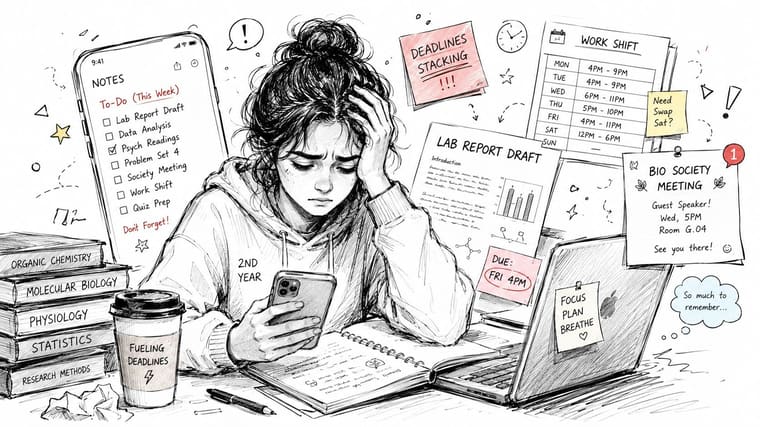
Memory lists hide workload
A checklist answers, “What must I do?” It doesn’t answer, “When can I do it?” or “What should happen first?” That gap explains why students often feel busy while important work remains untouched.
Research on student productivity apps found that 85% of respondents said their time-management abilities improved after using study applications (academic research on study applications). The useful lesson isn’t that any app will solve poor planning. It’s that a structured tool can turn vague intentions into visible commitments.
The right choice needs to pass two tests. First, it must show whether your workload fits your week. Second, it must make the next action obvious when your energy is low. The sections below apply that filter to app categories, essential features, and a simple widget setup that fits how students study.
What Time Management Actually Means for Students
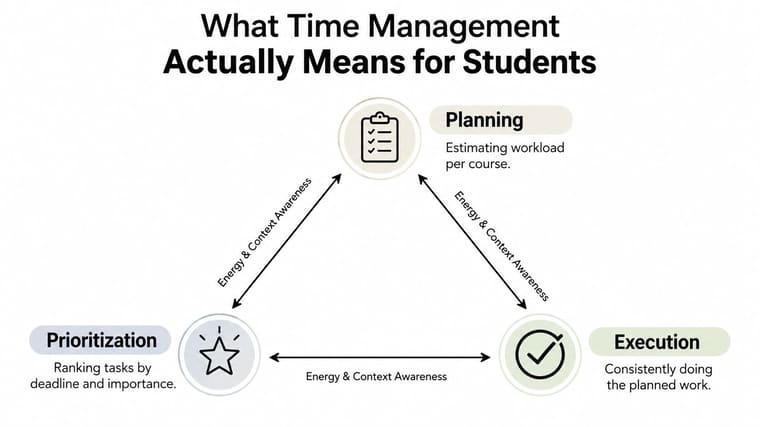
Student time management is a working cycle with three connected parts: planning, prioritization, and execution. Energy and context awareness run through all three. If one part fails, the schedule may look organized while the work still doesn’t happen.
Planning starts with available hours
Planning isn’t copying every deadline into a calendar. It means estimating the workload for each course, then comparing that workload with lectures, commuting, work, meals, rest, and existing commitments.
Start with the fixed elements. Add classes, labs, shifts, meetings, and travel. Then place assignments into dated work stages, such as finding sources, solving problems, drafting, editing, and submitting. A task called “write report” is too large to schedule realistically. “Create results table” is much easier to place in a real study block.
Prioritization is more than urgency
A deadline matters, but it isn’t the only ranking signal. Give attention to deadline proximity, academic importance, task complexity, and cognitive load. A short administrative task can wait while you use your sharpest morning hours for demanding analysis.
For example, schedule a statistics problem set in a morning slot if analytical thinking is strongest then. Save reading-heavy review for a commute or a lower-energy period, provided you can work safely and without distraction. The app should help you see that sequence instead of presenting every task as equally urgent.
Execution depends on context
Execution means doing the planned work in conditions that make completion realistic. A library desk, a quiet room, a campus café, and a train carriage each support different tasks. Your schedule should reflect those differences rather than treating every empty hour as interchangeable.
Planning research in higher education identifies planning, goal-setting, prioritization, and task organization as central predictors of better productivity, well-being, and performance (Frontiers in Education research). For practical guidance on turning those principles into a student schedule, the Magna Education time management guide is a useful companion.
Use this student time management tips guide when you need a quick reset, but keep the model simple: plan the hours, rank the work, then execute the next dated action.
The Four Tool Categories Students Actually Use
The student app market is crowded because no single tool category handles every part of a study week. Students commonly combine calendars, task lists, timers, and tracking surfaces, and market research reports that students often use 2 to 3 apps simultaneously (student time management apps market). That combination makes sense, but it also creates friction when each app requires separate setup and attention.
Four categories, ranked for real study weeks
1. Calendar and time-blocking tools come first because they show fixed commitments and available study space. Google Calendar and Fantastical are familiar choices. Their weakness is that a calendar can show when work is scheduled without making the remaining workload feel immediate.
2. Glanceable widgets and countdowns rank next. A home or lock screen widget keeps a deadline visible while you’re doing something else. It won’t replace detailed project planning, but it can stop the nearest deliverable from disappearing behind app menus.
3. Task and project managers such as Todoist, Microsoft To Do, Trello, and Notion are strong for breaking assignments into actions. They become less useful when deadlines are buried behind extra taps or when students spend more time customizing the system than completing work.
4. Focus and Pomodoro timers, including Forest, Tide, and Brain Focus Productivity Timer, help create a defined work interval. They’re execution tools, not workload-planning tools. A timer that closes when the phone locks, loses context, or sits in a separate app can become another source of friction.
| Tool Category | Strength in Study Week | Weakness in Study Week | Best Used For |
|---|---|---|---|
| Calendar and time-blocking tools | Shows fixed commitments and planned study blocks | Doesn’t always show remaining workload clearly | Classes, labs, shifts, and scheduled study |
| Glanceable widgets and countdowns | Keeps deadlines visible without opening an app | Offers limited project detail | Nearest assignment, exam, or milestone |
| Task and project managers | Breaks large assignments into actionable steps | Can hide urgency behind lists and menus | Reports, group projects, and recurring tasks |
| Focus and Pomodoro timers | Creates a clear execution window | Doesn’t plan the surrounding week | Starting and protecting a study session |
No category carries a full semester alone. A calendar lacks urgency, a task manager can hide time pressure, and a timer can’t tell you whether your week is overloaded. The strongest setup links these functions while keeping the student’s next decision visible.
Six Features That Separate Apps You Keep From Apps You Delete
Students rarely abandon an app because it lacks a decorative theme. They abandon it because recording work takes too long, deadlines stay hidden, or the tool adds another maintenance routine. Academic research connects daily schedule planning, priority setting, and self-regulation with task-completion efficiency and GPA, while also identifying underestimation of task duration and loss of focus as recurring problems (student time-management research).
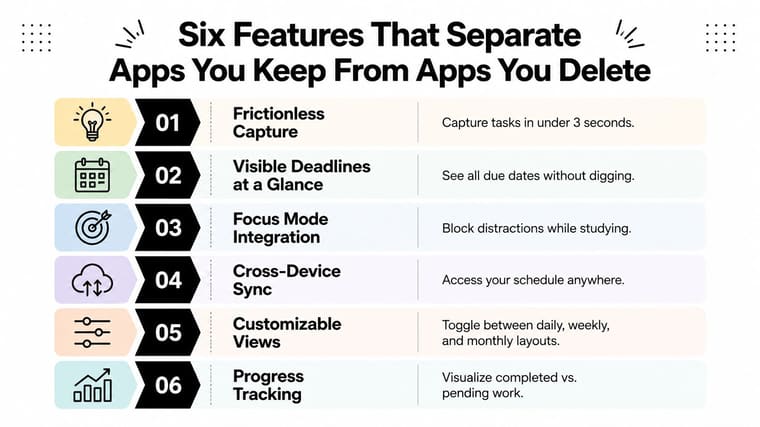
Test the app before you trust it
-
Frictionless capture. You should be able to record an assignment almost immediately, ideally from a quick-add action or widget. Pass the app if you can enter a task, course, and due date without navigating through several screens.
-
Visible deadlines at a glance. The next important deadline should appear without a deep dive into a project list. Close the app, look at the home or lock screen, and ask whether the date still has a presence in your day.
-
Calendar sync that works. Import a class or deadline and check whether it appears consistently across the devices you use. Sync should reduce duplicate entry, not create a second calendar that needs constant correction.
-
Focus integration. A timer should launch from the task you’re about to complete, not make you retype the task in a separate tool. Test whether the session keeps working when your phone locks or when you briefly switch contexts for an academic reason.
-
Gentle blocking of switching. Useful blocking limits the distractions you already know derail you without turning the app into a punishment system. Try it during a realistic study block and see whether it protects attention without making essential course tools inaccessible.
-
Lightweight review loops. The app should make it easy to compare planned work with completed work and move unfinished tasks. You shouldn’t need a long productivity ritual to adjust tomorrow’s schedule.
The thirty-second rule: If you can’t tell what’s due, what’s next, and how to start within a few moments, the app is adding work instead of removing it.
Students who want to compare pricing should also review affordable student subscription deals, but price isn’t the main decision. An inexpensive app that you stop opening is more costly in practice than a simple tool you use every day.
The best system combines these features into one loop: capture, schedule, execute, and review. You can still keep a specialized note-taking or course app, but your core time management app for students shouldn’t scatter the basic workflow across several disconnected tools.
Building a Daily Workflow That Holds Up
A reliable workflow has four moves: capture first, time-block second, execute third, review last. The sequence matters more than the number of features. If you start with a timer before deciding what the session is for, you may spend a productive interval on the easiest task rather than the most valuable one.
A practical Tuesday setup
On Monday night, put the nearest deliverables into a countdown widget. The widget doesn’t need every task. It should show the deadlines that could affect tomorrow’s choices, such as a lab preparation window or an approaching submission.
On Tuesday morning, check the calendar for fixed class, lab, work, and travel blocks. Use the gaps, not imaginary free time, to place specific study actions. If you have a gap before the lab, schedule “check procedure and prepare questions,” not “study biology.”
During that gap, start the focus timer from the planned task. Keep the session narrow. When it ends, record whether you completed the action, then move to the next commitment instead of reopening the whole planning system.
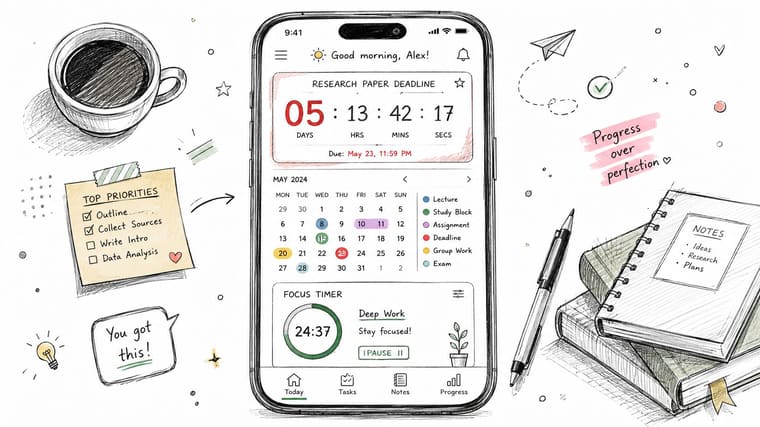
Keep the evening review short
At night, review the countdown and calendar together. If the report is closer than expected, pin it for tomorrow. If a task took longer than planned, change the future block rather than blaming yourself for inaccurate estimates.
Switching between a planner, timer, and Notes app costs attention every time you change tools. A pinned widget reduces those transitions because the relevant deadline remains visible where you already look. For students who spend long periods reading or working on screens, the role of modern eyewear offers useful context on making digital study more comfortable, but comfort still needs a clear workflow behind it.
A tool list doesn’t create consistency. A repeated routine does. Set up the surfaces once, keep the next decision visible, and let the habit form around the sequence rather than around a collection of app icons.
Why a Glanceable Countdown Changes the Habit Loop
A countdown widget works because it puts the cue and the feedback in the same place. You don’t need to open a separate timer app just to remember that an exam, report, or project milestone is approaching. The deadline sits on the home or lock screen, where you naturally check the device throughout the day.
Pretty Progress takes this widget-first approach by letting students create customizable countdown and progress widgets for deadlines and study milestones across supported Apple devices and Android. The useful distinction is between counting down to a real consequence and running a generic Pomodoro interval. A focus timer tells you how long to work. A deadline countdown tells you why the work matters now.
That difference becomes important during low-energy moments. Opening a planner requires a decision, finding a task requires another, and starting a timer creates a third step. A glanceable countdown shortens that chain. The visible deadline can prompt the next action before avoidance turns into another hour of unrelated activity.
The trade-off is clear. A widget won’t provide the detailed project analytics or deep task hierarchy of a dedicated manager. It can also become meaningless if you create countdowns for everything and stop distinguishing important deadlines from background events.
Use it as the visible layer above a weekly plan. Review the full workload during your weekly planning session, then pin only the deadlines that should influence today’s choices. For guidance on using reminders across devices, see this Apple Watch reminder app guide.
Visible time changes behavior more effectively than merely tracked time. Tracking tells you what happened. Visibility helps decide what happens next.
Your One-Week Trial Plan and Final Checklist
Don’t judge a time management app for students after a polished onboarding screen. Test it against a demanding week, including the moments when you’re tired, late, distracted, or carrying several deadlines at once.
Run the trial in order
- Day one, establish reality: Import deadlines and recurring classes. Set up one calendar and one countdown widget.
- Day two, schedule work: Time-block three study sessions. Note every point where the app makes you stop and configure instead of plan.
- Day three, test execution: Run one focus block. Notice how often you open the planner, timer, Notes, or another distracting app.
- Day four, apply pressure: Use the system on a heavy day with back-to-back deliverables. Check whether it still shows the correct next action.
- Day five, remove the tool: Skip the app and write down which decisions become harder. This reveals whether the system is useful or simply novel.
- Day six, simplify: Disable dead features, remove duplicate tools, and fix the widget placement you’ll keep.
- Day seven, decide: Choose consistency over visual polish. A useful weekly planning guide can help you turn the result into a repeatable routine.
Your final checklist should answer four questions:
- Can you see your real study load?
- Can you identify the next important deadline without digging?
- Can you start focused work with minimal friction?
- Does the system remain useful when your connection, energy, or schedule changes?
Choose the app that supports honest planning and repeated action. The most impressive feature list won’t rescue a workflow you won’t open.
Pretty Progress gives students customizable countdown and progress widgets for keeping deadlines visible on the home or lock screen, with support across Apple devices and Android. Visit Pretty Progress to set up a study deadline widget and test whether visible time makes your daily planning easier.





