
October 30, 2026
Best Goal Setting App for iPad: Top 10 Picks for 2026
Compare the 10 best goal setting app for iPad options in 2026, with pros, cons, pricing notes, and setup tips for widgets and Lock Screen tracking.
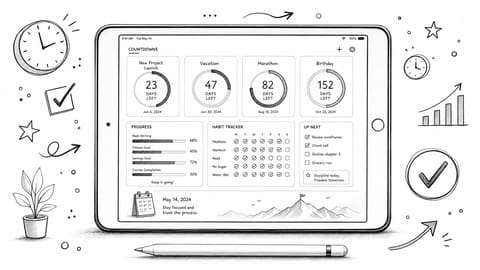
You open your iPad to start studying, and your exam countdown is already on the Home Screen. You don’t open a planner, find the right project, or scroll past overdue tasks. You see the deadline, remember what matters, and get to work.
That’s the strongest reason to track goals on an iPad: you can keep the destination visible while using the same device for notes, reading, and focused work. But a beautiful countdown won’t organize a dissertation, and a detailed planner won’t help if you never open it. The best goal setting app for iPad is the one that solves your actual sticking point, whether that’s remembering, repeating, planning, or starting.
These picks fall into clear recommendation buckets: glanceable widgets, habit trackers, structured planners, and execution tools. Each has a distinct job, along with trade-offs and pricing considerations. Students and people with ADHD should choose by the support they need, not by a broad productivity label. A visible deadline and a concrete next action are different tools, and neither is a treatment.
Before downloading anything, name the outcome you want and the action that moves it forward. If that part is still fuzzy, explore goal setting coaching frameworks to separate the result from the routine. Then choose the lightest app that can support both.
Table of Contents
- 1. Pretty Progress
- 2. Strides
- 3. Goals Wizard
- 4. North Star Goals & Habits
- 5. GoalKit
- 6. Habitify
- 7. Goals AI Coach, Habit Tracker
- 8. GoalsOnTrack
- 9. Todoist
- 10. Success Life Coach Day Planner
- Goal Setting Apps for iPad Compared
- How to Choose and Set Up Your Pick
1. Pretty Progress
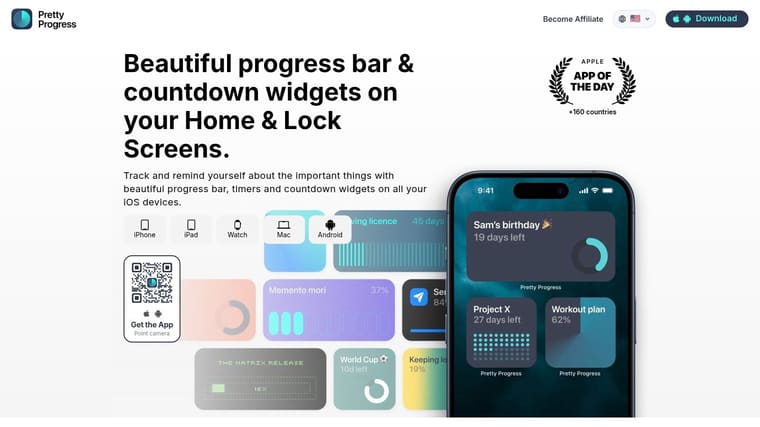
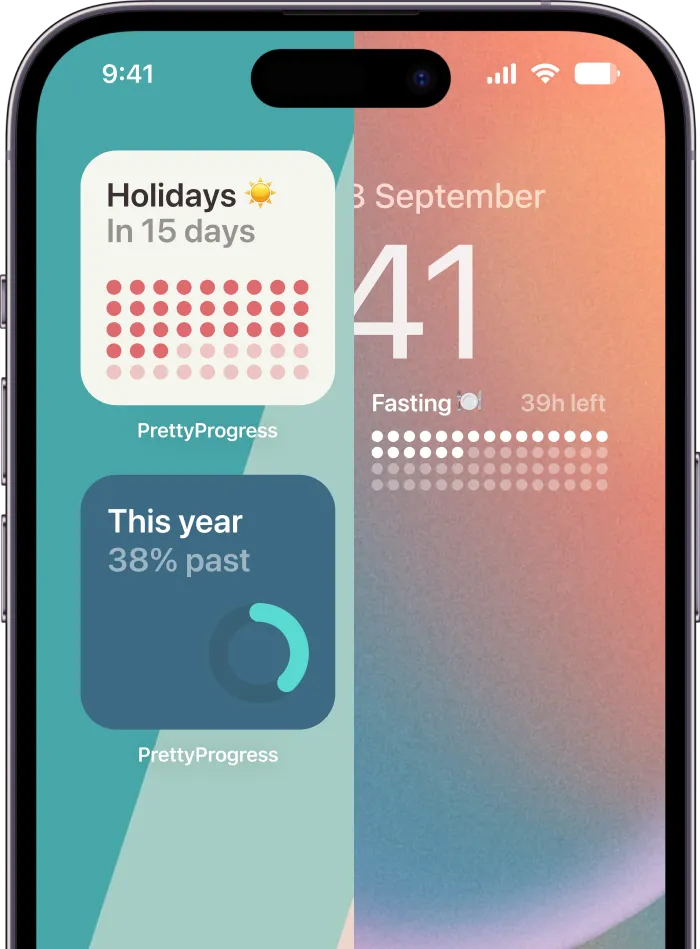
Best for customizable goal widgets and visible deadlines. Choose our countdown and progress app when your main problem is forgetting a goal once you close your planner. We turn dates and deadlines into widgets you can keep on supported Home and Lock Screens.
Set a start date, end date, name, and design, then place the result where you’ll notice it. An exam, project submission, trip, or personal milestone becomes a persistent visual reference rather than another entry buried in a list.
What makes it useful on iPad
Our themes include Swiss Style, Minimal, Aqua, and Retro OS, with options for colors, gradients, layouts, icons, and bar styling. You can import Apple Calendar events and Reminders tasks into countdowns that stay aligned with those existing plans. PRO includes iCloud event synchronization between Apple devices and deeper styling controls.
- Strongest advantage: You can see a deadline without opening a planning workspace.
- Useful extras: Date, business-day, age, and fasting calculators help with practical date planning.
- Main limitation: A countdown doesn’t replace task dependencies, detailed project planning, or a record of completed study sessions.
- Pricing: Free to download, with PRO for additional capabilities. Confirm the upgrade cost in the app before purchasing.
Distinguish time progress from work progress. A bar showing how much of a semester has elapsed doesn’t show how much coursework you’ve finished. Pair the widget with a task list when completion matters.
For students, this is the strongest pick for keeping an approaching exam visible. For anyone who struggles to remember distant deadlines, it provides a visible cue without requiring another dashboard review.
2. Strides

Best for measurable goals that need more than a checkbox. Strides is the pick for combining recurring habits, numeric targets, and project-style goals without adopting a full life-planning suite.
Say you’re preparing for a professional qualification. You want to record study sessions, monitor practice results, and track progress through the syllabus. Those aren’t the same measurement, so they shouldn’t all become identical daily tasks.
Strides offers different tracking approaches, along with charts, reminders, notes, and progress reports. Its strength is helping you decide what counts as progress, then giving you somewhere consistent to record it.
Choose it for measurement, not journaling
- What it does well: Combines habits and longer-term targets in a focused tracking system.
- Where it falls short: It isn’t the right workspace for extensive reflection or detailed project coordination.
- Pricing: A limited free plan is available. Plus adds synchronization, unlimited trackers, and additional organization and reporting features.
On iPad, test the logging process before building your entire system. If recording a completed session feels cumbersome, you’ll collect less useful history, regardless of how attractive the charts look.
If your planning continues on a desktop, compare your workflow with this guide to goal-setting apps for Mac. Choose Strides over a countdown when you need evidence of action, not just awareness of a deadline.
3. Goals Wizard
A large goal needs a route from intention to daily work. Goals Wizard is the best structured planner for linking goals, milestones, tasks, habits, and reflection. Choose it for a qualification, career transition, or substantial personal project.
You can build plans manually, use templates, or use AI-assisted setup. Daily and weekly planning views help you bring supporting actions into your schedule, while notes and reflection give you somewhere to reconsider the plan.
A milestone should describe a meaningful result. A task should tell you what to do next.
That distinction matters when a planner offers many organizational layers. For a portfolio launch, a completed case study is a milestone; selecting screenshots is a task. Don’t build an elaborate hierarchy that still leaves you unsure what to do today.
The trade-off is planning overhead
Goals Wizard suits people who want an integrated system and will return to it for reviews. It’s excessive if your only requirement is seeing how long remains before a deadline.
Pricing: Free use has limits, and some scheduling capabilities require a paid plan. Confirm premium access and the current subscription cost before relying on a particular milestone workflow.
For iPad use, try planning beside your notes in a supported multitasking layout. Check whether you can move from the larger goal to the next action without losing your place. Choose it for connected planning, not minimal tracking.
4. North Star Goals & Habits
Best for modular goal tracking with an account-conscious approach. North Star lets you choose habits, milestones, measures, and planning tools according to the goal rather than forcing every ambition into the same template.
That flexibility is useful when your goals differ substantially. Learning an instrument needs practice habits and skill milestones. Saving for a move needs numeric progress and practical tasks. You don’t need identical dashboards for both.
The app’s listing says no email signup is required and states that the developer doesn’t store or send user data. Treat that as a developer disclosure, not an independent security audit.
Keep privacy in the buying decision
An academic evaluation of classroom behavior-management apps raised privacy and security concerns and emphasized safeguards around data exports. That finding concerns classroom apps, not an audit of North Star, but it provides a useful reason to examine how any planner handles sensitive information.
- Best feature: Select only the tracking tools a particular goal needs.
- Main drawback: You must make initial decisions about structure, which adds setup work.
- Pricing: A subscription is required after the trial. Review the current terms before committing.
For private health, relationship, or financial goals, examine account requirements, synchronization, deletion, and export controls. Don’t put an intimate goal title in a public-facing widget just because the design looks good. North Star is the pick for flexible structure, with privacy questions kept central.
5. GoalKit

Choose GoalKit for mixed goal types without a sprawling planner. It separates checklists, milestones, numeric progress, and recurring habits, making it easier to choose a sensible measurement from the start.
For a move, use a checklist for address changes and milestones for the stages of preparation. For a savings target, use numeric progress. For regular exercise, use a recurring habit rather than repeatedly recreating a completed task.
That separation is its main advantage. Visual progress bars support numeric targets, while interface customization and an AI assistant provide additional help with setup.
Watch the iPad layout
The listing identifies iPad portrait support. Don’t assume that means a polished workspace, especially if your iPad usually sits in a keyboard case.
- Good fit: Personal goals with different tracking methods and straightforward progress updates.
- Weak fit: A wide-screen-first planning setup or a complex project with extensive dependencies.
- Pricing: Pro is available, but confirm its current price and included features in the app.
GoalKit also includes a reflection feature for reviewing completed goals. That’s useful for looking beyond unfinished work, but it shouldn’t distract from quick, regular updates.
Choose GoalKit over a larger suite when you already know what you want to achieve and need the right container. Choose a guided planner instead if defining milestones is the part where you get stuck.
6. Habitify

Your goal is to read regularly, keep a study routine, or exercise consistently. You don’t need a life vision dashboard. Habitify is the best dedicated habit-tracking pick here for repeated actions.
Schedules, reminders, completion history, and progress views keep attention on whether you performed the behavior. Notes, mood tracking, and a built-in timer add context without requiring you to turn each habit into a full project.
Its support across iPad, iPhone, Mac, and Apple Watch is useful when your check-in device changes throughout the day. Still, confirm which synchronization and integration features belong to the plan you intend to use.
Practical rule: Track the action you control. Record opening your study materials and completing a session, not simply wanting a better grade.
Where Habitify stops
Habitify isn’t the strongest tool for a complex goal that needs sequenced milestones and dependent tasks. Use a structured planner for the project, and a habit tracker for the supporting routine.
Pricing: Free, Plus, and Pro tiers have different limits. Advanced insights and Apple Health synchronization require the appropriate paid access.
For alternative approaches, use this habit tracker comparison to decide whether you prefer streaks, calendars, or another check-in style. Choose Habitify when repetition is the work, not merely an accessory to the goal.
7. Goals AI Coach, Habit Tracker
Best for guided planning when you don’t know where to start. Goals combines AI-assisted goal creation with steps, habits, reminders, check-ins, and pace monitoring.
Choose it when a blank planning screen leaves you stalled. An initial intention such as improving study consistency needs a specific behavior, a realistic schedule, and a way to review progress. The coaching workflow helps you draft that structure.
The important benchmark is whether the resulting plan tells you when and how you’ll act. A University of Birmingham document on implementation intentions summarizes a meta-analysis reporting a medium-to-large effect on goal achievement, with an effect size of d = 0.65 across 94 studies. That supports if-then planning, not a claim that this particular app produces the same result.
Judge the plan, not the AI label
- Useful output: A concrete action attached to a recognizable situation, such as reviewing notes after your evening meal.
- Weak output: An ambitious list that ignores your workload, energy, or available time.
- Main limitation: AI guidance adds little if you already prefer making your own plans.
- Pricing: Check paid-plan limits and current pricing before subscribing.
The app also includes SMART goal methods, CBT tools, a habit heatmap, and a Home Screen widget. Those tools don’t establish clinical effectiveness or replace professional care. Choose it for planning assistance, not treatment.
8. GoalsOnTrack

GoalsOnTrack is the best browser-oriented choice for structured goal planning. It organizes goals into subgoals and action tasks, with habits and journal entries alongside them.
Choose it when the planning method matters more than a native tablet interface. Its web and mobile access suit someone who wants to maintain the same goal system across different working environments rather than build everything around iPad widgets.
Membership includes goals, tasks, habits, and journal entries without usage caps. The attraction is a unified planning workspace, not a lightweight daily check-in.
Accept the browser trade-off deliberately
A web-based system can be a sensible choice, but it shouldn’t get a free pass on tablet usability. Open a substantial journal entry, bring up the keyboard, rotate the device, and check that the editing area remains accessible.
- Strongest advantage: Detailed goal decomposition with habits and reflection in the same system.
- Main drawback: Browser or mobile access won’t necessarily feel like a dedicated iPad-first app.
- Pricing: Paid membership, with no advertised free plan. An annual commitment is excessive for casual tracking.
For longer planning cycles, use a quarterly goal-tracking approach to select milestones and review them regularly. Don’t fill the system with every possible aspiration.
Choose GoalsOnTrack when you want formal goal planning across devices. Skip it if your priority is a glanceable Home Screen experience or quick tablet-first interaction.
9. Todoist
Best for students and professionals who need a clear next action. Todoist isn’t a specialist goal tracker. It’s the right choice when you know the destination but keep losing track of the work required to reach it.
Create a project for the outcome, then add tasks and subtasks that describe concrete actions. Use recurring tasks for supporting routines, priorities for urgent work, and list or board layouts to organize what’s next.
For students, that means separating an assignment deadline from drafting, reading, and revision tasks. For someone with ADHD who wants fewer planning decisions, a short next-action view is a better starting point than a complicated dashboard. That’s a workflow recommendation, not a clinical claim.
Turn intentions into executable tasks
- Write an action: Use “Draft the introduction” rather than “Work on dissertation.”
- Separate work from outcomes: Completing tasks doesn’t automatically measure the quality or success of the larger goal.
- Keep the view focused: Avoid mixing today’s work with an unfiltered backlog.
Pricing: A free Beginner plan is available, with limits on projects and filters. Pro adds capabilities including the calendar layout and additional reporting tools.
Choose Todoist for execution and organization. Choose Strides for numeric tracking, or a habit specialist when completion history and repeated behavior matter more than managing a task queue.
10. Success Life Coach Day Planner
Best all-in-one planner suite for goals, routines, and reflection. Success Life Coach Day Planner combines life-vision planning, tasks, habits, journaling, mood tracking, and daily reviews.
Choose it if your current system is scattered across a journal, habit app, and planner. Reviewing your goals alongside personal notes can help you decide whether your daily routine still supports what you want to achieve.
The breadth is also the drawback. A quick progress update can become a much longer planning session if you feel obliged to complete every prompt and maintain every feature.
You don’t need to use every tool in a planning suite. Keep only the parts that change what you do.
Best for reflective planners
Daily planning and morning routines suit someone who wants structured check-ins. Journaling and reflection suit someone who needs space to reconsider priorities, not just record completed tasks.
Pricing: Advanced tools may require a paid plan. Confirm that the specific planning, reflection, and synchronization features you need are included before subscribing.
Start with the daily planner and a meaningful goal, then add other components only when they solve a clear problem. Don’t migrate your entire personal system before testing the basic workflow.
Choose this suite over a focused tracker when reflection is part of your planning process. Skip it when you primarily need a deadline widget or a fast habit check-in.
Goal Setting Apps for iPad Compared
Choose by the job you need the app to do. Pretty Progress is built for visible deadlines and progress bars; Strides and Habitify focus on tracking; Todoist turns goals into tasks. The table compares each app’s main use, free access, supported platforms, and tracking style.
| App | Best For | Free Plan | Platforms | Tracking Style |
|---|---|---|---|---|
| Pretty Progress (Recommended) | Visual countdowns, goals, and deadlines | Free to download; advanced styling requires PRO | iPhone, iPad, Android, Apple Watch, Mac | Countdown widgets and progress bars |
| Strides | Flexible goals, habits, and projects | Free plan available | iPad and other Apple devices | SMART goals, habits, projects, charts |
| Goals Wizard | Guided planning from goals to daily actions | Free use with limits | iPad, iPhone, Apple Watch, web | Goals, milestones, tasks, habits, reflection |
| North Star: Goals & Habits | Customizable tracking for varied goals | Subscription required after trial | iPad and other Apple devices | Modular habits, milestones, measures, and tasks |
| GoalKit | Mixing checklists, milestones, and measurable targets | Free plan available | iPad, iPhone | Checklists, milestones, progress goals, recurring habits |
| Habitify | Building and tracking recurring habits | Free tier with limits | iPad, iPhone, Mac, Apple Watch | Schedules, reminders, streaks, and history |
| Goals: AI Coach, Habit Tracker | AI-guided goal planning and coaching | Free to download; in-app purchases available | iPad, iPhone | AI-created goals, steps, habits, and check-ins |
| GoalsOnTrack | Structured goal and task planning | No free plan advertised | Web and mobile; usable on iPad | Goals, sub-goals, tasks, habits, and journals |
| Todoist | Organizing goal-related tasks and next steps | Free Beginner plan | iPad and other platforms | Projects, tasks, deadlines, and priorities |
| Success Life Coach Day Planner | Combining goals with daily planning and reflection | Advanced tools may require a paid plan | iPad, iPhone, Apple Watch, web | Goals, habits, journaling, mood, and routines |
How to Choose and Set Up Your Pick
Choose by the support you need. Use our featured widget app for glanceable deadlines, Habitify for repeated actions, Strides for measurable targets, and Todoist for concrete next steps. Choose Goals Wizard or Success Life Coach Day Planner when long-term planning and reflection belong together.
Before committing, test the iPad experience rather than trusting an availability badge. Griply’s App Store reviews include reports of a Home Screen web-app experience and journal text becoming obscured by the keyboard. Those are user reports about another product, but they illustrate why tablet usability deserves a hands-on check.
Put the goal where you’ll see it
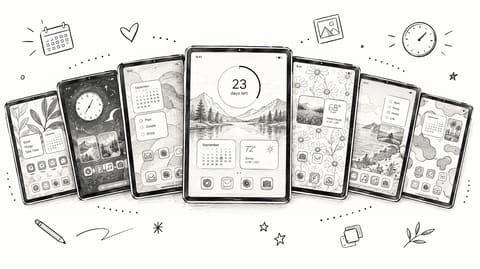
For a Home Screen widget, create the event first, including its name, start date, end date, and appearance. Touch and hold an empty area of the Home Screen, open the widget gallery using the add control, select the app, and choose a supported size. Depending on your system version, the add control may appear through an editing menu.
- Select the right event: Touch and hold the placed widget and use its editing options where available.
- Choose a visible position: Put the priority goal on the screen you use to begin work, not a page you rarely visit.
- Avoid hidden priorities: Don’t bury your main deadline in a rotating stack if you need it consistently visible.
For a supported Lock Screen, touch and hold the screen, choose customization, select the Lock Screen, and open the widget area. Add an available widget, then tap it in the editor to select or configure the event. Available layouts and controls depend on your iPad software and the app.
Test visibility, privacy, and refresh behavior
Our app requests widget updates every five minutes, but Apple’s operating system decides when updates really happen. Treat widgets as glanceable progress displays, not precision alarms. After changing dates or importing plans, open the app and confirm the widget reflects the intended event.
Test horizontal mode, keyboard editing, supported multitasking, offline access, and synchronization before paying. If Apple Pencil input matters to your workflow, verify it directly rather than assuming every planner supports handwriting.
Finally, use neutral labels for sensitive goals and examine notification previews. Keep a precise alarm or calendar alert for deadlines you can’t miss, then use the widget to maintain everyday awareness. Start with your most important goal and a clear next action. Add complexity only when it earns its place.
Pretty Progress turns deadlines and milestones into customizable countdown and progress-bar widgets for your iPad. Visit Pretty Progress, create your next exam or project countdown, and place it on the screen you’ll see when you start working.
Add your widget with the iPad Home Screen guide.