

October 7, 2026
10 Best Event Reminder App Picks for 2026
Compare the best event reminder app options for countdowns, alerts, students, ADHD support, habits, pricing, platforms, and setup.
A deadline is sitting in your calendar, your appointment is buried under meetings, and the personal goal you care about has no visible place in your day. You saw the event when you created it, dismissed one alert, and moved on. That’s the point where choosing the best event reminder app becomes less about having more features and more about choosing the right kind of reminder.
Ordinary alerts tell you something is due. Task apps help you capture and repeat actions. Calendar systems organize appointments and shared schedules. Glanceable countdown widgets keep an event visible before the alert arrives, which can make a distant deadline feel more immediate. The right option depends on whether you need a single event alert, a task workflow, or a persistent progress cue.
This comparison looks at platform support, notification behavior, customization, pricing position, setup effort, and best-fit audience. It also considers how each app works in real routines, including student planning, work calendars, Apple devices, Android access, ADHD-friendly cues, and habit or goal tracking. You’ll find screenshots, practical setup advice, and direct trade-offs rather than a feature dump. The strongest choice is the one that matches how you notice and act on reminders.
Table of Contents
- 1. Pretty Progress
- 2. Apple Reminders
- 3. Google Calendar
- 4. Microsoft Outlook Calendar
- 5. Fantastical
- 6. Todoist
- 7. TickTick
- 8. Any.do
- 9. Due Reminders and Timers
- 10. Calendars by Readdle
- Top 10 Event Reminder Apps, Feature Comparison
- Pick the App You Will Actually Notice
1. Pretty Progress
Pretty Progress is the strongest choice when a normal notification disappears too quickly. It turns deadlines, events, fasting windows, personal goals, and recurring commitments into countdowns, timers, and progress bars that stay visible on your Home Screen or Lock Screen.
The app works across iPhone, iPad, Apple Watch, Mac, and Android, so it suits people who move between devices. You can create a countdown manually, or connect Calendar and Reminders so an existing event becomes a visual reminder without re-entering it. Built-in tools for dates, business days, exact age, intermittent fasting, pregnancy due dates, loan payoff, and other use cases reduce setup work.

Why it stands out
Pretty Progress focuses on visibility rather than task administration. You can choose themes such as Swiss Style, Minimal, Aqua, and Retro OS, then adjust colors, gradients, bar size, shape, layout, and icons. That matters if you check your phone often but tend to dismiss alerts without acting.
Its visual approach also fits ADHD-friendly routines. Research on prospective memory links ADHD with difficulty remembering and executing intentions, including both time-based and event-based tasks, as discussed in this research on ADHD and prospective memory. A persistent countdown can externalize the passage of time without requiring you to reopen a task list.
Practical rule: Use Pretty Progress for the thing you need to keep noticing, not every small task you need to complete.
Download is free, while deeper styling controls require the PRO upgrade. The app isn’t a full project manager, so it won’t replace Todoist or TickTick for complex task dependencies. It is a better fit for students tracking exams, professionals watching a launch date, habit-builders monitoring goals, and anyone who responds to a visible cue more reliably than a cleared notification.
For a closer look at wearable use, see this guide to an Apple Watch reminder app. Start with the Pretty Progress app, set your dates, choose a design, and add the widget where you’ll see it.
2. Apple Reminders
Apple Reminders is the best default for people who already use an iPhone, iPad, Apple Watch, and Mac. It’s built in, quick to open, and tightly connected to Siri, iCloud, notifications, and Apple’s wider system.
You can create reminders by time, date, or location. That makes it useful for practical triggers such as remembering an item when you reach a shop or preparing something before leaving work. Shared lists, subtasks, attachments, priorities, and natural-language entry cover everyday personal and household planning without requiring another account or subscription.
Where it works best
Apple Reminders is strongest at fast capture and direct alerts. Ask Siri to remember something, add it from another Apple app, or create a recurring task while you’re already planning your day. The reminder then follows you across compatible Apple devices through iCloud.
Its main limitation is reach. Apple Reminders isn’t the right choice for someone who needs a fully supported Android or Windows workflow. It also offers less visual customization and fewer persistent reminder behaviors than dedicated apps. If you dismiss alerts and forget the task immediately, a Home Screen countdown may serve you better.
Apple’s Reminders app is a sensible starting point for Apple users who want reliable alerts with almost no setup. If you want to compare it with more visual and specialized options, this guide to the best reminder apps for iPhone gives the decision in practical terms.
3. Google Calendar
Google Calendar is the best event reminder app for people whose day revolves around appointments, meetings, shared schedules, and Gmail. It treats the calendar as the central record, then adds notifications around the event rather than turning every reminder into a separate task.
You can set default notifications or customize alerts for individual events. Push and email options let you choose how an alert reaches you, while Google Tasks connects action items to the wider Google ecosystem. Sharing is straightforward, and the web experience makes Calendar useful on computers as well as phones.
Choose it for calendar-centered work
Google Calendar works well when the event itself is the main object. A client meeting, class, appointment, or shared event belongs on a calendar because its timing affects the rest of your day. Google’s developer tools and Calendar API also make it useful for teams connecting events to other workflows.
The trade-off is persistence. Google Calendar can remind you at the right time, but it isn’t designed primarily to keep nagging until a task is complete. It also makes the most sense if you already use Gmail or Google Workspace. People who want a countdown on their screen, a task that stays active, or a visual goal tracker should pair it with a specialized tool.
Use Google Calendar when scheduling and attendance matter more than task follow-through. For stronger event preparation, these calendar management tips can help you turn appointments into actionable plans. If you’re coordinating a large celebration, a day-of wedding timetable can also show why timing and reminders need to work together.
4. Microsoft Outlook Calendar
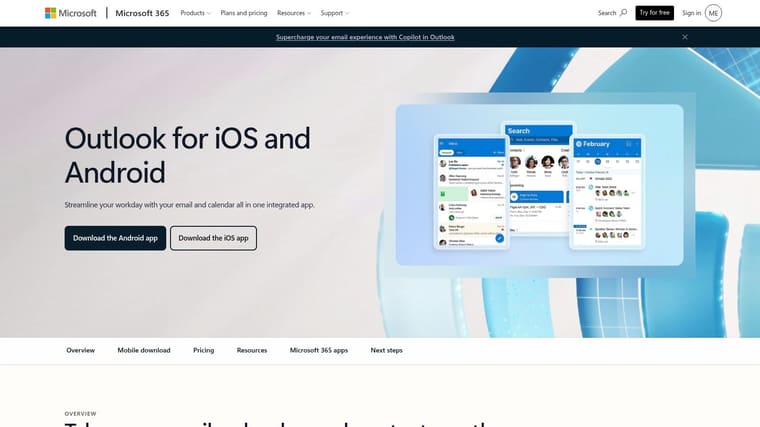
Microsoft Outlook is the strongest option for workplace reminders when email, meetings, contacts, and scheduling need to live together. An event can include meeting details, RSVP information, notifications, and a direct route into Teams or another meeting service.
Outlook supports Microsoft 365 and Exchange accounts, while also working with Gmail, iCloud, Yahoo, and other calendars. That makes it more flexible than a strictly single-provider calendar. Mobile widgets and search help you check the day without opening several separate apps.
Best for professional routines
Outlook is reliable when reminders are tied to work communication. A meeting alert can sit beside the email thread, attendee list, and joining instructions. That reduces the chance of searching through separate tools when the event is about to start.
The downside is focus. Outlook is an email-first app, so people who want a clean calendar experience may find it busy. Some advanced Microsoft 365 capabilities also depend on the account or plan being used. Outlook won’t provide the same elegant countdown and progress-bar experience as Pretty Progress, and it isn’t a dedicated task manager like Todoist.
Choose Microsoft Outlook Calendar if your workday already runs through Microsoft accounts. It’s the practical recommendation for meetings, shared work calendars, and users who need one place for mail and appointments.
5. Fantastical
Fantastical is the premium Apple calendar choice for people who want events, tasks, time zones, scheduling, and multiple calendars in one polished interface. It’s built for users who plan heavily and want more control than Apple Calendar and Reminders provide separately.
Natural-language entry makes it quick to create an event or task. Rich calendar views, widgets, Apple Watch complications, calendar sets, and scheduling links help you shift between a quick overview and detailed planning. Fantastical also supports iCloud, Google, Exchange, and task or reminder integrations.
A better fit for complex schedules
Fantastical earns its place when a reminder needs context. A task due before a meeting, a travel event spanning time zones, or a workday split across several calendars is easier to understand when everything appears in one planning surface.
The trade-off is cost and platform focus. The most advanced capabilities require a subscription, and Apple users get the best experience. If you only need a basic alert, Apple Reminders is simpler. If you need Android access, Todoist or Google Calendar is more practical.
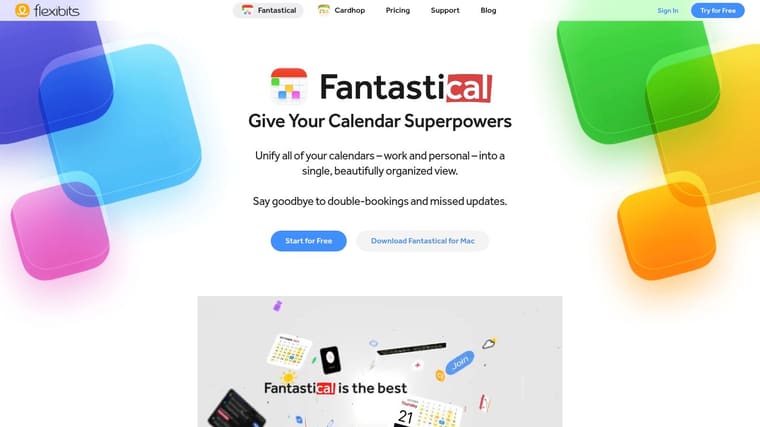
Use Fantastical when your calendar is the center of your planning system and you’re willing to pay for a more refined workflow. It’s especially useful for professionals with several calendars, scheduling links, and tasks that must fit around fixed appointments.
6. Todoist
Todoist is the best recommendation for people who need reminders to work across phones, desktops, browsers, and work tools. It combines quick task capture with projects, labels, priorities, recurring tasks, calendar views, and integrations.
Its natural-language entry is useful in real routines. You can type a task with a date or repeat pattern instead of opening several fields. That makes it easy to capture a thought while moving between meetings, errands, and focused work. Later, you can organize the task into a project or filter.
Where Todoist wins
Todoist scales from a personal list to a structured project system. It’s a strong choice for students managing assignments, professionals tracking follow-ups, and teams sharing work. Cross-platform sync means you aren’t locked into one operating system, which matters if you use an iPhone personally and a Windows computer professionally.
Custom reminders and some advanced views require a paid plan. Todoist also isn’t designed primarily as a persistent countdown display. It tells you what needs action, but it won’t replace a visual progress widget for a long-term goal.
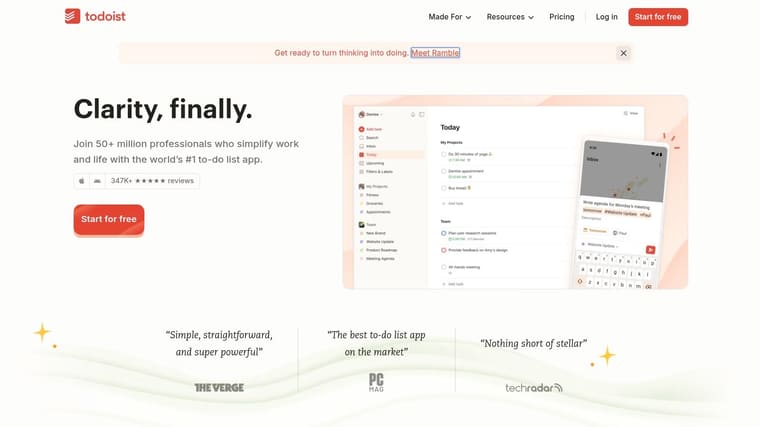
Choose Todoist when your real problem is task follow-through across platforms. It’s more capable than a basic calendar and less visually persistent than a countdown app. That middle position makes it the most adaptable choice for mixed personal and professional planning.
7. TickTick
TickTick is the strongest task-and-calendar hybrid in this list. It suits people who want tasks, recurring routines, calendar views, widgets, and strong reminder behavior in one app.
The standout feature is Constant Reminder, which continues notifying you until you deal with the task. That behavior is useful for a deadline or responsibility that shouldn’t disappear after one swipe. Smart date parsing and recurring tasks also reduce the work needed to create repeat routines.
Built for active follow-through
TickTick works especially well when you need to see both the task and its place in the day. Year, month, week, day, and agenda views help connect a reminder to your schedule. Cross-platform sync makes it practical for users working across mobile and desktop devices.
The interface can feel dense. Users who only need an occasional appointment may prefer Apple Reminders or Google Calendar. Advanced options, including some themes, views, and duration controls, are part of the Premium experience.
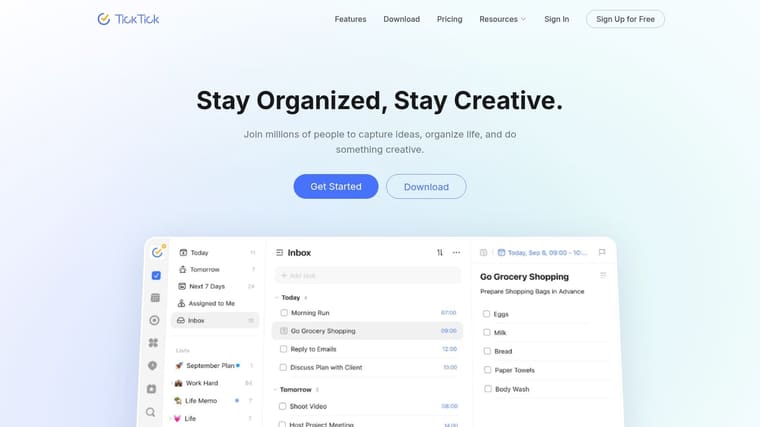
Pick TickTick if you want one system for tasks, calendar planning, recurring commitments, and persistent alerts. It’s particularly suitable for users who need more structure than a calendar but don’t want to combine several separate productivity apps.
8. Any.do
Any.do is the easiest choice for people who want to start quickly and build a more capable reminder system later. Its daily planning flow combines tasks, lists, calendar events, widgets, and reminders in a clean interface.
The app works well for household responsibilities, personal planning, and light team coordination. Location alerts, WhatsApp reminders, family plans, and team options give it practical uses beyond a basic list. Fast entry matters here. If adding a reminder feels like work, you’re less likely to add it at the moment you think of it.
A friendly middle ground
Any.do sits between a simple reminder app and a full project manager. That makes it approachable for users who find Todoist or TickTick too detailed but need more than a basic calendar alert. The daily planner encourages you to decide when a task will happen instead of leaving everything in an undated list.
Advanced reminders and location alerts require Premium. The web app also depends on account sign-in and offers less offline flexibility than some users may want. Any.do isn’t the best option for a persistent countdown or a complex project hierarchy.
Choose Any.do if you want simple onboarding, daily planning, and flexible personal or family use. It’s a good fit for people who need reminders to fit around real life rather than becoming another system to maintain.
9. Due Reminders and Timers
Due is the direct answer for people who dismiss alerts and forget them. It repeatedly re-alerts you through auto-snooze until you complete or reschedule the reminder.
That makes Due unusually effective for medication-style routines, leaving-home prompts, parking meters, timed chores, and other commitments where one notification isn’t enough. Fast entry and quick postpone controls keep the app focused on action rather than organization.
Use it for high-consequence reminders
Due doesn’t try to be a project manager. It doesn’t offer the broad planning environment of Todoist or the visual goal tracking of Pretty Progress. Its strength is narrower and more useful: it refuses to let an important reminder slip away.
That strength can also become a weakness. Too many repeated alerts create noise, and notification fatigue can make people ignore even useful prompts. Recent reporting discusses an average of roughly 46 smartphone push notifications per day, along with the attention and recovery costs associated with interruptions, in this coverage of notification overload. Use Due for events that genuinely need escalation, not every low-priority task.
Due Reminders and Timers is Apple-only, with the Mac app handled separately. Choose it when being reminded again matters more than having a broad productivity system.
10. Calendars by Readdle
Calendars by Readdle is a polished Apple calendar for people who want events, Apple Reminders, and Google Tasks in one place. Natural-language entry, multiple views, widgets, drag-and-drop editing, and cross-service synchronization make it easier to manage a busy personal schedule.
The app feels useful when plans change often. You can move events quickly, check several calendars, and keep related tasks close to the appointment that gives them context. That makes it a better fit for schedule-based planning than a standalone task list.
Best for Apple calendar workflows
Calendars by Readdle is strongest on iPhone and iPad. It can connect iCloud and Google calendars while bringing reminders and tasks into the same interface. Users who want a friendlier alternative to a default calendar may prefer its visual approach and quick editing.
The limitations are platform coverage and pricing. Non-Apple desktop options are limited, and some advanced functionality requires a paid upgrade. It also isn’t a dedicated persistent-alert tool, so users who need repeated nudges should choose Due or TickTick.
Choose Calendars by Readdle if you want a friendly, integrated Apple calendar that brings events and tasks together without the heavier project-management feel of Todoist.
Top 10 Event Reminder Apps, Feature Comparison
| Product | Core features | UX & Rating | Price / Value | 👥 Target audience | ✨ Unique selling points |
|---|---|---|---|---|---|
| Pretty Progress 🏆 | Customizable widgets (countdowns, progress bars), Calendar/Reminders sync, built‑in calculators | ★4.8 · 2M+ users · polished, zero‑ads | 💰Free; PRO in‑app upgrade | 👥 Students, professionals, habit builders, ADHD & cross‑device users | ✨Beautiful always‑on widgets for glanceable motivation · 🏆 |
| Apple Reminders | Time/date/location alerts, shared lists, Siri & iCloud sync | ★Built‑in · Smooth Apple integration | 💰Free (preinstalled) | 👥 Apple ecosystem users wanting simple, private reminders | ✨Deep Siri & iCloud integration; privacy-focused |
| Google Calendar | Events, customizable notifications, tasks integration, API access | ★Reliable sync · strong web/mobile | 💰Free (personal); Workspace paid | 👥 Gmail/Workspace users & cross‑platform teams | ✨Cross‑platform collaboration + developer API |
| Microsoft Outlook (Calendar) | Email + calendar, meeting invites, Teams/Zoom integrations | ★Enterprise‑grade reliability | 💰Free; full features with Microsoft 365 | 👥 Enterprise & Microsoft365 users | ✨Integrated mail/calendar with meeting tools |
| Fantastical (Flexibits) | Natural‑language event/task entry, rich views, widgets, watch complications | ★Polished UI · premium experience | 💰Subscription for best features | 👥 Power Apple users wanting advanced scheduling | ✨Superior natural‑language scheduling & polished cross‑device UI |
| Todoist | Tasks, recurring, priorities, labels, calendar view | ★Popular, scalable UX | 💰Free; Pro/Business paid tiers | 👥 Individuals & teams needing structured projects | ✨Strong integrations and project workflows |
| TickTick | Task + calendar hybrid, smart parsing, “Constant Reminder”, multi views | ★Feature‑rich, consistent across devices | 💰Free; Premium unlocks extras | 👥 Users who want tasks + calendar in one app | ✨Persistent “Constant Reminder” + flexible calendar views |
| Any.do | Tasks, calendar, daily planner, location alerts, WhatsApp reminders | ★Easy onboarding · clean UI | 💰Free; Premium/family plans | 👥 Users seeking simple daily planning that can scale | ✨WhatsApp reminders, family/team plans |
| Due, Reminders & Timers | Auto‑snooze persistent notifications, fast entry, repeat schedules | ★Highly effective at getting attention | 💰Paid app (one‑time; Mac separate) | 👥 Users needing nag‑style, persistent alerts | ✨Auto‑snooze until completed; ultra‑reliable reminders |
| Calendars by Readdle | Unifies events, Apple Reminders & Google Tasks, multiple views | ★Intuitive iOS calendar experience | 💰Free; subscription or lifetime purchase options | 👥 Apple users wanting robust calendar + reminder handling | ✨Fast editing, drag‑and‑drop, multi‑service sync |
Pick the App You Will Actually Notice
There isn’t one universal winner. The best event reminder app depends on what you forget and what kind of cue makes you act.
Choose Pretty Progress if you need a visible, customizable countdown or progress cue across devices. Download the app, set the start and end dates, choose a theme and design, then add the widget to your Home Screen or Lock Screen. If the event already exists in Apple Calendar or Reminders, connect it so the plan becomes glanceable without duplicate entry. This is the clearest recommendation for students tracking exams, professionals watching deadlines, habit-builders following goals, and people who respond better to visual persistence than another alert.
Choose Apple Reminders or Due if you need direct alerts on Apple devices. Reminders is the simpler default, while Due is better when a notification must keep returning until you act. Use Google Calendar or Outlook when appointments, meetings, and shared schedules are the center of your day. Pick Fantastical or Calendars by Readdle for a more polished Apple calendar workflow. Choose Todoist, TickTick, or Any.do when task follow-through matters more than just knowing that an event exists.
Notification permission deserves deliberate handling. A global benchmark covering Android and iOS found average push opt-in at 61%, with Android at 67% and iOS at 56%, as reported in this push notification engagement benchmark. Ask for permission after the user creates a meaningful event or countdown, not before they understand the benefit. A reminder app should still provide useful widgets or in-app visibility when push permission is denied.
Use this short setup process:
- Define the event: Write the exact appointment, deadline, goal, or task you need to remember.
- Choose the cue: Select a calendar alert, repeated task reminder, countdown widget, or a combination.
- Set the timing: Give yourself enough preparation time instead of alerting only at the moment something starts.
- Add a backup: Important travel, medical, academic, and work commitments deserve a second reminder method.
- Review permissions: Check notification access, Focus modes, quiet hours, widgets, wearable settings, and calendar synchronization.
Don’t install five apps and compare empty sample lists. Choose one tool and use it with real commitments for several days. Add the deadlines, appointments, errands, recurring routines, and personal goals you tend to miss. Then check which reminders lead to action instead of another dismissal.
The right choice may also be a combination. Pretty Progress can keep a long-range deadline visible, while Apple Reminders handles quick capture. Google Calendar or Outlook can manage meetings, while Todoist or TickTick handles project actions. That split works because each tool has a clear job rather than forcing one app to handle every kind of attention.
The best event reminder app is the one whose reminder style matches your attention pattern. If you notice screens more than sounds, choose a widget. If you act only after repeated prompts, choose persistent alerts. If your commitments revolve around meetings, use a calendar. If your problem is unfinished work, use a task manager. The winning app isn’t the one with the longest feature list. It’s the one you notice at the moment it can still help.
Pretty Progress turns events, deadlines, fasting windows, and personal goals into customizable countdowns and progress widgets for iPhone, iPad, Apple Watch, Mac, and Android. Visit Pretty Progress to create a visible reminder, choose a design, and keep the moments that matter in sight without relying on notification noise.





