
October 23, 2026
10 Free Visual Timer Tools to Try in 2026
Compare 10 free visual timer apps for focus, classrooms, ADHD and workouts — features, limits and best picks to start timing better today.
A study timer is running, but the minutes keep slipping by. In a classroom, the teacher is explaining the next activity while a few students are still packing up. At the gym, you’re trying to keep track of a rest interval without checking your phone every few seconds. A visual timer makes time easier to see, which can help people understand how much remains and prepare for a transition.
That doesn’t mean every countdown helps every person. A visible clock can make a deadline feel more pressing, and a timer won’t automatically improve focus or task performance. One controlled study found that a visual timer reduced anticipatory anxiety and inattentive or motor-instability behaviors during a timed math assessment, but didn’t significantly improve math performance. That’s a useful distinction: a timer can support time awareness and transitions, but it isn’t a guaranteed performance fix (study of visual timers during a timed mathematics assessment).
The right choice depends on what you need to do. These free visual timer tools are organized by job, from long-term goals and shared classroom displays to focused work, transitions, and exercise. Each has a different strength, and each has limits worth knowing before you build it into a routine.
Table of Contents
- 1. Pretty Progress for Long-Term Goals
- 2. VisualTimer.com for Flexible Short Sessions
- 3. Classroom Timer by VisualTimer.org for Shared Displays
- 4. ClassroomTimers.app Visual Timer for Clear, Large Displays
- 5. Focus Tools Visual Timer for Starting Quickly
- 6. Sensory Shock Visual Timer for Transitions
- 7. Visual Countdown Timer, Liquid Timer for a Different Visual Metaphor
- 8. Time Timer App for a Familiar Shrinking Disc
- 9. Time’s Up! for Families and Shared Screens
- 10. Feltime for Calm, Low-Pressure Timing
- Top 10 Free Visual Timers: Feature Comparison
- Pick Your Timer and Put Time in Sight
1. Pretty Progress for Long-Term Goals
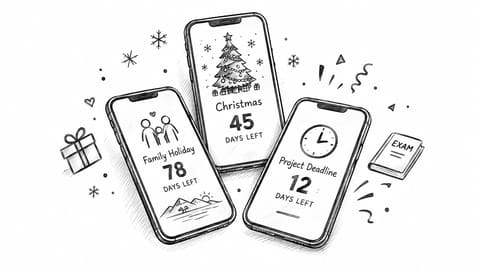
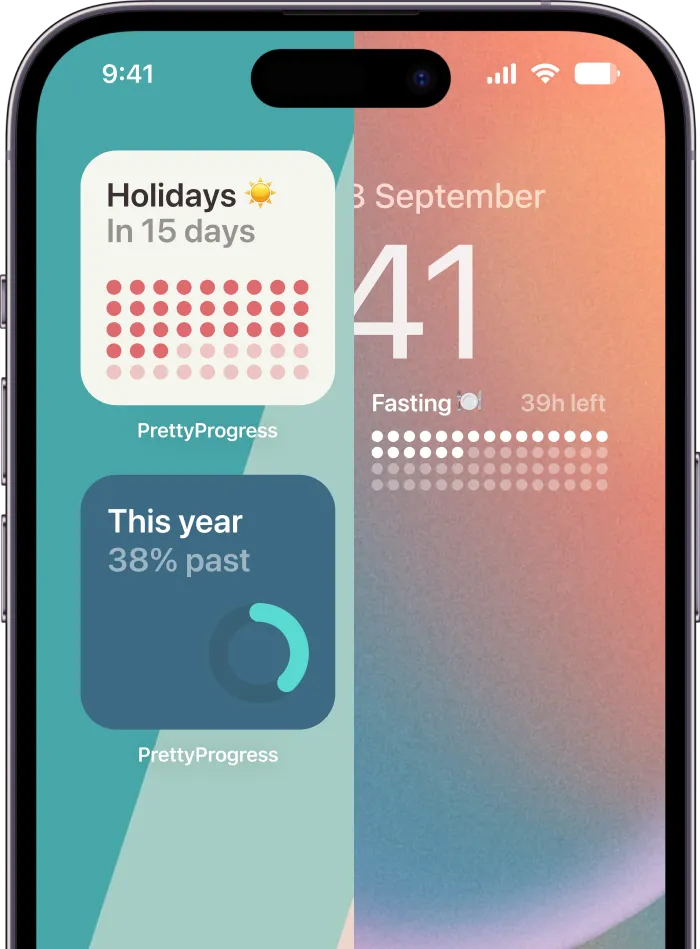
An exam eight weeks away doesn’t fit on a countdown that tops out at an hour. Pretty Progress is built for the other end of the scale: a deadline, a trip, a personal milestone you want to see every day without opening a timer page. The countdown lives on your home screen as a widget, so the days remaining stay in view every time you pick up your phone.
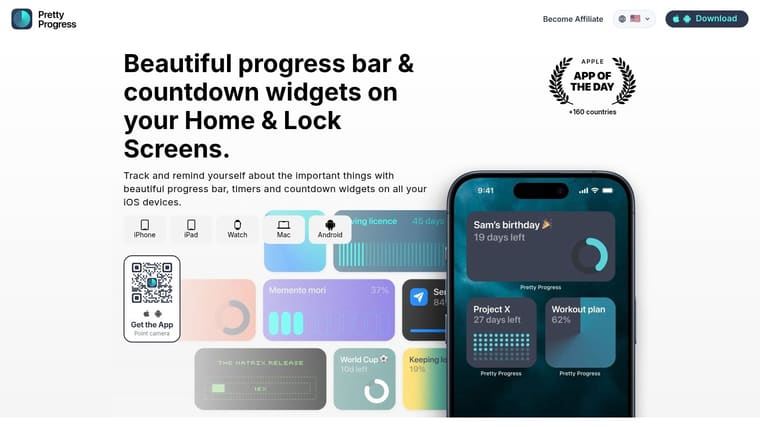
Keep important dates visible without adding noise
Widgets are available for iPhone, iPad, Apple Watch, Mac, and Android, with themes such as Swiss Style, Minimal, Aqua, and Retro OS plus controls for colors, gradients, layouts, icons, and bar styles. Some advanced styling sits behind the optional PRO upgrade, and the site doesn’t list a price for it. Calendar events and Reminders tasks can be imported, so plans you already keep can become visual countdowns, and extra tools cover date and business-day calculations, exact age, and intermittent fasting.
The developer reports a large user base across many countries and a high average app-store rating. Treat those as self-reported figures, not independent evidence.
The trade-off is setup time. Placing and styling a widget takes more effort than starting a basic countdown, and in my experience that initial configuration is what separates people who keep using it from people who uninstall it. In return, the reminder stays visible without an alert interrupting you.
Best for: long-term goals, deadlines, and people who want a persistent visual reminder across their devices. Not the best fit if you need a quick, fullscreen countdown for a short classroom activity or workout interval.
2. VisualTimer.com for Flexible Short Sessions
If you want to open a browser and start a countdown without building a routine around it, VisualTimer.com is a straightforward option. Its shrinking colored disc makes the passage of time visible: the disc gets smaller as the countdown runs, giving you a quick sense of what remains without having to interpret digits alone.
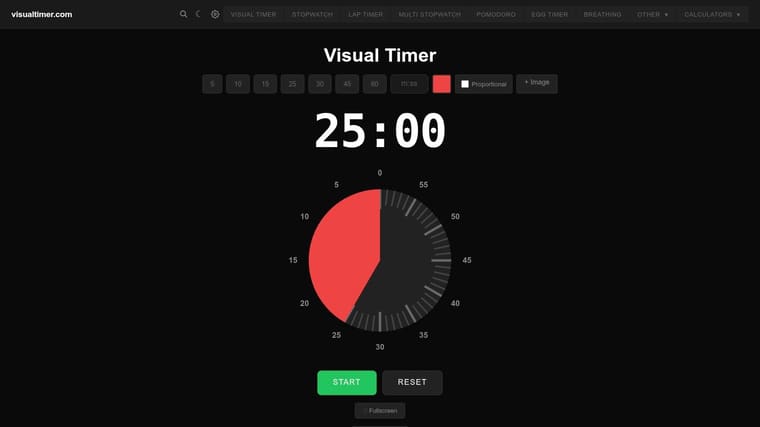
The browser timer supports custom durations up to 60 minutes, along with color and background-image options. You can use fullscreen mode, prepare a task list, or share a configured timer. Native apps are also advertised for iPhone, iPad, and Android. Check the VisualTimer.com timer to choose the version that suits your setup.
That flexibility makes it a practical pick for study blocks, exercise, home routines, or a class activity. It’s free online and doesn’t require an account, so it’s easy to try before deciding whether the display works for you.
The limit is the duration cap on the browser timer. It’s also a webpage, not a persistent phone widget, so you’ll need to keep the timer page accessible while it runs. For a short task, that’s a reasonable trade. For a long project deadline you want to see all day, a widget-based countdown is more convenient.
Best for: quick, flexible countdowns you can start in a browser. Watch out for: the browser timer’s duration limit and the need to keep the page available.
3. Classroom Timer by VisualTimer.org for Shared Displays
Project a timer on the board and the whole room shares one clock. Classroom Timer by VisualTimer.org is built for that job: it runs in a browser, goes fullscreen, and offers several visual modes so you can match the display to the activity. Pick a shrinking pie, a progress bar, a bomb fuse, or a sand timer, then set a preset or custom duration.
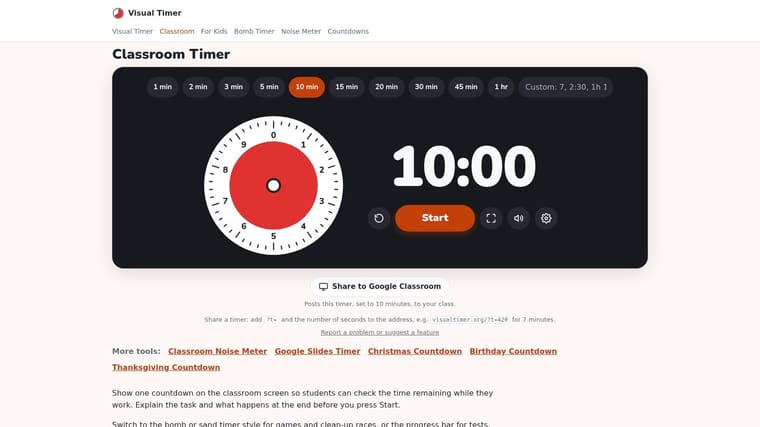
The progress bar is a useful fallback when a circular countdown does not register quickly with your students. Fullscreen mode keeps the display readable from the back row, and keyboard controls let you run the timer while leading the activity. You can also embed it on a class website. Try the Classroom Timer by VisualTimer.org without installing anything.
The trade-off: multiple display styles help when a class responds better to one visual metaphor than another, yet that menu of options is overhead a solo focus session does not need. It also lives in a browser tab, so a countdown you want permanently visible on a personal device is better served by a widget. For students who struggle with transitions, a predictable routine around the timer tends to matter more than a more urgent countdown, as noted earlier.
Best for: a teacher who wants a free, shareable countdown for the classroom. If you want another classroom countdown tool, compare how each handles visibility and setup before choosing.
4. ClassroomTimers.app Visual Timer for Clear, Large Displays
When a class needs to see both a countdown and its remaining time, ClassroomTimers.app offers two visual approaches: a shrinking color disc and a left-to-right fill bar. Large digits sit alongside the visual display, so students can glance at the timer in the format they find easiest to follow.
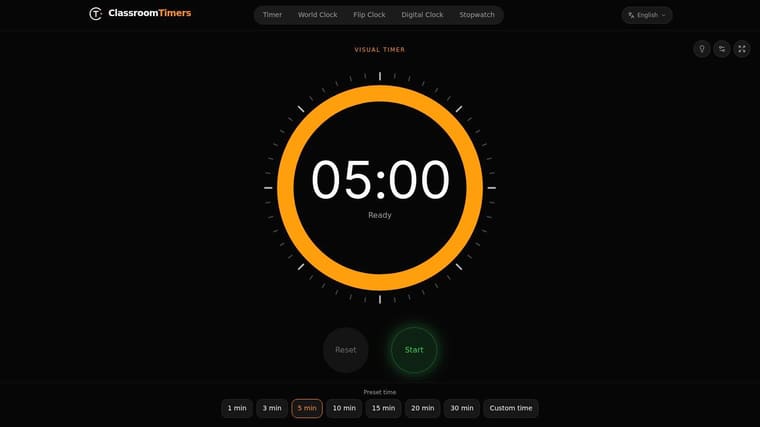
You can use preset or custom durations, choose from several colors, switch to fullscreen, and set sound options. Keyboard shortcuts help when a teacher is managing the timer from a computer while also leading an activity. It works as a browser-based tool on phones and large displays, with no account or installation needed. Open the ClassroomTimers.app Visual Timer to try it.
This is a sensible pick when you want a clean display rather than a collection of themed effects. The disc and bar modes give you a real choice between circular and linear progress, but the timer mainly handles one countdown at a time. That’s enough for a classroom transition or independent work period, but not as convenient for a sequence of activities you want to run automatically.
It’s also a webpage, not a home-screen timer widget. On a classroom display that’s often fine. For personal use, reopening or keeping a browser page in view can feel like more friction than starting a dedicated app.
Best for: a teacher who wants large digits plus a simple visual countdown, especially in fullscreen. Skip it if you need a sequence of timers or a countdown that stays visible as a phone widget.
5. Focus Tools Visual Timer for Starting Quickly
You sit down for a 25-minute study block, and four minutes later you are still choosing colors and alarm sounds. Focus Tools removes that friction: pick a preset or type a duration, and a shrinking disc starts counting down. Presets run from 5 to 60 minutes, with a fullscreen mode and the remaining time shown in the browser tab title.
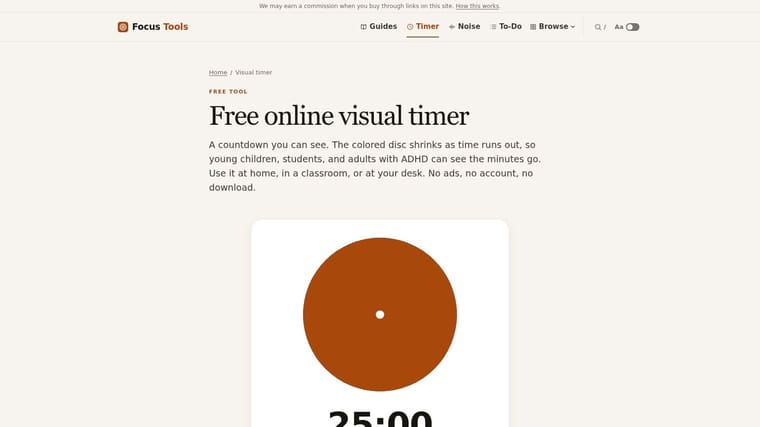
The browser tool is free, with no ads, account, or download required. An optional chime and shareable links pre-configured for a set duration round it out. Open the Focus Tools Visual Timer and you are timing within seconds, which makes it practical for a short study block, an independent work period, or a children’s activity.
That simplicity is the trade. The page has to stay open while the timer runs, and visual customization is limited. If the person using it needs specific colors, reduced-motion options, or a particular display style, this is the wrong pick.
One honest limit on the job itself: a countdown marks the edge of a single session. A Pomodoro-style routine decides what happens across many of them, so if you want work and break intervals chained together, pair this timer with a structure you set yourself or revisit the longer-horizon approach covered earlier.
Best for: a fast, no-fuss browser countdown for focus or independent work. Not ideal if you need the timer to run in the background or want extensive visual controls.
6. Sensory Shock Visual Timer for Transitions
Transitions are often harder than the task itself. Sensory Shock’s visual timer uses a color-coded progress ring to show a countdown, making it a possible fit for routines, calm-down corners, classrooms, and therapy settings. It runs in a browser and can be opened on phones, tablets, computers, and classroom touchscreens.
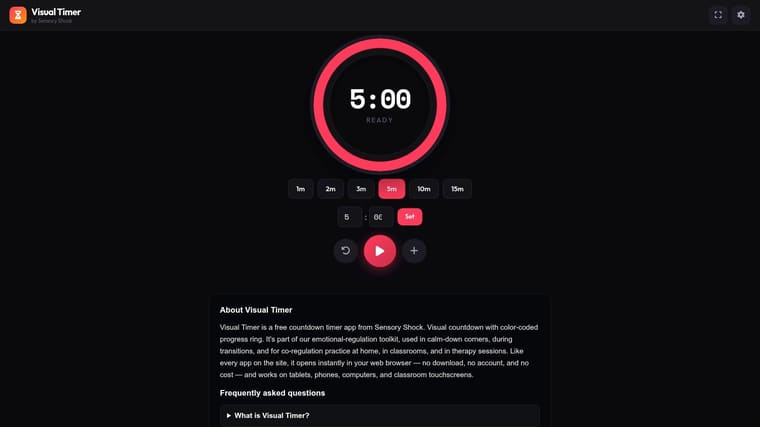
The site describes the tool as free to use without a paywall or sign-up, and there’s no download step. For a caregiver or teacher who wants to test whether a visible countdown helps a person prepare for a change, that low-friction access is useful. The Sensory Shock Visual Timer is simple to open across different screens.
Keep expectations grounded. The timer offers a ring display rather than a broad range of visual modes, so it may not be the right fit if a particular person finds color changes confusing or the visual display distracting. A ring also doesn’t automatically make a timer sensory-friendly. The user’s response matters more than the product’s label.
A small European accessibility pilot involving 14 young people with autism and/or ADHD found that participants valued a real-time visual timer for time awareness; the researchers also called for larger samples and longer-term monitoring (European accessibility pilot). That supports trying a timer as one possible aid, not assuming it will suit everyone.
Best for: testing a basic visual countdown during a routine or transition. Introduce it gently, and adjust or stop if the display increases stress.
7. Visual Countdown Timer, Liquid Timer for a Different Visual Metaphor
A shrinking pie is familiar, but it isn’t the only way to show time passing. Visual Countdown Timer’s Liquid Timer uses a filling or draining liquid animation instead. Some people may find that level-based display easier to follow or more appealing than a disc, particularly when they want a simple browser countdown without a conventional clock face.
The tool supports custom minutes and seconds as well as preset durations. It also includes an adjustable alarm and loop mode, which can be useful for repeating a workout interval or returning to the same task pattern without restarting the timer each time. You can try the Visual Countdown Timer, Liquid Timer in a browser without an account or installation.
The liquid effect is the point, but it won’t suit every setting. If you’re running a quiet class or need a very restrained display, animation may draw more attention than the task itself. Fullscreen behavior also depends on the browser, so test the setup before relying on it for a shared screen.
For a workout, the loop feature can make repeated intervals easier to manage. Still, check the display and alarm in advance, especially if you’re using the timer around other people or in a space where sounds can distract.
Best for: people who prefer a liquid-level visual or want repeating browser sessions. Less suitable for anyone who finds animation distracting or needs a minimal display.
8. Time Timer App for a Familiar Shrinking Disc
A colored disc that shrinks as time passes is one of the most widely recognized timer designs, originally built around physical clocks used in classrooms and therapy sessions. The Time Timer App carries that same disc onto Apple devices. The free version supports multiple timers and adjustable periods, with options to change colors and sounds, save timers, and switch between light or dark and horizontal or vertical views.
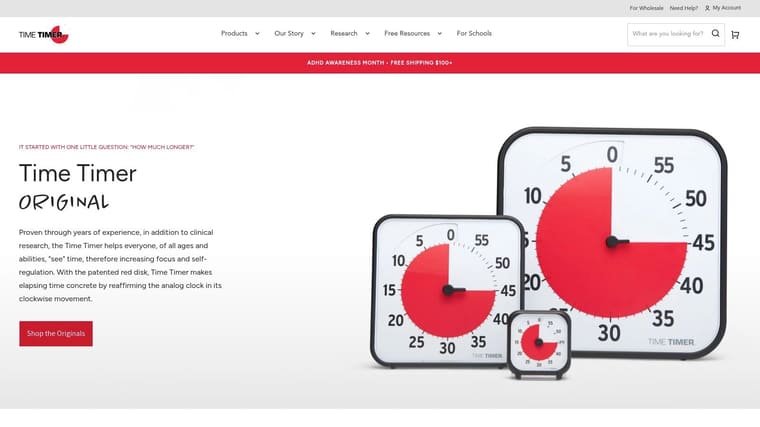
That familiarity does real work. A student moving from a physical Time Timer on the classroom wall to a personal device sees the same shrinking disc, which removes the learning curve other timers introduce. The App Store listing covers iPhone, iPad, Mac, and Apple Watch, so a learner can check remaining time on whichever screen happens to be nearby. See the Time Timer App for details on the available versions and features.
The free tier handles individual countdowns well. Sequential routines and cross-device syncing sit behind a paywall, so anyone chaining timers for a multi-step morning routine will hit the limit fast. Pay only if that gap blocks the routine. For single sessions, the free disc does the job.
Familiarity is the main selling point here. If a child already reads the disc without help, switching tools costs more than a missing feature ever would, an idea the visual time management guide mentioned earlier explores in more depth.
Best for: Apple-device users who want a recognizable shrinking-disc timer. Trade-off: sequential routines and cross-device syncing require payment.
9. Time’s Up! for Families and Shared Screens
If a timer needs to be visible from across the room, Time’s Up! offers ways to put it on a bigger display. The app supports iPhone, iPad, Mac, and Apple TV, with AirPlay or Apple TV options for showing a countdown on a television. It also includes Live Activities, Apple Watch visibility, Guided Access, audio countdown cues, and a floating window on Mac.
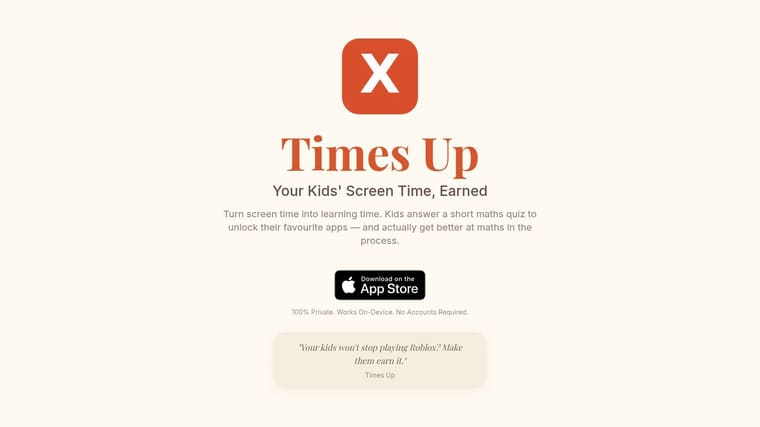
Those features make it worth considering for family routines, where a child may benefit from seeing time pass without needing to hold a phone. Reviewers highlight its use for children’s transitions, and the App Store listing says it has no ads or data trackers. Find the supported options at Time’s Up!.
The important catch is the free limit. The download includes five countdowns, and continued use requires a one-time purchase. That may be enough to test the display or support a small set of routines, but it’s not a fully free choice for ongoing use if you need more countdowns.
Use the larger screen when visibility is the issue, not just because you can. A television display can make a countdown easier for a group to see, but a constant timer in a shared space may also feel pressuring. Ask whether the screen is helping people prepare for a transition or making them watch the clock.
Best for: Apple-device households that want a visible family timer on a larger screen. Check the free limit first if you expect to use many different countdowns.
10. Feltime for Calm, Low-Pressure Timing
A countdown can be useful without feeling like a race. Feltime is an iPhone timer designed around gentle visual cues, with focus, awareness, and ambient modes. Its visual ring, soft chimes, muted colors, and reduced-motion support make it an option for people who want a calmer display than a brightly animated countdown.
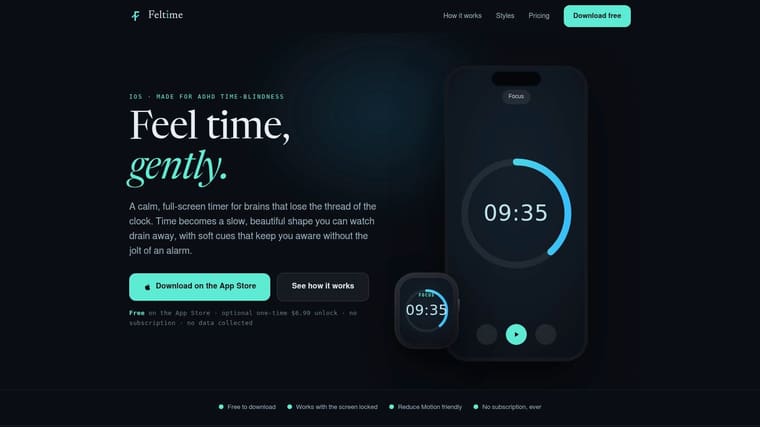
The free version can be used indefinitely, with no subscription, account, or data collection according to the developer. The timer can continue with the screen locked, which helps if you want to use an iPhone without keeping its display on throughout a session. See Feltime for the current feature details.
The limitations are specific. Feltime requires an iPhone running iOS 17 or later. Apple Watch support, widgets, Live Activities, custom durations, and most visual styles require the paid upgrade, so the free version is best judged on its included modes rather than the full feature set.
There’s a reason to value adjustable intensity rather than assuming every user wants an urgent countdown. Research on visible clocks found that faster visual-search responses came with reduced accuracy and increased fatigue under tighter time constraints (peer-reviewed study on clock displays and time pressure). For calm work or transitions, a gentler cue may be a better fit than a constantly shrinking display.
Best for: iPhone users who want a soft, low-pressure visual timer and reduced-motion support. Not for: Android users or anyone who needs the paid features included in the free version.
Top 10 Free Visual Timers: Feature Comparison
| App | Best For | Core Features | Experience & Standout Points | Price / Value |
|---|---|---|---|---|
| 🏆 Pretty Progress | 👥 People tracking goals, deadlines, and meaningful dates | ✨ Custom widgets, themes, Calendar/Reminders imports, date and fasting calculators | ★ 4.8 reported; ad-free, polished, glanceable reminders across Apple devices and Android | 💰 Free download; optional PRO, price not listed |
| VisualTimer.com | 👥 Home, study, exercise, or classroom use | Shrinking-disc timer, task list, custom durations up to 60 minutes | ✨ Fullscreen and shareable; browser timer is easy to read at a glance | 💰 Free; no account required |
| Classroom Timer by VisualTimer.org | 👥 Teachers and group activities | Pie, bar, fuse, and sand displays; presets and custom durations | ✨ Fullscreen, keyboard controls, and embedding; browser-based | 💰 Free; no installation |
| ClassroomTimers.app Visual Timer | 👥 Classrooms and individual work | Disc or progress-bar modes, presets, sounds, and shortcuts | ✨ Readable on phones and large displays; one timer at a time | 💰 Free; no account or installation |
| Focus Tools Visual Timer | 👥 Children, classrooms, and users who want simple countdowns | 5–60 minute presets, custom duration, chime, fullscreen | ✨ Remaining time can appear in the browser tab; page must stay open | 💰 Free; no ads or account |
| Sensory Shock Visual Timer | 👥 Routines, transitions, and therapy settings | Color-coded progress ring; browser access across devices | ✨ Simple, installation-free visual cue | 💰 Free; no sign-up |
| Visual Countdown Timer, Liquid Timer | 👥 Users who prefer an animated liquid display | Liquid fill/drain, custom durations, presets, loop mode | ✨ Alternative to standard pie timers; fullscreen depends on browser | 💰 Free; no account or installation |
| Time Timer App | 👥 Apple users who prefer a familiar visual countdown | Multiple timers, adjustable durations, colors, sounds, saved timers | ✨ Recognizable shrinking-disc display; some organization features are premium | 💰 Free core features; premium options available |
| Time’s Up!, Visual Timer | 👥 Families and users sharing timers on larger screens | Countdown cues, Live Activities, Apple Watch, AirPlay/Apple TV | ✨ TV display and accessibility options; no ads or trackers listed | 💰 Free for up to five countdowns; one-time purchase for continued use |
| Feltime | 👥 iPhone users seeking calm, gentle timing | Visual ring, soft chimes, focus and awareness modes | ✨ Works with screen locked; muted colors and reduced-motion support | 💰 Free version usable indefinitely; paid unlock for extra features |
Pick Your Timer and Put Time in Sight
Choose the timer that matches the job, not the one with the most settings. A tool that’s easy to see and start will usually serve a daily routine better than a more elaborate timer that you forget to open.
For Pomodoro-style focus, Focus Tools is a good starting point if you want a quick browser countdown. If you need repeated work and break intervals, check whether the timer you choose supports the routine you plan to follow. A simple shrinking disc marks the session, but it won’t manage every part of a focus method for you.
For a classroom display, start with Classroom Timer by VisualTimer.org if you want multiple visual styles, or ClassroomTimers.app if large digits and a progress bar are your priority. Before students arrive, open fullscreen mode and check that the display is readable from where they’ll sit. A timer that’s too small or hidden behind another window isn’t doing its job.
For workouts, VisualTimer.com can handle a straightforward short countdown, while Liquid Timer offers a loop mode for repeating sessions. Test the sound before starting, and make sure you can check the display without interrupting the exercise. If you’re tracking longer-term training goals rather than a single interval, a persistent progress widget may be more useful than a browser timer.
For ADHD-friendly transitions or calmer timing, don’t assume more urgency is better. Try a simple display, offer enough time to prepare, and notice whether the countdown helps the person understand what’s coming or makes them feel rushed. Time awareness can be difficult for some people with ADHD; a meta-analysis summarized in the evidence pooled 27 studies involving 1,620 participants with ADHD and 1,249 controls and found that children and adolescents with ADHD generally judged durations less accurately and tended to overestimate elapsed time (summary of ADHD and visual timers). That’s a rationale for making time visible, not proof that a timer alone improves ADHD outcomes.
For long-term goals, choose Pretty Progress when you want a date or milestone to remain visible on your device. Its widgets are a better match for a countdown that should stay in view throughout the day than a browser timer built for one short session.
Keep the setup practical. Choose a display the user can understand, test fullscreen and sound before relying on them, and decide whether a remaining-time countdown or a gentler progress indicator feels better. Make the timer part of a routine, not a demand to watch it constantly. Some people will glance at it often, while others will only need it at transition points.
Pretty Progress turns deadlines, events, and long-term goals into customizable countdown and progress widgets for iPhone, iPad, Apple Watch, Mac, and Android. If you want a visual reminder that stays in sight without depending on noisy notifications, explore Pretty Progress and set up a countdown for the date or goal you’re working toward.