
August 10, 2026
Master Your Pomodoro Timer for Mac: Boost Focus &
Set up & automate your Pomodoro timer for Mac. Master shortcuts, notifications, and focus techniques for enhanced productivity in 2026.
Your Mac is open, the deadline is staring back at you, and the workday keeps getting broken up by messages, tabs, and tiny errands that always feel urgent. A Pomodoro timer for Mac gives that scattered day some shape again. The classic rhythm, 25 minutes of focused work, 5-minute breaks, then a longer pause after a few cycles, is the core structure behind most Pomodoro workflows on Mac, and it’s the reason these tools are built around short, repeatable sessions instead of endless counting as described in Pomodoro app guidance and in Mac timer documentation that supports the same cadence for canonical Pomodoro workflows.
Table of Contents
- Introduction to Pomodoro Timer for Mac
- Configure Built-In Timers in macOS
- Set Up Pretty Progress as Pomodoro Timer
- Automate Sessions with Shortcuts and Hotkeys
- Customize Notifications and Stay Focused
- Troubleshooting and Alternative Pomodoro Apps
- Productivity Tips and Next Steps
Introduction to Pomodoro Timer for Mac
A Mac can look ready for work and still lose the hour to interruptions. One notification, then another tab, and the task you meant to finish sits untouched. A Pomodoro timer for Mac helps by turning focus into a clear cycle, so the next decision is obvious instead of improvised.
The method is simple, 25 minutes on, 5 minutes off, with a longer break after a few rounds as described in Pomodoro guidance. On macOS, the challenge is practical: there still isn’t a dedicated built-in Pomodoro timer, so many people assemble a workflow from the Clock app, Focus modes, Shortcuts, and third-party tools. Pretty Progress’s guide to the best productivity apps for Mac helps map the options that fit this gap.
The goal is low friction. A timer should stay where your eyes already go, restart easily, and avoid adding another window to manage. On a Mac, that usually means the menu bar, widgets, and automation matter more than a full-screen interface.
Practical rule: if starting the timer feels like work, you’ll skip it on busy days.
Configure Built-In Timers in macOS
The fastest place to start is already on your Mac. Open the Clock app for a basic countdown, or use the Timer widget in Control Center on newer macOS versions, then set one timer for 25 minutes of work and another for 5 minutes of rest. That gives you a Pomodoro rhythm without installing anything.
Start with one cycle, not a whole day plan
Open the timer, set a single focus block, and test it once. The goal is not to design a perfect routine on the first try. It is to make sure your Mac can start a session cleanly, alert you when time is up, and let you move into the break without digging through menus.
Use Focus mode to quiet what you do not need. A timer by itself only measures time, it does not stop notification drift. A practical setup is to connect your work block to a Focus mode that hides distracting alerts, then switch it off when the break begins. On macOS, that keeps the session feeling intentional instead of reactive.
Keep the timer where you can see it quickly. The menu bar, Control Center, and any available widget space reduce the chance that you forget a session is running. A simple setup can still work well if you can check it at a glance.
Keep the timer close to the work, not buried in an extra app window.
A small example helps here. If you write, code, or review documents in one desktop space, place the timer in the same space so your attention does not have to travel. A timer that stays visible works like a kitchen timer on the counter, it reminds you without asking for another decision.
Make the break feel automatic
During breaks, avoid deciding what to do next. Keep the break timer visible and choose one short recovery habit, such as standing up, drinking water, or looking away from the screen. The structure matters because the method works best when the break is part of the timer, not something you improvise afterward.
Built-in macOS tools can serve as the frame for the whole workflow. They do not give you detailed reports or session history, but they do cover the core Pomodoro rhythm well. If you want a slightly more guided version of that rhythm, the work-break timer guide shows how a simple timer pattern can stay easy to repeat. For many people, that is enough to make the first productive shift from “I should work” to “I am in a session now.”
Set Up Pretty Progress as Pomodoro Timer
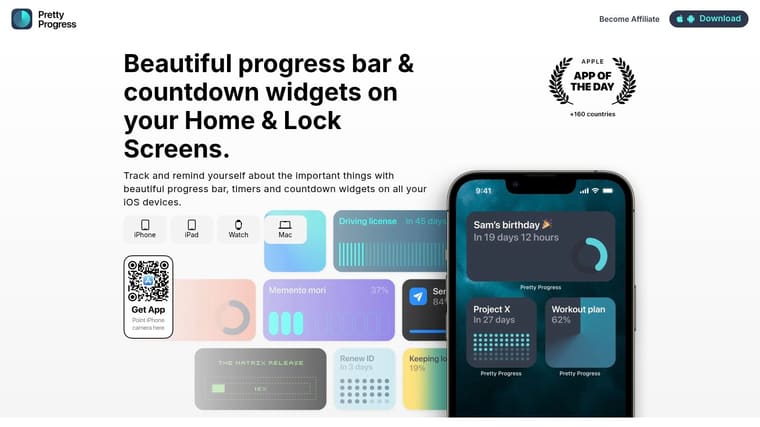
A widget-based setup solves the biggest problem with timers on Mac, they disappear. A progress widget stays visible in the places you already check, so you don’t have to open another window just to see how much time is left. That’s where a countdown and progress-bar app like Pretty Progress fits naturally, because its Mac widgets are designed to show glanceable progress on your desktop and in Notification Center.
The broad pattern behind modern Mac timers is also changing. Recent Mac Pomodoro apps have moved beyond bare countdowns and now offer PDF reports, CSV export, and achievement systems, which shows that users want visible progress over time, not just a ticking clock as seen in Pomodoro Timer Lite’s feature set. Even if you don’t need all of that, the direction is clear. People want the timer to make their work feel measurable.
To get started, install the app, create a countdown widget, and map it to your work-and-break rhythm. Set one widget for the 25-minute work block and another for the 5-minute break, or use a single countdown that you reset when each phase changes. Then choose a theme and label the session with the task name so the timer reminds you what you’re doing, not just how long you’ve been doing it.
You can keep the widget right on the desktop, then glance at it between emails or after a call. That’s the whole point of the format. It reduces the urge to open a separate app, which is exactly where a lot of focus routines fall apart.
For a simple workflow example, see Pretty Progress’s work break timer guide. It shows the same idea from a different angle, a visible progress cue that keeps the session present without demanding attention.
Later in the day, that small visual cue matters more than it sounds. A bar that fills unobtrusively is easier to live with than a timer you keep opening and closing, and a calm widget can make the whole session feel more stable.
Here’s the key distinction. A basic timer tells you time is passing. A progress widget tells you the session is moving forward.
Automate Sessions with Shortcuts and Hotkeys
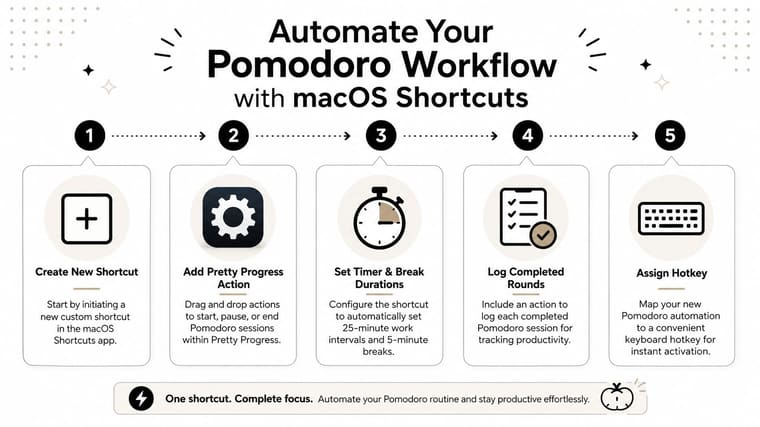
The fastest focus workflow is the one that starts from the keyboard. If you have to click through menus every time you begin a Pomodoro, the setup starts to feel like a chore, especially on busy days. A macOS Shortcut can cut that friction by launching the timer, toggling Focus mode, and putting you into work with one keystroke.
Build the shortcut once, then reuse it every day
Start with a new shortcut in the Shortcuts app. Add the action that opens your timer of choice, then chain it to the next step that enables your work Focus mode. If your timer app supports automation actions or a URL trigger, use that path so the session starts cleanly and consistently.
The most useful part is the hotkey. Assign a keyboard shortcut you can hit without thinking, then keep the same pattern for start, pause, skip break, and reset. That way, your hands stay on the keyboard and your brain stays on the task.
Keep automation simple enough to trust
The best shortcut is the one you don’t have to debug during a deep-work session. Keep the workflow short, and avoid adding extra branching logic unless you really need it. If the shortcut fails, you want to know which step broke, not sift through a long chain of actions.
A good test is to run the shortcut at the start of the day and once again after lunch. If it reliably opens the timer, starts the session, and sets the right mode, you’ve already removed a lot of friction. For many Mac users, that’s enough to make the habit stick.
Simpler automation is easier to repeat under pressure, and repetition is what makes Pomodoro work.
Customize Notifications and Stay Focused
Notifications should support the session, not interrupt it. If alerts are too loud or too frequent, the timer becomes another distraction source. On Mac, the cleanest approach is to keep your work alerts quiet, let the timer handle the session boundary, and use one clear signal for when the break begins.
A useful starting point is the built-in notification system on macOS, paired with your chosen Focus mode. During work intervals, silence messaging apps and leave only the timer alert active. During breaks, allow a small set of notifications back in if you want to check messages, but keep the window short so the break doesn’t turn into a detour.
Use the break as a recovery cue
The break works best when it tells your body to change state. Stand up, stretch, sip water, or step away from the screen for a minute or two. That sounds basic, but it helps your next work block start cleaner because your attention isn’t carrying the previous task into the next session.
Audio cues should stay subtle. A gentle sound or banner is usually enough, because the goal is awareness, not alarm. If you use repeated reminders, make them easy to ignore when you’re already back in focus, otherwise they’ll create the same interruption problem you were trying to avoid.
The best routine is the one you can repeat without negotiating with yourself. The less drama around each notification, the more likely you are to use the timer consistently. That’s especially true on Mac, where the interface can already be crowded with app badges and system alerts.
Troubleshooting and Alternative Pomodoro Apps
When a timer misbehaves, the problem usually falls into one of three buckets. It drifts, it skips notifications, or the automation shortcut doesn’t launch the way you expect. Menu-bar timers tend to work better than heavy full-window suites because they use fewer resources and keep timing accurate, with one open-source macOS timer reporting <0.5% CPU usage, about 30–40 MB RAM, and ±1 second drift-free accuracy while running for 24+ hours continuously in its technical documentation.
Start with the failure point you can actually see
If the timer drifts or skips, reset the app first and test a short cycle before trusting it for a long work block. If notifications don’t fire, check macOS notification permissions and Focus mode settings before blaming the timer itself. If the shortcut fails, simplify the automation and confirm that each action runs on its own before chaining them together.
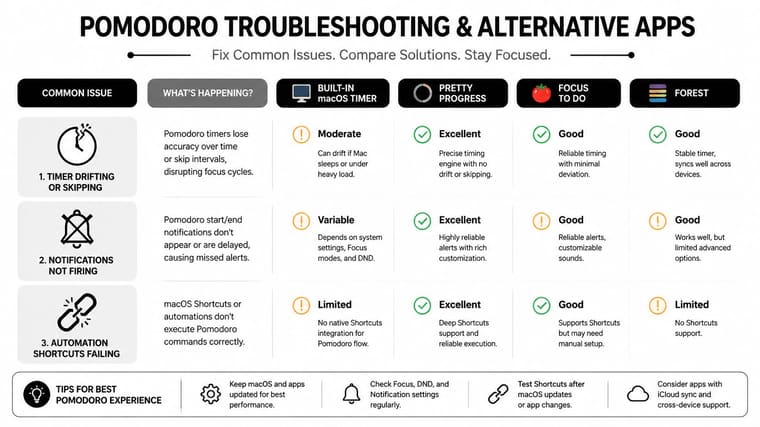
The useful comparison is not “which app has the most features,” it’s “which one matches the way you work.” Minimal menu-bar tools like TomatoBar suit people who want a small, native timer and automation hooks, while analytics-rich apps like Pomodoro Timer Lite or Pomivio lean harder into history, streaks, and session visibility. For a broader feature checklist and interval-based thinking, you can also look at Pretty Progress’s timer interval app guide, which fits nicely if you want countdowns that stay visible without a full dashboard.
If you want to compare app styles quickly, use this simple filter:
- Choose minimalist tools if you care most about low friction, quick starts, and a timer that stays out of the way.
- Choose analytics-heavy tools if you want session history, streaks, and visible progress over time.
- Choose automation-friendly tools if you live in Shortcuts, hotkeys, and Focus modes.
That decision usually matters more than the interface polish. A timer that matches your daily rhythm gets used, and a timer that fights your workflow gets abandoned.
Productivity Tips and Next Steps
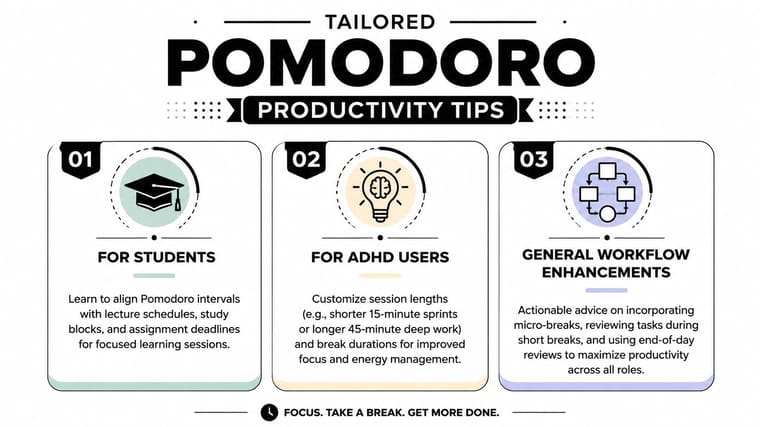
The right Pomodoro setup depends on your day, not on a perfect template. A student may need the timer to fit between lectures and assignment blocks, while a professional may need it to sit inside calendar slots and meeting gaps. For people who feel boxed in by a rigid routine, recent Mac app comparisons point toward custom intervals, task-aware timers, and Shortcuts automation as a practical move beyond the strict 25/5 default in recent Mac app comparisons.
Match the timer to the person using it
For students, use the timer to define a study block that ends before fatigue makes the next step harder. For ADHD users, shorter or longer sessions can work better than a strict default, especially when a visual cue makes the next task feel concrete. For professionals, the most useful habit is linking a focus block to a calendar slot so the timer becomes part of the workday instead of another decision to make.
If your schedule changes often, look at resources that support recovery between blocks, like this guide on mental clarity for shift workers. Focus tools work better when they respect energy, not just time.
Test one setup for a week, then adjust the session length, notification style, and break routine based on how it feels. The best Pomodoro system is the one that fits the way you already work. If you’re looking for a visual, low-friction way to track your focus sessions directly on your desktop, Pretty Progress can help. Download it to create glanceable countdown widgets that keep work and break cycles visible without adding clutter.





