
August 5, 2026
Best reminder apps for iPhone
The best reminder apps for iphone in 2026, compared by use case, pricing, and widgets—10 picks for simple alerts, recurring tasks, or visual countdowns.
That nagging feeling usually hits at the worst time. You lock your phone, step away, and suddenly wonder if you forgot to send the invoice, take your meds, text your partner, or leave on time for an appointment. The iPhone can help, but only if the reminder app fits the way your brain functions.
Some people need a simple list and a clean notification. Some need a visual cue sitting on the Home Screen all day. Others need an app that keeps nagging until the task is done, because one swipe is all it takes to lose something important. That’s why the best reminder apps for iPhone don’t all look the same.
This guide gets straight to the useful part. These are the 10 apps I’d point people to in 2026, based on real use cases and trade-offs, not feature stuffing. If you want elegant countdown widgets, deep Apple integration, cross-platform task management, or a more ADHD-friendly visual setup, there’s a strong option here.
How I Picked These Reminder Apps for iPhone
I compared all 10 apps using the same practical checks: how fast it was to capture a reminder on iPhone, how flexible recurring reminders were, whether widgets were useful instead of decorative, how well the app worked on Apple Watch and Mac, how reliable sync felt across devices, how much setup friction there was on day one, and whether the free version was meaningfully usable.
I also paid attention to failure points, not just feature lists. In testing, I added the kinds of reminders that usually break weak apps: recurring admin tasks, medication-style alerts, deadline-based countdowns, shared household items, and reminders that needed to reappear on another device later. I found pretty quickly that some apps were excellent at capture but easy to ignore afterward, while others were ugly but much harder to miss.
An app stayed on this list only if it had a clear reason to exist for iPhone users. That could mean strong built-in integration, unusually good recurring reminders, better widgets, persistent alerts, or cross-platform support that Apple-only apps cannot match. If an app felt redundant, hid the core reminder experience behind too much setup, or made its free tier too limited to test properly, it did not make the cut.
Quick picks
- Want the simplest built-in option: Apple Reminders
- Want reminders that stay visible all day: Pretty Progress
- Want alerts that keep coming until you act: Due
- Want one system across iPhone, Windows, and web: Todoist
- Want a calendar-first workflow: Fantastical
Table of Contents
- 1. Pretty Progress
- 2. Apple Reminders
- 3. Todoist
- 4. Things 3
- 5. TickTick
- 6. Microsoft To Do
- 7. Due Reminders and Timers
- 8. Fantastical
- 9. Anydo
- 10. Structured Daily Planner
- Top 10 iPhone Reminder Apps: Feature Comparison
- The Best Reminder Is the One You’ll Actually Use
1. Pretty Progress
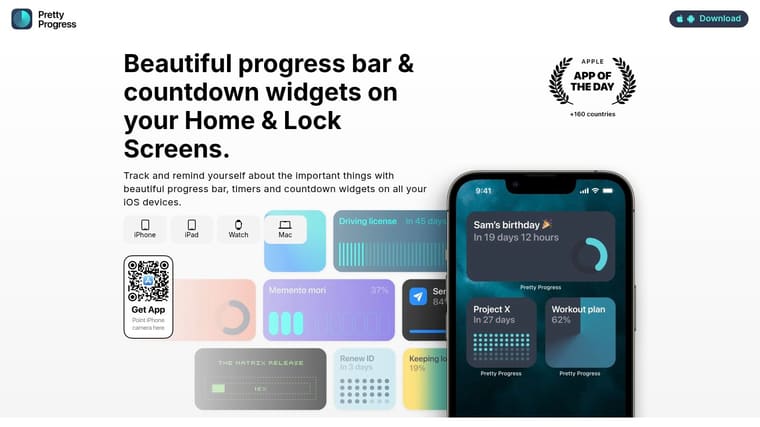
You set a deadline, clear the notification, and forget about it by lunch. Pretty Progress solves that specific problem by keeping the reminder in view. Instead of asking you to keep opening a list app, it puts countdowns, progress bars, and time-based widgets on the screens you already check all day.
That makes it different from the usual reminder app picks. A lot of iPhone reminder apps are built for capture and organization first. Pretty Progress is built for visibility first. For visual thinkers, students, and anyone who responds better to a live countdown than a buried task list, that difference matters.
Why it stands out
The core idea is simple and useful. Create a countdown for an exam, trip, launch date, fasting window, bill due date, or personal goal, then pin it to your Home Screen, Lock Screen, Apple Watch, or Mac. The reminder stays present without needing another push alert.
I have found that this works best for deadlines with emotional weight. If seeing “12 days left” creates urgency for you, Pretty Progress can be more effective than a traditional task app with better sorting and filtering. It keeps pressure visible in a way checklists often do not.
The design also helps. Themes like Swiss, Minimal, Aqua, and Retro OS feel polished enough that the widgets look like part of your setup, not clutter sitting on top of it. That sounds minor until you use reminder widgets every day. People ignore ugly widgets fast.
Practical rule: If you swipe away notifications but notice your widgets every time you unlock your phone, a visual reminder app will serve you better than a more advanced task manager.
Best fit
Pretty Progress fits people who need reminders to stay in sight. That includes visual planners, students tracking exam dates, professionals working toward a hard deadline, and users with ADHD who do better with friendly, persistent cues than with one-time alerts.
It also has clear limits.
- Best strength: Keeps important deadlines visible without making you open the app.
- Main limitation: It is lighter than a full task manager, so it is not the best pick for complex projects or shared team workflows.
- Useful extra: Built-in calculators for dates, business days, age, and fasting cut out small bits of manual setup.
The app is free to download, with a PRO upgrade for more styling control. If your main problem is not writing down tasks but noticing them often enough to act, Pretty Progress is one of the most distinctive options in this list. For a broader productivity angle, this roundup from HyperWhisper is a useful companion read.
2. Apple Reminders
You are in the kitchen, your hands are full, and you need to remember two things before you forget both. Apple Reminders is built for that moment. You can ask Siri out loud, add an item in a couple of taps, or set a location alert tied to a store, office, or home address.
That low setup cost is the whole appeal. On an iPhone, Reminders feels fast because it is already part of the system. Shared grocery lists, recurring tasks, tags, subtasks, Smart Lists, widgets, and Apple Watch support cover a lot of day-to-day reminder needs without pushing you into a bigger productivity app. Apple’s own Reminders app page is a good reminder of why it sets the baseline here: it is preinstalled, tied into iCloud, Siri, widgets, notifications, and Apple Watch, and benefits from Apple’s enormous device reach.
What it gets right
Apple Reminders became much more useful after Apple rebuilt it in iOS 13. Since then, it has felt like a real everyday tool instead of a basic checklist. If you already use iPhone, iPad, Mac, and Apple Watch together, the sync is easy and dependable.
It is also one of the best picks here for people who do not want to maintain a system. Families sharing shopping lists, anyone who relies on Siri while driving or cooking, and iPhone users who just want reminders to show up at the right time will usually do well with it.
In my testing, Reminders was still the fastest app to go from idea to saved task when I used Siri or the share sheet. That sounds obvious, but it matters. If capture takes five extra taps, many reminders never get entered at all.
The trade-off is depth. Reminders handles personal tasks well, but it starts to feel cramped if you want advanced project views, stronger automation, or a polished experience across non-Apple devices. Web access helps, but it is not the same as having a full cross-platform app with equal care on every device.
Apple Reminders is the app I suggest when someone says, “I need something reliable, I want it on every Apple device I own, and I do not want to spend an hour setting it up.”
If that sounds like you, Apple Reminders support is the best place to start.
3. Todoist
Todoist fits the person whose tasks do not stay in one place. If reminders start on your iPhone, get organized later on a laptop, and occasionally need to connect with work tools, Todoist makes that setup easier than most apps here.
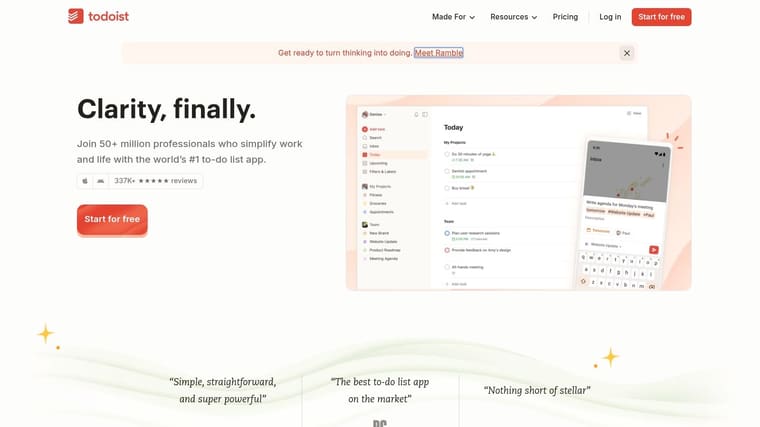
I have always found its biggest advantage to be capture speed. You can type something like “submit expense report every Friday at 4pm” and move on. On a phone, that matters. The less friction there is when a task pops into your head, the more likely you are to trust the app.
Where Todoist works best
Todoist works well for users who want one system for personal reminders, recurring tasks, and heavier project tracking. Labels, filters, subtasks, shared projects, and calendar connections give it more room to grow than Apple Reminders, without pushing quite as far into the design-first approach of Things 3.
That flexibility comes with trade-offs. The free plan is usable, but some of the features that make Todoist feel powerful are paid. It also feels more like a cross-platform productivity tool than an iPhone-first reminder app, which can be a plus or a minus depending on what you need.
It is a strong fit for a specific kind of user:
- Great for: People who switch between iPhone, Windows, Mac, web, and work apps and want one task system everywhere.
- Less great for: Users who mainly want simple personal reminders with minimal setup.
- Especially useful for: Anyone who likes typing tasks quickly instead of building lists through menus.
Todoist is the app I usually mention when someone says Apple Reminders is too limited, but they are not ready for a more opinionated app. If that sounds like you, Todoist is worth trying.
4. Things 3
You open your phone to add one task, and twenty minutes later you’re still sorting lists and dismissing prompts. Things 3 is the app I recommend to people who want the opposite experience. It feels quiet, focused, and intentional from the first capture to the daily review.
That calm design is the reason many iPhone and Mac users stick with it. Things 3 gives you enough structure to manage real projects through Areas, Projects, headings, checklists, tags, and the Today and Upcoming views, but it rarely feels cluttered. For users who get overwhelmed by busy interfaces, that matters more than having every advanced feature under the sun.
It is especially good for a specific type of reminder user. Someone who plans on Apple devices, likes a clean visual hierarchy, and wants tasks arranged in a way that makes sense at a glance will usually click with Things faster than with more utility-first apps.
The trade-offs are real. Things 3 is Apple-only, so it is a poor fit if you also work on Windows or need a web app. It also uses separate one-time purchases for iPhone, iPad, and Mac, which some people prefer over subscriptions and others find annoying. And while it handles deadlines and recurring to-dos well, it is less aggressive about reminders than apps built around persistent alerts.
That last point is important. Things 3 is better for people who review their system regularly than for people who need an app to keep nagging them until something gets done.
- Best for: Apple-only users who want a polished planner that stays easy to scan.
- Less ideal for: People who need cross-platform access, collaboration, or repeated reminder alerts.
- Especially useful for: Visual planners and ADHD users who do better with a calm interface instead of a crowded control panel.
If your main goal is to make planning feel lighter, not just more feature-packed, Things by Cultured Code is still one of the strongest picks on iPhone.
5. TickTick
You remember the task, just not at the right moment. That is the problem TickTick solves better than most apps on iPhone.
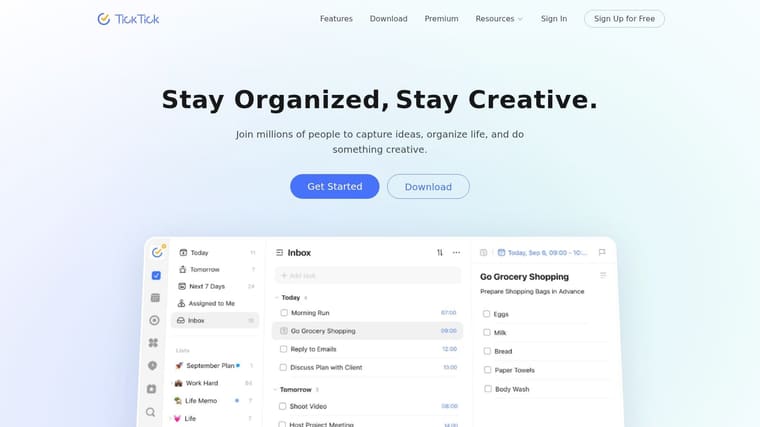
I recommend it to people whose reminders need more structure than a basic due date. TickTick handles recurring rules well, supports location-based alerts, and gives you enough control to set start times, due times, and multiple layers of follow-up. If your day includes deadlines, errands, and routines that repeat on odd schedules, that flexibility matters.
What makes TickTick stand out is how many roles it can cover without falling apart. It can be a reminder app, a lightweight planner, a habit tracker, and a focus timer in one place. For some users, that means fewer apps to manage. For others, it means one app with too many buttons.
Who should pick TickTick
TickTick fits people who like to tune their system instead of accepting a fixed workflow. I have found it especially useful for power users who want reminders to stay visible, for ADHD users who benefit from more nudges and structure, and for anyone who wants tasks and time blocking in the same app. The calendar view helps if you need to see what your reminders are doing to your actual day, not just your task list.
The trade-off is setup. TickTick can feel busy on day one, especially if you only need a place to remember milk, birthdays, and one dentist appointment. Apple Reminders is lighter. Things 3 is calmer. TickTick is better for people who want knobs to turn.
When I tested recurring reminders here, TickTick was one of the better apps for odd schedules. Weekly reminders were easy everywhere, but custom repeat patterns were much less frustrating in TickTick than in simpler apps.
A practical use case is admin-heavy work. If you are tracking invoices, reimbursements, follow-ups, and renewal dates, TickTick can keep all of those reminders in one system. It pairs well if you also want to streamline finances with an expense app.
- Best for: Power users who want stronger reminder controls and calendar support.
- Especially useful for: People juggling habits, tasks, and focus sessions in one app.
- Less ideal for: Users who want the simplest possible interface with minimal setup.
If you want a reminder app that can grow into a full personal system, TickTick is one of the more practical choices on iPhone.
6. Microsoft To Do
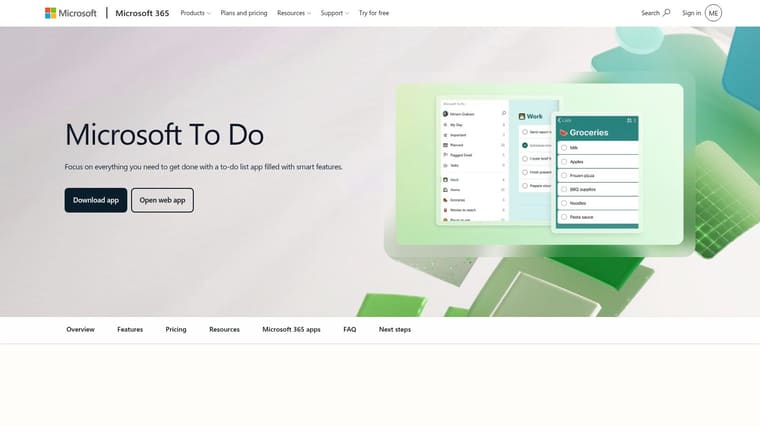
Microsoft To Do makes the most sense when your reminders already live inside the Microsoft world. If your day starts in Outlook, Teams, or a Windows laptop, this app cuts out a lot of copying and pasting between inbox, calendar, and task list.
The iPhone app covers the basics well. You get lists, due dates, reminders, recurring tasks, sharing, and the My Day view for a lighter daily plan. I have found that simplicity is the main selling point. It is less polished than Things 3 and less flexible than TickTick, but it asks less of you up front.
Best use case
Microsoft To Do is a strong fit for work-driven reminders. Flag an email in Outlook, assign a follow-up to yourself, or keep a shared list for family errands and office admin. The app handles those jobs without pulling you into a heavier project-management setup.
It also works well for people who switch between iPhone, Windows, Mac, and the web during the day. That matters more than flashy design if your reminders need to show up reliably wherever you are working.
The trade-off is personality. Microsoft To Do is functional, not especially motivating. Visual thinkers may prefer an app with countdown widgets or stronger visual cues. Users with ADHD may also do better with friendlier interfaces or more persistent reminder behavior, depending on what they struggle with most.
A practical pairing here is work and money admin. If your reminders are tied to reimbursements, receipts, or reporting deadlines, it can help to streamline finances with an expense app.
You can try it at Microsoft To Do.
7. Due Reminders and Timers
Due is for a very specific kind of person. If you regularly swipe away a reminder and then immediately forget it, Due may be the fix. It keeps resurfacing reminders until you mark them done or reschedule them.
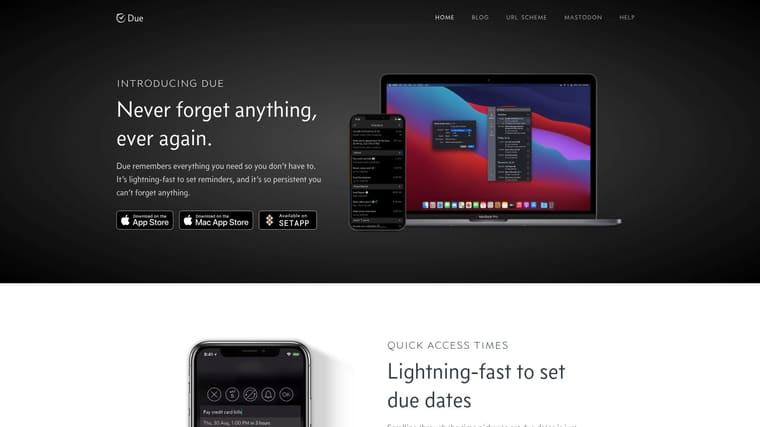
That makes it less pleasant than some apps and more effective than most. For medication, parking, school pickup, timed chores, or anything where “later” often becomes “never,” persistent nagging is the point.
What Due does better than almost anyone
The speed is excellent. Entering a reminder is quick, postponing from notifications is fast, and recurring rules are strong. It also supports Shortcuts and URL schemes, which makes it useful for people who like lightweight automation on Apple devices.
The trade-off is clear. Due is not a full task system for complex projects, long planning horizons, or collaborative work. It does one job extremely well.
In my testing, Due was the only app here that reliably recreated the feeling of a reminder refusing to disappear into the background. That sounds annoying because it is annoying, and that is exactly why it works for medication, departures, and time-sensitive errands.
If you miss tasks because notifications are too easy to dismiss, Due often works better than prettier or more flexible apps.
If your main issue is follow-through rather than organization, Due Reminders and Timers deserves a spot near the top of your list.
8. Fantastical
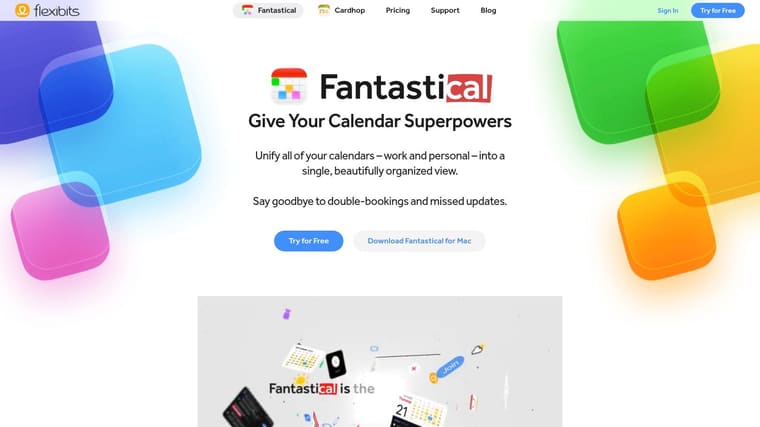
Fantastical isn’t the first app I’d pick if your only need is reminders. But if your reminders constantly interact with meetings, time blocking, travel, or multiple calendars, it’s one of the strongest all-in-one scheduling tools on iPhone.
Its best feature is perspective. Events and tasks live together, so you stop pretending your to-do list exists in a separate universe from your actual day. That’s helpful for anyone who keeps overcommitting because the task app and calendar app don’t talk to each other well enough.
When Fantastical makes sense
Natural-language entry is excellent, the widgets are polished, and support for iCloud, Google, Microsoft 365, CalDAV, and Todoist gives it unusual flexibility. The app also works across iPhone, iPad, Mac, Apple Watch, and Windows, which is valuable if your work setup spans more than Apple gear.
The cost is the sticking point. Most of the advanced scheduling features live behind a subscription, and if you don’t need a premium calendar, Fantastical can feel like buying a very nice toolbox when you only needed a screwdriver.
Still, for people whose reminders belong on a schedule, not just a list, Fantastical is easy to justify.
9. Anydo
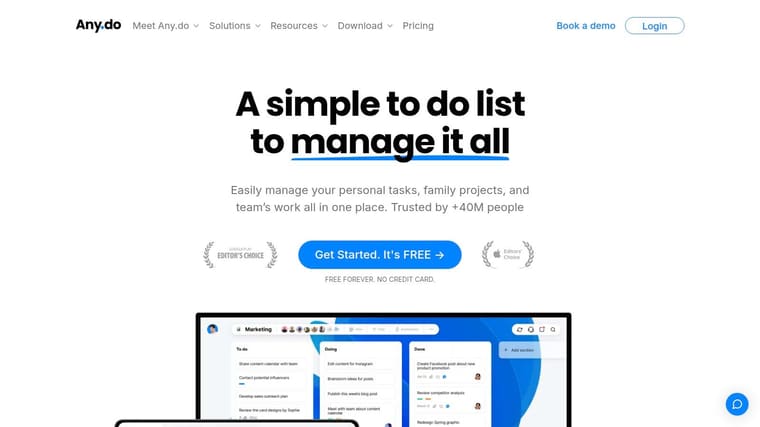
You add a reminder while walking into a meeting, then need it to show up later on your phone, your watch, and maybe even in your calendar. Any.do is good at that kind of everyday handoff. It is one of the easier reminder apps to start using without spending an hour building a system.
That matters for a specific kind of user. If Apple Reminders feels too plain, but Todoist or TickTick starts to feel like homework, Any.do lands in the middle. The interface is friendly, voice capture is quick, and the app does a good job turning fast input into a usable list.
Who Anydo is good for
Any.do makes sense for people who want reminders to fit into real life instead of living in a productivity hobby. I like it most for personal tasks, shared household lists, and light collaboration with a partner or family member. It also helps users who benefit from reminders arriving in more than one format, especially if a standard notification is easy to dismiss and forget.
The trade-off is depth. Some of the better reminder features, recurring options, and premium planning tools sit behind the paid tier. Power users who want heavy project structure, advanced filters, or lots of customization will usually hit the ceiling faster here than in Todoist or TickTick.
Still, there is value in an app that stays approachable. For users with ADHD, busy parents, or anyone who needs a low-friction reminder app they will open, Any.do is a practical middle-ground pick.
10. Structured Daily Planner
Structured works best when your problem isn’t forgetting the task. It’s not knowing where it fits in the day. Instead of a traditional list-first approach, it gives you a timeline that turns tasks into a visible plan.
For many people, that’s the difference between intention and action. A task sitting on a list feels optional. A task placed at 2:30 PM next to a meeting and a commute feels real.
Why Structured clicks for visual planners
Structured is strong for time-blocking, routines, recurring tasks, and daily pacing. The widgets are attractive, Live Activities help, and the app feels gentler than some power-user systems. It’s one of the better choices for students, busy professionals, and anyone whose day falls apart when tasks stay abstract.
The limitation is scope. Structured isn’t a deep project manager, and some of the richer Reminders and calendar integrations require the Pro version. That’s fine if what you want is a daily execution layer, not a full planning headquarters.
For people who think in timelines rather than lists, Structured Daily Planner can be more effective than more famous reminder apps.
Top 10 iPhone Reminder Apps: Feature Comparison
| Product | Core features | UX ★ | Price 💰 | Target 👥 | Unique ✨ |
|---|---|---|---|---|---|
| Pretty Progress 🏆 | Custom countdowns & progress bars, Home/Lock/Watch/Mac widgets, built‑in date/fasting calculators | ★★★★★, Polished, design‑first | 💰 Free base; PRO upgrade (in‑app) | 👥 Goal‑setters, habit builders, students, creatives | ✨ Curated themes & deep styling for always‑on glanceable widgets |
| Apple Reminders | Time/location alerts, Smart Lists, subtasks, iCloud sync, widgets | ★★★★☆, Seamless OS integration | 💰 Free (built‑in) | 👥 Apple users, casual lists, collaborators | ✨ Siri & system‑level integration |
| Todoist | Projects, labels, filters, NL date parsing, integrations | ★★★★☆, Scales from personal to teams | 💰 Freemium; Pro features paid | 👥 Power users, teams, integrators | ✨ Advanced filters & wide ecosystem integrations |
| Things 3 | Projects with headers/checklists, Today/Upcoming, fast capture | ★★★★★, Premium, low friction on Apple | 💰 One‑time purchase per platform | 👥 Apple‑centric planners, design‑focused users | ✨ Polished UX; buy‑once model |
| TickTick | Tasks + calendar, Pomodoro, habit tracker, flexible reminders | ★★★★☆, Feature‑rich, practical | 💰 Freemium; affordable Premium | 👥 Multi‑tool users, budget‑conscious | ✨ Built‑in Pomodoro & habit statistics |
| Microsoft To Do | My Day suggestions, reminders, Outlook/365 integration, sync | ★★★★☆, Reliable, utilitarian | 💰 Free with Microsoft account | 👥 Microsoft 365 users, professionals | ✨ Tight Outlook & Office ecosystem integration |
| Due, Reminders & Timers | Persistent auto‑snooze, fast capture, powerful recurring rules | ★★★★☆, Best for persistent alerts | 💰 Paid app (desktop often separate) | 👥 People who dismiss alerts, meds/timers | ✨ Auto‑snooze + Shortcuts/URL scheme support |
| Fantastical | Unified events + tasks, NL input, calendar integrations, cross‑device sync | ★★★★★, Top‑tier calendar UX | 💰 Subscription for premium features | 👥 Power schedulers, multi‑calendar users | ✨ Unified view + advanced scheduling tools |
| Any.do | Tasks, calendar, Siri & Reminders two‑way sync, widgets | ★★★★☆, Clean, voice‑friendly | 💰 Freemium; Premium/Family plans | 👥 Families, voice capture users | ✨ Siri & Apple Reminders two‑way sync |
| Structured, Daily Planner | Timeline day planner, Live Activities, Pomodoro, reminders | ★★★★☆, Great for time‑blocking | 💰 Freemium; Pro for Reminders/calendar integration | 👥 Time‑blockers, daily planners | ✨ Visual timeline + Live Activities widgets |
The main choice usually comes down to pricing model and reminder style. Apple Reminders and Microsoft To Do are the easiest free picks. They cover normal time-based reminders, recurring tasks, and sync without demanding a subscription. Todoist, TickTick, Any.do, Fantastical, and Structured all have usable free versions, but each becomes noticeably better once you hit the paid tier. Things 3 is different because it avoids subscriptions and uses one-time purchases, while Due is closer to a paid utility: you buy it because you specifically want persistent alerts.
If you want the strongest free starting point on iPhone, Apple Reminders is still hard to beat because it is already there and tightly integrated with Apple devices. If you want a free app that can stretch across platforms, Microsoft To Do is the simplest answer, and Todoist is the better answer once you need stronger filters, project structure, or integrations. Pretty Progress is easy to try free if your issue is visibility rather than task management, but its value shows up most clearly when you want the fuller widget and styling experience. That split between broad task systems and visual reminder tools mirrors how this category now gets compared by use case instead of one universal winner, including in Pretty Progress’s own comparison.
For specific use cases, the choices separate fast. Apple Reminders is best for personal and household admin on Apple devices. Todoist fits work and cross-platform setups. TickTick is better for people who need heavier recurring logic, calendar views, and more control over routines. Due is the clear pick for medication, departures, and anything where missing the alert matters more than elegant planning. Pretty Progress and Structured are stronger for visual deadline tracking and daily pacing. Things 3 is best for planning-heavy users who want a calm Apple-only system, not the loudest reminder engine.
The Best Reminder Is the One You’ll Actually Use
If you want the short answer, here it is. Apple Reminders is still the best default for most iPhone users. Due is the best pick for persistent alerts. Pretty Progress is the strongest visual option when countdowns and widgets help you act. Todoist is the best fit if your reminders need to work across Apple devices, Windows, and the web. Things 3 is the best choice for planning-heavy users who want a polished Apple-only system.
So, is there a better app than Reminders? Yes, for some people. If you need repeated nagging, better visual urgency, richer project views, or equal support outside the Apple ecosystem, another app can absolutely beat it. But Reminders remains the most sensible starting point because it is fast, built in, and good enough for a huge range of everyday tasks.
After testing these apps side by side, the pattern was consistent. The winners were not always the apps with the longest feature lists. They were the apps that stayed usable once I stopped “testing” and started dropping in real reminders: bills, recurring admin, pickup times, deadlines, and tasks I was likely to ignore. I noticed that widget visibility mattered more than I expected, recurring setup quality mattered more than marketing pages suggest, and sync reliability mattered most when I switched devices mid-task.
A few first-hand takeaways stood out:
- I kept trusting Apple Reminders for fast capture because it was the quickest app to save something from Siri or from another Apple device.
- Due was the app I least enjoyed receiving notifications from, which is exactly why it was so effective for tasks that could not be missed.
- Pretty Progress made long-range deadlines feel more real because the widget stayed in view after the original alert was gone.
Start with your actual problem:
- Visual thinker who ignores standard notifications: Pretty Progress or Structured keeps deadlines and routines visible on your screen.
- Need a reliable default with low setup friction: Apple Reminders is still the easiest place to start.
- Use iPhone and Windows, or switch platforms often: Todoist or Microsoft To Do is usually the better fit.
- Dismiss alerts and still need to act: Due is the strongest option, and TickTick is a good second choice if you want more task features.
- Plan work from your calendar first: Fantastical makes more sense than a traditional to-do app.
- Need something friendlier and less intimidating: Any.do and Structured are often easier to stick with.
I would not test five apps at once. Use one for a week with real reminders, not fake sample tasks. Add the things you miss: school pickup, rent, meds, client calls, recurring admin work. Then watch your behavior. Which app do you open without resistance? Which alert leads to action instead of another snooze?
That answer matters more than ratings.
A split setup is also completely reasonable. Apple Reminders works well for quick capture and shared lists. Another app can handle visual countdowns, time blocking, or persistent nudges. I see this work especially well for people managing ADHD, shift work, family logistics, or jobs with constant context switching, because those situations usually need more than one style of reminder.
If you’re also managing appointments or client flow as part of your reminders, it may help to look at an online booking platform for salons alongside your task setup.
If visible countdowns and progress widgets help you remember better than another hidden list, Pretty Progress is still one of the fastest options here to feel an immediate difference. Put an event, deadline, habit streak, or fasting window on your Home Screen or Lock Screen, and the reminder stays in view instead of vanishing after the notification clears.
Frequently Asked Questions
Which app is best for reminders on iPhone?
Apple Reminders is a good starting point because it is built in, fast to capture with Siri, and synced across Apple devices. The better choice depends on the job, though: Due is stronger for persistent alerts, Todoist is better for cross-platform use, and Pretty Progress is better when visual countdowns help you follow through.
Does the iPhone have a built-in reminder app?
Yes. Apple includes Reminders on iPhone by default, and it syncs through iCloud to iPad, Mac, Apple Watch, and the web. That built-in status is a big reason it works so well for quick setup and everyday personal tasks.
What’s the best way to set reminders on iPhone?
The simplest method is to use Apple Reminders with Siri, widgets, and time or location-based alerts. If you need more than that, third-party apps help in specific ways: Due for repeated alerts, Todoist for shared or cross-platform task systems, and visual tools like Pretty Progress or Structured for seeing deadlines instead of just receiving one notification.
Can I set recurring reminders on iPhone?
Yes. Apple Reminders supports recurring tasks, and several third-party apps go further with custom repeat patterns. TickTick and Due are especially strong if your reminders repeat on odd schedules or need more aggressive follow-up behavior.
Which reminder app syncs best across Apple devices?
Apple Reminders is usually the smoothest choice if you only use Apple devices because it is tightly tied to iCloud, widgets, Siri, notifications, and Apple Watch. In my testing, it had the least setup friction across iPhone, Mac, and Watch. If you also need Windows or web access, Todoist and Microsoft To Do make more sense.
Is there a better app than Apple Reminders?
Sometimes, yes. Apple Reminders wins on convenience, but other apps can be better for very specific needs: Due for reminders that must keep resurfacing, Things 3 for calmer project planning, TickTick for more flexible recurring logic, and Pretty Progress for always-visible deadline tracking. The better app is the one that solves the exact way you tend to forget.





