
May 24, 2026
10 Best Productivity Apps for Mac in 2026
10 Mac productivity apps for 2026, sorted by bottleneck: tasks, scheduling, notes, automation, and visual planning for MacBook workflows.
Your Mac probably isn’t short on horsepower. It’s short on clarity. The desktop fills up, the menu bar turns into confetti, and somewhere between Slack, Safari tabs, calendar alerts, and half-finished notes, the day gets chewed up before actual work starts.
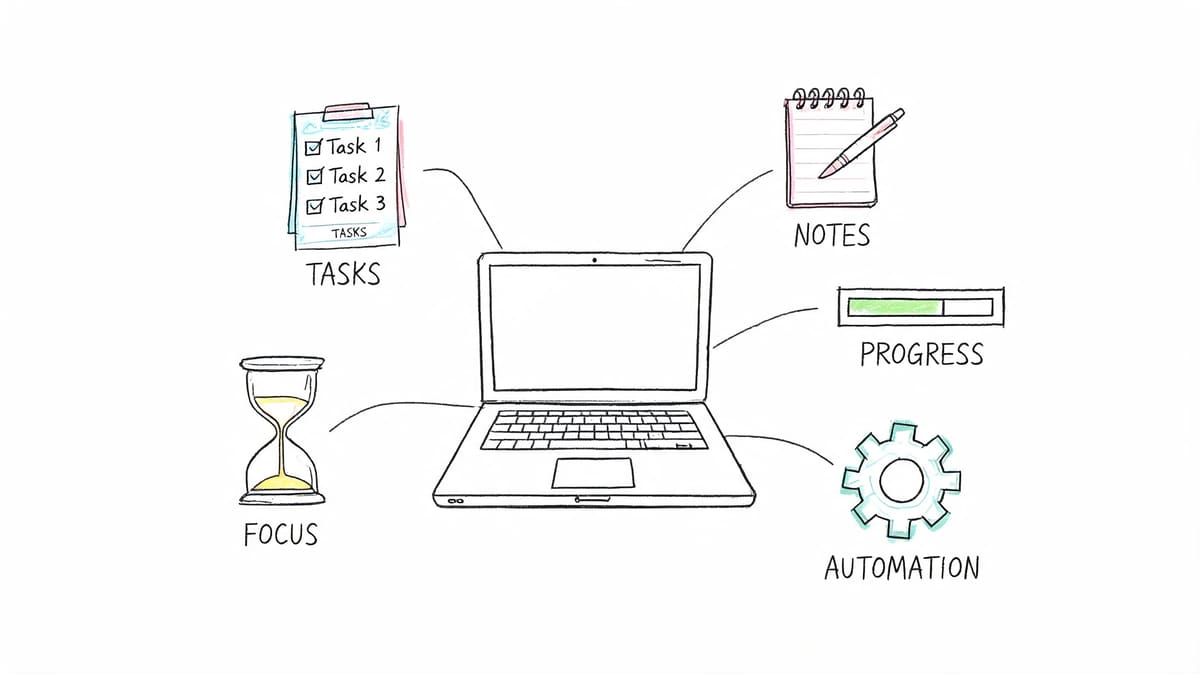
That’s why most “best productivity apps for mac” lists miss the point. A giant pile of good apps still creates a bad workflow if each one solves the wrong problem. What helps is choosing the right tool for the right bottleneck. One app for visual motivation. One for tasks. One for notes. One for automation. Then combining them into a stack you’ll keep using.
For 2026, that matters even more on Mac and MacBook setups because the category has split into clearer camps: task apps, calendar and scheduling tools, knowledge hubs, and automation layers. I’ve kept this guide focused on that reality so you can decide faster whether you need a planner, an organizer, or a scheduling app on macOS rather than a generic top-10 list.
You don’t need a complete life system by tonight. You need one app that fixes the thing currently slowing you down most. Start there. The rest can layer in after that.
Table of Contents
- 1. Pretty Progress
- 2. Things 3
- 3. Todoist
- 4. Notion
- 5. Fantastical
- 6. Raycast
- 7. Alfred 5 with Powerpack
- 8. Keyboard Maestro
- 9. Obsidian
- 10. Rectangle and Rectangle Pro
- Top 10 Mac Productivity Apps Comparison
- Your workflow stacks
- Your Next Step Start Small, Win Big
How I Picked These Mac Productivity Apps
I judged these apps by daily-use value on a real Mac workflow, not by feature-count marketing. The test was simple: does the app remove friction often enough that you keep opening it after the first week? On macOS, that usually means fast capture, low interface drag, reliable shortcuts, sensible notifications, and a role that is clear inside a broader stack.
I also separated the apps by job. A visual planner should not be graded like a task manager. A scheduling app should not be penalized for not acting like a note database. That distinction matters if you’re comparing the best productivity apps for Mac in 2026, because the strongest tools now tend to win by doing one layer of work very well rather than pretending to replace everything. That broader shift shows up in current 2026 roundups too, where all-in-one tools, dedicated task managers, and Mac speed layers like Alfred keep appearing for different reasons rather than as direct substitutes https://www.pocketinformant.com/best-productivity-apps-for-2026-and-why-pocket-informant-leads-the-list/.
What counted in an app’s favor: native feel on MacBook hardware, quick startup, low-maintenance setup, and a payoff that survives normal busy days. What hurt an app: feature bloat, weak role definition, pricing that only makes sense for edge cases, or a system that demanded too much tinkering before becoming useful. I’ve used enough productivity software to know that “can do everything” often translates to “hard to trust under pressure.”
I also weighed trade-offs that real buyers care about: whether the app feels built for Apple devices, whether it works across web and mobile when needed, whether the pricing model fits long-term use, and how much setup is required before you get value. My bias is practical: I reward tools that become part of the day quickly. If an app is impressive in a demo but annoying on a Tuesday afternoon, it drops.
1. Pretty Progress
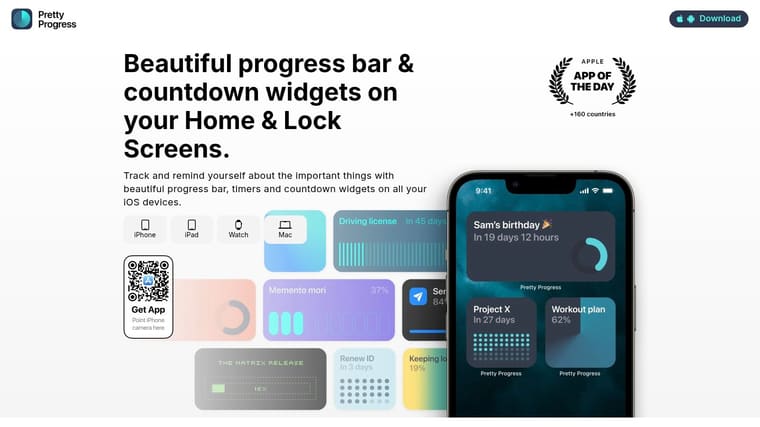
Monday morning on a Mac usually starts the same way. Slack is open, email is already noisy, and the deadline you cared about on Friday is now buried behind six other windows. Pretty Progress works well for that specific problem. It keeps a goal in view instead of hoping you remember to open a task app at the right moment.
That makes it a different kind of productivity tool than the rest of this list. Pretty Progress is not your planning system. It is the visual layer that sits on top of one. If this article’s broader approach is to group apps by function and then build workflow stacks around them, this one belongs in the visibility and motivation layer.
Why it works
Pretty Progress is built around constant visual cues. Countdowns, progress bars, timers, and widgets show up across Mac, iPhone, iPad, Apple Watch, and Android, so the work you care about stays present without extra effort. For people who already know their priorities but lose sight of them during the day, that changes behavior more than another inbox or project board.
The easiest way to decide whether this kind of app fits you is to ask what fails first in your workflow. If your problem is capturing tasks, use a task manager. If your problem is booking time, use a calendar or scheduling tool. If your problem is that important work disappears once the day gets noisy, a visual planner or widget app is often the better fix. That is why Pretty Progress lands so well for people looking for the best macbook organizer apps 2026 or the best daily planner apps for macbook 2026 without wanting a heavy project system.
Compared directly with Things 3, Todoist, and Fantastical, Pretty Progress is weaker at storing lots of actionable detail and stronger at deadline visibility. Things 3 is better for deciding what to do next. Todoist is better for cross-platform capture and shared lists. Fantastical is better when the primary constraint is time on the calendar. Pretty Progress wins when the issue is simpler and more common: you already know the deadline, but you stop seeing it. On a Mac desktop, that difference matters more than feature charts suggest.
I’ve found this kind of app works best when the problem is attention, not planning. It is most useful for people with one to three active priorities they cared about but kept mentally dropping once meetings and tabs took over. For that group, the widget layer did more than another inbox ever would.
The design matters too. Themes like Swiss, Minimal, Aqua, and Retro OS are not just decoration if a cleaner or more playful interface makes you check in more often. Good visuals can improve consistency.
There is also more utility here than the name suggests. The built-in calculators for dates, business days, exact age, fasting, pregnancy due date, sleep, and similar metrics make it useful right away, even before you set up a larger system.
Where it stops being enough is just as important. Pretty Progress will not replace a serious task manager, a collaborative planner, or a scheduling app. You cannot treat it as your full execution system if your day involves delegation, subtasks, comments, recurring workflows, or heavy calendar negotiation. In those cases, it works best as the front-of-screen layer while another app handles storage and execution.
Practical rule: If your goals slip because they disappear from view, add a widget-based visual tracker before you add another full task manager.
Best fit
Pretty Progress fits users who need reminders in their field of view, not a heavy planning suite. Students can keep exam dates and assignment countdowns on screen. Professionals can pin launch dates, review cycles, or quarter-end deadlines. Users with ADHD may find it more helpful as a front-of-screen prompt than a deep menu of tasks they have to remember to revisit.
It also fits the workflow stack approach better than a standalone app approach. Pair it with Things 3 if you want a calm personal task manager plus visible deadlines. Pair it with Todoist if you need cross-platform tasks plus a stronger visual cue on your desktop. Pair it with calendar-driven tools when timing matters more than task breakdown.
What it does not do is just as important. It will not replace task management, project collaboration, or shared scheduling. If your work involves dependencies, comments, or assigning tasks across a team, keep Pretty Progress in the motivation layer and let another app handle planning.
If you want a stronger explanation of why visible progress helps people stay engaged, the article on visual goal tracking systems that keep priorities in sight adds useful context.
- Best use case: Keep one to three deadlines, habits, or milestones visible every day.
- Big advantage: Cross-device widgets reduce the chance that an important goal fades into the background.
- Main trade-off: Some styling options require PRO, and the app works best as part of a stack, not as your only organizer.
2. Things 3
Things 3 is what I recommend when someone wants a personal task manager that feels fast every single day. Not “feature rich.” Fast. That distinction matters more on a Mac than is commonly acknowledged.
Things is built for individual planning, and it shows. The Today and Upcoming views are clean, projects and areas give just enough structure, and the app never feels like it wants you to become a project manager just to remember Tuesday’s priorities.
Where Things 3 shines
The best part of Things 3 is friction. Or rather, the lack of it. Capture is quick, keyboard navigation is excellent, and the app stays out of the way. That’s why so many Mac users stick with it after trying more powerful systems.
It also benefits from being very Apple-shaped. If you live on Mac, iPhone, iPad, widgets, Shortcuts, and Apple Watch, Things fits naturally. If you need a browser app, Windows support, or serious collaboration, it doesn’t.
That’s the trade-off in plain terms:
- Use Things 3 if: Your work is mostly personal, you value speed, and you want a native Apple experience.
- Skip it if: Your tasks must be shared with a team or accessed everywhere from any device.
- Know before buying: The developer offers a trial on Mac, which is the right way to test whether its style clicks with your brain.
Things 3 is one of those rare apps where less interface usually means more follow-through.
My practical take is simple. Things 3 works best for people who already know what matters and need a calm place to organize it. It works less well for messy collaboration, delegated work, or anything that depends on cross-platform access.
3. Todoist
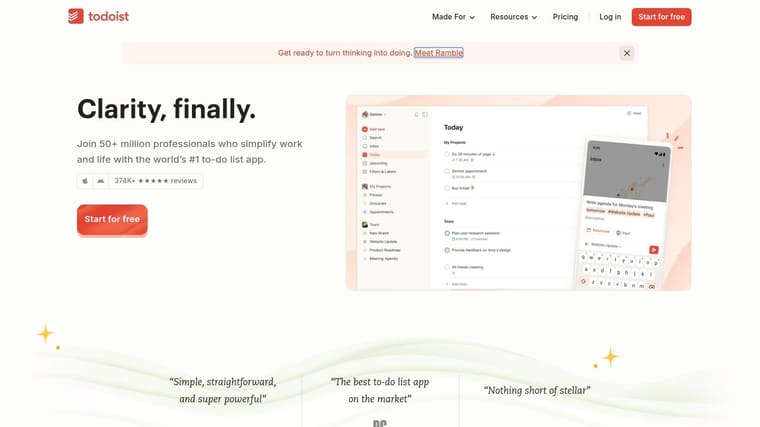
You leave your Mac, pick up your phone in line for coffee, remember three errands and one deadline, then need all of it to show up in the same system when you get back to your desk. That is the job Todoist handles well.
Todoist is the practical choice for people whose task list has to survive device switching, shared responsibilities, and quick capture in the middle of a normal day. It makes sense fast, which is a bigger advantage than many Mac users admit. A task manager only works if you keep using it when you are busy, distracted, or away from your ideal setup.
Where Todoist earns its spot
Todoist works best as a cross-platform command center. On Mac, it is good. Across Mac, web, iPhone, and shared projects, it becomes much more useful. That makes it a better fit than Things 3 for consultants, managers, students working across school devices, and anyone who shares tasks with a partner or team.
Its primary strength is flexible sorting without much setup. Filters, labels, priorities, recurring tasks, and project views let you build useful slices of work quickly. I have seen it click fastest for people who need views like “today, work, high priority” or “waiting on replies” without building a whole operating system first. If your bigger problem is keeping several projects visible at once, this guide on how to keep track of multiple projects pairs well with Todoist’s filter-heavy approach.
There are trade-offs. The Mac app is competent, but it does not have the same native feel as the best Apple-first tools on this list. Some of the features that make Todoist useful also sit behind paid plans, so the free version is enough to test but not always enough to stay with long term.
Here is where I recommend it most often:
- Best for: Mixed-device users, shared task lists, and anyone who needs capture and review to work the same way everywhere.
- Less ideal for: Mac purists who care more about native polish than collaboration or web access.
- Especially useful in workflow stacks: Students can pair Todoist with Fantastical for time blocking. Professionals can combine it with Raycast for faster capture. Users with ADHD often do well with Todoist plus calendar blocking and simple labels because the structure is visible without becoming heavy.
One more practical note. Todoist is a task app, not an all-in-one workspace, and that is often a good thing. If you are tempted to put tasks, docs, wikis, and publishing into one tool, save that urge for Notion. Some teams even turn Notion into website while keeping Todoist as the actual action layer.
Todoist is the app I suggest when reliability matters more than charm. It rarely feels special on Mac. It often proves useful for years.
4. Notion
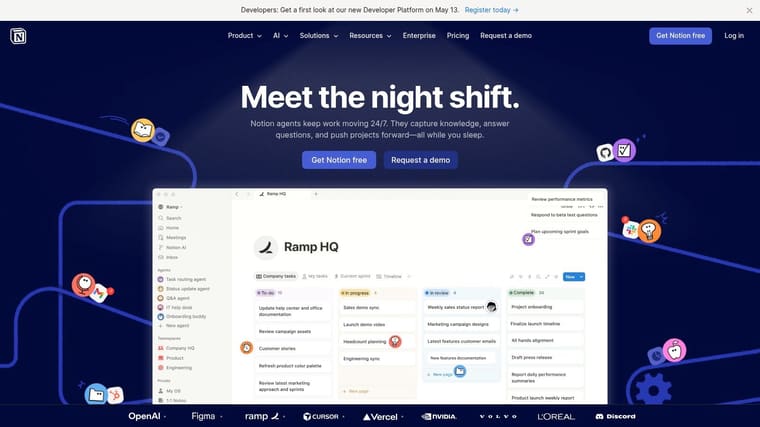
Notion makes sense once your work stops fitting neatly into separate apps. A class project has research, meeting notes, deadlines, and shared docs. A client engagement has deliverables, status updates, SOPs, and a lightweight CRM. Notion can hold all of that in one place, which is why it earns a spot on so many Macs.
That flexibility is the reason people stay with it. It is also the reason people waste time in it.
Where Notion earns its place
I recommend Notion when the actual problem is scattered information, not weak task capture. It works best as an operating system for projects. Docs live next to databases. Notes connect to tasks. A team wiki can sit beside a content calendar without forcing you into three separate tools.
That structure is especially useful for function-based workflows. Students can keep syllabi, reading notes, assignment trackers, and group project pages in one workspace. Professionals can run meeting notes, project hubs, and process docs from the same system. Users with ADHD often do better when Notion is limited to reference material and project context, while a simpler task app handles the next actions.
The trade-off is clear. Notion rewards restraint. If you build five dashboards, twelve databases, and a homepage full of widgets before the system has survived a normal week, you are designing a workspace instead of using one.
Use a simple rule. Start with one projects database, one notes area, and one weekly review page. Add complexity only after a real bottleneck shows up.
For multi-project work, Notion is strongest as the central hub in a stack. If you are trying to reduce context switching across active work, this guide on keeping track of multiple projects fits well with a Notion setup. And if part of your workflow includes publishing from the same workspace, tools like turn Notion into website can extend it without adding a separate CMS.
- Best use: A central workspace for projects, docs, wikis, and shared context.
- Watch out for: Overbuilt systems that look impressive but slow down daily use.
- Especially useful in workflow stacks: Students can pair Notion with Todoist for deadlines and Fantastical for time blocking. Professionals often use Notion with Raycast for faster capture and retrieval. Users with ADHD usually get better results when Notion stores plans and reference material, while day-to-day execution stays in a lighter task app.
5. Fantastical
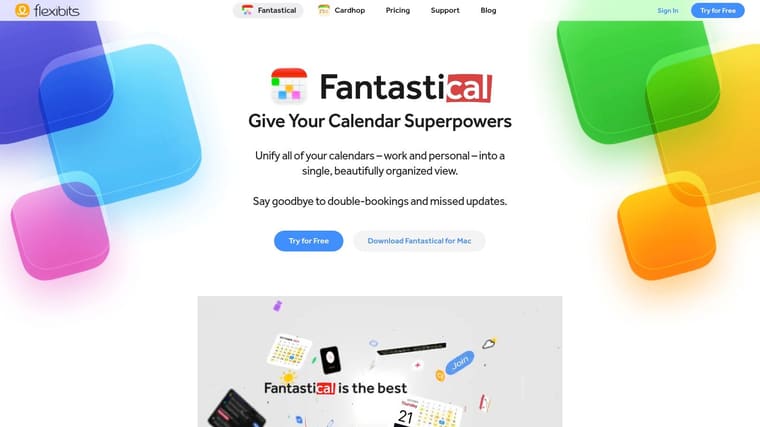
Fantastical is for people whose productivity lives and dies by the calendar. If your day is mostly meetings, appointments, calls, deadlines, and time blocks, your calendar app isn’t a utility. It’s mission control.
Fantastical feels polished in all the places where default calendar apps often feel flat. Natural-language entry is excellent, templates save repetitive setup, and scheduling links reduce the back-and-forth that clogs up workweeks.
Best for calendar-driven work
Fantastical earns its place here as one of the stronger answers for people comparing the best scheduling apps for macbook 2026, not just the prettiest calendar. A scheduling app solves the logistics of getting time booked. A calendar app shows and manages events you already have. A daily planner helps you decide what deserves attention today. Fantastical sits closest to the calendar-and-scheduling side of that spectrum, which is why it outperforms task-first apps for meeting-heavy work.
Its practical edge shows up in five places. First, natural-language entry is fast enough that adding events from the keyboard does not feel like form-filling. Second, scheduling links cut a lot of the usual email back-and-forth when someone just needs to book time with you. Third, time-zone handling is meaningfully better than what many people tolerate in simpler tools, which matters if your MacBook workday spans clients, teammates, or family across regions. Fourth, meeting templates help when you repeatedly create the same kinds of calls. Fifth, calendar sets and views make it easier to separate deep-work time from external commitments.
That combination makes Fantastical better than Apple Calendar for users who feel real scheduling pressure rather than occasional appointment pressure. Apple Calendar is enough when your needs are basic and your schedule is quiet. Fantastical becomes worth paying for when coordination itself is a drain. I’ve found that once a workweek includes recurring client calls, changing availability, and multiple calendars, the premium feels easier to justify because the friction is no longer theoretical.
It is also better than a task-first app when time is the scarce resource. Things 3 and Todoist are better at holding action lists. Fantastical is better at protecting time, surfacing conflicts, and making booking smoother. If your work suffers because your day keeps getting fragmented or because scheduling drains energy, start with the calendar layer and add a task app second.
Some people should not be using a heavyweight task manager as their main planning tool. They should be using a strong calendar client and a lighter task layer. Fantastical is ideal for that kind of user.
It’s especially good when availability matters. Consultants, managers, recruiters, client-facing operators, and anyone booking meetings across time zones tend to benefit quickly. The automatic detection of conferencing links and the inclusion of Cardhop in the subscription make it feel more like a communication layer than just a calendar.
The trade-off is straightforward. Many of the features that justify Fantastical over Apple Calendar live behind the paid plan. If all you need is “see events, add events,” this app is more than you need.
- Choose Fantastical if: Your workday is calendar-heavy and scheduling friction costs you real time.
- Skip it if: You barely use your calendar beyond a few reminders.
- Best pairing: Combine it with Things or Todoist so tasks and time blocks stay separate but coordinated.
Plainly put, Fantastical is premium software for people who feel calendar pain.
6. Raycast
You are in the middle of a work sprint. Slack is open, your browser has too many tabs, you need a Jira ticket, a recent screenshot, and a Zoom link, and every context switch costs a few more seconds. Raycast cuts that friction fast.
Raycast is the launcher I recommend when someone wants their Mac to respond more like a command center than a collection of separate apps. It starts with app launching, but that is not the reason to install it. Its primary benefit is pulling repeated actions into one keyboard-driven layer so you stop hunting through menus, tabs, and sidebars.
Best for reducing app-switching overhead
Raycast works especially well for people whose day spans several tools and who already prefer the keyboard. Developers, operators, project managers, founders, support leads, and students juggling research across browser tabs usually feel the payoff quickly. The extension library is the hook. You can search GitHub issues, create tasks, open saved links, manage windows, paste snippets, and pull from clipboard history without breaking focus.
That matters more than the feature list suggests. A launcher becomes useful when it removes actions you repeat 20 times a day.
The trade-off is setup time. Raycast is easy to install, but the payoff comes after you add the commands that match your actual work. If you only want basic search, Spotlight may be enough. If you spend your day bouncing between task apps, docs, chat, and browser tools, Raycast earns its place fast.
I usually suggest a simple rollout. Start with clipboard history, snippets, window management, and quicklinks. Then add 2 or 3 extensions tied to your real workflow. A student might pair Raycast with Notion and Fantastical for fast capture and calendar access. A professional might combine it with Things 3 and Slack. An ADHD-friendly stack often benefits from fewer visible distractions, and Raycast helps by keeping common actions in one consistent interface. For more examples of app combinations that work well together, see these productivity tools for everyday workflows.
- Choose Raycast if: You want faster control over apps, links, text, and common actions from the keyboard.
- Skip it if: You prefer visible controls and do not want to spend time setting up commands.
- Best pairing: Use it with a task manager like Things 3 or Todoist so capture, search, and execution stay connected.
Raycast is one of the quickest ways to make a Mac feel tighter, provided you are willing to shape it around your own habits.
7. Alfred 5 with Powerpack
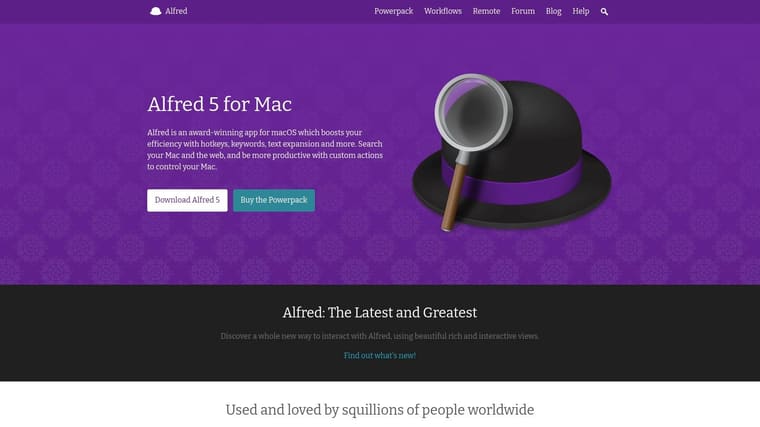
Alfred is the veteran power-user choice. Raycast gets more attention lately, but Alfred still has a loyal following for good reason. It’s mature, local-first in feel, and with Powerpack it becomes much more than a launcher.
Where Raycast often feels like a polished command center for modern apps, Alfred feels like a toolbox you can shape exactly how you want.
Best for custom workflows
The biggest appeal is ownership. Alfred offers a one-time license path, strong local behavior, and a deep workflow community. If you dislike subscriptions and enjoy building your own small automations, Alfred is still a top-tier Mac productivity pick.
Clipboard history, snippets, file actions, theme control, and custom workflows make it useful right away. Then it grows with you. Many people start with search and launch, then gradually build commands for text expansion, file movement, browser actions, and app control.
The only real caution is this: workflow building has a learning curve. Not hard, but real. If you want instant payoff with less tinkering, Raycast may be easier to love on day one.
For anyone assembling a personalized system of launchers, automations, and visual tools, this roundup of productivity tools for everyday workflows is a useful companion.
- Best reason to choose Alfred: You want custom automation with a buy-once mindset.
- Biggest drawback: It asks for more setup than casual users may want.
- Strong fit: Writers, researchers, developers, and Mac users who like controlling their environment.
8. Keyboard Maestro
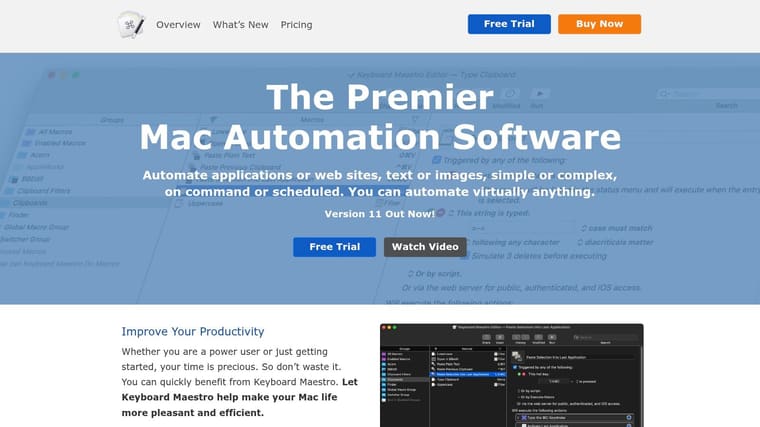
Keyboard Maestro is where you go when launchers stop being enough. This app automates actions. Not just commands, but real sequences. Click this button, wait for that window, paste this text, move that file, trigger a shortcut, rename something, reposition windows, continue.
It is one of the most capable automation tools on the Mac. It’s also one of the easiest to overbuy.
Where it beats simpler tools
Keyboard Maestro shines when you repeat multi-step actions inside messy software. That’s where simple shortcuts fail. If your workflow involves bouncing between browser tabs, forms, file dialogs, Finder, and one app with terrible shortcuts, Keyboard Maestro can usually stitch it together.
This is especially useful for operations work, repetitive admin, content production, research collection, and any role where the same dance happens over and over. One good macro can remove a lot of friction.
The downside is obvious the moment you open it. The interface is built for capability, not charm. If you care about aesthetics, it won’t inspire you. If you care about power, you won’t care after your first few useful macros.
- Use it for: Repetitive, multi-step workflows that happen often enough to justify setup.
- Avoid it for: Basic launch-and-search tasks already handled by Raycast or Alfred.
- Best mindset: Build one macro that saves annoyance every day, then expand slowly.
Keyboard Maestro is rarely anyone’s first productivity app. It is often the one serious Mac users eventually swear by.
9. Obsidian
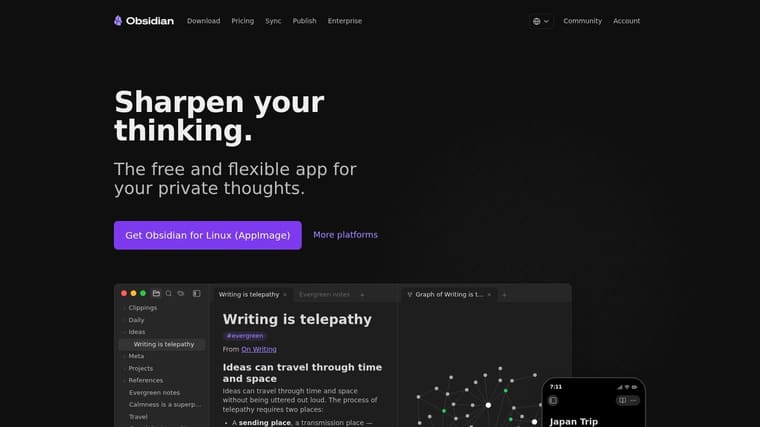
Obsidian is for people who care about owning their notes. Not just writing them, owning them. Everything lives in local markdown files, which means your knowledge base isn’t trapped inside a proprietary database.
That one decision shapes the whole experience. Obsidian feels more like building a personal system than using a note app.
Best for serious notes and knowledge
Obsidian is excellent for researchers, students, writers, developers, and anyone building long-term knowledge. The graph view and backlinks get attention, but its primary benefit is simpler: your notes can grow without becoming unmanageable if you use links well.
The plugin ecosystem is also one of its best strengths. You can keep it plain and fast, or turn it into a customized workspace with kanban boards, spaced repetition, metadata views, and writing aids.
What doesn’t it do as well? Real-time team collaboration. If your notes are heavily shared and constantly edited by multiple people, Notion is usually the easier answer.
Obsidian works best when your notes are assets you want to keep for years, not just documents you need this week.
If you want a more intentional note system, this guide on design your ideal note-taking workflow complements Obsidian well.
- Best use case: Personal knowledge management and long-form thinking.
- Main trade-off: More setup and less natural collaboration.
- Why it lasts: Local files reduce lock-in and keep your notes portable.
10. Rectangle and Rectangle Pro
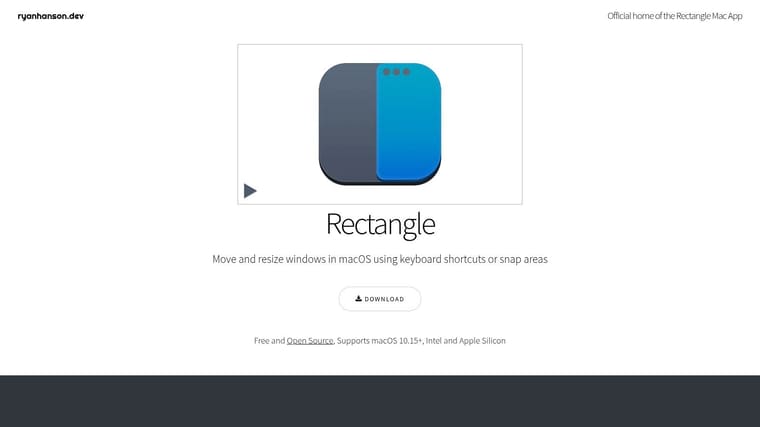
Rectangle is the kind of app that seems minor until you spend a week without it. Then you realize how much time you waste nudging windows around.
For many Mac users, window management is a daily paper cut. Rectangle fixes it with almost no ceremony.
Small app, daily payoff
The free version handles the essentials well. Snap windows into halves, thirds, corners, and other common layouts with keyboard shortcuts. If you use a large external display, dual monitors, or a portrait screen, that matters immediately.
Rectangle Pro expands the concept with more advanced layouts, gestures, and custom sizing. Power users will appreciate it. Casual users probably won’t need it.
This is one of the easiest recommendations on the list because the cost of trying it is low and the benefit is obvious quickly.
- Install it if: You work with multiple windows open most of the day.
- Stick with free if: Simple keyboard snapping covers your needs.
- Upgrade if: You want finer layout control or more advanced gestures.
Rectangle won’t change your life. It will make your Mac less annoying. That’s often enough.
Top 10 Mac Productivity Apps Comparison
| Product | Core features | UX / Quality (★) | Price / Value (💰) | Target audience (👥) | Unique selling points (✨) |
|---|---|---|---|---|---|
| Pretty Progress 🏆 | Countdowns, progress bars & widgets across iPhone/iPad/Apple Watch/Mac/Android; built‑in date & fasting calculators | ★★★★★, polished, zero‑ads | 💰 Free with optional PRO styling upgrade | 👥 Goal‑setters, habit builders, students, professionals | ✨ Deep visual control (themes, gradients, bar shapes), always‑on glanceable widgets |
| Things 3 | Task manager: Today/Upcoming, Projects, Areas, native Apple integrations | ★★★★★, fluid, fast, native | 💰 One‑time / per platform purchases; 15‑day Mac trial | 👥 Apple‑ecosystem users who value speed & clarity | ✨ Keyboard‑centric UX, native Apple polish |
| Todoist | Cross‑platform tasks, labels/filters, boards & calendar, team workspaces | ★★★★☆, reliable & ubiquitous | 💰 Free tier; paid tiers for advanced features | 👥 Individuals & small teams needing cross‑platform access | ✨ Powerful filters, 90+ integrations, team workspaces |
| Notion | Docs, databases, views, templates, publishing & AI features | ★★★★☆, highly flexible, steeper setup | 💰 Free core; paid plans & AI/credit add‑ons | 👥 Teams, students, power users building custom workspaces | ✨ LEGO‑style databases + web publishing & Custom Agents |
| Fantastical (Flexibits) | Calendar + natural‑language events, scheduling links, templates | ★★★★☆, mature, detail‑oriented | 💰 Subscription (Flexibits Premium) | 👥 Calendar‑centric professionals & teams | ✨ Natural‑language input, integrated scheduling & Cardhop |
| Raycast | Mac launcher: search, commands, snippets, extensions, optional AI | ★★★★☆, very fast, extensible | 💰 Free core; Pro/add‑ons for cloud & AI | 👥 Keyboard‑driven users & developers | ✨ Large extension store, shareable commands, AI add‑ons |
| Alfred 5 (Powerpack) | Launcher + workflows, clipboard, snippets, file actions | ★★★★☆, powerful & privacy‑friendly | 💰 One‑time Powerpack license (paid) | 👥 Mac power users wanting automations | ✨ Workflow builder, robust community workflows |
| Keyboard Maestro | Visual macro editor: triggers, variables, loops, UI automation | ★★★★☆, extremely capable, functional UI | 💰 One‑time license (per user) | 👥 Power users automating repetitive multi‑step tasks | ✨ Advanced macro orchestration and many trigger types |
| Obsidian | Local‑first markdown notes, plugins, graph view, optional sync | ★★★★☆, flexible, privacy‑focused | 💰 Free core; paid add‑ons (Sync, Publish) | 👥 Researchers, privacy‑minded note takers, PKM users | ✨ Plugin ecosystem, local file ownership, graph/canvas |
| Rectangle (and Pro) | Window snapping & keyboard shortcuts; Pro adds gestures/custom sizes | ★★★★☆, lightweight & reliable | 💰 Free core; Pro upgrade for advanced features | 👥 macOS users who want efficient window management | ✨ Fast, minimal snapping with optional Pro gestures |
If you want the fastest decision aid, sort the list by bottleneck rather than by rank. For personal task management on Mac, Things 3 is still the cleanest pick if you live inside Apple devices, while Todoist is the better choice when your MacBook workflow has to sync cleanly with web and shared projects. For scheduling and calendar-heavy work, Fantastical is the strongest option here because it handles booking pressure, time zones, and event management better than task-first tools.
For notes and knowledge, Notion is better when you need a shared workspace and Obsidian is better when you want durable, local-first notes. For automation, Raycast is the easiest modern speed layer to recommend, Alfred remains excellent for custom workflows, and Keyboard Maestro is the answer once your repeated work turns into true multi-step automation. For visual planning, Pretty Progress is the standout because it solves visibility rather than storage, which is why it belongs in a different lane from traditional organizer apps on macOS.
That split is why the best mac productivity apps 2026 conversation is less about one winner and more about building the smallest stack that covers your real constraints. The picks that feel most current for 2026 are the ones that reduce context switching and stay intentionally narrow, a pattern that also shows up in broader Mac app roundups highlighting tools like Raycast, Alfred, clipboard managers, and focused utilities over giant do-everything installs https://woorkup.com/best-mac-apps/. If your work also involves drafting and editing, this comparison of writing tools from RewriteBar is a useful companion to the picks above.
Your workflow stacks
The best productivity apps for mac aren’t best in isolation. They’re best when the stack matches the kind of work you do. Here are three combinations I’d build for common use cases.
For students
Students usually need deadline visibility, lightweight planning, and a place to store class notes that won’t collapse mid-semester.
A strong stack is Pretty Progress, Todoist, and Obsidian. Pretty Progress keeps exam dates, assignment deadlines, or semester milestones visible. Todoist handles actionable tasks across laptop and phone. Obsidian becomes the long-term note base for lectures, reading notes, and linked ideas.
Why this stack works: it separates planning from remembering. That matters for a MacBook daily planning and organizing setup because students often do not fail from lack of tools; they fail when dates disappear and notes live everywhere. Pretty Progress keeps the deadline visible, Todoist holds what has to be done this week, and Obsidian keeps the academic material itself stable.
A concrete example workflow looks like this: capture a new assignment in Todoist during class, store lecture notes and source summaries in Obsidian that evening, and keep the final due date pinned in Pretty Progress as a widget on your Mac desktop and phone. That is a much more sustainable system than trying to force one app to be task list, planner, and note archive all at once.
- Pretty Progress: Surface exam countdowns and project due dates on your devices.
- Todoist: Track assignments, errands, and recurring study tasks.
- Obsidian: Keep permanent notes, reading summaries, and research material in your own files.
For professionals
Professionals often need scheduling, project coordination, and fast system control more than they need a giant all-in-one platform.
A practical stack is Fantastical, Notion, and Raycast. Fantastical runs the calendar. Notion holds docs, project status, and shared information. Raycast reduces the friction between all the tools you already use.
Why this stack works: it puts scheduling at the center instead of treating the calendar like an afterthought. For consultants, managers, operators, and client-facing teams, the day is often defined by booking pressure first and task lists second. Fantastical handles availability, time-zone friction, and meeting logistics; Notion stores the surrounding context; Raycast shortens the jump between calls, notes, and actions.
A concrete example workflow: a client books through Fantastical, the prep doc and previous notes live in Notion, and Raycast opens the meeting link, project page, and follow-up template without tab hunting. On busy MacBook workdays, that stack feels far calmer than stuffing tasks, docs, and scheduling into one overbuilt workspace.
This is a good fit for consultants, managers, client service teams, and operators who live in meetings but still need a clean execution layer.
For users with ADHD
This group often needs visibility, less friction, and fewer hidden systems. The wrong app stack creates more guilt than progress.
Pretty Progress, Things 3, and Rectangle make a strong combination. Pretty Progress keeps one important goal visible without requiring you to open anything. Things 3 keeps task management calm and limited. Rectangle reduces window chaos so the screen itself feels less scattered.
Why this stack works: visual planners and low-friction task apps often outperform heavier systems when the problem is not intelligence or ambition but re-entry cost. The moment a setup asks too much to review, sort, tag, or maintain, it becomes easier to avoid. This stack keeps the number of decisions low while still giving structure.
A concrete example workflow: set one visible countdown in Pretty Progress for the week’s main target, keep only today’s must-do tasks in Things 3, and use Rectangle shortcuts to reset the screen when too many windows pile up. I’ve found this stack the easiest to sustain in real use because it asks for less maintenance than the more elaborate systems productivity enthusiasts usually recommend.
The broader design gap around visual motivation matters here. Aesthetic, glanceable tools can be more sustainable than text-heavy systems for some users, which is one reason Pretty Progress stands out so clearly in this category. For more ADHD-specific app ideas, this roundup of procrastination-busting apps for founders is a useful complement.
Frequently Asked Questions
What is the best productivity app for MacBook in 2026?
There isn’t one universal winner because the best choice depends on your bottleneck. Things 3 is the best pure task manager here for Apple-first personal planning, Fantastical is the strongest pick for calendar-heavy scheduling, Raycast is the fastest way to reduce app-switching on macOS, and Pretty Progress is the best fit when you need visible daily planning instead of another list.
What’s the difference between a scheduling app, a calendar app, and a daily planner on Mac?
A scheduling app helps people book time with you and resolve availability. A calendar app manages events, meetings, and time blocks you already have. A daily planner helps you decide what deserves attention today. Fantastical overlaps the first two categories well, while Pretty Progress fits the visual planner role better and Things 3 or Todoist fit the task-planning role.
Do Mac users really need a separate daily planner app?
Not always. If Apple Calendar and Reminders already keep your day clear, you may not need anything else. A separate daily planner helps when priorities keep slipping out of view even though you technically captured them. That is where a visual app like Pretty Progress can add more value than another traditional organizer.
Which is better for Mac users: Things 3, Todoist, or Fantastical?
Choose Things 3 if you want a calm personal task manager that feels native on Apple devices. Choose Todoist if you need cross-platform access, shared lists, or easier collaboration. Choose Fantastical if meetings, scheduling links, and calendar pressure dominate your week. They solve different problems, so the right answer usually depends on whether your constraint is tasks, collaboration, or time.
Are Apple’s built-in productivity apps enough on macOS?
For many people, yes. Apple Calendar, Reminders, Notes, and Spotlight cover a surprising amount if your workflow is simple. Extra apps become worth it when you feel recurring friction: scheduling complexity, weak deadline visibility, messy project context, or too much app switching. The goal is not replacing Apple’s defaults for sport; it is fixing the exact point where they stop being enough.
What are the best organizer apps for students and professionals on MacBook?
For students, the strongest stack here is Pretty Progress, Todoist, and Obsidian because it covers visible deadlines, task capture, and long-term notes. For professionals, Fantastical, Notion, and Raycast make more sense because they handle booking pressure, shared project context, and speed across tools. If you prefer a smaller app footprint, even two well-chosen tools are often enough.
Your Next Step Start Small, Win Big
You don’t need all ten of these apps to be productive. In fact, downloading them all tonight would probably make your Mac feel busier, not better. A smarter move is smaller. Look at your current workday and name the single point where it breaks down most often.
If the problem is that deadlines vanish from your attention, use Pretty Progress. If your tasks are scattered across notes, messages, and memory, start with Things 3 or Todoist. If your problem is information sprawl, Notion or Obsidian makes more sense. If your day is full of repetitive clicks and menu hunting, Raycast, Alfred, or Keyboard Maestro will pay off faster than another planner ever could.
That’s the part many people skip. They shop for ideal systems when they really need a targeted fix. A good productivity stack grows one solved problem at a time. It doesn’t arrive fully formed.
I’d also be honest about your own style. Some people need beauty and visibility to stay engaged. Some need hard structure. Some need cross-platform access because work happens everywhere. Some need native Mac speed because friction kills consistency. Pick tools that match your behavior, not tools that make you feel like you should behave differently.
There’s also no prize for complexity. In practice, the best setups are often boring in a good way. One task app you trust. One calendar you check. One note system you can find things in. One launcher or automation layer that saves steps. Recent 2026 Mac app roundups point in the same direction: users are curating smaller, more intentional stacks built around focus, organization, writing, and fewer interruptions rather than installing dozens of overlapping utilities https://olhanovitska.substack.com/p/best-mac-apps-to-use-this-year.
Start with the app that solves today’s frustration. Use it long enough for it to become normal. Then decide if you need a second layer. That’s how productive Mac setups get built in real life. Slowly, intentionally, and with a lot less app collecting than the internet usually recommends.
If you want one simple place to start, try Pretty Progress. It’s especially good when your issue isn’t planning, but remembering what matters once the day gets noisy. Put your deadline, habit, or milestone where you’ll see it on your Mac, iPhone, iPad, or Apple Watch, and let the visual reminder do its job.





