

July 29, 2026
How to keep track of multiple projects
Use a simple 6-stage system for how to keep track of multiple projects, with dashboard, Excel, and weekly review tips that hold up.
When several projects are moving at once, the problem usually is not effort. It is fragmentation. Dates live in one app, notes in another, and status updates inside your inbox. I find that a more advanced tool is not usually needed first; teams need one reliable place that shows what each project means, where it stands, and what happens next.
A workable system does three things well: it captures every project in one place, shows progress visually, and gives you a short review routine so nothing slips. That combination matters because cross-project tracking is not just a longer to-do list. Modern guidance treats it as a portfolio view that connects milestones, dependencies, owners, and timing across several initiatives at once, as explained in MeisterTask’s overview of multi-project tracking.
Table of Contents
- Build Your Single Source of Truth
- Create a Visual Progress Tracking Dashboard
- Establish Your Weekly and Daily Routines
- Sample Workflows for Students and Professionals
- Avoid Common Pitfalls and Stay Consistent
Build Your Single Source of Truth
A long master list feels responsible because everything is technically captured. In practice, it collapses planning, waiting, active execution, and finished work into one flat pile. That is why it feels busy without being useful.
The better model is a single command center that follows each project from idea to archive. Recent guidance on managing several projects points in the same direction: one shared plan, one owner per project, visible priorities, mapped capacity, and a fixed weekly review rhythm all make tracking more reliable than constant manual checking, as outlined by Productive’s multi-project management guide.
Why a master list stops working
The failure point is not that lists are bad. It is that they do not explain state.
A list item cannot easily tell you whether a project is just an idea, already scoped, waiting on approval, blocked by missing input, or done except for final sign-off. Once you are managing more than a few moving pieces, that missing context becomes expensive. You read the same line three times and still have to remember the story behind it.
A command center fixes that by giving every project the same home and the same status language. If you want a broader operational view of this setup, Tooling Studio has a useful breakdown on how to manage multiple projects with a unified workflow, there is also a practical explanation over at TimeTackle on handling several projects without losing visibility, and Monday.com’s guide to managing multiple projects adds another practical take on keeping work visible across moving parts.
Practical rule: If you have to check more than two places to understand one project’s status, you do not have a system yet.
What your command center needs
Your command center can live in Apple Notes, Notion, Airtable, Trello, ClickUp, Jira, or a plain table. I would start simpler than you think. For solo work, the structure matters more than the brand name on the software.
Use one record per project and move that single record through six stages:
- Idea, worth capturing, not yet approved or scheduled
- Planned, defined outcome, milestones, owner, and target date are set
- Active, work is underway and has a current next action
- Waiting/Blocked, progress depends on approval, input, budget, or another task
- Done, the agreed finish line has been reached
- Archived, complete but stored for reference, reporting, or reuse
The important part is that the project stays in one record the whole time. You are not copying it into a new list when it becomes active, then another list when it is blocked, then another list when it is complete. Duplicate lists are where systems break.
At capture time, enter only what helps you decide whether the project deserves space:
- Project name
- Short objective
- Owner
- Source or requestor
- Rough due date, if one exists
- Current stage: Idea
During planning, add the fields that turn the project into something you can run:
- Definition of done
- Key milestones
- Final deadline
- Priority level
- Next action
- Main risk or blocker
- Links to relevant files or notes
Here is what the status changes should mean in plain language:
- Idea → Planned: you decided the project is real and worth scheduling
- Planned → Active: the first concrete task has started
- Active → Waiting/Blocked: progress cannot continue until something external changes
- Waiting/Blocked → Active: the blocker has been cleared and the next action is known
- Active → Done: the agreed outcome is complete, not just mostly finished
- Done → Archived: moved out of the active view, but still searchable later
A compact project record might look like this from start to finish:
| Field | Example |
|---|---|
| Project name | Q2 client onboarding guide |
| Objective | Publish a clear onboarding document for new clients |
| Owner | Maya |
| Stage at capture | Idea |
| Definition of done | PDF approved and shared with all new clients |
| Key milestones | Outline approved, draft complete, design review, final sign-off |
| Deadline | May 28 |
| Priority | High |
| Next action when planned | Draft section headings |
| Status change | Active after drafting begins |
| Waiting/Blocked note | Waiting on legal review from May 16 to May 19 |
| Next action after unblock | Apply legal edits and export final PDF |
| Done note | Approved May 26 |
| Archive note | Store final PDF and review notes in client ops folder |
That example is intentionally boring. Good tracking systems are boring in the best way: they remove guesswork.
A good command center should answer three questions in under a minute:
- What projects are active right now
- Which one needs attention first
- What is the next step for each one
If your current setup cannot answer those quickly, simplify it.
A simple notes app or table is enough when you are working mostly solo, have fewer dependencies, and do not need reporting beyond dates and next actions. Move up to project management software when several people need the same live view, handoffs matter, dependencies change often, or leadership expects dashboards and status reporting. In my experience, teams adopt heavy software too early and then avoid updating it; solo operators do the opposite and keep outgrowing a notes page long after it stopped helping.
One practical option for people who want deadlines visible outside a project board is using a visual companion alongside the command center. A tool like Pretty Progress can make major project dates more visible on the devices you already check all day.
Prioritize What Matters Most Right Now
Once all your projects sit in one place, the harder question appears. What deserves your attention today?
The common response to that question is emotional. People pick the loudest request, the nearest deadline, or the task that feels easiest to start. That usually creates reactive work and neglected important projects.
Use Eisenhower for project-level decisions
The Eisenhower Matrix works best when you feel pulled in too many directions at once. Use it at the project level, not the task level, to decide where your energy belongs.
Split active projects into four groups:
- Urgent and important: These need action now. A client deliverable due soon, a research paper close to submission, a launch with fixed timing.
- Important but not urgent: These are the projects that create future stress if you ignore them. Planning, preparation, relationship-building, deep work.
- Urgent but less important: These often involve admin, quick replies, or coordination work that can be delegated or contained.
- Neither urgent nor important: These are the projects or requests that should pause, shrink, or disappear.
This method helps when your problem is overload across several initiatives.
If everything feels equally urgent, your categories are too vague. Tighten the finish lines and real deadlines until the ranking becomes obvious.
For projects with dependencies, the ranking sometimes changes because one late task can hold up everything else. If you need a simple refresher on sequence and bottlenecks, this guide to Critical Path Analysis is useful.
Use MoSCoW inside active projects
The MoSCoW method works one layer down. Once you have chosen the right project, use it to decide which tasks inside that project are essential.
Sort tasks into:
- Must have
Work without which the project fails, misses its promise, or cannot ship. - Should have
Important work that improves quality or reduces risk, but is not necessary for completion. - Could have
Helpful extras. Nice additions. Good only if time remains. - Won’t have for now
Items you are intentionally excluding so the project can move.
People often get stuck. They say a project is top priority, then fill the week with “could have” work because it feels productive. MoSCoW prevents that drift.
Prioritization frameworks at a glance
| Framework | Best For | Key Question It Answers |
|---|---|---|
| Eisenhower Matrix | Choosing between projects | What deserves attention first |
| MoSCoW method | Choosing tasks within one project | What must be done for this project to succeed |
A practical way to combine them is simple:
- Use Eisenhower once a week to rank projects.
- Use MoSCoW when planning work inside the top one or two projects.
- Ignore low-value tasks until the essentials are moving.
That last step matters. Keeping several projects moving is not about touching everything every day. It is about keeping the right work moving without losing sight of the rest.
Create a Visual Progress Tracking Dashboard
A project can be well planned and still feel invisible. That is why many people abandon their system. They log tasks, update statuses, and then forget to look at any of it.
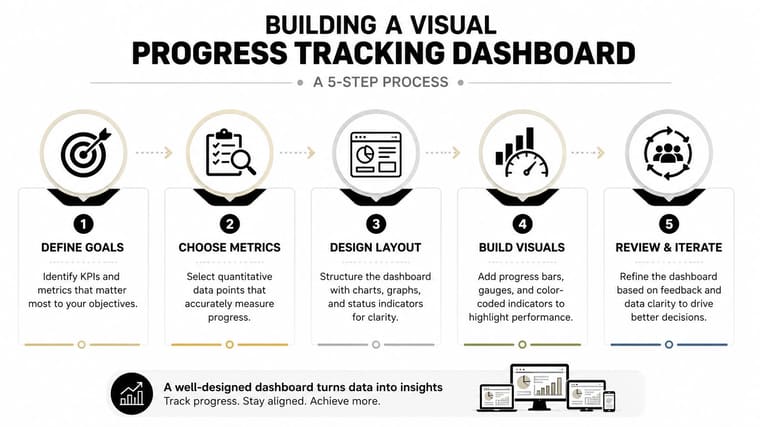
Visual tracking works because it makes progress and risk easier to notice. A dashboard does not need to be fancy. It just needs to help you answer: what is moving, what is slipping, and what needs intervention.
Why visual tracking changes behavior
Dashboards are useful because they cut the delay between noticing a problem and acting on it. A practical multi-project dashboard can track fields such as percentage complete, estimated hours, costs, owner, scheduled start, scheduled finish, status, priority, and deadline. Once several projects are live, visibility becomes a data problem, not a memory problem.
For personal project tracking, the same principle applies in a simpler way. If the deadline lives inside a tool you never open, it will not shape your day. If the most important dates and statuses are visible on a board, spreadsheet, or phone widget, you course-correct earlier. I have seen simple visual systems outperform full PM suites when the issue was attention, not reporting.
How to set up a glanceable dashboard
There are four practical ways to track several projects visually. Pick the one that matches your work, not the one that looks most impressive.
1. Spreadsheet view
Best for solo work, small teams, and people who want one sortable table of projects. A spreadsheet is fast to build and easy to filter by status, owner, deadline, or priority. It breaks when dependencies, approvals, and collaboration get complicated, because version control and manual updates become a burden.
2. Kanban board
Best for ongoing execution where projects or tasks move through clear stages like Planned, Active, Waiting, and Done. A board makes stalled work obvious. It starts to break when leadership needs date-driven reporting or when you are managing long projects with many milestones and cross-team dependencies.
3. Timeline or Gantt view
Best for deadline-heavy work with dependencies, sequencing, and handoffs. You can see if one delayed task affects another project or team. The downside is maintenance. For simpler work, a timeline can become more overhead than help.
4. Dashboard view
Best when you need a portfolio snapshot across several projects. Think status, owner, deadline, risk, and milestone health in one place. Dashboards are useful for both individuals and teams, but they depend on clean underlying data. If nobody updates the source records, the dashboard becomes decoration.
A simple choice guide:
- Solo creator, student, or freelancer: start with a spreadsheet or lightweight kanban board
- Small team with frequent handoffs: use a shared kanban board plus a dashboard summary
- Projects with dependencies, budget reporting, or resource planning: use timeline-based software and add a portfolio dashboard
If you need to choose quickly, ask one question: do you mainly need to see stages, dates, or portfolio health? That answer usually points to board, timeline, or dashboard.
For a practical setup, start with your highest-level deadlines, not every task. Your visual layer should show the handful of projects that need ongoing awareness.
Use this setup:
- Create one tracker per major project
Add a countdown or progress bar for each final deadline. Use project names you can scan quickly. - Choose distinct visual identities
Assign each project its own color or style. Work project, study project, health goal, and side project should not all look the same. - Keep the visible set small
Show only active projects on your main screen. Archive or hide anything paused or complete. - Match widget size to importance
Larger widget for the one project that carries the most risk if ignored. Smaller widgets for supporting deadlines. - Use status labels consistently
If your command center says “Blocked,” your visual dashboard should reflect that reality. Do not let your tools tell different stories.
A practical walkthrough for iPhone setup is this guide on adding a countdown widget on your iPhone.
After setup, remove one layer of friction. Put the widget or dashboard shortcut on the first screen you see in the morning, not buried where it cannot affect your behavior.
Here’s a video walkthrough that can help you think about layout and visibility choices:
If you prefer Excel, keep one row per project rather than one row per task at first. Use columns for Project Name, Owner, Status, Priority, Deadline, % Complete, Next Action, Blocker, and Last Updated. Then add conditional formatting so overdue dates turn red, waiting items turn amber, and done projects turn green. Excel is great when you want control and simplicity; it is weak when several people need live collaboration, comments, file attachments, and dependency tracking.
Microsoft Project is useful when your work has true scheduling complexity: dependencies, resource allocation, baselines, and detailed timelines across teams. It is overkill for most students, freelancers, and small internal projects. My rule is simple: if your biggest problem is forgetting what is next, Microsoft Project is too much; if your biggest problem is coordinating dates and dependencies across many contributors, it starts to make sense.
What to show on your watch and phone
Your phone and your watch should not show the same thing.
Use your Home Screen for a broad view. That works well for three to five active projects where you want a quick portfolio scan.
Use your Lock Screen for time sensitivity. A smaller set of deadlines is better there, especially if you access your phone often throughout the day.
Use your Apple Watch for one thing only. The project most likely to drift if you stop seeing it.
A glanceable system works when it answers one question fast: what needs movement today?
The goal is not decoration. It is persistent visibility without opening a planner, dashboard, or laptop. That makes the system lighter than full PM software and more actionable than a static spreadsheet.
Establish Your Weekly and Daily Routines
A tracking system only works if you reset it before it goes stale. Most systems fail here. The tool is fine. The routine disappears.
You do not need a long review habit. You need a short one that still works during a busy week.
Run a weekly review
Pick one recurring slot. Friday afternoon works for some people. Sunday evening works for others. The exact time matters less than keeping it fixed.
During this review, run a two-minute check on every active project. Compare four things in the same order each time:
- Planned milestone, what should have happened by now
- Current status, active, waiting, blocked, done, or slipping
- Next action, the next concrete step
- Blocker, what could stop progress this week
That quick scan is enough to spot most problems early. I like it because it prevents the vague feeling that a project is “kind of behind” and replaces it with something specific.
Then assign a simple health score:
- On track (green): milestone is realistic, next action is clear, no serious blocker
- At risk (amber): milestone may slip, blocker exists, or next action is unclear
- Off track (red): milestone already missed, deadline unrealistic, or progress is blocked without a recovery plan
A practical weekly review can look like this:
| Review step | What you’re checking | What should happen after |
|---|---|---|
| Planned vs actual | Did the milestone move as expected | Clear project health |
| Status check | Is this active, waiting, blocked, or done | Honest visibility |
| Next action rewrite | Is the next step obvious | Easier daily starts |
| Blocker scan | What could stop progress this week | Early intervention |
| Priority reset | Does this still deserve focus | Better allocation of attention |
When a project slips, do not just mark it red and hope for a better week. Make one of three decisions:
- Reduce scope if the deadline is fixed but some work is optional
- Move the deadline if the full scope still matters and stakeholders can accept a change
- Pause another project if this one must recover and your capacity is already full
That decision point is what turns a review into an operating system instead of a ritual.
| Review step | What you’re checking | What should happen after |
|---|---|---|
| Status update | Is this moving, waiting, or stuck | Clear project health |
| Deadline scan | Is the timing still realistic | Adjust dates or scope |
| Next action rewrite | Is the next step obvious | Easier daily starts |
| Priority reset | Does this still deserve focus | Better allocation of attention |
Start each day with a focus reset
The daily version should take only a few minutes.
Before messages, before email, before low-value admin, ask:
- Which project needs movement today
- What are the one to three tasks that would count as real progress
- What can wait without causing damage
Then write those tasks somewhere visible. Not in your head.
Decision filter: If a task is urgent but does not move a live project forward, contain it. Do not let it consume your best working hours.
This daily reset matters because multi-project work creates drift. You can spend a full day responding and still avoid meaningful work. A short morning check protects against that.
If your week gets messy, do not rebuild the entire system midweek. Return to the daily focus list, update the next visible actions, and let the weekly review handle the bigger repair.
Sample Workflows for Students and Professionals
Abstract advice sounds useful until you are trying to apply it on a real Tuesday. Here is what the system looks like when deadlines collide and decisions have to be made.
A student managing exams and a paper
A university student might be balancing three exams, a research paper, and a part-time job. The mistake is treating all of that as one giant school blob.
A better command center would separate each item into its own project:
- Biology exam
- Economics exam
- History exam
- Research paper
- Work schedule coordination
Each gets a deadline, a definition of done, one next action, and one status. For the research paper, “done” might mean submitted to the portal, not merely drafted. For each exam, “done” might mean final review packet completed and practice questions finished.
Now imagine the week goes badly. The paper draft is due Thursday, but on Tuesday the student learns the biology exam has more material than expected. In the weekly review, the paper stays green because the outline and source notes are already complete, while biology moves to amber because the planned milestone is behind. The student decides the biology project becomes the top anchor project for the next two days, history moves to waiting until exam topics are confirmed, and the economics outline is left planned but not active.
A practical setup might look like this midweek:
| Project | Current status | Next action |
|---|---|---|
| Biology exam | At risk | Review chapter summaries and complete practice quiz |
| Economics exam | Planned | Build study outline Friday |
| History exam | Waiting | Confirm exam topics with professor |
| Research paper | On track | Draft methodology section |
| Work schedule coordination | Active | Check next week’s shifts |
The visual dashboard stays in sync by showing only the active and at-risk projects: biology, research paper, and work schedule. That keeps the student from staring at five equal-looking deadlines when only two need immediate attention.
| Project | Current status | Next action |
|---|---|---|
| Biology exam | In progress | Review chapter summaries |
| Economics exam | Not started | Build study outline |
| History exam | Waiting | Confirm exam topics |
| Research paper | In progress | Draft methodology section |
| Work schedule coordination | Active | Check next week’s shifts |
A freelance professional juggling clients
A freelance designer or consultant often has a different problem. Their projects are moving, but client requests keep reshaping the day.
Take a professional handling:
- A website design for Client A
- A branding package for Client B
- Ongoing marketing support for Client C
The command center gives each client project its own outcome, milestones, and next action. The key difference is scope control and handoffs.
Here is a realistic week: on Monday, Client A delays homepage feedback, so the website project moves from Active to Waiting. That immediately frees capacity. Instead of keeping it mentally active, the freelancer marks the blocker, updates the dashboard, and shifts Tuesday’s deep-work block to Client B’s branding package. On Wednesday, Client C asks for a quick campaign change, but because the dashboard shows Client B is the only amber project with a deadline inside the week, Client C’s request is contained to a short admin block rather than taking over the day.
Inside the website design project, the freelancer can use MoSCoW to separate what the client needs from what would be nice to add. That prevents “one more quick change” from swallowing time reserved for other work.
A realistic rhythm looks like this:
- Monday: Review all client timelines and identify anything blocked by feedback
- Midweek: Deep work block for the most complex deliverable
- Friday: Send updates, confirm approvals, clean up loose ends
If a teammate or contractor is involved, the handoff point should be visible in the same project record. For example, “Waiting on copywriter draft” or “Ready for developer handoff” is more useful than a generic “In progress.” Teams do better when the project status explains who has the baton.
Good multi-project tracking does not remove hard choices. It makes the hard choices visible early enough to handle calmly.
Avoid Common Pitfalls and Stay Consistent
People often don’t fail because they chose the wrong app. They fail because the system becomes too heavy, too neglected, or too idealistic.
Three mistakes that break the system
The first mistake is overbuilding. Too many tags, too many custom statuses, too many views. If updating the system feels like admin, you’ll stop using it.
The second is ignoring small projects. A project that seems minor today can become tomorrow’s emergency because nobody looked at it for two weeks. Keep even small commitments visible.
The third is tracking without deciding. Some people update dashboards faithfully but never reduce the list, defer work, or cut scope. Visibility without decisions still creates overload.
A simpler rule set works better:
- Keep fields minimal: If you never use a field to make decisions, delete it.
- Review paused projects: Hidden work has a habit of coming back loud.
- Protect next actions: Every active project needs a visible next step.
- Reset fast after disruptions: Don’t wait for a perfect Monday.
How to recover after a messy week
If you’ve fallen behind, don’t do a full life audit. Open your command center and ask:
- Which deadlines are closest
- Which projects are blocked
- Which single next actions would restart momentum
Then rebuild from there.
Consistency comes more from recovery than perfection. The best systems are forgiving. If you want a practical reset mindset, this piece on how to stay consistent with goals is worth reading.
The point is simple. The best way to keep track of multiple projects is to make the system easy to see, easy to update, and hard to ignore.
Frequently Asked Questions
How do I keep track of all my projects?
Use one command center with one record per project, clear status labels, a next action, and a weekly review. The simplest setup is often a table with project name, deadline, status, priority, next action, and blocker. If you can see every active project in one view and review it weekly, you are already ahead of most scattered systems.
How to track progress of multiple projects in Excel?
Create one spreadsheet row per project and include columns for owner, status, priority, deadline, percent complete, next action, blocker, and last updated. Then use filters and conditional formatting so overdue items, blocked work, and high-priority projects stand out immediately. Excel works best when one person owns the file or when collaboration needs are light.
Can you track multiple projects in Microsoft Project?
Yes, and it is strongest when you need dependencies, scheduling logic, baselines, and resource planning across teams. It is less useful for simple personal planning because it takes more setup and discipline to maintain. If your projects are mostly independent and you only need visibility, a lighter board or spreadsheet is usually enough.
What is the 80/20 rule for project managers?
It is the idea that a small share of activities often drives most results. In practice, that means identifying the few milestones, decisions, and deliverables that move a project forward instead of treating every task as equally important. It is a useful lens for weekly reviews because it helps you focus on the handful of actions that protect deadlines.
What is the simplest system for keeping several projects in one place?
A single table or kanban board is the easiest starting point. Use only six fields at first: project name, status, deadline, priority, next action, and blocker. I would choose that before a complex app unless you already know you need dependencies, team permissions, or advanced reporting.
If you want a more glanceable way to keep important deadlines in view, Pretty Progress can help by turning project dates and milestones into visual widgets on your devices, so your priorities stay visible without needing to open a full planning tool.





