

April 23, 2026
Unleash Focus: Best Productivity Apps for ADHD
Discover the 10 best productivity apps for ADHD, curated for focus, task management, & visual reminders. Find your perfect tool today!
You’ve downloaded a dozen to-do list apps. You’ve tried the minimalist one, the gamified one, the calendar one, and the one that promised to fix your whole life in a weekend. For a few days, it works. Then the reminders blur into background noise, the overdue tasks pile up, and you end up back on sticky notes, half-finished lists, and the exhausting feeling that you should be able to do this better.
The problem usually isn’t effort. It’s fit.
Most productivity tools assume you’ll remember to check them, estimate time accurately, and calmly move from one task to the next. ADHD rarely works like that. Time can feel abstract. Starting can feel harder than the task itself. A perfectly good plan can vanish the second something more stimulating appears.
That’s why the best productivity apps for adhd aren’t all trying to do the same job. Some are best for time blindness. Some are better for task capture. Some help when distraction is the main issue. Others give you visual cues that stay in your field of view long enough to matter.
This guide sorts apps by the ADHD problem they solve, not by a generic “top 10” ranking. You’ll get trade-offs, who each app is good for, and one practical setup tip for each so you don’t just download something and hope for the best.
If you’ve been looking for a system that works with your brain instead of arguing with it, start with the challenge that trips you up most often. That’s usually where the right app finally clicks.
Table of Contents
- 1. Quick Comparison Find Your Perfect ADHD App
- 2. Pretty Progress
- 3. Setup Tip Using Pretty Progress Widgets for ADHD
- 4. Tiimo
- 5. Structured
- 6. TickTick
- 7. Todoist
- 8. Sunsama
- 9. Forest
- 10. Opal
- 11. Habitica
- 12. Brain.fm
- Top 12 ADHD Productivity Apps Comparison
- Build Your Personal ADHD-Friendly Productivity System
1. Quick Comparison Find Your Perfect ADHD App
If your biggest problem changes week to week, that’s normal. But when you’re choosing among the best productivity apps for adhd, it helps to start with the one pain point that causes the most daily friction.
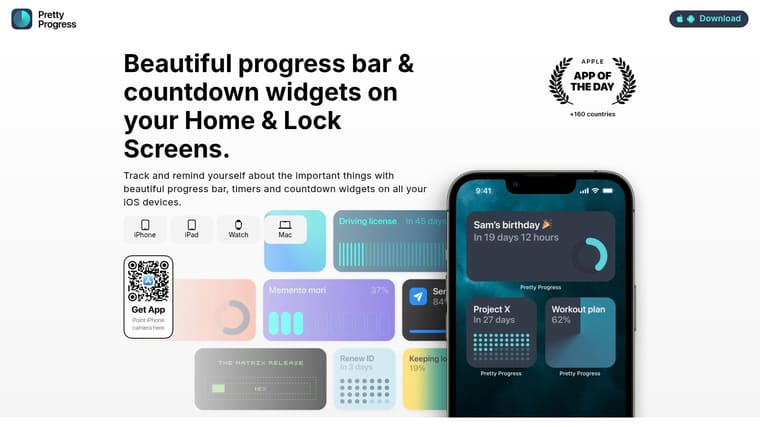
Pretty Progress is the strongest fit when “out of sight, out of mind” is the issue. Tiimo and Structured are better if your day falls apart because time never feels real until it’s already gone. TickTick and Todoist help most when thoughts disappear unless you capture them immediately. Forest and Opal are stronger when distraction, not planning, is the main problem.
A lot of people do better with a pair, not a single app. A planner plus a visual cue. A task list plus a blocker. A focus timer plus something that shows deadlines on your home screen.
You do not need the most powerful app. You need the app you’ll still open after the novelty wears off.
A few quick starting matches:
- You forget deadlines unless you see them constantly: Choose Pretty Progress.
- You need a visual day plan, not a list: Try Tiimo or Structured.
- You need one app that combines several tools: Start with TickTick.
- You need frictionless task capture: Go with Todoist.
- You overcommit every day: Use Sunsama.
- You keep reaching for distracting apps: Add Opal.
- You need a fun reason to start a focus session: Test Forest.
- You stay consistent when habits feel like a game: Use Habitica.
- You focus better with audio support: Try Brain.fm.
If you’re a student, this roundup of study apps for students with ADHD is also worth browsing alongside these picks.
2. Pretty Progress
Pretty Progress solves a specific ADHD problem that many task apps barely touch. You can make a plan in a to-do app, but if you don’t see it at the right moment, it may as well not exist. Pretty Progress puts deadlines, countdowns, and progress bars on your phone, tablet, watch, and computer so the reminder lives where your attention already goes.
That matters more than people think. Notifications are easy to swipe away. Persistent widgets are harder to ignore because they don’t ask for a fresh decision every time. They just keep the thing visible.
Why it works for ADHD
Pretty Progress is free to download, and the setup is fast. Add a goal, choose a start and end date, pick a design, then place it on your Home Screen or Lock Screen. The app supports iPhone, iPad, Mac, Apple Watch, and Android, which makes it useful if you want the same visual signal across devices.
The design side is unusually strong. You can choose themes like Swiss Style, Minimal, Aqua, Retro OS, and Grid, then adjust colors, gradients, layout, icon choices, and progress bar styling. For ADHD, that’s not just aesthetic. A visual reminder only works if it’s noticeable enough to catch your eye without becoming visual wallpaper.
Best for
Pretty Progress is best for deadlines, long-term goals, exams, event countdowns, habit streak windows, and any project where seeing time pass helps you act sooner. It also includes practical calculators for date tracking, business days, exact age, pregnancy due dates, and intermittent fasting, which removes extra setup friction.
The trade-off is simple. This is not a project manager. It won’t replace a full task system if you need subtasks, team workflows, or deep automation. Some advanced styles and premium themes are also locked behind a PRO in-app upgrade.
Practical rule: Use Pretty Progress for visibility, not storage. Let it show what matters most, and keep the full task breakdown somewhere else if needed.
3. Setup Tip Using Pretty Progress Widgets for ADHD
A widget works better than a reminder for many ADHD brains because it doesn’t rely on the exact right moment. It keeps showing up. That’s useful when your brain can sincerely care about a deadline at 9 a.m. and then completely lose track of it by lunch.
The most effective setup is usually not “track everything.” It’s “track the one thing you keep forgetting until it becomes urgent.” If your screen is crowded with too many widgets, you’ll stop noticing all of them.
A simple widget workflow
Try this with one real deadline:
- Create one clear goal: In Pretty Progress, make a tracker called “Final Project Due” or “Client Proposal Due.”
- Choose a high-contrast theme: Pick a style that stands out from your wallpaper. Swiss Style works well because it reads quickly.
- Use a medium or large widget: Small widgets are easy to overlook. Bigger is better if the deadline matters.
- Place it on your first screen: Don’t hide it in a productivity folder page. Put it where your eyes land naturally.
- Track only active priorities: When the project ends, replace the widget with the next important countdown.
A persistent countdown makes time visible. That directly helps with time blindness, especially on projects that don’t feel urgent until the last minute.
For more examples of this kind of setup, the guide to visual reminders for ADHD is worth reading.
A good widget should lower stress, not raise it. If the design feels noisy or guilt-inducing, simplify it.
4. Tiimo
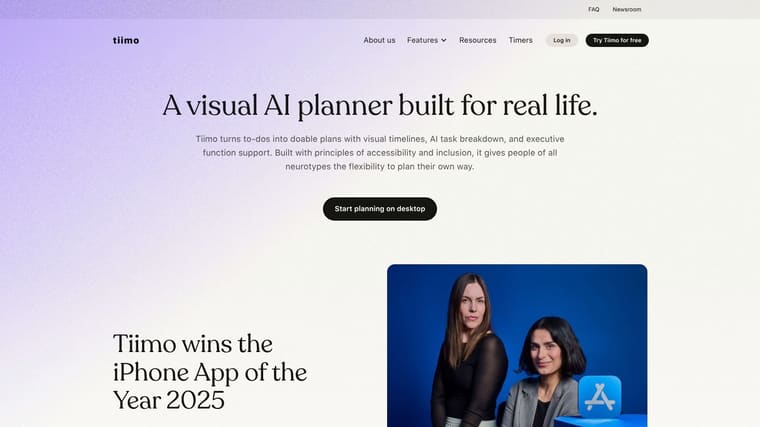
You sit down to start work, glance at your task list, and still have no clear idea what happens first. Tiimo helps with that specific ADHD problem. It turns the day into a visual sequence, so the next step is easier to see and transitions feel less abrupt.
Where Tiimo helps most
Tiimo is a good fit for task initiation and transition trouble. If you lose time between activities, stall because a task feels too vague, or need more structure than a standard to-do list gives you, its timeline, timers, icons, and routines can make the day feel more concrete.
I’ve found Tiimo most useful when the problem is not forgetting a task, but getting into motion. A plain list can still leave too many decisions open. Tiimo reduces that friction by showing what is happening now, what comes next, and how long each block is supposed to last.
Its step-by-step planning also helps with tasks that trigger avoidance. “Do admin” is easy to ignore. Breaking it into “open inbox,” “reply to two messages,” and “submit invoice” gives your brain a clearer entry point.
The trade-offs are real. Tiimo makes more sense as a guided visual planner than as a full project manager, so people who prefer dense text lists or detailed project views may outgrow it. It also asks you to spend a little time setting up routines and time blocks before it starts paying off. If an app needs to work well with almost no setup, Structured often feels lighter.
Setup tip
Start with one transition that regularly falls apart. Good candidates are getting started in the morning, switching into homework, or ending the workday without drifting into random tasks.
Build that routine in Tiimo as a short sequence with realistic timing. Keep it small, around three to five steps, and name each step in plain language. “Open laptop” works better than “begin productivity.” Once that routine runs smoothly for a week, add the next one. That approach usually sticks better than trying to map your entire life at once.
5. Structured
Structured is what I recommend when someone wants a timeline-first planner without a lot of setup overhead. It doesn’t try to be your entire productivity stack. It takes your tasks and puts them on a visual schedule so your day stops feeling like one shapeless block.
That makes it useful for ADHD brains that do better when tasks have a start time, an order, and a visible place in the day.
Why Structured feels lighter
Structured uses drag-and-drop planning on a day timeline. You can drop in tasks, see your schedule unfold, and make adjustments quickly. On Apple devices, the widget support and cross-device syncing make it easy to keep the plan visible.
What works well is the low-friction nature of it. You don’t need to build projects, labels, and elaborate systems before it becomes useful. If your executive function drops when an app asks for too much categorization, Structured is a relief.
A few trade-offs matter. It’s less capable for complex projects than something like TickTick or Todoist, and its web access is limited compared with apps built around broader platform support. If your life involves layered projects, collaborators, or deep recurring workflows, Structured may become too simple.
Keep Structured for the day, not the whole quarter. It’s best as a visual daily runway, not a giant database of everything you might do someday.
The best setup tip is to enter fixed events first, then add only a few movable tasks around them. If every hour is packed, the app becomes a guilt map. If you leave breathing room, it becomes a guide.
6. TickTick
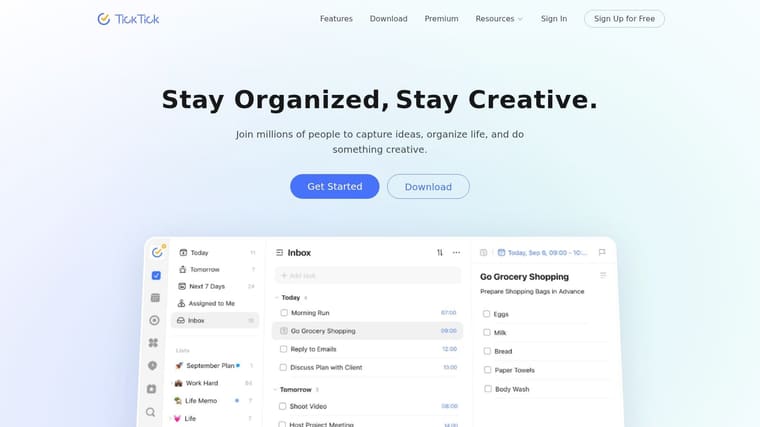
You remember the task. You even mean to do it. Then it disappears into the gap between “I should start” and “what was I opening my phone for?” TickTick works well for that specific ADHD problem because it brings planning, reminders, and focus sessions into one app, so you spend less time hopping between tools and less time rebuilding context.
Where TickTick helps most
TickTick is strongest for task initiation and follow-through. If a plain to-do list turns into a parking lot of good intentions, TickTick gives you more ways to turn a task into a visible next action. You can capture tasks quickly, put them on a calendar, attach recurring schedules, and start a focus timer from the same place.
That matters more than feature count.
For ADHD, a key advantage is reducing handoffs. A task stays closer to execution when the reminder, the scheduled time, and the timer live together. I’ve found TickTick especially useful during busy weeks when managing separate apps creates just enough friction to avoid starting.
The trade-off is clutter. TickTick can do a lot, and if you keep every list, tag, view, and habit tracker active, the app starts to feel like another thing to manage.
A lighter setup works better:
- Choose one home screen: Use either Today or Next 7 Days as your main view.
- Keep lists limited: Create only a few buckets, such as Work, Personal, and Waiting.
- Use the calendar for real appointments with yourself: Put time-sensitive tasks on the schedule, not just deadlines.
- Start Pomodoros from avoided tasks: If you keep postponing something, launch a short timer directly from that item.
- Hide low-value features: Turn off views you do not check regularly.
One setup tip makes a big difference. Create a tag for “Start here” or “Current,” and keep no more than three tasks in it. That gives TickTick a clear front door. Without that constraint, the app can become a long inventory of obligations. With it, you get a shortlist you can act on.
TickTick is a good fit if your ADHD shows up as friction between knowing and doing. It is less ideal if you get overwhelmed by feature-rich interfaces or want a very minimal daily planner. In that case, Structured may feel calmer. If you want one flexible command center and you are willing to trim it down, TickTick can hold a lot without falling apart.
7. Todoist
You remember a task at the exact wrong moment. Mid-conversation, walking into another room, already late. For ADHD, the best task app is often the one that lets you catch that thought before it vanishes, and Todoist is very good at that.
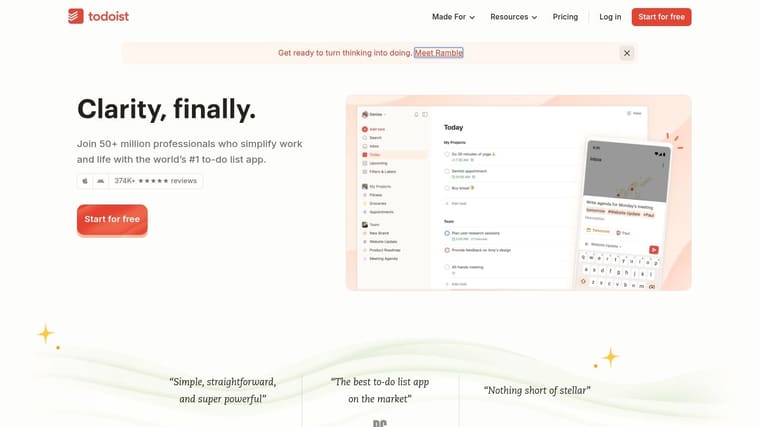
Todoist works best for the ADHD pattern of mental overload plus weak task capture. You can type something quickly in plain language, set a date as you write, and move on without building a whole system first. That low-friction entry point is the main reason many people stay with it.
Where Todoist helps most
Todoist is a strong fit if your biggest problem is getting tasks out of your head and into a trusted place. I’ve found it especially useful for recurring life admin, follow-ups, and all the small obligations that disappear unless they are captured the second they appear.
Its other advantage is restraint. The app has projects, labels, filters, priorities, and integrations, but the screen rarely feels crowded unless you make it crowded. That matters for ADHD users who need flexibility without a lot of visual noise.
The trade-off is important. Todoist helps with remembering and organizing. It does less for time blindness, task initiation, or distraction once the task is already on the list. If you keep writing tasks down but still do not start them, Todoist probably needs to sit inside a larger system with calendar blocking, timers, or persistent visual cues.
A practical setup works better than an ambitious one:
- Create only three main buckets at first: Today, This Week, and Waiting.
- Use natural language input for fast capture instead of cleaning up every task immediately.
- Keep priorities simple. One highest-priority task per day is usually enough.
- Add a label such as “Next” or “Start Here” for tasks you can act on now.
- Review the app at the same time each day so capture turns into action.
One extra tip if you already use visual reminders. Put only your current Todoist priorities into a home screen widget, or mirror them in a Pretty Progress widget if that is part of your setup. Todoist is good at storing tasks. ADHD often requires seeing them without having to open the app first.
Todoist is a good choice if you want a dependable task backbone that stays fairly clean as your system grows. It is less helpful if your main struggle is estimating time, starting boring tasks, or protecting focus once you sit down to work.
8. Sunsama
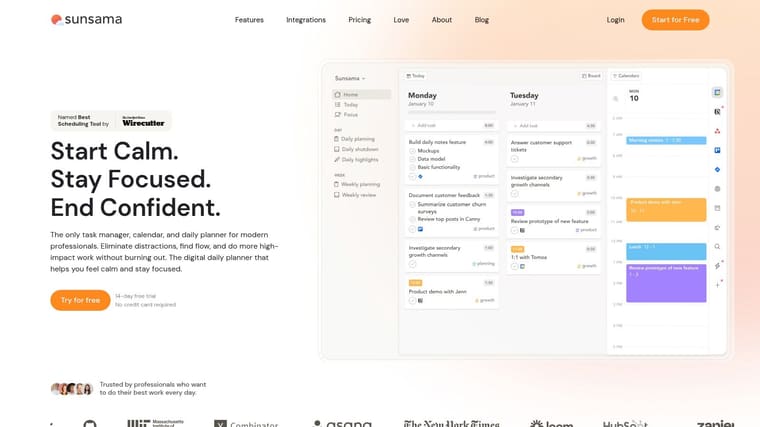
Sunsama is useful when your real problem isn’t forgetting tasks. It’s planning an impossible day, feeling crushed by it, and ending work with the sense that you failed because your plan never matched reality.
This app leans into daily planning rituals. Instead of throwing all your tasks at you at once, it helps you decide what fits today and place it on your calendar in a more realistic way.
When Sunsama is worth it
Sunsama works well for professionals who already use tools like Todoist, Trello, or Jira but need a calmer planning layer on top. Pulling tasks into one daily workspace can cut down on tool-hopping, and the guided morning and shutdown rituals create a sense of closure that many ADHD users otherwise miss.
What I like most about Sunsama is that it pushes back on fantasy planning. If your instinct is to put fifteen meaningful tasks into one day, timeboxing them onto a calendar exposes the mismatch quickly. That’s useful feedback.
The trade-off is cost. There’s no permanent free plan, only a trial, so this is harder to justify if you just want a simple planner. It also makes the most sense if you already have tasks spread across other tools. If you don’t, it can feel like an expensive layer.
If you chronically overbook yourself, choose the app that tells you “not today” more often. That’s often the more helpful tool.
The best setup tip is to use Sunsama during a fixed morning planning window and stop there. Don’t keep reorganizing all day. The ritual matters more than endless refinement.
9. Forest
Forest helps with one of the hardest ADHD moments. Starting.
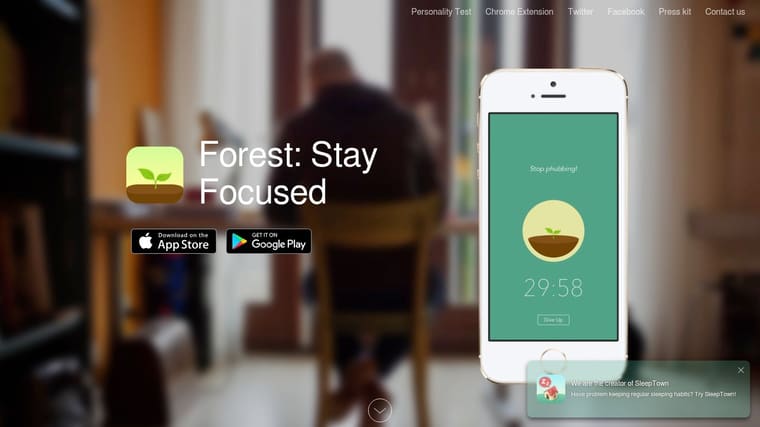
When a task feels dull or too big, opening a full planning app can make things worse. Forest cuts through that by turning focus into a simple game. You plant a tree, start a session, and avoid leaving the app if you want the tree to survive.
Why Forest helps people start
Forest is not a task manager. That’s exactly why it works for some people. There’s very little setup, and the visual reward loop gives you an immediate reason to begin a focus sprint instead of negotiating with yourself for half an hour.
It works best for boring-but-clear tasks. Writing one page, answering email, doing a problem set, cleaning for one sprint. The app creates just enough commitment to get over the starting hump.
Its limitations are just as clear:
- It won’t organize your life: Forest is for focus sessions, not project planning.
- Gamification can wear off: If visual rewards don’t motivate you, the app may lose its pull.
- Platform details vary: Pricing and some features differ by platform, and the purchase model has changed over time.
If distraction is your biggest enemy, pairing Forest with stronger external supports can help. This guide on how to focus with ADHD pairs well with a timer-based tool like Forest.
A good setup tip is to create one named session for your most common work block, like “Start essay” or “Admin sprint,” and reuse it. Repetition lowers friction.
10. Opal
Opal is for the days when you already know what to do, but your fingers keep opening the wrong app anyway.
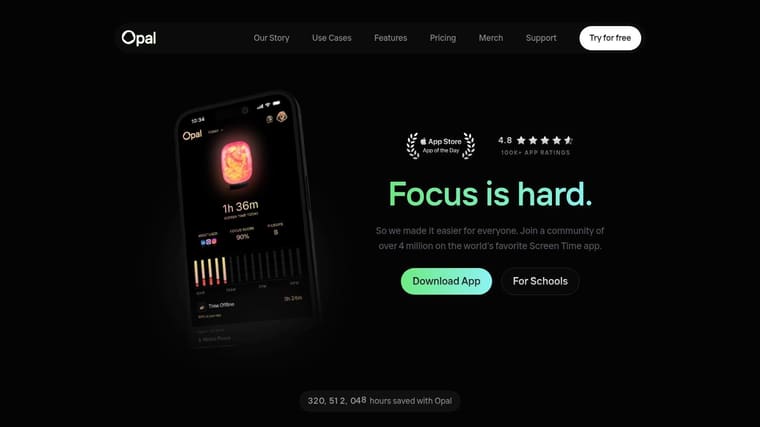
That’s a different problem from poor planning. It’s impulse control, stimulation-seeking, and the habit of checking one thing that turns into ten minutes of scrolling. Opal puts a barrier in that loop.
Best use case
Opal works best if you’re on Apple devices and want stronger controls than native Screen Time usually provides. You can block apps and websites by schedule or with on-demand focus sessions, set allow-lists, and use stricter modes when you know you’re likely to override a weak boundary.
The strongest use case is targeted blocking. Don’t block everything. Block the two or three apps that reliably hijack your attention. If you overbuild your blocking rules, you’ll start fighting the system instead of using it.
Community feedback is mixed on whether it’s worth the cost compared with built-in Apple tools. Some people love the cleaner workflow and stricter controls. Others find native options good enough. Battery and network effects can also vary by device.
A practical setup works like this:
- Block specific triggers: Instagram, YouTube, Reddit, or whatever you open automatically.
- Schedule known danger windows: First hour of work, study blocks, late-night doomscrolling periods.
- Use hard mode sparingly: Save strict blocking for high-stakes work.
- Pair it with a destination: Open TickTick, Todoist, or Structured right after starting a block.
Opal is not motivating on its own. It’s protective. That’s the point.
11. Habitica
Habitica is what I suggest when someone says, “I know exactly what I should do. I just can’t make myself care enough to keep doing it.” It turns habits, dailies, and to-dos into an RPG with rewards, equipment, parties, and challenges.
For some ADHD users, that sounds childish. For others, it’s the first system that gives routine tasks enough novelty to feel worth doing.
Who should use Habitica
Habitica works best if you respond to game loops. Completing tasks gives you progress, rewards, and visible advancement. Group challenges and parties add accountability, which helps if you tend to abandon routines when no one else can see them.
The downside is complexity. If a minimalist list already feels like enough, Habitica’s layers can become distracting. You can spend more time tuning the game than doing the task.
Still, it can be excellent for routine-building:
- Use Dailies for repeating essentials: meds, water, inbox, bedtime reset.
- Use To-Dos for one-off tasks: forms, calls, errands.
- Keep Habits narrow: don’t track every behavior, only the ones you want reinforced.
- Join accountability carefully: social pressure helps some people and overwhelms others.
For extra support around sticking with routines, this piece on how to stay consistent with goals complements Habitica’s reward-based style.
If you want more options in this category, this roundup of best habit tracking apps is useful too.
What doesn’t work well is treating Habitica like a serious project manager. It’s stronger for recurring actions and motivation than for complex planning.
12. Brain.fm
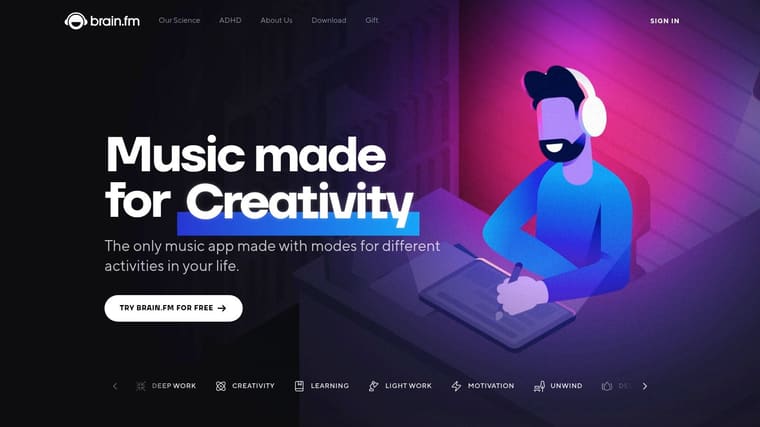
Brain.fm is the odd one out here because it isn’t a planner, task manager, or blocker. It’s an audio tool. But for ADHD, sound can make the difference between sitting down with a task and staying with it.
Sometimes the right support isn’t more structure. It’s reducing the mental friction that comes from every background sound, every stray thought, and every shift in attention.
How to use it well
Brain.fm offers focus, relax, and sleep modes with adjustable settings, and it’s designed around audio meant to support sustained attention. If you struggle with silence but find lyric-heavy music too distracting, this kind of tool can be useful because it gives your brain something steady to lean on while you work.
It’s best paired with another app, not used alone. Brain.fm plus Structured can create a calm visual schedule. Brain.fm plus Forest can make focus sprints easier to stay in. Brain.fm plus TickTick works well if you want one task list and one audio environment.
The trade-offs are straightforward. It usually works best with headphones, and there’s some trial and error in finding the right mode and intensity. It also requires a subscription after a 14-day free trial.
Some ADHD tools help you decide what to do. Others help your nervous system stay with the thing you already chose.
A practical setup tip is to assign one Brain.fm mode to one type of work. Use the same audio style for writing, another for admin, and maybe none for meetings. Consistency helps your brain associate the sound with the task state you want.
Top 12 ADHD Productivity Apps Comparison
| App | Core Features ✨ | UX / Quality ★ | Value / Price 💰 | Best For 👥 | Unique Selling Point ✨ |
|---|---|---|---|---|---|
| Pretty Progress 🏆 | Persistent countdowns & progress bars, curated themes, built‑in date/fasting calculators | ★★★★★ | 💰 Freemium (Pro IAP for advanced styling) | 👥 Visual thinkers, students, goal & habit builders (ADHD-friendly) | ✨ Design‑first, always‑on widgets + zero‑ads |
| Tiimo | Visual timelines, stepwise checklists, timers, widgets | ★★★★☆ | 💰 Subscription (some free features) | 👥 Neurodivergent users, routine builders, kids & adults | ✨ ADHD‑focused visual routines & AI task breakdown |
| Structured | Drag‑and‑drop day timeline, calendar sync, widgets | ★★★★☆ | 💰 Freemium (Pro tier) | 👥 Timeboxers, students, Apple ecosystem users | ✨ Timeline‑first daily planner for low‑friction scheduling |
| TickTick | Tasks, calendar/Kanban, Pomodoro timer, habit tracker | ★★★★☆ | 💰 Freemium (Premium subscription) | 👥 All‑in‑one power users who want consolidated tools | ✨ Built‑in Pomodoro + versatile views (Kanban, timeline) |
| Todoist | Quick Add, natural‑language dates, labels & filters, integrations | ★★★★☆ | 💰 Freemium (paid tiers for advanced filters) | 👥 Minimalists, integrators, fast capture users | ✨ Fast capture + robust automation & integrations |
| Sunsama | Guided daily planning, timeboxing, unified task inbox | ★★★★☆ | 💰 Subscription (no permanent free plan) | 👥 Professionals, executives needing realistic planning | ✨ Ritualized morning/shutdown workflow to avoid overcommitment |
| Forest | Gamified focus timer, session history, browser extensions | ★★★★☆ | 💰 Paid / Freemium (platform dependent) | 👥 Students, Pomodoro fans, people who like gamified rewards | ✨ Visual tree‑planting reward loop for focus sessions |
| Opal | App/site blocking, schedules, hard modes, analytics | ★★★★☆ | 💰 Subscription | 👥 Heavy phone users needing strong distraction blocks | ✨ Granular blocking rules & quick session start (hard mode) |
| Habitica | Habits/Dailies/To‑Dos, parties, RPG rewards & economy | ★★★★☆ | 💰 Freemium (IAPs/subscriptions) | 👥 Gamers, social habit builders, motivators | ✨ RPG gamification + social accountability (parties/challenges) |
| Brain.fm | Focus/relax/sleep audio, patented neuromodulation, offline play | ★★★★☆ | 💰 Subscription (14‑day trial) | 👥 Knowledge workers, creatives seeking auditory focus | ✨ Research‑backed focus music to induce flow states |
Build Your Personal ADHD-Friendly Productivity System
Monday starts with good intentions. By 11 a.m., you have three half-finished tasks, seven tabs open, one meeting you forgot to prepare for, and a phone that keeps pulling your attention away. In that moment, the question is not “What is the best productivity app?” The useful question is, “What failed first?”
That is how I recommend building an ADHD-friendly system. Match each tool to the specific problem it needs to solve. One app handles planning. Another keeps priorities visible. A third blocks the distraction that keeps breaking your focus. Trying to force one app to do everything usually creates more friction, more settings, and one more system you stop opening after a week.
Small combinations work better because each app has a clear job.
- Time blindness: Pretty Progress plus Structured
- Task capture and follow-through: Todoist plus Pretty Progress
- Overcommitting: Sunsama plus Opal
- Task initiation: Forest plus Brain.fm
- Routines and repeatable structure: Habitica plus Tiimo
The pattern matters more than the brand. Choose one app for remembering, one for planning, and one for protecting attention. Many people with ADHD do better with visible cues than hidden lists, which is why widgets matter so much. A task manager can hold your plan, but a visual widget keeps the plan in sight when your brain would otherwise drop it.
Pretty Progress fills that role well. It gives you a persistent, glanceable reminder on your Home Screen, Lock Screen, desktop, or watch, which is useful for the “out of sight, out of mind” part of ADHD. I would use it for one live priority, not ten. One countdown, one deadline, or one progress bar is usually enough to create urgency without turning your screen into wallpaper.
If your main problem is planning, a calendar-first tool can help more than a longer task list. Morgen’s ADHD app comparison highlights that style of tool for people who need stronger time visibility and a clearer sense of daily capacity. That approach is helpful when your to-do list looks reasonable on paper but collapses once real time is involved.
If you also need support beyond logistics, coaching or CBT-based ADHD apps can fit beside your productivity stack instead of replacing it. They address patterns like emotional resistance, habit inconsistency, and self-monitoring. That is a different job from task capture, and it helps to treat it that way.
A practical setup looks like this. Pick the challenge that causes the earliest breakdown in your day. Then choose the smallest tool combination that covers it.
If you forget tasks, prioritize visibility.
If you cannot start, use a timer, music, or a gamified focus app.
If you overplan, use a tool that forces realistic time blocks.
If your phone keeps winning, add a blocker before you rely on willpower.
Keep version one simple enough to use on a bad day. That is the standard that matters.
I have found that ADHD systems fail less from lack of features and more from setup debt. Six apps, five inboxes, and a complicated tagging scheme can look impressive on Sunday night. By Wednesday, it is another pile of maintenance. A better system feels almost boring. You can capture quickly, see what matters, and start the next step without a debate.
If an app does not work, drop it fast. The mismatch is usually about the problem it solved, not your effort. Keep the tool that reduces friction at the exact point where your day usually falls apart.
If you want more ideas for reducing attention leaks while you work, this guide to tools to minimize digital distractions is a useful next read.
If time blindness and “out of sight, out of mind” are your biggest productivity blockers, Pretty Progress is an easy place to start. Put one deadline, goal, or countdown on your Home Screen, Lock Screen, watch, or desktop, and make the thing you care about harder to ignore.





