
June 19, 2026
Master 7 Day Programmable Timers: Your 2026 Guide
Complete guide to 7 day programmable timers. Master physical switches, smart plugs, and app-based visual weekly schedules for your home.
Your week probably doesn’t repeat the same way every day. The porch light should turn on before dawn during workdays, but not blast your bedroom window on Saturday. The coffee maker might need one schedule on weekdays and none on Sunday. And your personal routines aren’t any simpler. Gym days, study blocks, meal timing, and recurring deadlines all follow a weekly pattern, not a single daily loop.
That’s where 7 day programmable timers still matter. Old-school hardware can switch real loads reliably. Smart plugs make weekly schedules much easier to manage. And app-based tools can take the same scheduling logic and apply it to your own time, not just your lamps and fans. The trick is choosing the right level of control for the job.
Table of Contents
- Why Your Simple Timer Is Not Enough
- Programming Traditional Hardware Timers
- The Smart Upgrade Using Plugs and Hubs
- Visualizing Your Week with Pretty Progress
- Creating Recurring Timers with Built-in Phone Tools
- Choosing Your Perfect Weekly Timer and FAQs
Why Your Simple Timer Is Not Enough
A basic daily timer works until your life stops behaving like a factory bell.
Monday at 6 AM, the light comes on exactly when you want it. Friday, same thing. Then Saturday arrives, and that same automation feels dumb instead of helpful. This is the moment it becomes clear a repeating 24-hour timer isn’t scheduling their week. It’s just replaying yesterday.
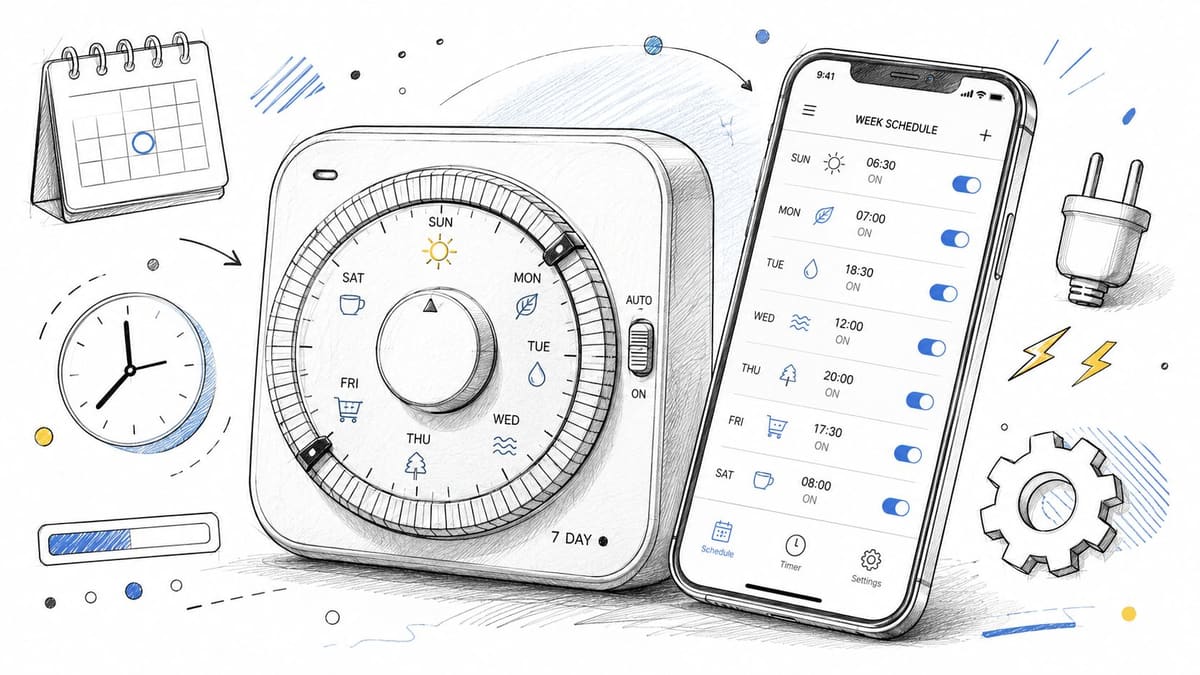
A proper 7 day programmable timer solves that by handling different days differently. That sounds small, but it changes everything. Instead of one fixed cycle, you get something closer to calendar-aware automation. Intermatic describes this clearly in its ST01 timer specifications, which include up to 40 ON/OFF events, plus an astronomic clock for dawn and dusk and automatic daylight saving time adjustment.
That matters because weekly patterns are how most homes run.
- Weekday routines: Outdoor lights, bathroom fans, shop signs, and coffee equipment often need one pattern from Monday to Friday.
- Weekend changes: Sleep schedules shift, people are home at different times, and some loads should stay off longer.
- Maintenance windows: Pumps, ventilation, access systems, and other switching tasks often need recurring weekly timing, not just a generic repeat.
A simple timer repeats time. A 7 day timer repeats behavior.
The strongest hardware models don’t just remember “on at 6, off at 8.” They can store multiple events and assign them across different combinations of days. That’s why they’re still useful even in homes full of apps and voice assistants.
The same principle applies outside electrical devices. If you’re trying to manage work blocks, health habits, or recurring reminders, a weekly schedule almost always beats a generic daily one. The logic behind better home automation is the same logic behind better personal planning. A lot of the same friction shows up in both places, which is why this guide pairs physical timers with software options. If your schedule constantly slips because every day isn’t the same, these time management best practices map surprisingly well to how good timers are built.
Programming Traditional Hardware Timers
Physical timers still make sense when you need dependable switching at the wall or outlet. They’re not glamorous, but they can control real electrical loads without needing a cloud service, phone battery, or app login.
What turns people off is the interface. Tiny buttons, cryptic abbreviations, and a display that seems determined not to help.
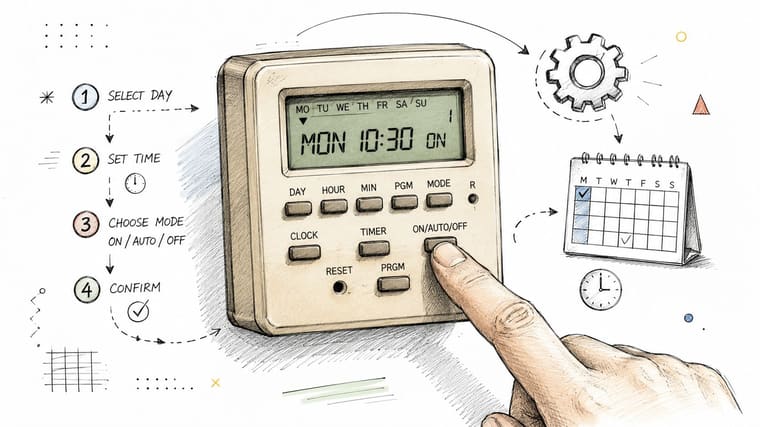
What a real programming flow looks like
Most 7 day programmable timers follow the same basic sequence, even when the button labels differ.
-
Set the current date and time first.
Intermatic’s ET1700 programming tutorial shows the usual flow as MODE, then SET/DATE, followed by month, day, and time entry in its setup walkthrough. -
Switch the timer into AUTO mode.
This is the mistake that wastes the most time. The schedule can be entered correctly and still never run if the unit is left in MANUAL or CLOCK mode. -
Enter each ON and OFF event.
Some timers let you assign individual days. Others offer grouped options like weekdays, weekends, or all week. -
Review the event order.
If event timing overlaps or gets entered out of sequence, the timer may behave in ways that look random but aren’t.
Practical rule: If a hardware timer “saved” your schedule but nothing happens later, check the operating mode before you reprogram everything.
One reason advanced wall timers remain useful is schedule capacity. The Security Brands Summit timer supports up to 17 on/off events per day and 15 program options for day combinations in its instruction sheet. That’s enough for homes and small facilities with changing weekly patterns. Higher-duty devices can go further, but the point is simple. You need enough event slots for the way the load behaves.
If you want a software-style way to think about intervals before touching the hardware, a timer interval app guide can help you map your schedule first, then transfer only the final version to the timer.
Where installs go sideways
Programming is only half the battle. Installation details decide whether a timer will work at all.
The most common surprises are these:
- Neutral wire requirements: Some in-wall timers need a neutral, while others are designed as no-neutral options. Older homes often don’t give you much room for error.
- 3-way circuits: Hallway lights, stair lights, and some exterior fixtures may be part of a 3-way setup. Timer compatibility here is a special case, not something to assume.
- Wall box constraints: Even if the wiring is technically correct, the physical box may be cramped once you add a larger electronic timer.
If you’re replacing a switch that controls built-in lighting, it’s worth checking a practical lighting installation electrician reference before buying the timer. The key question isn’t “Can this timer do a schedule?” It’s “Will this specific timer work in this specific box?”
A second hardware issue is recovery after interruptions. Some devices include battery backup so they don’t forget their settings after a power cut. One product walkthrough highlights retained settings for up to 14 days with battery backup in this power-loss overview. That matters more than people think, especially on outdoor lighting and seasonal loads where you may not notice a failed schedule right away.
The Smart Upgrade Using Plugs and Hubs
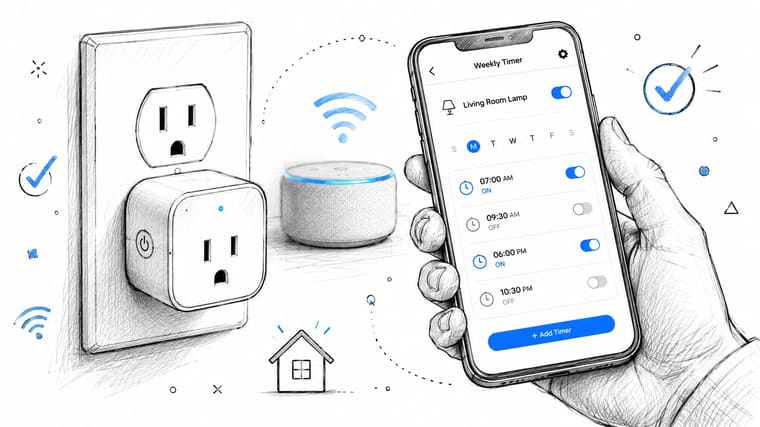
Smart plugs deliver on the original promise of hardware timers. You plug something in, open an app, pick days, pick times, and you’re done. No tiny recessed buttons. No weird abbreviations. No flipping through a folded paper manual.
Why apps feel easier
A smart plug or hub-based routine gives you the same weekly logic as traditional 7 day programmable timers, but with a better interface. In Amazon Alexa, Google Home, Apple Home, and similar systems, you usually create a routine by choosing:
- the device
- the action
- the time
- the days of the week
That’s enough for most home schedules. A weekday coffee-maker routine and a separate weekend lamp schedule take a few taps instead of ten rounds through a tiny LCD menu.
The biggest win is visibility. You can see the whole week on your phone and edit it without standing at the wall switch. That makes smart plugs especially useful for trial and error. If a fan should shut off earlier on Thursdays, you update the rule and move on.
A good setup sequence is straightforward:
- Start with one device: Pick a lamp, humidifier, or other simple load.
- Name it clearly: “Office lamp” is better than “Plug 3.”
- Build the weekly pattern first: Separate weekday and weekend behavior before adding voice control or extra conditions.
- Test one full cycle: Make sure the app schedule runs without manual intervention.
What smart systems still don’t solve
App control is easier, but it’s not always better.
A smart plug is a great fit for portable loads. It’s not the right answer for every built-in circuit, high-load device, or awkward switch location. It also changes the failure mode. Instead of worrying about wiring and button sequences, you’re now watching for Wi-Fi issues, device sync problems, and accidental routine conflicts.
This is also where hubs can help. If you already use Apple Home, Alexa, or Google Home, centralizing weekly schedules in one place reduces clutter. You don’t want five brands, five apps, and five overlapping ideas of what “weekday evening” means.
If you want to see a smart-home style setup in action, this short demo gives the basic flavor of app-driven weekly control:
The sweet spot for smart plugs is simple. Use them when you want software convenience attached to a physical device, but you don’t want to rewire the house.
Visualizing Your Week with Pretty Progress
Traditional timers hide in a wall box. Smart plug schedules hide in an app. That works fine when the goal is switching electricity. It’s less useful when the thing you’re trying to manage is your own attention.
A personal schedule needs to stay visible.
When a timer should be visible
If you’re tracking a weekly work cycle, a study deadline, a fasting window, or a routine that changes on weekends, the biggest problem usually isn’t building the schedule. It’s remembering it at the right moment.
That’s where an on-screen timer or progress widget is more useful than a hidden automation. Instead of a device turning on in the background, you get a constant visual reference for where you are in the week. For personal routines, that changes the role of a timer from “silent trigger” to “glanceable cue.”
This works especially well for patterns like:
- Work blocks: Monday to Friday project time with a visible countdown to the end of the current block.
- Health routines: Fasting, hydration, stretching, or gym cycles that shift on weekends.
- Recurring deadlines: A Friday submission, Sunday reset, or class schedule that repeats every week.
You’re more likely to follow a weekly routine when you can see it without opening another app.
A better fit for personal routines
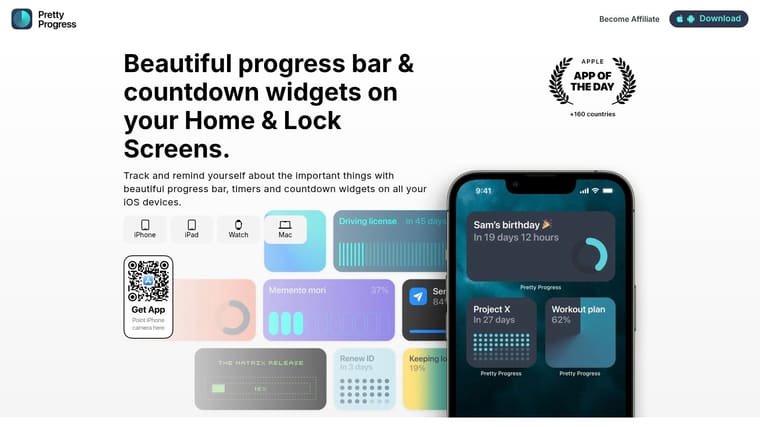
For this kind of use, Pretty Progress home screen timer ideas show the practical advantage of recurring, visible countdowns and progress bars on your device. That’s a different category from wall timers and smart plugs. It doesn’t switch a lamp, but it can make a recurring weekly target easier to stick to because the timing stays in front of you.
The old hardware model says, “Set it once and forget it.”
A visual weekly tracker says, “Set it once and stay aware of it.”
That difference matters for people who don’t need to automate power, but do need structure. A visible countdown to the end of a work sprint can be more useful than a silent phone reminder. A recurring weekly progress bar can do more for consistency than a generic calendar event that gets dismissed and forgotten.
There’s also less friction when schedules aren’t rigid. A hardware timer expects exact switch events. Personal life rarely does. You may need a recurring window, a weekly reset, or a visual cue that adapts to your real pattern rather than pretending every day is identical.
Creating Recurring Timers with Built-in Phone Tools
You don’t always need a dedicated timer app or smart-home hardware. Phones already have enough native scheduling tools to build a workable weekly system if you combine them well.
The trick is not treating one app as the whole solution.
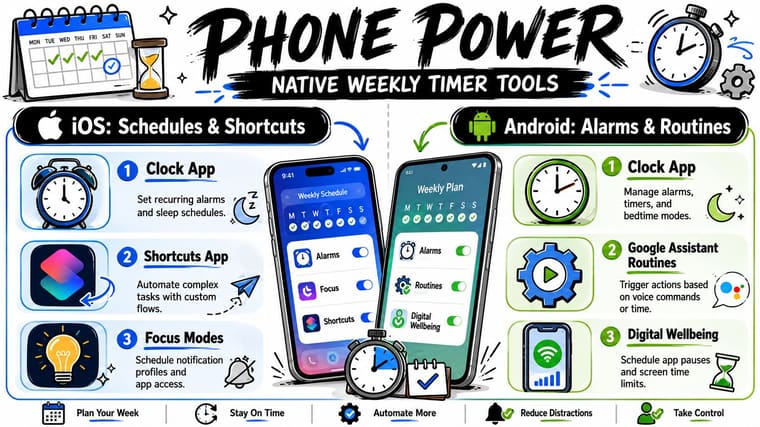
How to build a weekly system without downloads
On iPhone and iPad, the strongest native combination is usually Clock + Calendar + Reminders + Shortcuts. On Android, it’s often Clock + Google Calendar + Assistant routines + Digital Wellbeing.
Each tool handles a different job:
| Tool | Best use |
|---|---|
| Clock | Fixed alarms and wake times |
| Calendar | Scheduled blocks that repeat on chosen days |
| Reminders or Tasks | Prompting action with alerts |
| Automation or Routines | Triggering device or system behavior |
That layered setup is closer to how 7 day programmable timers work than it might seem. You’re still deciding what happens, when it happens, and on which days it repeats. The difference is that your phone can mix reminders, notifications, focus changes, and connected-device actions in one weekly rhythm.
What each phone tool does well
A simple way to build it is to assign one role per tool instead of asking any single app to do everything.
- Use Clock for hard starts. Wake-up alarms, medication cues, and leave-the-house reminders belong here because they need urgency.
- Use Calendar for time blocks. Work sessions, classes, meal prep, and cleaning windows make more sense as scheduled events than as alarms.
- Use Reminders for action prompts. “Start laundry” or “submit report” works better as a task alert than as a calendar block.
- Use automation for environment changes. Focus modes, notification filters, and routine triggers can support the schedule in the background.
One clean rule beats five overlapping alerts. If your phone nags from three apps at once, the system isn’t organized. It’s noisy.
On iOS, Shortcuts can tie actions to a time of day and selected weekdays. On Android, Google Assistant routines and related system tools can do something similar for recurring patterns. Neither approach feels as direct as a dedicated wall timer for electrical loads, but both are excellent for personal workflows.
The payoff is flexibility. You can build a weekday routine that looks nothing like your weekend routine, and you can revise it fast. That’s the software version of weekly scheduling done right.
Choosing Your Perfect Weekly Timer and FAQs
A good weekly timer should reduce maintenance, not create another thing to babysit.
The best choice comes down to what you need to control, how often the schedule changes, and what happens if it misses an event. A lamp in the window, a bathroom fan, and a personal workout plan may all run on a weekly pattern, but they do not need the same tool. That is the gap many buyers miss. Old-school timers are built to switch power. App-based systems are built to edit, combine, and adapt.
A simple decision filter
Use hardware timers for loads that just need to turn on and off on schedule. They fit porch lights, fans, pumps, signs, and other repeatable electrical jobs where local control matters more than fancy logic.
Use a smart plug or hub when the schedule changes often, when you want remote access, or when several devices need to work together. That setup costs more and depends more on software, but it is much easier to revise.
Use phone tools or a visual progress app when the primary target is your own behavior. If the schedule is for studying, stretching, taking medication, or staying on top of deadlines, a socket timer is the wrong category.
That one distinction prevents a lot of bad purchases.
Common questions
Are physical timers reliable after a power outage?
Some are. Some are not. Models with battery backup or memory retention are much less annoying in real use because they keep the schedule after short outages. Cheap units that lose everything after a reset are fine for simple jobs, but they get old fast if your power flickers a few times a season.
What’s the difference between a timer and a routine?
A timer follows a schedule. A routine can also trigger multiple actions, add conditions, or tie together devices and notifications. For home automation, a routine is the software version of a weekly timer with more moving parts and more flexibility.
What if my weekly pattern changes with the seasons?
Choose the tool that is easiest to edit. For fixed year-round jobs, hardware still works well. For outdoor lighting that shifts with daylight, or family routines that change during school breaks and holidays, software usually saves time because you can adjust it in minutes instead of reprogramming buttons on the device.
What usually goes wrong first?
On hardware, the common failures are wrong wiring, incorrect mode settings, or forgetting whether the timer is in auto or manual override. On smart systems, the usual problem is rule sprawl. Too many overlapping schedules, scenes, and app automations make the result hard to predict.
The right weekly timer matches the job and the cost of failure. If a missed event means a dark porch for one night, a basic timer may be enough. If it means a broken routine, wasted energy, or constant manual fixes, spending more for clearer scheduling is usually the better trade.
If you want the schedule to stay visible instead of buried in a switch menu or automation tab, Pretty Progress can show recurring routines, deadlines, and time windows as home screen countdowns and progress widgets.





