

May 18, 2026
Tax Deadline Countdown: Your Ultimate Widget Guide
Create a custom tax deadline countdown widget on your phone. This guide shows how to track dates, business days, and reminders for any tax situation.
You open your laptop to “quickly do taxes,” then spend the first half hour hunting for forms, checking dates, and wondering whether your reminder was for filing, paying, or both. That’s the part that creates stress. Not just the paperwork, but the fuzziness around what has to happen first.
A tax deadline countdown fixes that only if it does more than show a single date. The useful version is visible every day, split into stages, and specific to how you file. Employees need to know when documents should arrive. Freelancers need a system that separates paperwork from payment. Anyone filing late needs a different clock for the extension than for the money they still owe.
That’s how I think about tax season now. Not as one dramatic deadline, but as a short sequence of milestones that should live on your screen until you’re done.
Table of Contents
- Why a Simple Calendar Alert Is Not Enough
- Creating Your First Tax Deadline Countdown
- Customizing Your Widget for Peak Motivation
- Advanced Countdown Strategies for Every Filer
- Placing Your Countdown Front and Center
- Beyond April 15th Using Countdowns for Financial Goals
Why a Simple Calendar Alert Is Not Enough
A single calendar notification sounds responsible. In practice, it’s easy to swipe away and forget. Tax tasks rarely fail because someone never heard of Tax Day. They fail because the work stayed abstract until it became urgent.
That pattern shows up in filing behavior. A national survey found that 12 percent of U.S. taxpayers typically file just days before the April 15 cutoff, while about 1 in 5 Americans (20 percent) have filed their taxes late at least once, according to Greenback’s look at America’s filing habits. A passive alert doesn’t do much for that kind of procrastination. A visible countdown does, because it keeps the deadline in your line of sight.
Visibility changes behavior
A countdown widget works differently from a reminder because it doesn’t rely on one moment of attention. It creates background pressure in a useful way. You see the date shrinking while you access your phone, check messages, or open your laptop, and that repeated exposure pushes small actions forward.
Practical rule: If a deadline matters, it should live somewhere you glance at without thinking.
That matters for taxes because the actual work often starts before filing day. You may need to gather forms, confirm missing documents, estimate payment, or decide whether you’re filing electronically or by mail. A plain reminder can’t hold that complexity well.
One date is too vague
The better model is a tax deadline countdown that reflects your actual situation. An employee waiting on a W-2 needs one setup. A freelancer with multiple income sources needs another. Someone managing deadlines across countries may also want a broader reference point, which is why a region-specific explainer like the AWTS tax due date guide can be helpful when your obligations don’t neatly fit one calendar.
The point isn’t to become obsessed with a timer. The point is to stop treating tax season like one future problem and start treating it like a sequence you can finish calmly.
Creating Your First Tax Deadline Countdown
The first setup should be simple. Don’t start with color palettes, sub-deadlines, or edge cases. Start with the main filing date and get the countdown onto a screen you already look at every day.
Start with the real filing window
For the 2025 tax year, the standard U.S. federal income tax filing deadline is April 15, 2026, and the IRS will begin accepting and processing returns on January 26, 2026, as noted in AARP’s IRS tax deadlines guide. Those two dates give you a clean structure. The season opens in late January, and the visible endpoint is mid-April.
That means your first countdown doesn’t need to be clever. It needs to be accurate.
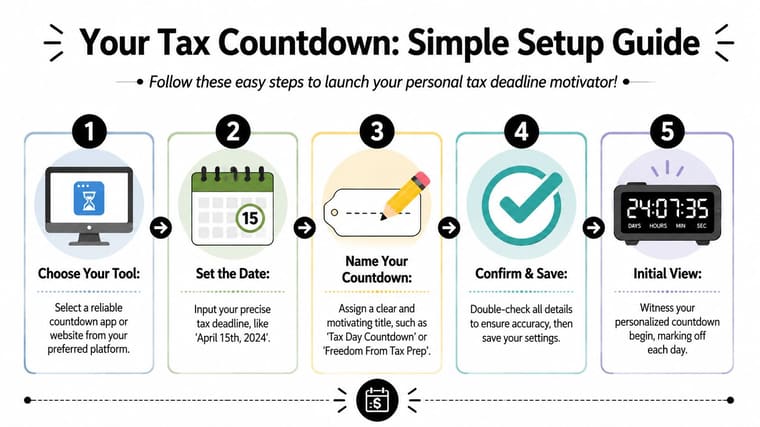
Build the first version fast
Use a basic workflow:
- Create a new countdown and name it something obvious, like “2026 Tax Filing Deadline.”
- Enter the end date as April 15, 2026.
- Choose a start point that makes sense for you. Many people use the current day, but if you want the full season represented, use January 26, 2026.
- Save it and place the widget on your Home Screen, Lock Screen, desktop, or another high-visibility spot.
- Check the label once more so you don’t confuse filing with payment later.
If you want ideas for making a timer more glanceable on Apple devices, the examples in this home screen timer guide are useful because they show how placement affects whether you notice a countdown.
A good first widget answers one question instantly: “How much time is left until I need to act?” It should not require tapping into an app just to understand it.
Keep the first widget plain. If the setup takes too long, people abandon it before it starts helping.
There’s also a trade-off here. A minimal setup gets you moving quickly, but it won’t capture all the nuance of tax season. That’s fine for day one. The goal is to create a working countdown now, then add milestone tracking once the basic timer is visible and stable.
Customizing Your Widget for Peak Motivation
Once the basic countdown exists, customization becomes practical rather than cosmetic. The widget’s job is to pull your eyes toward the deadline without creating visual clutter. If it blends into your wallpaper or looks too busy, you’ll stop noticing it.
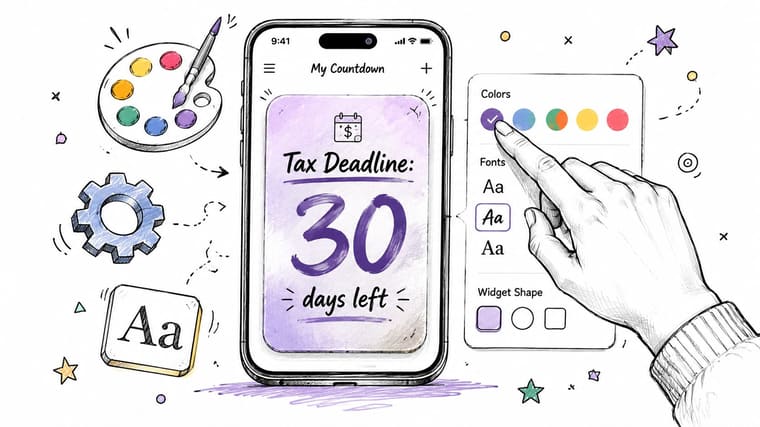
Make the widget readable at a glance
A useful tax deadline countdown usually needs three visual decisions.
- Contrast first: Dark text on a light background, or the reverse. If the number disappears into your wallpaper, the design failed.
- Short label: “Tax Filing” is better than a long sentence. Long labels get truncated in smaller widgets.
- One emphasis point: Highlight either the remaining days or the progress bar. Trying to emphasize both often makes the whole widget harder to scan.
A dedicated widget tool earns its keep. Pretty Progress, for example, lets you set custom start and end dates, change themes, and tune colors, gradients, layout, and bar styling so the countdown fits the screen instead of fighting it.
If you want inspiration for more graphic-heavy countdown styles, this countdown clock graphic guide shows layouts that make time remaining easier to parse at a glance.
Add deadline notes that prevent mistakes
The most valuable customization isn’t visual. It’s the note field.
For U.S. filers in 2026, timeliness for e-filing depends on a transmission timestamp on or before 11:59 p.m. local time on April 15, 2026, according to H&R Block’s deadline guidance. That detail belongs inside the widget note, because “due April 15” is less precise than “e-file by 11:59 p.m. local time.”
That note changes behavior. It nudges you toward finishing earlier in the day instead of assuming the whole date is a cushion.
Add the compliance rule, not just the date. Dates tell you when. Rules tell you how not to miss it.
You can also customize the unit of urgency. Some people prefer total days remaining. Others prefer business days because that feels closer to actual working time. Neither is universally better. If weekends are when you do admin work, total days may be more honest. If taxes only happen during office hours for you, business days can make the countdown feel more actionable.
A quick visual walkthrough helps here because small design tweaks matter more than commonly assumed.
What doesn’t work is over-customizing on day one. If you spend too much time perfecting colors and icon choices, the widget becomes a decoration project. Keep the styling functional. You want the timer to interrupt avoidance, not win a design award.
Advanced Countdown Strategies for Every Filer
A single timer works for simple situations. Most tax seasons aren’t simple. The stronger setup is a small stack of countdowns, each tied to one action you can complete.
Employees need milestone tracking
For employees, the smartest second countdown usually isn’t “file taxes.” It’s “check for forms.” IRS Taxpayer Advocate guidance for 2026 notes that employers must provide Forms W-2 by February 2, 2026, as summarized in this report on last-minute filer guidance. That date matters because many filing delays start upstream. People sit down ready to file and realize they’re still missing documents.
A practical employee setup looks like this:
- Countdown one: W-2 arrival/checkpoint
- Countdown two: Filing deadline
- Countdown three: Payment deadline if tax is owed
That sequence is calmer than staring only at April 15 and hoping everything else sorts itself out.
Freelancers need separate clocks
Freelancers and self-employed filers usually need a more segmented system. Income comes from multiple clients, forms may arrive from several platforms, and the filing workflow often includes reconciling records before the return is ready.
The easiest way to make this manageable is to track deadlines by category rather than by emotion. One widget for document collection. Another for filing. A third for payment. If business-day framing helps you plan work time, a business days calculator can make those windows feel more concrete.
Here’s a practical comparison.
| Filer Type | Key Deadlines | Recommended Countdown Setup |
|---|---|---|
| Employee with one job | W-2 receipt, filing date, payment if owed | Use one milestone widget for forms, then a main filing widget |
| Employee with multiple jobs | Multiple document arrivals, filing date | Create a document-check countdown plus a separate filing countdown |
| Freelancer or contractor | Document gathering, reconciliation, filing, payment | Use layered countdowns for records, return prep, and money due |
| Filing an extension | Payment date, extension filing action, final return date | Split payment and filing into separate visible timers |
| American living abroad | Alternate filing date, payment obligations | Use a dedicated filing countdown plus a separate payment reminder |
The more complex your income sources are, the less useful a single deadline becomes.
The trade-off is obvious. Multiple countdowns take a little more setup. They also reduce the mental load because each timer answers one question clearly. When people miss tax obligations, it’s often because everything lived in one giant, vague “do taxes” bucket for too long.
Placing Your Countdown Front and Center
A good widget hidden on page three of your phone won’t change much. Placement matters more than polish. You want the countdown to appear in places you already check when you’re distracted, busy, or avoiding admin work.
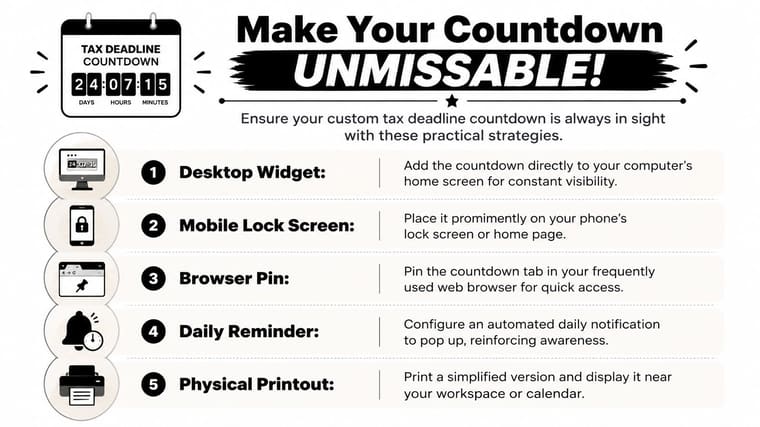
Use the screens you already check
The highest-value spots are usually the least glamorous ones.
- Phone Lock Screen: Best for raw visibility. You’ll see the deadline without opening anything.
- Home Screen first page: Useful if you want a larger widget with a progress bar and note text.
- Apple Watch face: Good for quick awareness, especially if you respond well to tiny nudges.
- Mac desktop or menu area: Helpful when you do tax prep on a computer and want ambient pressure while working.
Each location does a different job. Lock Screen placement is best for frequency. Desktop placement is better for longer work sessions.
Keep one primary view and one backup view
Don’t put the same tax countdown everywhere. That usually turns into wallpaper. Instead, pick one primary placement and one backup.
A solid combination is a large Home Screen widget plus a smaller Lock Screen or watch complication. The first gives context. The second gives repetition.
You can also support the digital setup with analog friction. A printed checklist near your desk, or a pinned browser tab during tax week, can reinforce the same milestone sequence without asking your brain to remember it.
If you only have energy for one placement, choose the screen you check before you procrastinate.
What doesn’t work is burying the timer in an app folder called “Finance” and expecting motivation to follow. A tax deadline countdown only helps when it’s visible before avoidance starts.
Beyond April 15th Using Countdowns for Financial Goals
Once you’ve built a working tax system, you can reuse the exact same thinking for the rest of your financial life. The skill isn’t “tracking Tax Day.” The skill is breaking one stressful obligation into visible steps with separate clocks.
That’s especially useful when the deadline has two parts. The IRS makes a key distinction here. An extension to file is not an extension to pay, and taxpayers should pay as much as they can by April 15 to reduce penalties, as the IRS explains in its last-minute filing tips and resources. That’s a tax lesson, but it’s also a broader planning lesson. One goal often contains multiple commitments, and they shouldn’t all live under one vague reminder.
Use the same structure for saving goals, debt payoff milestones, annual renewals, or a deadline to build an emergency fund. Split the big target into checkpoints. Put the most important countdown where you’ll see it. Add a second timer when payment and paperwork don’t line up.
That’s when countdowns stop being a seasonal trick and start becoming part of how you run your life with less panic.
If you want one place to build those countdowns and keep them visible across your devices, Pretty Progress lets you create customizable progress widgets for deadlines, milestones, and long-range goals so the next important date doesn’t stay hidden in your calendar.





