August 1, 2026
Why You Might Need Millisecond Precision
Need a stopwatch with milliseconds? Compare built-in iPhone and Android options, free apps, and accuracy limits for sports or timing drills.
You’re probably here because the timer on your phone isn’t enough. You need something more precise than “about a second.” Maybe you’re timing sprint starts, checking split times during intervals, measuring a coffee bloom, comparing app response speed, or just trying to understand where your short work bursts go.
A stopwatch with milliseconds solves a very specific problem. It gives you a finer view of short events that feel instantaneous but aren’t. The trick is that not every timer that shows tiny digits is measuring time equally well, and not every device makes those digits easy to access. Some of the best options are already built into your phone or watch. Others look polished but fall apart when you test them.
Table of Contents
- Why You Might Need Millisecond Precision
- Unlocking Millisecond Precision on Apple Devices
- Finding the Right Millisecond Timer for Android
- Top Third-Party Stopwatch Apps for 2026
- Practical Use Cases and Ensuring Accuracy
- Integrating Timing into Your Productivity Workflow
- Frequently Asked Questions
Why You Might Need Millisecond Precision
Millisecond timing isn’t required all day. But when it is, a regular clock becomes useless fast.
If you’re testing a reaction drill, timing a sprint start, comparing two short app flows, or trying to repeat a process consistently, whole seconds are too coarse. A difference that feels tiny can still matter in practice. Human visual reaction time is often discussed in the 180 to 200 millisecond range, which is why sub-second timing matters for starts, response tests, and other short events tied to perception and action, as summarized on Wikipedia’s stopwatch overview.
That need for precision isn’t new. The push toward smaller and smaller time slices goes back centuries. A useful historical summary at My Alarm Clock notes early devices that could measure only coarse fractions like 1/5 second, while Heuer’s 1916 Mikrograph pushed sports timing to 1/100 second. That jump matters because once events are shorter than a blink or a stride adjustment, rough timing stops being informative.
Sports made this kind of timing visible to everyone. If you enjoy the watchmaking side of that world, Learn about Tissot and the NBA for a good look at why precise game timing became part of the spectacle.
How I Evaluated Stopwatch with Milliseconds Options
I judged the options the same way I would judge a tool I planned to keep using: not by how polished the store page looked, but by how it behaved once timing started. My checklist was simple: does it show real three-digit precision or only centiseconds, can I hit lap without hunting, can I review or export results later, does it stay stable in the background, and is the display readable while moving.
In my own testing, the first thing I noticed was that launch speed matters more than feature count for short tasks. An app that opens in one tap and starts instantly often beats a more advanced tool that makes you choose modes first. I also paid attention to whether timers kept running cleanly after locking the screen, switching apps, or letting the phone sit for a few minutes. That is where weak stopwatch apps usually reveal themselves.
I disqualified anything with intrusive ad placement near start, lap, or reset controls, and anything that looked precise but updated in a visually jumpy way. I also treated export support as a separating feature rather than a bonus. If you coach, compare app builds, or track repeated drills, being able to move lap data into notes or a spreadsheet changes the tool from “handy” to useful.
The result is a practical ranking framework: built-in tools win on speed and trust, while third-party options earn their place only when they add better visibility, better lap handling, or better record-keeping.
Unlocking Millisecond Precision on Apple Devices
Apple users often already have enough timing precision built in. A better question is not “can Apple show tiny units,” but “when is the built-in tool enough, and when should you switch?”
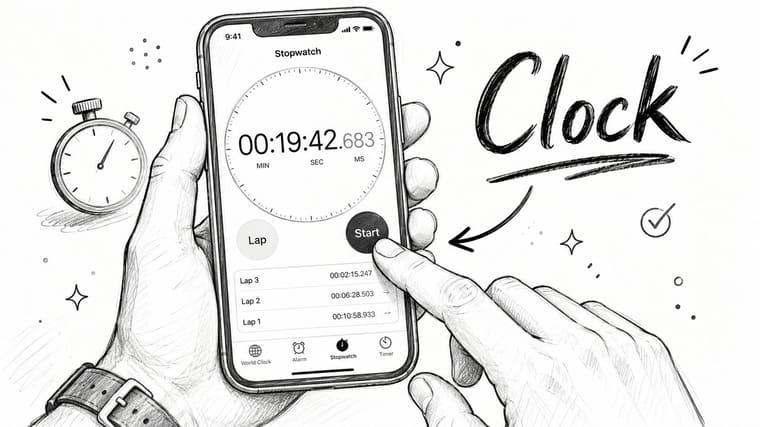
The hidden trick in the iPhone Clock app
On iPhone, the Clock app’s stopwatch looks basic at first. In digital view, it’s easy to assume you’re limited. But the analog face gives a more precise readout that’s good enough for many everyday timing jobs.
Try this:
- Open Clock.
- Tap Stopwatch.
- Switch from the digital face to the analog view if your version of iOS offers it.
- Start timing and watch the finer sub-second markings for short intervals.
For quick timing, the built-in tool has two big advantages: it launches fast and it avoids the ad clutter that ruins many free timer apps. In my own use, that speed alone made it the better choice for spontaneous checks like practice reps or short household tests.
The limitations show up once timing becomes more deliberate. The analog face can be harder to read while moving, lap review is functional but not great for long sessions, and there is no serious export path for later analysis. Apple’s support materials for the Clock app on iPhone cover the basics, but they do not turn the app into a training log or experiment tool.
A few practical notes help:
- Use laps for repeatability. One long running timer is less useful than clean lap marks for each attempt.
- Keep the screen awake when possible. Background behavior can make fast checks awkward.
- Don’t confuse display detail with measurement depth. Tiny digits look precise, but the actual timing path still matters.
- Switch tools once review matters more than convenience. If you need to label trials or save results, the stock app runs out of road quickly.
A simple recommendation ladder works well here:
- Use the built-in iPhone stopwatch if you need quick, personal timing and do not need exports.
- Use Apple Watch if you need faster wrist access during repeated drills or workouts.
- Upgrade to a third-party app if you need better visibility, longer lap review, or any kind of history you can share.
Apple Watch and Mac options that work well
Apple Watch is often easier than iPhone for repeated timing because it removes the “pull phone out, then tap” delay. During interval work or movement-heavy drills, that matters. If you’re using your watch during sports practice, this Guide to Apple Watch training for athletes is worth browsing because it shows how watch-based timing fits into live drills and movement-heavy sessions.
I found the watch especially useful when the timing task involved frequent starts and stops with hands already occupied. The trade-off is screen size: it is faster to access, but not as easy to review a long run of laps in detail.
For the Mac, the built-in situation is less elegant. You can use browser timers, menu bar utilities, or lightweight stopwatch apps, but the best choice depends on whether you care more about speed, visibility, or exported history. If your priority is a clean desktop timer that looks good and stays easy to glance at, this guide to the best aesthetic timer for Mac gives a solid shortlist.
What works best on Apple gear usually follows this pattern:
| Device | Best default move | Best use |
|---|---|---|
| iPhone | Use the Clock app stopwatch | Quick timing, laps, no install |
| Apple Watch | Use an on-watch timer or stopwatch complication | Training, intervals, hands-free timing |
| Mac | Use a menu bar or desktop utility | Desk work, coding checks, visible session timing |
Built-in tools win when access speed matters more than feature depth.
If you need exports, custom labels, or always-visible widgets, then a third-party app starts to make sense. But for Apple users, it’s smart to try the native path first.
Finding the Right Millisecond Timer for Android
Android gives you more stopwatch choices than iPhone, which is both the benefit and the problem. Plenty of free tools claim fine precision, but the useful ones separate themselves through reliability, not flashy numbers.
What to look for before you install anything
Start with the app listing, not the screenshots. Screenshots can hide a lot.
A useful Android stopwatch should give you:
- Clean lap handling. You want lap and split times that stay readable once you have a long list.
- Low-friction controls. Start, stop, lap, and reset should be obvious on first use.
- A calm interface. If the app throws popups or full-screen interruptions into a live session, it’s not a serious timing tool.
- Reasonable permissions. A stopwatch doesn’t need access to everything on your phone.
- Stable background behavior. If you switch apps during a workout or test, the timer shouldn’t become unreliable or hard to recover.
- Readable digits during movement. Small type may look elegant in screenshots and fail completely on a treadmill or in a gym.
- A clear precision label. Some apps show two decimal places, which means centiseconds, not milliseconds.
One practical habit helps a lot. Install the app, then test it immediately with ten or more short laps in a row. If the buttons lag, the lap list stutters, or the screen gets cluttered, delete it and move on. In my testing, free Android tools usually failed either on ad placement or on background behavior after a quick app switch.
For free apps especially, also check whether they work offline. If a stopwatch becomes awkward without a connection, that is a sign the app is optimized for monetization first and timing second.
Red flags that waste your time
Some stopwatch apps are built to look precise, not behave precisely. That’s different.
Watch for these problems:
- Fake precision UI. The display shows tiny fractions, but the app updates unevenly or feels visually jumpy.
- Aggressive ad timing. If an ad can appear near reset or lap controls, the app isn’t suitable for any serious use.
- No export or share options. That’s fine for casual use, but limiting for training logs or repeated tests.
- Confusing split logic. Some apps blur the difference between laps and cumulative elapsed time.
- Poor lock-screen recovery. If you reopen the app and need a second to figure out whether timing is still running, it is not a dependable workout tool.
The best Android stopwatch apps usually feel boring in a good way. They open fast, stay out of the way, and don’t make you think about the interface while you’re timing something else.
Free app trade-offs are straightforward: you usually save money, but you accept more ads, weaker export support, less polish, and sometimes less predictable background behavior. For casual personal timing that may be fine. For repeated sports sessions, testing, or anything you want to review later, paid or higher-quality tools usually earn their keep quickly.
Top Third-Party Stopwatch Apps for 2026
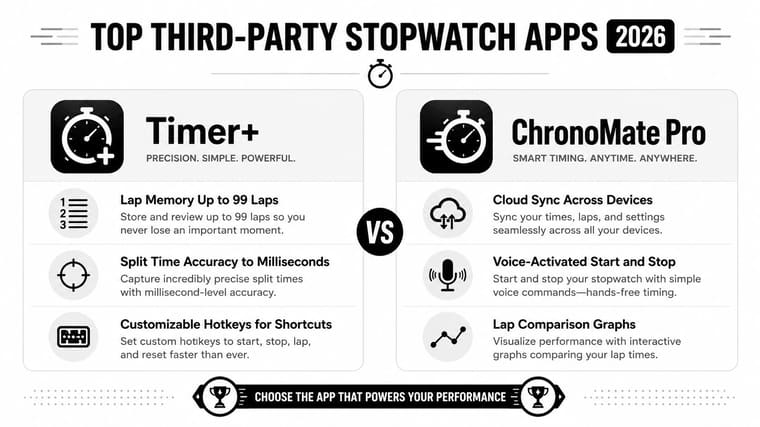
Built-in timers are convenient. Third-party apps are worth it only when they outperform the stock tools on a few concrete criteria: faster access under pressure, clearer laps, safer background behavior, and easier result handling.
The simple picker
Instead of choosing by rating alone, choose by timing situation.
- Use your built-in phone or watch stopwatch if launch speed matters most and you do not need exports.
- Use a dedicated mobile stopwatch app if you need bigger controls, more visible laps, or shareable results.
- Use a web stopwatch if you are timing at a desk and want a large screen without installing anything.
- Use a desktop stopwatch utility if timing is part of daily work and you want it always visible.
- Use an interval or productivity timer instead if your real need is guided rounds rather than pure elapsed timing. For that broader category, this roundup of timer interval app options is useful because it separates stopwatch-style timing from structured interval workflows.
Representative options that earn a place in 2026:
- iPhone Clock / Apple Watch Stopwatch for the fastest no-install start.
- Google Clock on Android for simple built-in timing on supported devices via the Google Play listing.
- MultiTimer for users who need more advanced timing views and Apple-platform flexibility through the official MultiTimer site.
- Online Stopwatch for browser-based timing with big-screen visibility via Online Stopwatch.
- Pretty Progress when the stopwatch is only one layer of a bigger system and you also need a visible long-range tracker on your devices via Pretty Progress.
What separates these from forgettable stopwatch apps is not novelty. It is that each one clearly wins somewhere: launch speed, readability, offline use, or result handling.
A practical comparison
Here’s a tighter way to compare stopwatch options based on actual selection criteria rather than generic “best app” claims.
| Option | Platform | Precision display | Lap/export support | Offline use | Best use case |
|---|---|---|---|---|---|
| iPhone Clock | iPhone | Fine sub-second display, but limited review | Laps, no serious export | Yes | Quick personal timing |
| Apple Watch Stopwatch | Apple Watch | Fine sub-second display at a glance | Basic laps, limited review | Yes | Repeated drills while moving |
| Google Clock | Android | Good for standard sub-second timing, varies by device view | Basic stopwatch use, limited export | Yes | Free built-in Android timing |
| MultiTimer | iPhone, iPad, Apple Watch, Mac | High-clarity digital display | Better organization; export depends on setup | Yes | Users juggling multiple timers or repeated sessions |
| Online Stopwatch | Web | Clear large display; browser-dependent | Usually limited compared with native apps | Often yes after load, but browser-dependent | Desk timing and classroom or gym visibility |
| Desktop/menu bar stopwatch | Mac/PC | Usually clear digital readout | Varies widely | Yes | Coding, experiments, workbench timing |
A few selection criteria matter more than the rest:
- Launch speed. I kept returning to the tools that were ready in one or two taps.
- Lap handling. If a lap list becomes messy after ten attempts, the app is not serious enough for drills.
- Export support. This is the dividing line between casual timing and reusable data.
- Background behavior. A stopwatch that gets weird when you lock the screen is hard to trust.
- Ad interruption risk. Free apps live or die here.
- Visibility during workouts. Tiny digits are a deal-breaker when you are moving.
- True milliseconds vs centiseconds. Three decimal places and two decimal places are not the same thing.
One pattern came up repeatedly in testing: web timers were great for visibility, built-in timers were best for speed, and third-party apps were only worth it when they offered cleaner lap review or export. That sounds obvious, but it is the difference between choosing a tool that helps and one that looks advanced.
| App style | Best for | Watch out for |
|---|---|---|
| Minimal stopwatch app | Quick personal timing, no setup | Often lacks exports and labels |
| Training-focused timer | Intervals, drills, repeated laps | Can be overbuilt for simple timing |
| Productivity timer with stopwatch mode | Desk work and short focus sessions | Stopwatch tools may feel secondary |
Best Uses for a Millisecond Stopwatch: Sports, Gaming, and Experiments
A millisecond stopwatch is most useful when the event is short, repeatable, and easy to compare. That is why the highest-intent use cases cluster around sports timing stopwatch routines, gaming reaction timer drills, and small experiments rather than all-day tracking.
For sports, a stopwatch with milliseconds helps most with practice reps, split comparisons, shuttle runs, and rest timing. It is useful when the same person repeats the same method each time and wants cleaner comparisons than a whole-second timer can offer. It is much less suitable for official race timing, where start method, touch delay, and recording standards matter more than the tiny digits on screen.
For gaming and reaction drills, stopwatch milliseconds can help you compare routines or warm-ups, but manual tapping is still the weak point. A phone can support rough reaction practice, yet it cannot replace software that logs inputs directly. That matters because a 1 millisecond interval is far below normal human manual stop-start precision, which is one reason digital timing became so important in electronics and measurement, as noted in this history of stopwatch development and in the Seiko Museum’s timing history.
For scientific, classroom, or hobby experiments, a smartphone or web-based millisecond stopwatch is fine when the event is visible and long enough to start and stop by hand with acceptable error. It works for repeatable prep steps, model car runs, fermentation checks, robotics tests, or timing app flows during development. Once the event is too fast for confident manual input, instrumentation or software logging becomes the better choice.
Practical Use Cases and Ensuring Accuracy
You tap start to time a 100-meter drill, a guitar exercise, or an app launch on your phone. The screen shows milliseconds, so it feels precise. The practical question is simpler. Are those numbers stable enough to trust for the decision you want to make?
Where millisecond timing actually matters
A smartphone stopwatch is most helpful when you care about repeatability more than official certification. It is strong for personal training, side-by-side workflow checks, short practice drills, and hobby tests where the same method is used each time. It gets weaker when the task demands formal timing standards or when touch delay is larger than the difference you are trying to measure.
The same principle applies in software checks. A stopwatch can reveal obvious changes in app responsiveness, but it is a first-pass tool. For app work, that kind of manual timing is only a first pass, but it is still useful. AppLighter’s 2026 performance insights give good context on where stopwatch checks fit beside proper benchmarking.
How to test whether your timer is trustworthy
Use a repeatable routine. Five minutes of checking tells you more than a polished app store page.
- Run the same fixed interval on two devices. Start them together, let them run, then compare drift at the end.
- Record ten short laps in a row. Look for suspicious patterns such as repeated values, oddly rounded jumps, or missed taps.
- Lock the screen and switch apps. Some timers stay accurate while hidden. Others stutter, pause, or redraw late when you return.
- Compare built-in and third-party apps on the same phone. If the OS stopwatch behaves better under app switching, that usually tells you something about implementation quality.
- Test the exact workflow you care about. A workout timer, coding timer, and music practice timer fail in different ways.
If you want a simple calibration routine for personal use, do this:
- Compare against another device over a fixed interval, such as 5 or 10 minutes.
- Repeat several short lap tests to see whether your results are stable, not just plausible once.
- Note touch-delay limits by practicing start-stop on a visible external timer and watching how much variation your own tapping introduces.
- Decide whether the use case is personal or official. Personal training, hobby testing, and repeat drills are usually fine on a phone. Official competition, safety-critical timing, and formal measurement are not.
I trust a phone stopwatch most when I am looking for consistency inside my own routine rather than absolute proof. That mindset also keeps expectations realistic.
Trust repeatability before you trust pretty digits.
That mindset also helps with productivity. Use the stopwatch for micro-timing, then pair it with a broader visual tracker for work that unfolds over days or weeks. A home screen timer setup for longer goals works well when you want both views: exact short-run timing and a visible sense of overall progress.
Phone stopwatches are strong tools for personal training, practice, and side-by-side comparisons. For officiating, safety-critical timing, or formal testing, validate the method first or use dedicated equipment.
Integrating Timing into Your Productivity Workflow
A millisecond stopwatch helps at 2:13 p.m. when you want to know whether email triage takes six minutes or twelve. It does not help much at 9:00 p.m. when you are asking whether the whole project is moving.
That is why I treat timing as two layers. One layer measures short, repeatable actions. The other keeps long goals visible enough that they do not drift into the background.
Use one tool for short bursts and another for long arcs
The practical split is micro-timing and macro-tracking.
Use a stopwatch for work where tiny differences matter or where you are trying to reduce friction:
- Short focus sessions
- Quick repeat tasks
- Workout intervals
- Practice drills
- Setup time before real work starts
Use a progress or countdown view for work that unfolds over days or weeks:
- Project deadlines
- Exam prep windows
- Reading goals
- Habit streaks
- Launch timelines
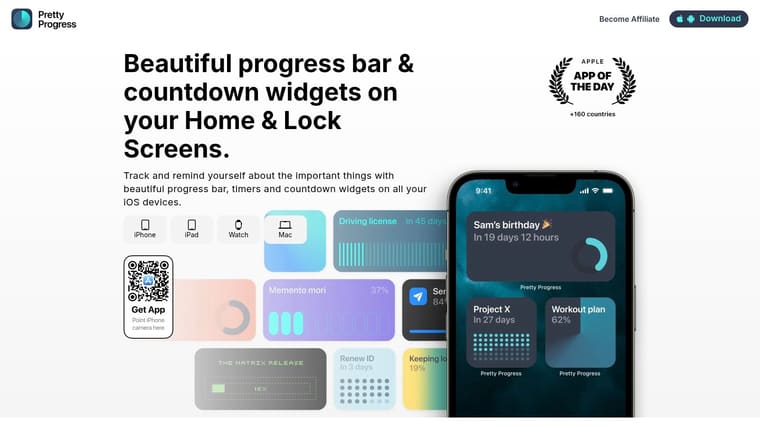
These tools solve different problems. A stopwatch is good at answering, “How long did this run take?” A progress bar or countdown is better for, “Am I on pace this week?”
There is also a UI trade-off. The best stopwatch view is dense and immediate. The best long-range tracker is glanceable. For day-to-day productivity, I want both. Precise capture during the work itself, then a bigger visual indicator that stays on screen after the session ends.
A setup that stays visible all day
A simple workflow works well on phones, tablets, and desktops:
- Run a stopwatch during active work blocks
- Save or note the result if you are comparing sessions
- Keep a home screen countdown or progress widget for the larger target
- Use lock screen or desktop visibility so the deadline stays in view without opening an app
If you want that second layer, this home screen timer setup for longer goals is a good starting point.
The payoff is clarity. You can measure the small unit of effort accurately, then connect it to something bigger than a single session. That combination is what makes a stopwatch useful beyond timing laps.
Frequently Asked Questions
What’s the difference between centiseconds and milliseconds
A centisecond is one hundredth of a second. A millisecond is one thousandth of a second. If your app shows two digits after the decimal, you’re usually looking at centiseconds. If it shows three, that’s usually milliseconds.
Is a smartphone stopwatch accurate enough for official timing
Usually not by default for official use. The important issue isn’t just display detail but long-run accuracy and drift. NIST states that a field-standard stopwatch should be accurate to 0.02% of the time interval under test, which is about 2 seconds over 3 hours, in NIST Handbook 105-5. That’s a much stricter benchmark than most casual phone use.
If you want a broader plain-English overview of what separates casual timing from dependable timing practice, this TimeTackle is a useful companion read.
Can I export lap times to a spreadsheet
Some third-party apps let you export lap history, share it, or copy it into notes and spreadsheets. Built-in stopwatch apps are often more limited. If exporting matters, check that before you commit to an app.
Why do some timers feel precise but still seem off
Because display format and measurement behavior aren’t always the same. An app can show very fine-grained numbers while the underlying timing and refresh behavior are less impressive.
If you want the bigger picture of your time, not just the tiny slices, Pretty Progress is a smart companion. It turns deadlines, goals, and long-running countdowns into clean widgets on iPhone, iPad, Apple Watch, Mac, and Android, so your stopwatch handles the fast moments while Pretty Progress keeps the larger mission visible every time you view your screen.