
May 9, 2026
10 Best Home Screen Widgets for 2026 (iOS & Android)
Discover the 10 best home screen widgets for iOS and Android. Our 2026 guide covers top apps for productivity, design, tracking, and more.
You’re probably looking at your phone right now and feeling one of two things. Either your home screen is boring and underused, or it’s crowded with widgets that looked great for a day and now just add noise. This divide is evident with the best home screen widgets in 2026. Some help you act faster, some keep goals visible, and some mainly exist to make your phone look better.
Widgets are no longer a niche customization trick. After Apple introduced home screen widgets with iOS 14, the top five widget apps reached 15% of U.S. iPhones in late 2021, according to Sensor Tower’s widget app analysis. That shift is why a good widget setup now feels normal instead of experimental.
The useful approach is to match widgets to your actual goal. If you want motivation, pick progress widgets. If you want speed, use launchers and sticky notes. If you want a themed layout, choose apps with ready-made packs instead of building from scratch. If your schedule is the main problem, this guide for busy parents managing schedules is a smart companion read.
Table of Contents
- 1. Pretty Progress
- 2. Widgetsmith
- 3. Widgy
- 4. Color Widgets
- 5. ScreenKit
- 6. Launcher by Cromulent Labs
- 7. KWGT Kustom Widget Maker
- 8. Widgetable Besties & Couples
- 9. PhotoWidget Simple PhotoWidget Home & Lock Screen
- 10. Sticky Widgets
- Top 10 Home Screen Widgets, Feature Comparison
- Final Thoughts
1. Pretty Progress
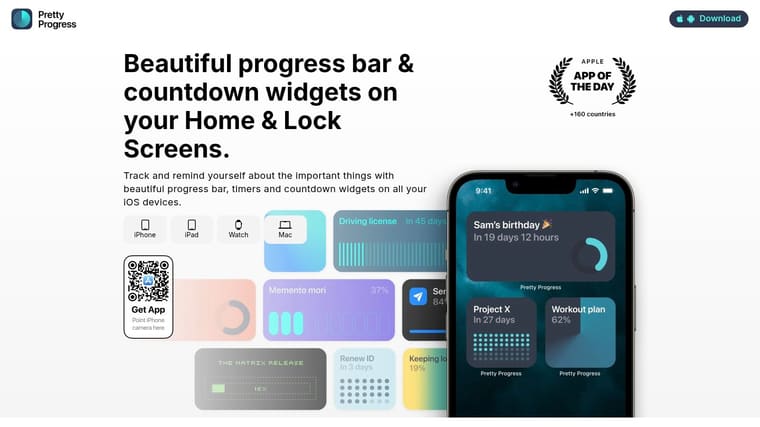
Pretty Progress is the widget app I’d point people to first if they want their home screen to change behavior, not just appearance. It focuses on countdowns, progress bars, and timers across iPhone, iPad, Mac, Apple Watch, and Android, which makes it more useful than the usual “nice wallpaper plus random clock” setup.
The reason it stands out is simple. It gives you a visible target. A release date, exam, fasting window, vacation, savings milestone, or project deadline sits on your screen all day instead of disappearing into an app you forget to open.
Why it works so well
The app is design-first without getting fussy. You can choose themes like Swiss Style, Aqua, Retro OS, and Minimal, then adjust colors, gradients, bar size, shape, icons, and layout so the widget looks intentional instead of bolted on.
That matters because progress widgets fail when they feel messy. Pretty Progress keeps the editing flow short, so you can create a goal, set start and end dates, and place it on your Home or Lock Screen without a long setup session.
Practical rule: If a widget is supposed to motivate you, keep it readable from arm’s length. A clean progress bar usually works better than stuffing the same space with too much text.
It also helps that the app includes date calculators, business-day counters, exact age tools, and intermittent fasting timers. Those extras make it flexible enough for daily life, not just one-off countdowns. If you want ideas for building a more visual setup, the app’s guide to visual goals that stay visible is worth a look.
Best setup
The best use case is one large progress widget paired with one supporting utility widget. For example, put a medium progress bar for “days until exams” on your first page, then a smaller timer or second deadline on the Lock Screen. That keeps the screen functional without turning it into a dashboard you stop noticing.
Pros and cons are pretty straightforward:
- Best strength: It combines motivation and aesthetics better than most widget apps.
- Good platform range: It works across Apple devices and Android, so your setup can stay consistent.
- Free start: You can install it for free, then decide later if the PRO styling options are worth it.
- Main trade-off: Some of the deeper visual customization sits behind the PRO upgrade.
- Platform limit: Lock Screen behavior and some widget details still depend on OS rules, especially across iOS and Android.
This is the strongest pick for people who want the best home screen widgets for progress tracking instead of generic decoration.
2. Widgetsmith
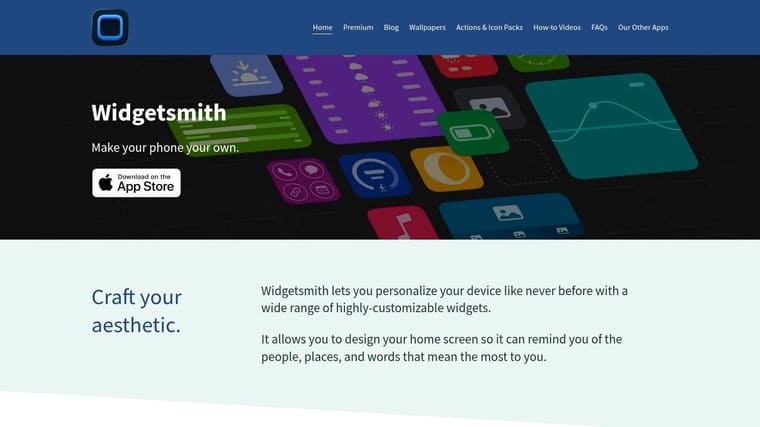
You open your phone to check the weather, then notice the same spot can show your calendar in the morning and a photo widget later that night. That kind of shape-shifting setup is why Widgetsmith still matters for Apple users.
It covers the basics well: calendars, weather, photos, clocks, reminders, activity data, and simple aesthetic widgets. If your main goal is to build one coordinated iPhone home screen without juggling three or four apps, Widgetsmith is often the easiest place to start.
Best for flexible Apple setups
Widgetsmith works best for people who want variety more than precision. The scheduled widget feature is the standout. You can set one widget slot to show the date and upcoming events during work hours, then swap to photos or a cleaner clock later. In practice, that helps keep page one useful instead of static.
The trade-off is focus. Widgetsmith gives you enough options to build a polished setup, but it also makes it easy to spend an hour changing fonts, tint colors, and borders for information you barely use. I get better results by assigning it a clear job first, then styling around that job.
A setup that holds up well looks like this: one medium calendar or weather widget on the first page, one small utility widget for battery or date, and the more decorative photo widgets on page two. That split fits the goal-based approach for this guide. Use Widgetsmith if your priority is aesthetics with some productivity, not serious progress tracking.
A few limitations matter before you install it. Some data and themes require Premium. Tap actions can still route through the app first because of iOS rules. If you want highly interactive widgets or fully custom data panels, Widgy usually goes further. If you want a cleaner motivation-first setup, a dedicated progress app will usually feel more useful day to day.
My rule is simple. Keep Widgetsmith for broad home screen customization, and be strict about which widgets earn a spot on page one.
3. Widgy
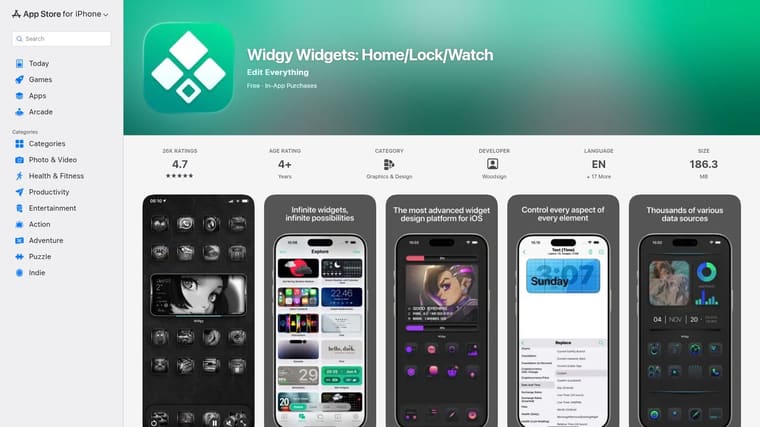
Widgy on the App Store is for people who don’t want presets. They want control. Lots of it.
This app gives you a layer-based editor with text, images, charts, and effects, plus a large community that shares custom designs. If you’ve ever seen a home screen that looks almost custom-coded, there’s a good chance Widgy was involved.
Best for tinkerers
Widgy is one of the best home screen widgets options for power users because it lets you build layouts from the ground up. Transparent-style widgets, custom information panels, and Apple Watch complications are all in its wheelhouse.
That freedom comes with friction. New users often hit the same wall. The app can do a lot, but you need patience to learn how the pieces fit together. Tap actions also usually open Widgy before the target app because iOS still puts limits on direct behavior.
Here’s where Widgy shines in practice:
- Custom dashboards: Great for one-screen control centers with layered info.
- Community designs: Helpful if you want advanced looks without starting from zero.
- One-time purchases: A friendlier option for some users than recurring subscriptions.
If your idea of fun is adjusting spacing, opacity, and widget logic until everything lines up perfectly, Widgy is excellent. If you want something useful in five minutes, it probably isn’t your best first download.
4. Color Widgets
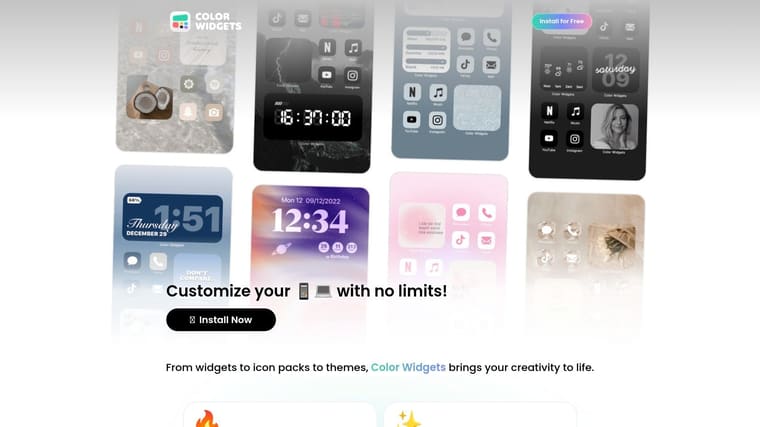
You open your phone, hate how mismatched everything looks, and want it fixed before dinner. Color Widgets is built for that job.
Color Widgets gives you pre-made widgets, icon packs, wallpapers, and theme bundles that are easy to apply without much setup. It fits the aesthetic side of this guide well. If your main goal is a polished look rather than detailed control, it gets you there faster than more customization-heavy apps.
Best for quick aesthetic setups
In practice, Color Widgets works best if you treat it like a themed kit, not a widget workshop. Pick one visual direction, apply it across one or two Home Screen pages, and leave your most-used apps on a cleaner page for speed. That setup usually looks better and feels better to live with.
It also includes functional touches like Home and Lock Screen widgets, plus Apple Health support for basics like steps and activity. That matters if you want your phone to look coordinated without giving up simple progress tracking entirely.
The trade-off is straightforward. Many of the better designs and broader theme access require a paid upgrade. The app is also stronger on appearance than on deep customization, so it makes sense for aesthetics-first users, not people who want to fine-tune data, logic, or layered layouts.
If you want visual polish without ending up with a home screen that is harder to use, this guide to aesthetic widgets that still feel practical is a helpful filter.
- Best use: Fast theme refreshes, matching widgets and icons, seasonal home screen changes.
- Skip it if: You want advanced control over layout behavior or highly customized information panels.
- Setup advice: Build one focused page. Too many styles, fonts, and colors make the result feel busy fast.
5. ScreenKit
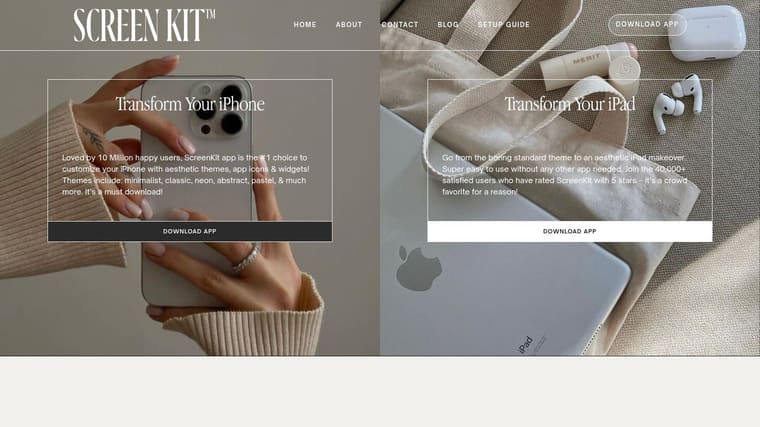
ScreenKit leans hard into the “full makeover” approach. It’s less about a single excellent widget and more about giving you matching icons, themes, wallpapers, and widget styles so the entire device feels curated.
That makes it appealing if your current home screen looks stitched together from three different apps and two different moods.
Best for complete themed makeovers
ScreenKit is strong when you want visual consistency fast. Curated packs save time, and the batch application flow is easier than manually changing every piece of your setup.
The limitation is that theme-heavy apps can age quickly. A design may look great in screenshots and feel less usable once you live with it for a week. That’s especially true when labels, contrast, or icon clarity get sacrificed for style.
A good aesthetic setup still needs fast recognition. If you have to pause to find Messages or Calendar, the theme is doing too much.
For people chasing an iPhone aesthetic setup, this guide to aesthetic widgets that still feel usable is a smart filter. It helps narrow the gap between “pretty in a screenshot” and “good every day.”
ScreenKit works best on a secondary page or on devices where appearance matters more than speed. For a main work phone, I’d use it more selectively.
6. Launcher by Cromulent Labs
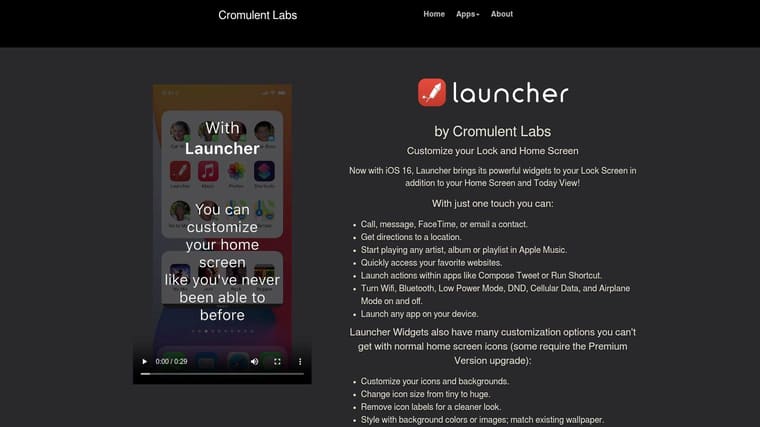
Launcher by Cromulent Labs solves a specific home screen problem. You already know what app you need, but getting there still takes too many taps. Launcher cuts that delay by putting actions directly on the Home Screen or Lock Screen, including app shortcuts, contacts, settings links, music controls, map destinations, web links, and Shortcuts automations.
This app belongs firmly in the productivity camp of this guide. It is less about styling your phone and more about making repeated tasks faster.
Best for action-first productivity
Launcher works best for people who do the same handful of things every day. Start a workout playlist. Message a partner. Open a grocery list. Get directions home. Run a morning Shortcut. Those are small actions, but they add up, and Launcher is one of the few widget apps that feels meaningfully useful after the novelty wears off.
The trade-off is iOS itself. Some actions still bounce you through system confirmations or app handoffs, and not every shortcut feels equally direct. If your goal is one-tap speed, test your most-used actions before you build your whole layout around them.
My preferred setup is one medium Launcher widget on the first page with five to eight actions max. That keeps it fast to scan. Past that point, the widget starts to look like a mini dashboard, and speed drops because you have to hunt for the right icon.
Launcher is also a smart fit if your home screen goal is functional progress rather than aesthetics. A well-set-up action widget can remove more daily friction than three decorative widgets ever will.
Use clear labels, group similar actions together, and reserve the top spots for tasks you trigger multiple times a day. That is where Launcher earns its place.
7. KWGT Kustom Widget Maker
You spend 20 minutes trying preset after preset, and every widget still feels close to what you want instead of exactly right. That is the point where KWGT Kustom Widget Maker starts to make sense.
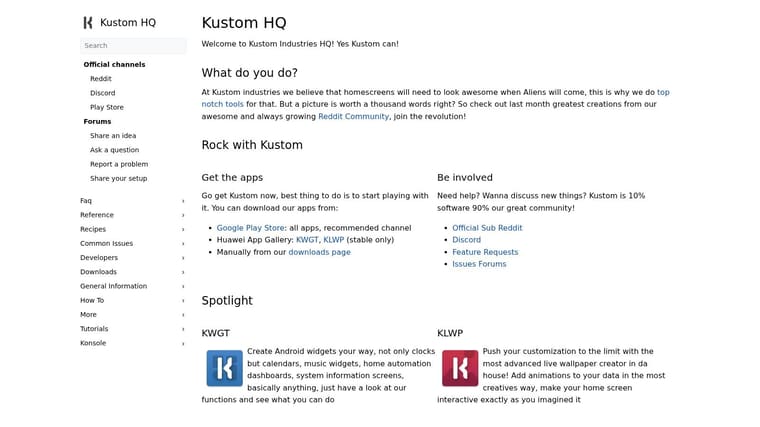
KWGT is for people who want control over the actual structure of a widget, not just its colors and font. You can build custom clocks, weather modules, music panels, system stats, habit counters, and mixed layouts that pull in variables and formulas. In a guide organized by goal, this sits between productivity and visual customization. It can do both, but only if you are willing to build.
Best for Android power users who want full control
I recommend KWGT to Android users who already know what is missing from other widget apps. Maybe you want a progress widget that shows steps, battery, and calendar events in one block. Maybe you want a minimal setup that matches your icon pack exactly. KWGT handles those jobs better than template-first apps because you are not boxed into someone else’s layout.
The trade-off is time. KWGT has one of the steepest setup curves in this list, and that is obvious within the first few minutes. If your goal is a useful home screen fast, apps like Pretty Progress or Widgetsmith are easier places to start. If your goal is a home screen that feels fully yours, KWGT gives you more room than almost anything else on Android.
One practical tip: do not build from a blank canvas on day one.
Start with a well-rated community preset, swap in your own data sources, then adjust spacing, typography, and tap actions. That approach teaches the app faster and helps you get one working widget on screen before the editor starts to feel like a project.
- Use KWGT if: You care about custom layouts, data-driven widgets, and fine control.
- Avoid it if: You want polished results in five minutes.
- Smart approach: Build one medium widget first, then reuse that design language across the rest of your screen.
KWGT earns its place here because it serves a specific goal better than almost any alternative: building a home screen around your own system instead of adapting to somebody else’s template.
8. Widgetable Besties & Couples
You access your phone during a long day and see your partner’s mood, your best friend’s pet, or the distance between you instead of another static clock. That is the reason Widgetable works. It gives the home screen a social job, not just a visual one.
Widgetable is built for shared widgets between friends and couples. The app centers on presence. You can set up mood check-ins, distance widgets, sleep sharing, activity updates, and small interactive elements like virtual pets. If your goal is pure productivity, this is the wrong category. If your goal is connection, it fills a niche that utility-first apps ignore.
Best for shared social widgets
What I like about Widgetable is that the setup makes sense fast. Pick one person, choose one widget type, and keep it contained. A single medium widget usually works better than covering a whole screen with social cards. In practice, the distance widget or mood widget tends to hold up better over time than the more novelty-heavy options because it gives you information you will find yourself glancing at.
The trade-off is obvious. Widgetable adds warmth, not efficiency. It will not replace a calendar, launcher, or habit tracker. It also depends on the other person participating, which means the experience is only as good as the shared setup.
That limitation matters if you are organizing your home screen by goal. For tracking progress, apps like Pretty Progress are more useful. For aesthetics, Widgetsmith or Widgy give you more visual control. Widgetable fits the third kind of build. A phone layout that keeps specific people visible and makes the screen feel more personal.
A practical setup tip. Put Widgetable on a secondary home screen or pair one small social widget with your core tools on the main page. That keeps the emotional value without letting novelty crowd out the apps you need every day.
Some widgets earn their space by being useful. Widgetable earns it by helping the phone feel human.
9. PhotoWidget Simple PhotoWidget Home & Lock Screen
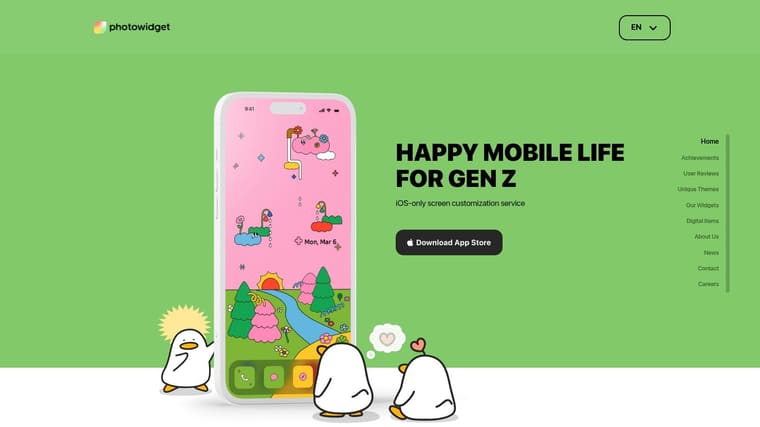
When you access your phone, the first thing you see is a favorite travel photo, your partner, your kids, or a countdown to something you care about. That is the appeal of PhotoWidget. It personalizes a home screen faster than almost anything else in this category.
The app starts with photo widgets, but it is broader than the name suggests. You also get countdowns, calendar options, memos, to-do widgets, battery widgets, and theme pieces. That mix makes it useful for people building around aesthetics first, then adding a little function afterward.
Best for photo-heavy setups
What PhotoWidget does well is reduce setup friction. In my experience, it is one of the easier ways to build a polished, memory-driven screen without spending half an hour tweaking spacing, fonts, and layers. Pick an album, choose a frame style, set the size, and you are basically done.
That speed comes with a trade-off. PhotoWidget is better for soft utility than serious organization. A photo, a countdown, and a memo can make a screen feel more alive, but they will not replace a proper productivity layout or a goal-tracking setup. If your main objective is tracking progress, Pretty Progress makes more sense. If your goal is a home screen that feels like yours the moment you open it, PhotoWidget fits better.
The easiest way to use it well is restraint.
One large rotating photo widget paired with one useful widget usually looks better and works better than stacking multiple sentimental panels together. A medium photo widget beside a small countdown for an upcoming trip or event is a solid starting point. On Lock Screen, keep it simpler. One photo or one date-focused widget is enough, because glanceability matters more there than decoration.
The main limitation is scan speed. Once the screen fills up with photos, themed art, countdowns, and memo cards, it gets harder to find the tools you opened your phone to use. PhotoWidget works best in an aesthetics-first build, not in a dense command center.
10. Sticky Widgets
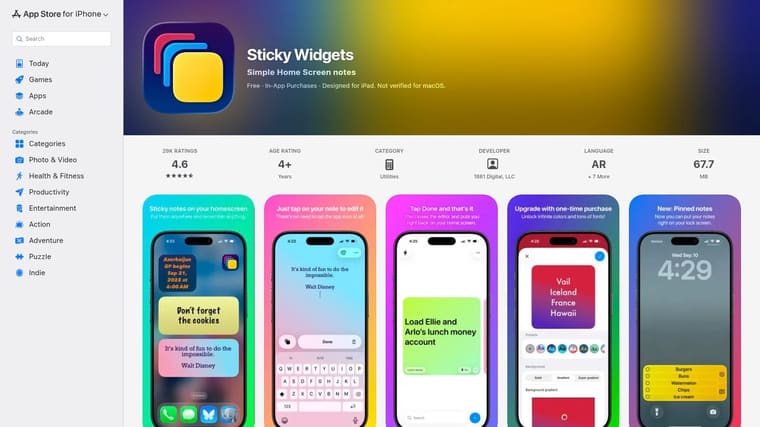
Sticky Widgets does one thing well. It puts simple notes where you can’t ignore them.
That narrow focus is a strength. Plenty of widget apps try to be everything. Sticky Widgets is much better when you just need a sentence, short list, or reminder sitting on the screen all day.
Best for simple notes on the home screen
The app supports unlimited sticky-note widgets with controls for color, font, alignment, and rotation, plus Lock Screen support, iCloud sync, Shortcuts support, and Dynamic Island integration. If your brain works better with visible prompts than hidden tasks, this kind of widget can help more than a detailed planner app.
There’s a bigger usability lesson here too. Research and commentary around home screen clutter increasingly push toward simpler layouts, and one cited gap in widget advice is the lack of practical guidance on avoiding overload. A summary of that discussion points to minimalist use over crowded dashboards in Android Central’s take on simple home screens versus widget-heavy setups.
That matches how Sticky Widgets works best. Put one note where you’ll see it. Don’t recreate your whole task manager on the home screen.
- Best use: Grocery reminders, one-line priorities, short checklists.
- Less ideal for: Complex project planning or detailed task systems.
- Real-world tip: Rewrite the note often. The widget only works if your eyes still notice it.
Top 10 Home Screen Widgets, Feature Comparison
| App | Core features | UX & quality | Price / Value | Best for | Unique selling point |
|---|---|---|---|---|---|
| Pretty Progress 🏆 | Customizable progress bars, countdowns, cross‑device widgets, date calculators | ★★★★★, polished, zero‑ads, simple setup | 💰 Free + PRO in‑app upgrade | 👥 Design‑minded goal trackers & habit builders | ✨ Design‑first themes, fine styling controls |
| Widgetsmith | Broad widget types (photos, clocks, weather, countdowns), scheduling, integrations | ★★★★, mature, reliable | 💰 Free; Premium paywall for some data | 👥 iOS customizers wanting many widget types | ✨ Time‑based scheduling & deep iOS integrations |
| Widgy | Layered visual editor, charts, community templates, watch complications | ★★★★, powerful but steeper learning | 💰 One‑time unlocks / IAPs | 👥 Power users who build bespoke widgets | ✨ Layer‑based canvas for pixel‑perfect designs |
| Color Widgets | Huge library of ready‑made widgets, themes, icon packs | ★★★, fast results, consumer‑friendly | 💰 Free; Pro/subscription for premium packs | 👥 Casual users wanting quick aesthetic makeovers | ✨ Massive ready‑made theme & icon catalog |
| ScreenKit | Curated themes, icon packs, batch apply flows, many widget styles | ★★★, theme‑driven but mixed reviews | 💰 Free + IAP/subscriptions | 👥 Users wanting cohesive, one‑tap themed setups | ✨ One‑tap themed setups with matching icons |
| Launcher (Cromulent Labs) | Action widgets (apps, contacts, shortcuts), transparent backgrounds | ★★★★, productivity‑oriented | 💰 Free; IAPs for extras | 👥 Power users seeking quick actions | ✨ Action‑centric widgets that speed common tasks |
| KWGT Kustom Widget Maker | Full Android layout engine, Tasker & API support, variables | ★★★★, very flexible, technical | 💰 Paid/Pro features (one‑time or pro) | 👥 Android power users & tinkerers | ✨ Near‑limitless Android customization & Tasker support |
| Widgetable: Besties & Couples | Shared interactive widgets (mood, distance, pets), cross‑platform | ★★★, social & playful | 💰 Free; many features require subscription | 👥 Friends, couples & social groups | ✨ Connected/shared widgets & virtual pets |
| PhotoWidget: Simple | Photo carousels, countdowns, memos, AI wallpapers, icon sets | ★★★, photo‑first, ad‑supported free tier | 💰 Free; IAP/subscription to remove ads & unlock themes | 👥 Photo lovers and quick theme creators | ✨ AI wallpaper generator + photo carousel widgets |
| Sticky Widgets | Minimal sticky notes, iCloud sync, Shortcuts, Dynamic Island support | ★★★★, fast, reliable, lightweight | 💰 Free; optional one‑time unlock / Premium | 👥 Users who need persistent notes & lists | ✨ Simple, persistent sticky‑note widgets with sync |
Final Thoughts
A quality home screen proves its worth in the first half-second after you access your phone. If it forces you to search, squint, or swipe through decorative clutter, it is not set up well yet.
The simplest way to choose from this list is by primary goal. Build for progress, build for aesthetics, or build for speed. That framing matters more than platform debates because the right widget is the one you will notice and use every day.
If your goal is tracking progress, start there and keep the setup tight. One progress bar or countdown on page one usually works better than stacking several widgets that compete for attention. Pretty Progress fits that job well because it keeps a single target visible, which is exactly what helps with habits, deadlines, and longer projects. In my experience, goal widgets work best when they track one meaningful metric, not five smaller ones.
If your goal is pure aesthetics, Widgetsmith, Widgy, Color Widgets, ScreenKit, and PhotoWidget give you more room to shape the look. The trade-off is maintenance. The more customized the layout gets, the more likely you are to spend time adjusting spacing, matching themes, or replacing widgets that looked better in screenshots than they do in daily use.
If your goal is productivity, Launcher, Sticky Widgets, and KWGT are usually the better long-term picks. They save taps, surface useful information, and hold up better after the novelty wears off. That practical value is why action widgets and note widgets tend to stay on my own home screen longer than decorative ones.
A few setup rules help almost every phone:
- Give page one a single job. Progress tracking, quick actions, or a clean visual theme.
- Use one large focal widget. It reads faster than several small ones.
- Test the layout for a week. If you stop noticing a widget, replace it.
- Keep function visible. A stylish screen still has to be easy to read at a glance.
If battery life is a concern, especially on larger Android devices with busy layouts, choose only the widgets you check regularly and remove anything that adds background activity without being useful.
The best home screen widgets do not win by filling space. They win by making the next glance more useful.





