
April 20, 2026
10 Best Free Widget Apps for iPhone in 2026
Discover the best free widget apps for iPhone to customize your Home & Lock Screen. Our 2026 guide covers apps for aesthetics, productivity, and social fun.
Your iPhone Home and Lock Screen are valuable real estate. If they still look like a plain grid of icons, you’re leaving a lot of convenience on the table. A good widget setup can show the next thing you need to see, reduce app-hopping, and make your phone feel more like your phone.
Since Apple made customization a core part of iOS 14 in 2020, widget apps have grown from a niche hobby into a mainstream part of the iPhone experience. One early breakout was Widgetsmith, which was described as an app that “lets you customize EVERYTHING” and even lets users “create different widgets for different times of the day” in a community discussion about iPhone widget apps (widget app community discussion). That same discussion also points to how much the space expanded by 2025 to 2026, including libraries like Widgetopia with “over 100,000 free homescreen widgets for iPhone, iPad, and Android.”
That growth is great for users, but it also creates a new problem. Choice overload. The best free widget apps for iphone aren’t all trying to do the same job. Some are best for focus, some for aesthetics, some for fast actions, and some for staying aware of deadlines without opening anything.
This guide gets to the useful part fast. You’ll find the apps worth trying, the trade-offs that matter in daily use, and quick setup tips so you can tell which one fits your style before you spend half an hour rearranging your Home Screen.
Table of Contents
- 1. Pretty Progress
- 2. Widgetsmith
- 3. Color Widgets
- 4. Widgy
- 5. Launcher by Cromulent Labs
- 6. Widgetable
- 7. Top Widgets+
- 8. Photo Widget Simple PhotoWidget
- 9. ScreenKit
- 10. Widgit App Launcher Widgets
- Feature Comparison of Top 10 Free iPhone Widget Apps
- Go Beyond the Grid Your Personalized iPhone Awaits
1. Pretty Progress
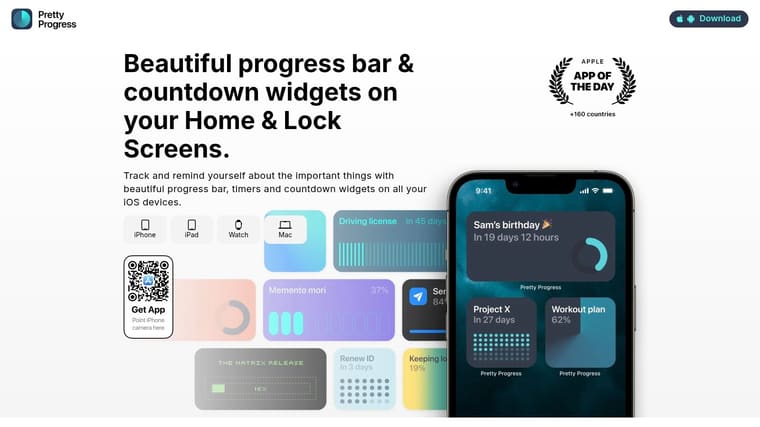
Pretty Progress is the one I’d point people to when they want a widget that changes behavior, not just wallpaper vibes. It’s built around countdowns, progress bars, timers, and clean visual reminders you can pin to your Home Screen, Lock Screen, Apple Watch, Mac, and even Android.
What makes it different is restraint. A lot of widget apps give you endless decoration first and usefulness second. Pretty Progress starts with something concrete, like an exam date, fasting window, habit streak, project deadline, or trip countdown, then makes that information feel calm and visible all day.
Why it works so well day to day
For ADHD focus, this style works because the reminder is persistent without being noisy. You don’t need to open a task manager, scroll through a list, or process ten different badges. You just see the bar moving.
The app also includes calculators and helpers that make setup easier than expected. If you’re tracking business days, exact age, or fasting schedules, you don’t have to do extra math somewhere else first. That saves friction, and friction is usually what kills widget setups after the first week.
Practical rule: If you want a widget that nudges action, use one metric per screen. Pretty Progress is strongest when a single goal gets visual priority.
The free version is already useful. The optional PRO upgrade is more about deeper styling, extra themes, and finer control over gradients, layouts, and polish. That means you can start free, see if the approach sticks, and only upgrade if design control matters to you.
Quick setup tip
Start with one widget, not a dashboard. Pick one deadline or recurring target, choose a simple theme like Minimal or Swiss Style, and place it where your thumb naturally pauses. If you need help placing it, the app’s guide to adding a countdown widget on your iPhone is straightforward.
A few honest trade-offs matter:
- Best for visual motivation: It’s excellent for countdowns, progress bars, and reminders that stay visible.
- Less ideal for complex planning: It isn’t trying to replace a full project manager or task system.
- Great cross-device story: If you want the same kind of reminder visible beyond iPhone, this is one of the cleaner options in the category.
If your main question is “what should I put on my iPhone that I’ll keep using,” Pretty Progress is one of the strongest answers.
2. Widgetsmith
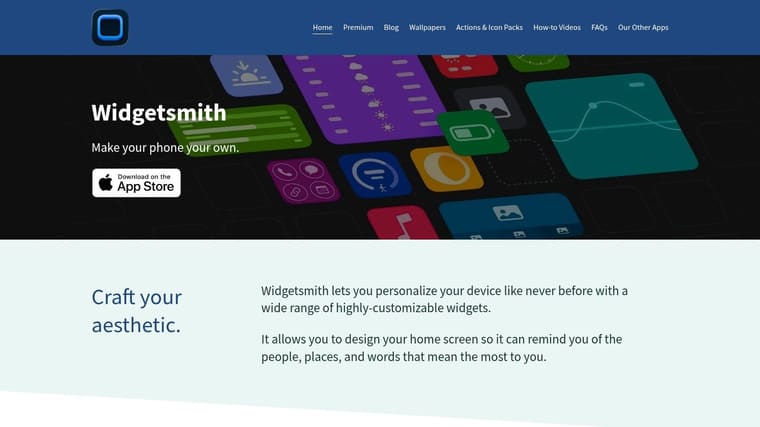
Widgetsmith is still the default recommendation when someone wants broad, flexible iPhone customization. It supports Home and Lock Screen widgets and pulls from useful sources like photos, calendars, reminders, music, weather, and activity data.
It also has real market weight. A widget guide says Widgetsmith had over 65 million downloads and a 4.7 out of 5 App Store rating from 1.2 million reviews as of 2026 (Widgetsmith market leader review). Even if you ignore the hype, that scale matters because it usually means lots of presets, lots of tutorials, and a mature app that people have pushed in many different directions.
Who should use it
Widgetsmith is for people who like tuning things. If you want time-based widget changes, a photo widget in the morning, calendar later, and a different visual style at night, it can do that.
What doesn’t work as well is the first-run experience for impatient users. Widgetsmith can feel slightly “builder-first,” which is great once you understand it and mildly annoying when you don’t.
It’s one of the few apps that works for both practical setups and aesthetic setups without feeling trapped in either camp.
Quick advice: start with one useful widget first, like calendar or reminders, then style it later. If you begin by tweaking fonts and backgrounds before choosing the information you need, you’ll burn time and end up with a prettier screen that still doesn’t help you.
3. Color Widgets
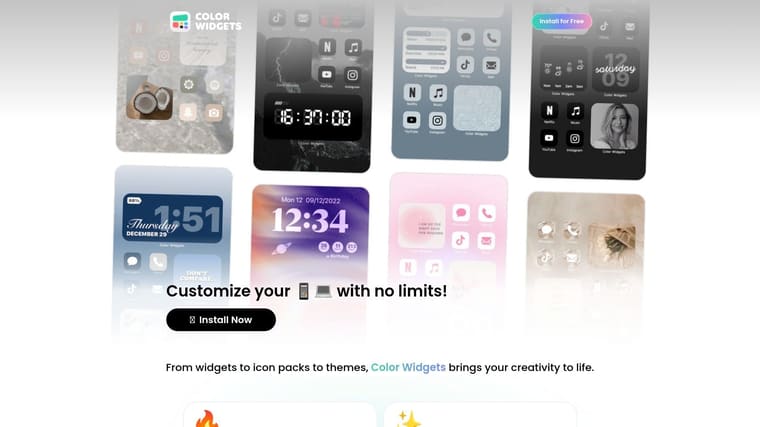
Color Widgets is the fast route to a styled iPhone. If Widgetsmith is the workshop, Color Widgets is the showroom. You open it, pick a look, and get something polished on screen quickly.
That speed is the reason people like it. There are ready-made clocks, calendars, battery widgets, countdowns, photos, and icon packs, so you can create a coordinated Home or Lock Screen without much effort.
Best use case
This is a strong pick if you care more about visual cohesion than dense information. It’s especially good for users who want seasonal themes, matching icon sets, and widgets that feel designed as a set instead of assembled piece by piece.
The trade-off is simple. It leans harder into style than utility. If your priority is seeing as much useful data as possible at a glance, you may outgrow it faster than a more utility-focused app.
A practical way to use Color Widgets is to let it handle one screen only. Make your first page useful and your second page aesthetic, or the reverse. That keeps your phone looking fun without turning the whole experience into decoration.
4. Widgy
Widgy is for tinkerers. If you’ve ever looked at a widget app and thought, “nice, but I want to move everything around myself,” it’s the perfect fit.
Its editor is layer-based, which means you can build widgets from text, shapes, images, and data elements in a much more granular way than typical template apps allow. It also supports community imports, which helps a lot because not everyone wants to start from a blank canvas.
Where it shines
Widgy is strongest when you want something unusual. Maybe you want a compact info panel, a dashboard-like widget, or something that mixes aesthetics with tightly arranged data. That’s where it feels powerful.
- Best for advanced customization: You get much more control than simple theme apps.
- Good community support: Importing shared designs shortens the learning curve.
- Not the easiest first widget app: The interface can feel dense if you just wanted a quick clock and weather block.
If you enjoy building, it’s excellent. If you want results in five minutes, it probably isn’t the first app to install.
5. Launcher by Cromulent Labs
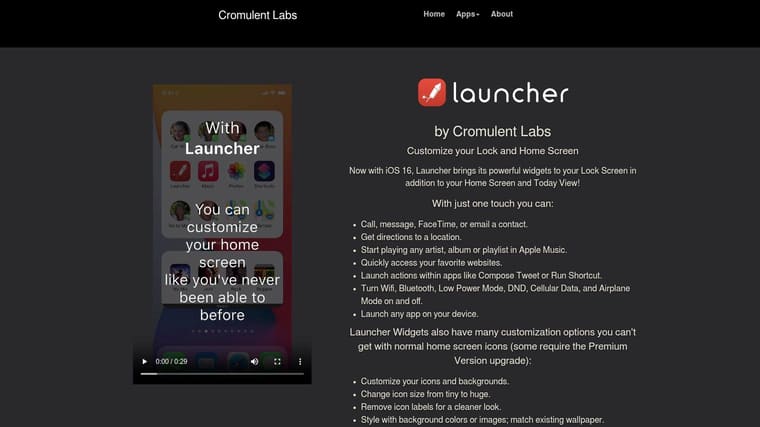
Launcher by Cromulent Labs solves a different problem than most apps on this list. It’s not trying to make your iPhone prettier first. It’s trying to make it faster.
This app is built around action widgets. You can launch apps, contacts, music, directions, and Shortcuts directly from widgets on the Home Screen and Lock Screen. If you use your phone as a tool and want fewer taps between intention and action, Launcher is excellent.
Quick setup tip
Start by building a “friction remover” widget, not a giant control panel. Add the four to six actions you repeat most often. Think messages to key people, maps home, grocery list shortcut, timer, work music, or one-tap note capture.
Launcher also makes sense for accessibility and routine-based use because function is always front and center. The visual customization is fine, but the app’s real value is that it shortens common actions.
A good Launcher setup should feel invisible. If you notice the design more than the time it saves, it probably needs simplifying.
The main downside is obvious. If you want rich visual widgets or a themed aesthetic setup, Launcher won’t scratch that itch the way Color Widgets or ScreenKit will.
6. Widgetable
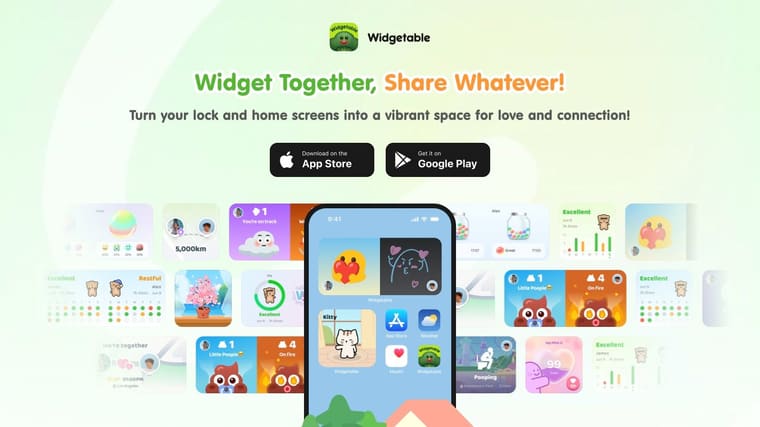
Widgetable is one of the more playful entries in the best free widget apps for iphone category. It’s built around shared experiences, including social widgets, pet and plant widgets, mood bubbles, sleep tracking elements, and distance-based features for friends or couples.
That makes it feel very different from purely personal utility apps. Widgetable is less about “my dashboard” and more about “our little interactive thing on the screen.”
Who it clicks with
For partners, close friends, or anyone who likes emotional, lightweight check-ins, Widgetable can be surprisingly sticky. A shared widget can create more engagement than a solo clock or battery panel because it carries social meaning.
But it’s not for everyone. If you want a calm, minimal phone, the app’s social features and notification energy may feel like too much.
If your goals are personal rather than social, a more focused visual reminder setup may help more. The broader idea is similar to using visual reminders to stay consistent with goals. Keep the prompt visible, simple, and emotionally resonant.
A practical note: use Widgetable on one page only. It works better as a fun corner of your phone than as the organizing logic for your entire setup.
7. Top Widgets+
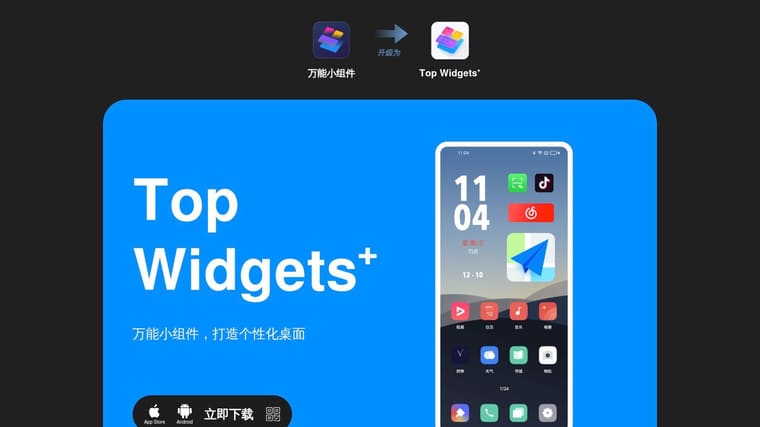
Top Widgets+ is the app to try when you want volume. Big template library, lots of trendy styles, themed bundles, animated looks, and regular refreshes. It’s designed for quick makeovers.
This kind of app is useful when you’re still figuring out your taste. Instead of building a setup from scratch, you can test different looks and see what feels good after a few days.
What to expect
Top Widgets+ is best for experimentation. You can try a softer aesthetic one week, a more techy one the next, and a cleaner lock screen after that without much setup work.
There’s a downside to that abundance. Apps with very large content libraries can feel noisy if you already know exactly what you want. You’ll spend time browsing instead of deciding.
One good strategy is to choose one themed bundle, live with it for a week, then prune aggressively. That matches the broader advice from productivity guides to start with simple native widgets first and remove widgets you ignore after a week, which helps avoid overload, as noted in the earlier iPhone widget community discussion.
8. Photo Widget Simple PhotoWidget
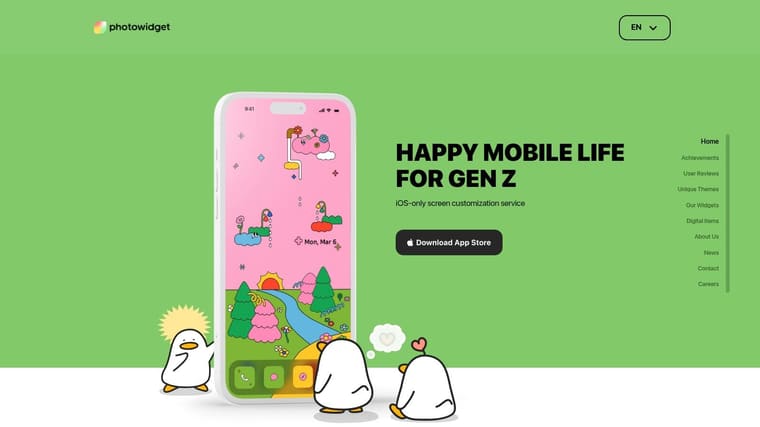
Photo Widget: Simple is for people who want their phone to feel personal every time they use it. Instead of chasing maximum utility, it turns your favorite photos into rotating albums, collages, and themed screen elements.
That sounds simple, but it’s a real use case. A photo widget can make your phone feel warmer and less transactional, especially if the images are meaningful instead of decorative filler.
Quick setup tip
Use a tight album, not your whole camera roll. Pick photos with similar tone and brightness so the widget looks intentional rather than random. If you want the pictures to look cleaner before using them, this guide to upscale HEIC images for your iPhone is useful.
For some users, photo widgets also work as visual prompts. A photo of a child, a training goal, a travel destination, or a calming place can do more than a text reminder. That’s especially relevant if you respond well to visual reminders for ADHD, where visible cues can be easier to act on than buried lists.
The downside is focus. This app is strongest for photos and lighter customization, not deep data widgets. If you want weather, health, calendar density, or actionable shortcuts, another app will do more.
9. ScreenKit
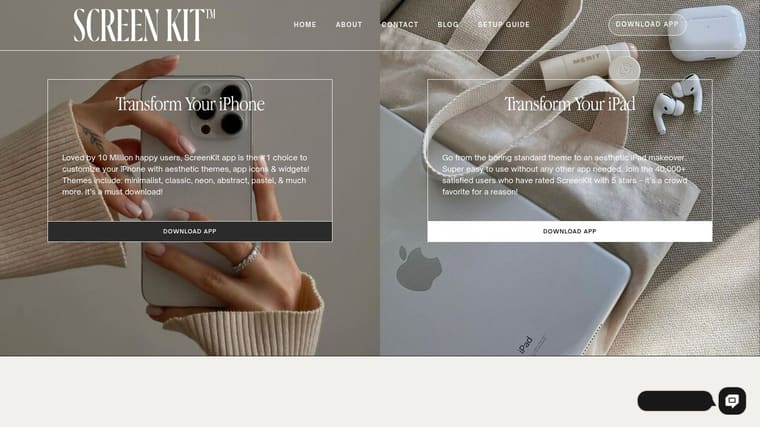
ScreenKit is a one-stop theming app. It combines icon packs, wallpapers, and widget templates in a way that makes full-phone makeovers easier than piecing together assets from several apps.
That packaged approach is its biggest strength. If you’ve ever spent more time matching icons to wallpapers than using your phone, ScreenKit can save time.
Best for beginners
ScreenKit is great for beginners because it removes a lot of design decisions. You don’t have to know what font pairs with what background. You just pick a style that already works.
- Fast theme cohesion: Good when you want one consistent look across icons, wallpaper, and widgets.
- Less granular control: Power users may feel boxed in compared with Widgetsmith or Widgy.
- Better for aesthetics than workflows: It helps your phone look finished, but it won’t replace utility-focused tools.
If your current Home Screen feels messy and mismatched, ScreenKit is one of the easier resets.
10. Widgit App Launcher Widgets
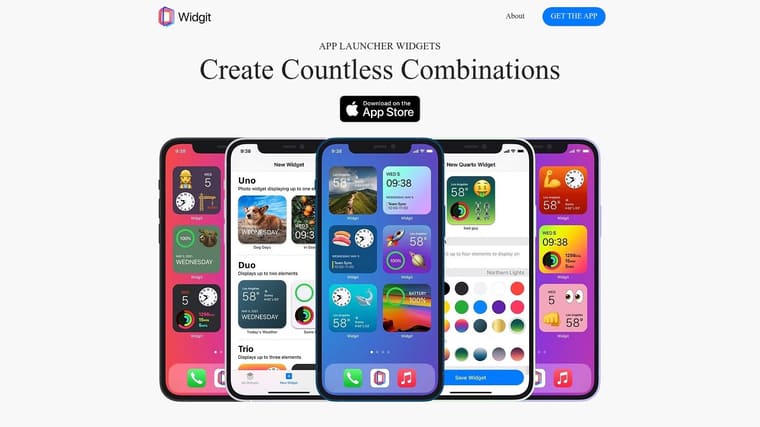
Widgit sits in a nice middle ground between launcher utility and clean design. It lets you combine multiple elements, like app shortcuts, clocks, and info blocks, into compact widgets without the heavier feel of a full customization suite.
That balance is the appeal. Some launcher apps feel plain. Some aesthetic apps feel superficial. Widgit tries to make tappable widgets that still look deliberate.
Where it fits best
If you want a small widget to do more than one thing, Widgit is worth trying. A compact block with two shortcuts, a clock, and a simple info element can be more useful than a giant widget that only looks good in screenshots.
The app also benefits from being approachable. You don’t need the patience Widgy often asks for, and you don’t have to commit to an entire theme ecosystem like ScreenKit or Top Widgets+.
One broader limitation in this category is cross-device continuity. Coverage of free widget apps often focuses on iPhone and iPad while skipping sync gaps on Apple Watch and Mac. A review of aesthetic widget apps argued that only a small share of top free apps offer real cross-device continuity, while Apple’s own Shortcuts and Reminders often handle the basics better across devices (cross-device widget sync gap review). That’s worth keeping in mind if sync matters more to you than appearance.
Feature Comparison of Top 10 Free iPhone Widget Apps
| App | Core features | UX & Quality | Price & Value | Target audience & USP |
|---|---|---|---|---|
| Pretty Progress 🏆 | Progress bars, countdowns, widgets for iPhone/iPad/Watch/Mac/Android; date & fasting calculators ✨ | ★★★★★, polished, zero‑ad, quick setup | 💰 Free; PRO IAP for advanced styling | 👥 Students, habit builders, ADHD, productivity fans, ✨design‑first, always‑on visual motivation |
| Widgetsmith | Home/Lock widgets, Photos/Calendar/Reminders/Music integrations; scheduling ✨ | ★★★★, mature, flexible | 💰 Free + premium packs/IAP | 👥 Customizers & power users, ✨deep theming & time‑based scheduling |
| Color Widgets | One‑tap themed widgets, clocks, calendars, countdown templates ✨ | ★★★★, fast results, frequent updates | 💰 Free + premium packs | 👥 Casual customizers, ✨quick themed sets for full screens |
| Widgy | Layer‑based editor, community marketplace, Live Activities & Watch complications ✨ | ★★★★☆, extremely powerful, steeper learning curve | 💰 Free + paid packs | 👥 Designers & tinkerers, ✨build from scratch; deep data bindings |
| Launcher (Cromulent Labs) | App/contact/music/shortcut launchers; time/location rules; Siri Shortcuts | ★★★★, utility‑first, accessible | 💰 Free; some paid triggers/features | 👥 Productivity users, ✨actionable, tappable widgets & automation |
| Widgetable | Shared pet/plant widgets, distance/mood bubbles, social reactions ✨ | ★★★, playful & engaging; social heavy | 💰 Free + IAP | 👥 Friends, couples, ✨interactive, social Lock/Home widgets |
| Top Widgets+ | Animated widgets, theming bundles (icons, wallpapers, widgets) ✨ | ★★★, trendy, large template library | 💰 Freemium/subscription | 👥 Trendsetters & experimenters, ✨massive ready‑made templates |
| Photo Widget: Simple | Photo album widgets, rotating layouts, DIY editor ✨ | ★★★, easy, photo‑focused; ad‑supported free tier | 💰 Free with ads; premium unlock | 👥 Photo lovers, ✨rotating albums & clean photo displays |
| ScreenKit | One‑click themes combining icons, wallpapers & widget templates ✨ | ★★★, quick full‑theme makeovers | 💰 Freemium/subscription | 👥 Beginners seeking cohesive looks, ✨curated aesthetic packs |
| Widgit – App Launcher Widgets | Compact multi‑element widgets (app shortcuts + info), tappable actions ✨ | ★★★★, simple, practical | 💰 Free + IAP | 👥 Users wanting compact actionable widgets, ✨tasteful presets & tappable elements |
Go Beyond the Grid Your Personalized iPhone Awaits
When you open your phone on a busy Tuesday morning and the first screen either helps you act or adds noise. That is the ultimate test for widget apps. The best free iPhone widget apps are not just about looks. They should reduce friction, surface the right information, or keep one useful prompt in view.
The comparison table matters for a reason. Several of these apps overlap on paper, but they feel very different after a few days of use. Pretty Progress is strongest for visible motivation and deadline awareness. Launcher is better if your goal is fewer taps and faster actions. Color Widgets, Top Widgets+, and ScreenKit make the most sense for people who want a coordinated aesthetic quickly, while Widgy and Widgetsmith reward users who are willing to spend more time setting things up.
Free apps have also made Home Screen customization much easier to try without paying upfront. App Store category examples show that free widget options cover practical needs like data tracking and quick-glance utility widgets, not just decoration (free widget category examples on the App Store).
The best setup usually starts small.
A practical way to choose:
- For ADHD focus and habit consistency: start with Pretty Progress. Setup tip: add one countdown or goal widget to your first Home Screen page, not three. One clear visual cue works better than a wall of reminders.
- For work and professional productivity: pick Launcher if you want actions, or Widgetsmith if you want information. Setup tip: put Launcher on a page you use during work hours and reserve Widgetsmith for calendar, weather, or stats you check.
- For aesthetics first: use Color Widgets, Top Widgets+, or ScreenKit. Setup tip: choose a single color palette before installing packs, or the screen can start to feel mismatched fast.
- For social connection: use Widgetable. Setup tip: turn on only the shared widgets you and the other person will notice, otherwise the novelty wears off.
- For photos and emotional cues: use Photo Widget: Simple. Setup tip: create a small album just for widget photos so the rotation stays intentional.
- For power-user customization: use Widgy. Setup tip: begin with a community template and edit one element at a time. Building from scratch is possible, but it is slower than many people expect.
- For compact action plus style: use Widgit. Setup tip: use it for a few repeat actions, like messages, maps, or music, and keep the layout tight.
If you are rebuilding your setup, start with one Home Screen page and one Lock Screen widget. Use that setup for a week. Remove anything you stop seeing. Keep the widgets that keep helping.
If you also want to take the visual side further, pairing your widgets with aesthetic icon packs for iOS customization can make the whole setup feel intentional instead of half-finished.
If your main need is seeing deadlines, goals, and countdowns without extra clutter, Pretty Progress is still one of the clearest options in this list. It is free to start, quick to configure, and especially useful for people who want calm visual motivation across iPhone, Lock Screen, Apple Watch, and Mac.





