May 24, 2026
Create a Free Church Countdown in Under 5 Minutes
Learn how to create and display a beautiful, free church countdown for your services. Our step-by-step guide uses your phone and the Pretty Progress app.
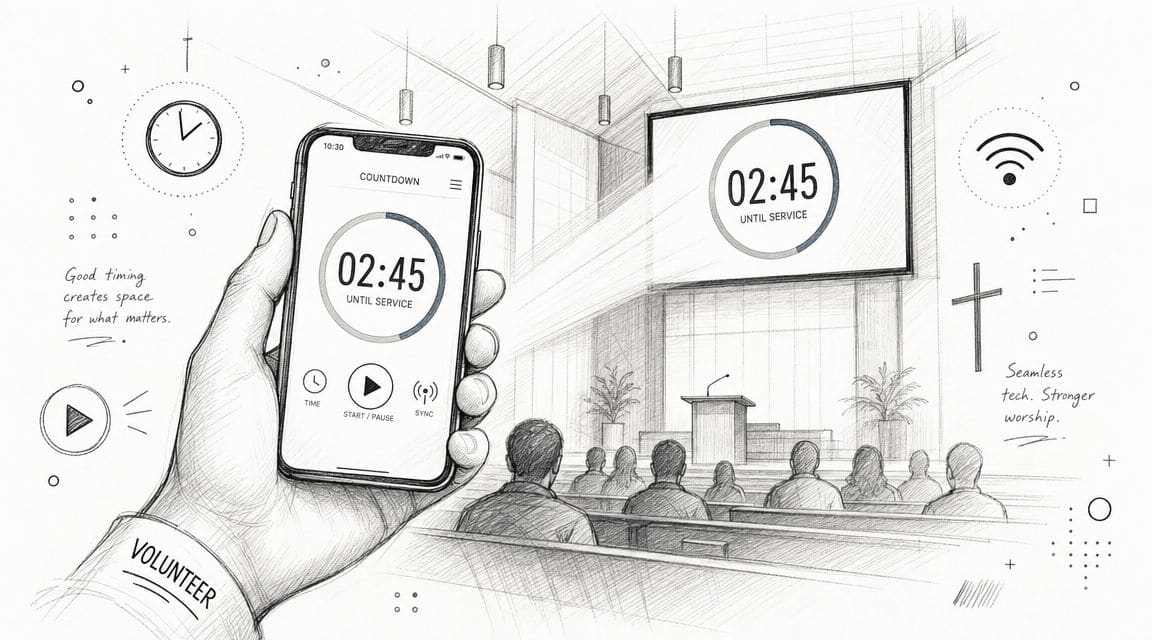
You’re probably standing where a lot of church volunteers stand on a Saturday night or ten minutes before service. The slides are loaded, the livestream is almost ready, and the screen still looks unfinished. A blank screen feels awkward. A random downloaded timer works, but it may not match your church’s look, and you may not be sure what you’re allowed to do with it.
That’s where a free church countdown helps. It gives people a clear signal that service is about to begin, and it makes the room feel prepared instead of improvised. If you’d rather not hunt through static video files every week, an app-based countdown gives you more control over timing, branding, and reuse.
Table of Contents
- Why a Great Countdown Matters for Your Service
- Getting Started with the Pretty Progress App
- Designing a Countdown That Fits Your Church Brand
- Projecting Your Countdown for Everyone to See
- Service Countdown Templates and Best Practices
- Common Questions About Church Countdowns
Why a Great Countdown Matters for Your Service
A countdown does more than fill silence before worship starts. It gives late arrivals a clear cue, helps your team stay on the same page, and tells the room, “We’re about to begin.” That’s useful in the sanctuary, on a lobby TV, and in a livestream feed.
A church-media discussion on YouTube argues that countdowns can do more than timekeeping and should be used to amplify announcements, ministry promos, and other content, moving churches away from passive timers and toward more effective pre-service communication in hybrid settings and on screens of different sizes (church-media discussion on YouTube).
What people feel before service starts
When guests walk in and see a clear countdown, they know they haven’t missed the beginning. When volunteers see that same timer, they can pace the final details. The worship leader knows when to move into position. The sound booth knows when open mic chatter needs to end. The camera operator knows when the stream is about to transition.
That’s why I think of a countdown as hospitality on a screen.
Practical rule: If the screen answers “When are we starting?” you’ve already reduced stress in the room.
A blank screen sends the wrong message
A blank screen doesn’t help anyone. A generic video can work, but it often feels disconnected from your church’s sermon graphics, logo, or tone. That mismatch may sound small, but people notice when the welcome slide, the countdown, and the first worship lyric all look like they came from different places.
An app-based timer solves a different problem than a download folder does. Instead of choosing from whatever file happens to be free, you build a timer that fits the service you’re running. You can keep it simple, readable, and on-brand without having to open a full editing workflow.
Countdown first, decoration second
A good free church countdown isn’t about flashy motion. It’s about clarity. People should be able to glance at the screen from the back row and understand it in a second.
That means the actual benefit isn’t “we found a cool timer.” The win is this: your room feels calm, your service starts cleanly, and nobody on the team is guessing when to go live.
Getting Started with the Pretty Progress App
Sunday morning gets busy fast. Someone is checking a microphone, someone else is opening presentation software, and a new volunteer is asking the question everyone is already thinking: “How many minutes until we start?” A countdown should answer that question without adding one more complicated task to the room.
That is why an app-based countdown is so useful for a first setup. Instead of hunting through folders for a pre-made video, checking whether the timing matches your service, and wondering what the license allows, you can build a timer for your church in a few minutes and adjust it whenever the schedule changes.
Your first setup
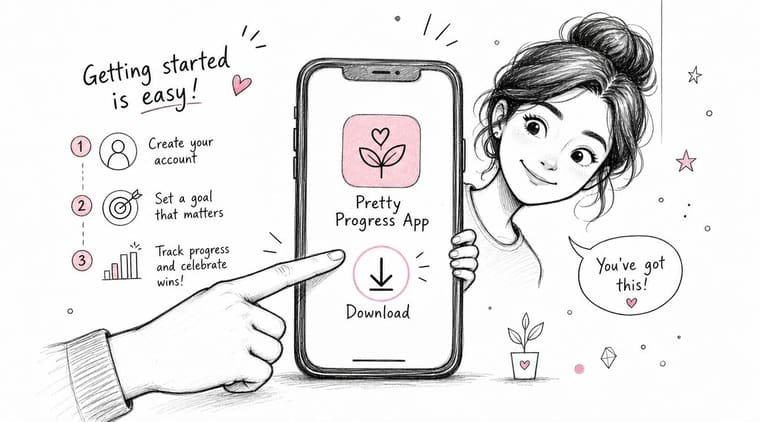
Start by installing the Pretty Progress countdown app on the device you plan to run during service. Open it, create a new countdown, and give it a clear name your whole team will recognize. Sunday Service Start works well because it tells a volunteer exactly what the timer is for.
Next, set the countdown to end at the actual service start time. Treat this like setting the clock on the sanctuary wall. If the service begins at 10:30, the timer should hit zero at 10:30, not at the moment the band feels ready.
A simple setup order helps:
- Create a new countdown: Begin with a fresh timer so you are not editing a sample and guessing what changed.
- Name it clearly: Use the service name, campus, or time slot.
- Set the end time: Match the published start time for the service.
- Preview it: Let it run briefly and confirm the numbers count down the way you expect.
Why volunteers usually prefer this approach
For a new volunteer, static countdown videos can feel like bringing a finished cake to the kitchen and then trying to change the frosting after it is baked. You can use them, but they are not very flexible. An app gives you the timer and the design controls in one place, so you can make a change without exporting a new file or moving media between devices.
That saves time, but it also lowers stress. A volunteer can open one tool, confirm one end time, and know the room will have a clear countdown on screen.
Keep your first version plain on purpose. Prioritize a readable countdown that starts on time. You can add visual polish later once the core setup runs reliably.
A simple Sunday example
Say your service begins at 10:30.
At 10:20, open Sunday Service Start and check that the countdown still ends at 10:30. Preview it for a moment. If the timer looks right, you are ready. That short check does the same job a pilot’s preflight checklist does. It is not flashy, but it prevents simple mistakes.
If your church runs multiple gatherings, create separate countdowns for each one instead of changing a single timer back and forth all morning. That small habit makes it easier for different volunteers to step in and run the correct countdown without second-guessing the settings.
What to ignore at first
New volunteers often slow themselves down by trying to solve every media need in one sitting. Your first setup does not need advanced motion, layered announcements, or a highly styled layout.
Focus on these three basics:
- Accuracy: The countdown reaches zero at the right moment.
- Legibility: People can read it from across the room.
- Repeatability: Another volunteer can open it next week and run it the same way.
Once those three pieces are working, you have something much more useful than a random free download. You have a countdown your church can use, adjust, and keep consistent from week to week.
Designing a Countdown That Fits Your Church Brand
A countdown should feel like it belongs in the same service as your worship slides and sermon graphics. If your church uses clean, modern visuals, the timer should reflect that. If your church style is warm and understated, the countdown should match that tone too.
One common operational pitfall in church media is mismatching slide duration to timer length. With an integrated app-based timer, the graphic and the clock are the same unit, which removes that synchronization problem that often shows up in edited video workflows (countdown timing guidance from Vanco).
Start with readable choices
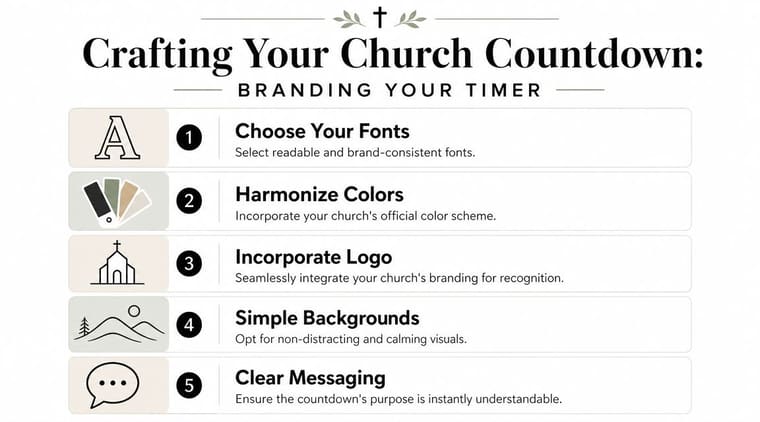
Choose a theme that gives you clean spacing and strong contrast. Minimal styles usually work well in sanctuaries because they read clearly from a distance. If your app offers theme options, avoid anything that crowds the screen with extra shapes or decorative details.
A few design choices help right away:
- Pick one main font: Use a font that’s easy to read on a projector, not just on a phone.
- Use high contrast: Light text on a dark background, or dark text on a light background.
- Stay calm with color: Pull one or two colors from your church logo or current sermon series.
- Leave breathing room: Don’t pack the screen edge to edge.
Match the room, not just the phone
A countdown that looks great on a small screen can still fail on a projector. Thin text can disappear. Pale colors can wash out. Busy background images can fight with the timer.
That’s why it helps to build with the room in mind. If you want examples of timer layouts that prioritize visibility, this guide to a countdown clock graphic is useful for seeing what strong visual hierarchy looks like.
The back row is your design test. If someone sitting far away can read the timer instantly, you chose well.
What to avoid
Many church countdowns often drift into clutter. A moving background, low-contrast type, a tiny logo, and an announcement line all stacked together can make the screen harder to understand.
Skip these common mistakes:
- Too much motion: Movement competes with the timer.
- Overloaded text: People won’t read a paragraph before worship starts.
- Weak contrast: Gray on gray rarely survives projection.
- Series art squeezed into every corner: Branding should support the timer, not bury it.
If you keep the visual system simple, your free church countdown will look more polished than a more complicated design that asks too much of the screen.
Projecting Your Countdown for Everyone to See
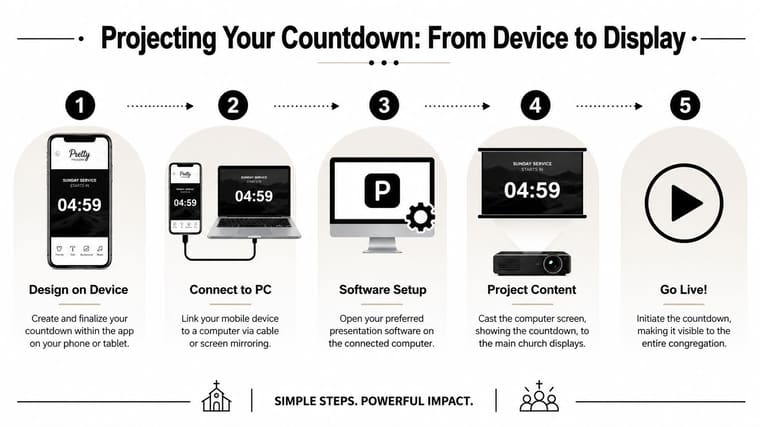
Once the timer looks right on your device, the next step is getting it onto the main display. This is usually where new volunteers feel nervous, but the process is straightforward if you pick the connection method that fits your setup.
Start with the method your booth can support consistently. Reliability matters more than novelty on a Sunday morning.
Wired HDMI connection
This is the simplest path for many churches.
What you need: your phone or tablet, the correct adapter, an HDMI cable, and a display or switcher that accepts HDMI.
How it works: connect the adapter to the device, connect HDMI to the adapter, and choose the correct input on the projector or TV. Then open the countdown and confirm it fills the screen the way you expect.
A wired setup is often the least confusing choice for volunteers because there are fewer network variables.
AirPlay for Apple setups
If your church already uses Apple TV in the booth or in classrooms, AirPlay can be a clean wireless option.
What you need: an Apple device and an Apple TV on the same network.
How it works: open screen mirroring on the device, choose the correct Apple TV, then launch the countdown. Test audio settings too, even if you aren’t using sound, so the device doesn’t route media in a surprising way.
Chromecast for mixed-device rooms
Chromecast works well when your team uses different devices or when you want a familiar casting workflow.
What you need: a display with Chromecast or a Chromecast-connected screen, plus a compatible device on the same network.
How it works: cast the screen, confirm the image ratio looks normal, and then run the timer. If your church also streams online, it’s smart to think through how the countdown fits the rest of your broadcast flow. This overview of church live streaming software options can help you map where your timer lives in the larger service setup.
A quick visual walkthrough can help before rehearsal:
For a presentation-focused workflow, this guide to a timer for presentation shows the same core idea in a broader screen-sharing context.
If the countdown looks sharp on the device but soft on the projector, check the adapter, cable, and display input first. Blurry output is often a connection issue, not a design issue.
Service Countdown Templates and Best Practices
A good countdown library works like a set of labeled bins in the tech booth. You are not building a new timer from scratch every Sunday. You are keeping a few ready-made formats that match the moments your service repeats.
That is one reason an app-based tool like Pretty Progress is so useful. Instead of hunting for a static video file, checking whether the style fits your screens, and wondering what the license allows, you can keep a small set of reusable countdown templates and change the length, colors, background, and text as needed.
A simple three-template setup is enough for many churches. These common lengths also line up with the kinds of downloadable timers churches often use. For comparison, ChurchSocial.ai’s free countdown recommendations show the standard options churches usually browse before deciding whether to download a video or build a branded timer inside an app.
Church Service Countdown Timing Templates
| Template Name | Duration | Primary Use Case |
|---|---|---|
| Walk-In Timer | 10 minutes | Pre-service room setup, guest arrival, final volunteer prep |
| Service Start Timer | 5 minutes | Final signal that worship is about to begin |
| Transition Timer | 2 minutes | Moving between major service elements like worship and message |
How to use each template well
The Walk-In Timer helps the room gather without creating pressure too soon. Put it on screen while people are greeting, finding seats, and your team is finishing quiet setup tasks. A calm background and clear numbers usually work better here than fast motion.
The Service Start Timer is your strongest “we are beginning soon” signal. It gives parents, greeters, musicians, and the front-of-house team the same clock to follow. If your church uses Pretty Progress, this is a great place to add your logo, brand colors, or a welcome line so the countdown feels like part of your service, not a borrowed media file.
The Transition Timer is shorter and more tactical. Use it when the platform needs a minute to reset, when someone is being mic’d, or when you want to hold the room’s attention between segments. Short timers need extra clarity. Large numbers, high contrast, and very little on-screen clutter.
Best practices that keep the room calm
A countdown helps only when it matches what the room is doing.
- Start with the moment, then choose the length. A five-minute timer for a one-minute transition feels slow. A two-minute timer before service can feel rushed.
- Let zero mean something. The timer should end right as the host speaks, the band starts, or the next element begins.
- Reuse one branded style. Familiar fonts, colors, and motion help the congregation recognize the countdown right away.
- Keep the design simple. People should understand it in one glance from the back row.
- Save templates by purpose. Label them clearly, such as “5 Min Service Start” or “2 Min Baptism Transition,” so a volunteer can launch the right one fast.
One more practical tip. Test your countdowns in the room they will serve, not just on a laptop or tablet. A background that looks subtle up close can turn muddy on a projector, and text that feels large on a device can look small from the last row.
Templates save time. Customizable templates save time without giving up your church’s identity. That is a key advantage of using an app for countdowns instead of relying only on downloaded videos.
Common Questions About Church Countdowns
The countdown is built. Service starts soon. A volunteer taps play, looks up at the screen, and asks the questions nearly every church tech team hears at some point. That is normal. Most countdown problems come from setup choices, not from the timer itself.
Can I add music to a countdown
You can, but keeping audio separate usually makes the booth easier to run. Let your presentation software, streaming setup, or audio system handle the music. Then your team can fade a track, mute it, or change it without rebuilding the countdown.
A timer works like the clock on the wall. Audio works like the room’s sound system. They serve different jobs, and it is usually simpler when each tool stays in its lane.
Will it work without internet
Often, yes. If the countdown is already created on the device, it may still run fine offline.
The part to test is the full path from device to screen. Some casting methods rely on the local network, even if the timer itself does not. Run a quick practice before people arrive so you know whether your setup depends on Wi-Fi, a cable connection, or a specific adapter.
What if the timer looks blurry on the screen
Start with the basics. Check the cable, adapter, and input on the projector or TV.
Then look at the device settings. A strange output resolution, stretched aspect ratio, or mirrored display mode can make a clean design look soft or squashed. If you are using a customizable app such as Pretty Progress, the design may be sharp on the device but still appear fuzzy if the output settings are wrong. The app is only one part of the chain.
Why not just download a free church countdown video
A pre-made video can work, but it often creates two problems. First, the style may not match your church. Second, the usage rights are not always clear.
That matters more than many teams expect. Some free downloads are fine for playback in the room but restrictive about editing, reposting, streaming, or reusing in other contexts. A flexible app-based countdown avoids a lot of that friction because you are building your own timer for your own service instead of sorting through video files each week and wondering what you are allowed to do with them.
Is a countdown always the best pre-service screen
A countdown helps when people need a clear signal that something is about to begin. Other moments call for a welcome slide, an announcement loop, or a quieter holding screen.
Choose the screen that fits the room. If your church wants to use those minutes more intentionally, broader communication ideas like those in HolyJot’s guide for church engagement can help you plan what people should see before the service starts.
One simple test helps. If the screen tells the room what happens next, it is doing its job.
If you want a simple way to build a branded church timer without sorting through download folders every week, Pretty Progress gives your team a reusable option for service starts, transitions, and other on-screen moments.