

July 9, 2026
10 Best Executive Function Tools for 2026
Discover the 10 best executive function tools for focus, planning, and time management. Our 2026 guide covers apps, strategies, and real-world use cases.
You start the day knowing what matters. Then the tabs multiply, messages arrive, one small interruption turns into three, and the task you cared about most still hasn’t started by noon. That gap between intention and action is where executive function tools can help, especially when they give you visual cues instead of more hidden lists.
For many people, the problem isn’t effort. It’s friction. You forget what you meant to do, lose track of time, underestimate how long a transition will take, or freeze when a task feels too big to enter cleanly. A plain to do list rarely fixes that. You need something that lives in your environment and keeps showing you what matters now.
That’s why this guide focuses on workflow, not just features. Some tools are best for task initiation. Some are better for time blindness. Others help when planning itself becomes the source of overwhelm. The strongest setup usually combines a visual prompt, a planner, and one tool for focus protection. That aligns with broader evidence that no single method captures the full complexity of executive functioning, and that a multimethod approach works better than relying on one tool alone, as described in a Frontiers in Psychology review on executive function assessment.
If your brain keeps spinning after you’ve closed the laptop, this guide pairs well with practical help for how to stop overthinking and worrying.
Table of Contents
- 1. Pretty Progress
- 2. Tiimo
- 3. Structured
- 4. Sunsama
- 5. Motion
- 6. TickTick
- 7. Goblin Tools
- 8. Time Timer
- 9. Focusmate
- 10. Freedom
- Top 10 Executive Function Tools Comparison
- Build Your Personalized Executive Function Toolkit
1. Pretty Progress
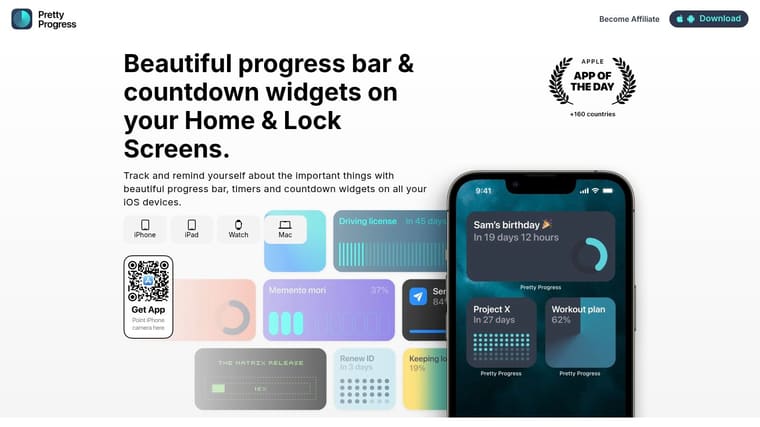
You set a deadline on Monday, feel clear about it, and by Wednesday it has slipped into the background. The problem often is not motivation. The problem is visibility. Pretty Progress handles that better than most planning apps because it puts countdowns and progress bars on the surfaces you already check, such as your Home Screen, Lock Screen, watch face, and desktop.
That makes it a strong first tool in a workflow centered on visual cues. I would not use it as a full task manager. I would use it to keep one or two priorities impossible to ignore after the planning session ends.
Why it works so well for visual follow through
Executive function tools often fail at the handoff between planning and remembering. A task gets entered correctly, then buried inside an app. Pretty Progress keeps the target in sight, which helps with time blindness, task initiation, and planning drift without adding another stream of notifications.
The visual customization matters for more than aesthetics. Color, icon choice, layout, and theme let you signal meaning at a glance. An urgent deadline can look sharp and high contrast. A daily routine can look calmer and more stable. That distinction sounds small, but it reduces friction because you do not have to re-interpret every reminder from scratch.
Setup is also refreshingly short. You choose a start point, an end point, a display style, and where the widget should live. Built in date and time utilities help remove the little setup snags that often kill adoption in the first week.
Practical rule: Use Pretty Progress to represent outcomes, deadlines, and transitions. Let another tool hold the checklist.
That division of labor is the main reason it works. Pretty Progress is not trying to become another inbox. It gives you persistent visual cues, while a planner or task app handles the moving parts. If you want more options in that broader category, this roundup of apps for people with ADHD is useful for comparing visual planning styles.
Best use cases
Pretty Progress works best as the front layer of a system, not the whole system.
- For task initiation: Show a visible start cue such as “work sprint starts at 2:00 PM” so the beginning of the task feels concrete.
- For planning overwhelm: Keep the project finish line visible while another tool breaks the work into steps.
- For time awareness: Use a bar for the day, week, or time left before a fixed appointment.
- For routine consistency: Place transition cues on devices you already check during natural context switches.
The upside is clear. It is polished, highly customizable, and useful across devices without demanding constant interaction. The trade-off is that the strongest styling options sit behind the PRO upgrade, and the experience can feel more mature on Apple devices than on Android depending on the feature you want.
It earns the featured spot because it fills a gap many executive function tools leave open. Planning only helps if the plan stays visible long enough to guide action.
2. Tiimo
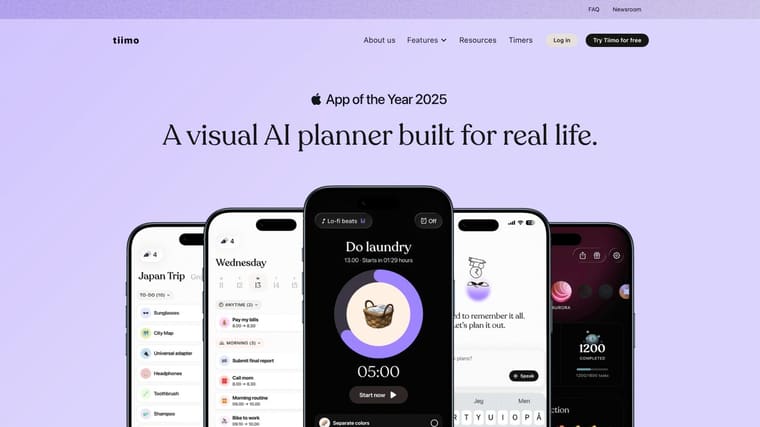
Tiimo is one of the better options when your day falls apart in the space between “I know what to do” and “I started.” It uses visual schedules, routines, timers, and cross device syncing to make the day feel more concrete. For people who struggle with time awareness, that visual structure often matters more than a giant list of tasks.
Its strongest use case is routine based planning. If your mornings, school blocks, work blocks, or transitions keep slipping, Tiimo helps by turning those into visible chunks. The app is built around neurodiversity friendly planning, and that shows in the interface.
Where Tiimo fits best
Tiimo is a good fit if planning overwhelm starts before the work even begins. The AI assistant can help break down tasks, but the main value is the visual day structure. It reduces the need to hold the whole schedule in your head.
A lot of readers looking for ADHD friendly tools also want options beyond generic productivity apps. This roundup of apps for people with ADHD is useful if you’re comparing visual planning styles.
Tiimo works best when you treat it like a daily map, not a complete life management system.
The trade offs are practical. Pricing can feel opaque during sign up, and the annual plan tends to offer the best value, which isn’t ideal if you want to test slowly. Still, if your biggest issue is “I can’t see my day clearly enough to move through it,” Tiimo belongs near the top of the list. Visit Tiimo.
3. Structured
You open your day with a decent task list, then lose 20 minutes deciding what to do first. Structured is built for that exact friction point. It puts tasks on a visual timeline, which makes sequence visible and cuts down the mental load of arranging the day in your head.
That matters because planning overwhelm is often a layout problem, not a motivation problem.
Why Structured is good for planning overwhelm
Structured works best for people who need to see the day unfold in order. You can drag tasks into place, add subtasks and notes, build recurring routines, and adjust the plan quickly when the day shifts. In practice, that combination is what makes it useful as part of an executive function workflow. Capture the task elsewhere if needed, then use Structured to decide when it happens and what comes before it.
The visual cue is the primary value here. A standard to do list treats “email your manager” and “start the report” as flat items. Structured shows whether the report starts at 9:30, after coffee, before a meeting, or in the first clean hour you have. For people with time blindness or initiation trouble, that extra context often makes starting easier.
I would not pick Structured for heavy project management, collaboration, or complex automations. I would pick it for personal planning when the main problem is turning intention into an actual day plan. If weekly planning helps you reduce that daily decision fatigue, this guide on how to plan your week with a realistic structure pairs well with it.
There are trade offs. The Apple experience is still stronger, while Android support feels newer. The free version is good enough to test the core method before paying, which is a real advantage if you are not sure time blocking will stick.
Use Structured if you need a clear visual order for the day. Skip it if you want team features or a wide integration stack. Learn more at Structured.
4. Sunsama
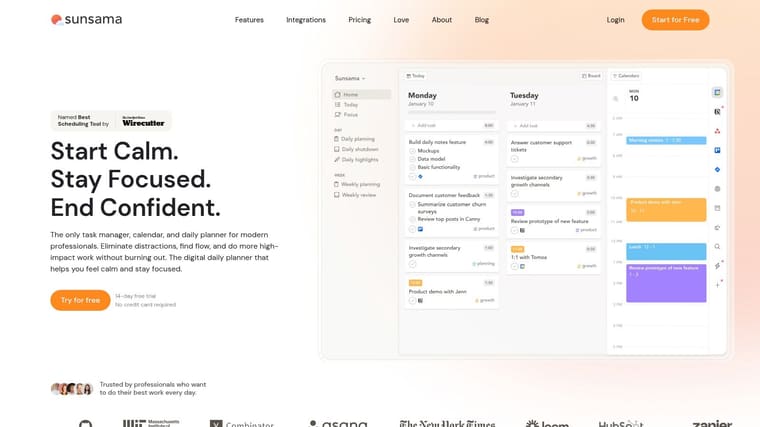
Sunsama is for the person who already has tasks everywhere. Email. Calendar. Notion. Todoist. Slack messages turned mental notes. Its strength isn’t fancy automation. It’s the guided daily planning ritual that forces you to decide what today can realistically hold.
That’s valuable because executive dysfunction often shows up as overcommitting. You don’t just need a list. You need a boundary.
Best for realistic daily planning
Sunsama asks you to pull work into one daily plan and timebox it. That creates friction in a good way. You see the true size of the day before you promise yourself twelve impossible things.
If weekly planning tends to reduce your stress more than daily improvisation, this guide on how to plan your week complements Sunsama well.
- Best for knowledge workers: It shines when tasks already live across multiple work tools.
- Best for realistic timeboxing: It helps curb the habit of building fantasy schedules.
- Less ideal for simple personal use: If you just need a basic planner, Sunsama can feel heavier than necessary.
The downside is simple. There’s no free forever plan, and it’s positioned as a premium product. Still, if your executive function problem is not capture but overloading your day, Sunsama is one of the best correctives. Check it out at Sunsama.
5. Motion
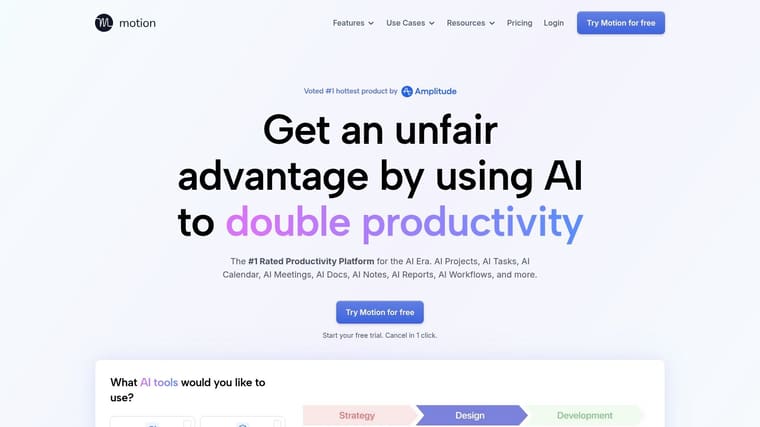
Motion is useful when you hate deciding what to do next. Its pitch is straightforward. Put in tasks, deadlines, meetings, and priorities, then let the app schedule the work on your calendar and keep reshuffling as the day changes.
For some people, that’s a relief. For others, it’s irritating. The difference usually comes down to whether decisions exhaust you or whether automated plans make you feel controlled.
When auto scheduling helps and when it doesn’t
Motion helps most when your workload is large, meeting heavy, and constantly moving. It cuts down on the micro decisions that drain attention before real work starts. If you often spend more energy arranging work than doing it, this kind of automation can help.
A growing trend in 2025 and 2026 is the use of AI agents that adapt task breakdown and scheduling based on real time progress and context. That shift is discussed in this Executive Function Brain Trainer podcast episode on AI agents. Motion sits close to that trend, even if your experience will depend on how much of your work is present on your calendar.
If you ignore calendars on principle, Motion won’t save you. It helps people who already live by their calendar but need the planning burden removed.
The trade offs are real. Some users dislike pricing and plan changes, and the strongest value appears when you connect work calendars and active deadlines rather than using it only as a personal to do list. Learn more at Motion.
6. TickTick
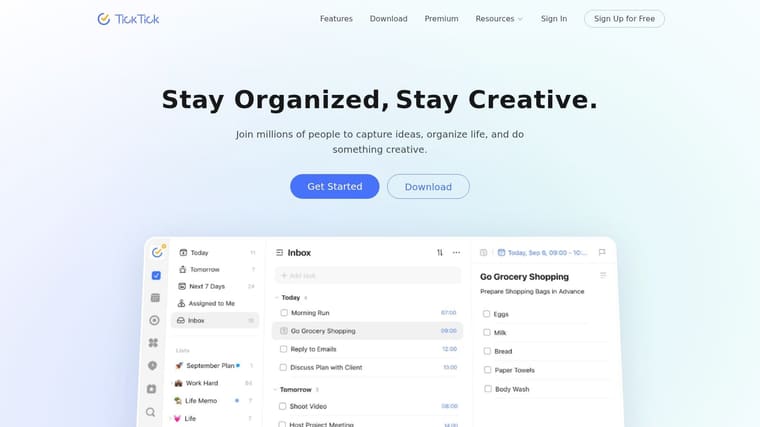
TickTick is the practical pick. It doesn’t feel overly specialized, but that’s why many people stick with it. You get lists, boards, calendar view, natural language task capture, a Pomodoro timer, and habit tracking in one place across many devices.
When someone asks for one app that can handle both planning and execution without becoming a full project management suite, TickTick is often the answer. It gives enough structure without demanding a complicated setup.
A practical all in one option
TickTick works well for people who need one reliable home base. If you want a list manager, calendar, recurring reminders, and a built in focus timer in the same ecosystem, it does that well. It also helps if you move between phone, desktop, and web during the day.
The caution is that all in one tools can become cluttered if you don’t define your workflow. Keep only active lists visible. Use habits for repeating actions. Use the calendar for time specific work. Don’t turn every feature on at once.
Research on executive function tools consistently points toward real world functioning as the standard that matters. A review summarizing ADHD trials found that when executive function ratings improved, people also did better in day to day functioning and quality of life, while computerized brain training often failed to generalize meaningfully beyond the practiced task, as described in this executive function research summary.
TickTick isn’t trying to train your brain. It’s trying to help you run your day. That’s usually the better bet. Visit TickTick.
7. Goblin Tools
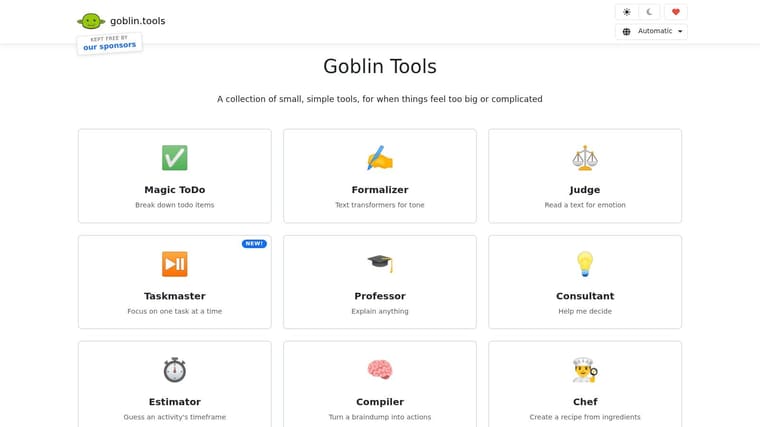
Goblin Tools is one of the easiest recommendations for task paralysis. It doesn’t replace your planner. It shrinks intimidating tasks until they become enterable. That sounds small, but it solves a very specific and common executive function failure point.
The web version is free and doesn’t require an account, which lowers the barrier even more. That’s a big reason it gets recommended so often in ADHD and overwhelm focused communities.
Best as a helper not a home base
Magic ToDo is the star. You type in something vague like “prepare taxes” or “clean kitchen,” and it breaks the task into smaller actions. Estimator helps with time awareness. The text tools are useful when you’re stuck on writing, tone, or turning a brain dump into something usable.
- Use it before planning: Break down the task first, then send the cleaned up steps into your main planner.
- Use it for avoided tasks: It’s especially good when the job feels emotionally sticky or cognitively fuzzy.
- Don’t use it as your only system: It doesn’t replace a calendar, routine planner, or full task manager.
A common problem with executive function tools is mismatch. People often pick generic apps that don’t match the actual bottleneck. This article on tool matching for specific executive function challenges argues that mismatch is a major reason people stop using tools consistently. Goblin Tools is excellent when the bottleneck is task breakdown. It’s much less useful if the problem is distraction after you’ve already started.
For fast relief from “I don’t know where to begin,” Goblin Tools is hard to beat. Try it at Goblin Tools.
8. Time Timer
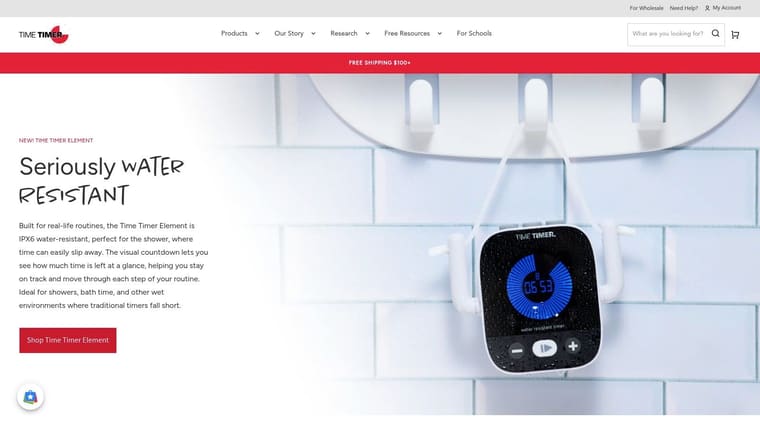
Time Timer does one thing very clearly. It makes time visible. The disappearing disk gives you a concrete sense of how much time is left, which is often far more effective than a digital countdown for people who struggle with time blindness.
This is one of the few tools on the list that works just as well in physical form as it does in an app. That flexibility matters because some people need the timer to exist in the room, not on a screen full of distractions.
The clearest tool for time blindness
Use Time Timer for transitions, short work sprints, routines, and tasks that tend to sprawl. It helps answer the question “how much time is left?” at a glance. That’s often enough to reduce drift and make task endings less abrupt.
The app version includes multiple timers and, with premium features, routine sequencing. The physical timers are especially useful for children, therapy settings, classrooms, or adults who benefit from strong environmental cues.
A timer doesn’t tell you what matters. It tells you what this block of time belongs to. Pair it with a planner or visible goal cue.
This is also where simpler tools still matter. The market for apps in executive function coaching is growing quickly, with projections pointing to continued expansion through the next several years, according to this executive function coaching apps market report. But growth doesn’t automatically mean better results. Time Timer works because it’s concrete and limited.
If time keeps slipping without you noticing, start here. Learn more at Time Timer.
9. Focusmate
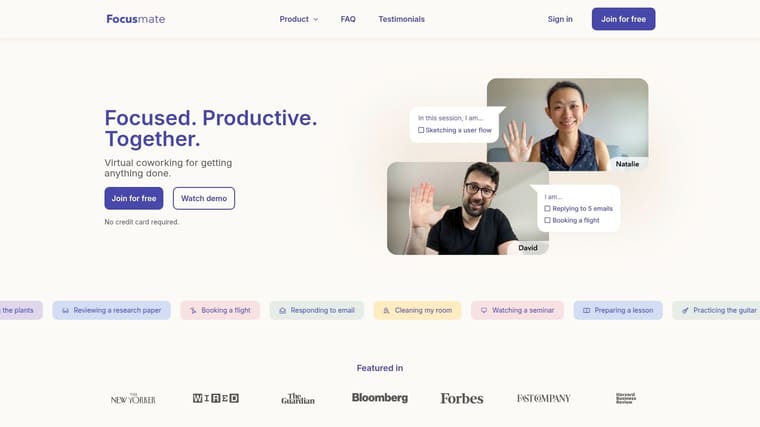
Focusmate is the best option on this list for people who don’t need another planner at all. They need another human. Its live virtual body doubling sessions pair you with someone else for a timed work block, which can make task initiation dramatically easier when solo work feels slippery or avoidable.
It sounds simple because it is. You book a session, say what you’ll work on, do the work, and check out at the end.
When body doubling beats self discipline
Focusmate is strongest when you already know the task but can’t cross the start line. It’s also useful for administrative work, studying, writing, inbox cleanup, and any task you chronically postpone despite knowing exactly how to do it.
The free tier gives you a low risk way to test whether body doubling changes your follow through. That’s important because not everyone likes the social element. Some people feel energized by it. Others find the camera and partner variability distracting.
- Good fit: You avoid starting unless someone else is present.
- Less ideal: You want deep planning help or hate camera based accountability.
- Best pairing: Use Focusmate with a planner or task breakdown tool, not instead of one.
I recommend it most for people who say, “I can do the work once I’m in motion.” That’s the gap Focusmate closes. Visit Focusmate.
10. Freedom

You finally start the task. The doc is open, the first sentence is on the page, and then one tab check turns into twenty minutes of news, Slack, email, and your phone. That pattern is where Freedom earns its spot in an executive function toolkit.
Freedom blocks websites, apps, or your entire internet connection across devices. You can run scheduled sessions, create different blocklists for different kinds of work, and turn on Locked Mode when you know willpower is not going to hold. For people who lose focus through visual temptation, that matters. Removing the cue is often more effective than trying to resist it.
Freedom works best as the protection layer in a workflow. Use one tool to decide what to do, another to start, and Freedom to keep the path clear long enough to finish a block of work. I usually recommend it for distraction control, not planning. If task initiation is the bigger problem, pair it with Focusmate, Tiimo, or Goblin Tools first, then add Freedom once you know what you’re trying to protect.
If procrastination tends to start with “just one quick check,” practical advice on how to stop procrastinating pairs well with a blocker like this.
The trade-off is setup. Freedom is only as good as the blocklists you build, and desktop support is stronger than the iPhone experience. Some people also rebel against hard locks and end up disabling the tool instead of using it. In practice, it works best when the rules are specific: block social apps during writing, block email during admin batches, block everything except one research site during study sessions.
Used that way, Freedom is one of the cleaner ways to reduce time blindness caused by digital drift. It does not tell you what matters. It protects the task you’ve already chosen. Learn more at Freedom.
Top 10 Executive Function Tools Comparison
| Product | Core features | UX / Quality (★) | Price & Value (💰) | Best for (👥) | Unique selling points (✨) |
|---|---|---|---|---|---|
| 🏆 Pretty Progress | Customizable countdowns, widgets, watch complications, date calculators | ★★★★★ polished, zero‑ads | 💰 Free + PRO upgrade (in‑app) | 👥 Students, habit builders, visual motivators, ADHD | ✨ Design‑first themes, always‑on widgets, cross‑device polish |
| Tiimo | Visual routines, timers, AI task breakdown, cross‑device sync | ★★★★ neurodiversity‑friendly | 💰 Free + subscription (pricing opaque) | 👥 ADHD, executive‑function support | ✨ AI “co‑planner” + glanceable routine blocks |
| Structured | Drag‑and‑drop timeline, calendar/Reminders sync, AI replan | ★★★★ clean Apple‑centric | 💰 Free core; Pro for sync/features | 👥 Day‑planners, Apple ecosystem users | ✨ Timeline time‑blocking + Replan AI |
| Sunsama | Guided daily planning, timeboxing, deep integrations | ★★★★ premium, ritual‑driven | 💰 Paid subscription (no free forever) | 👥 Knowledge workers, teams | ✨ Integrations with Gmail/Notion/Trello; team features |
| Motion | AI auto‑scheduling, dynamic calendar reshuffle, project tools | ★★★★ reduces planning friction | 💰 Subscription; tier changes noted | 👥 Busy professionals with many meetings | ✨ Continuous AI rescheduling around meetings |
| TickTick | Lists, calendar view, Pomodoro timer, habit tracking | ★★★★ practical & balanced | 💰 Free + Premium (strong annual value) | 👥 General task managers, routines | ✨ Built‑in Pomodoro + habits in one app |
| Goblin Tools | AI helpers: task breakdown, estimator, text transformers | ★★★ lightweight, web‑first | 💰 Mostly free web; mobile apps paid | 👥 People needing task activation, ADHD | ✨ Instant task‑breaking & time estimator suite |
| Time Timer | Visual disappearing disc, multiple timers, physical devices | ★★★★ evidence‑informed for time awareness | 💰 Free app + Premium; devices cost extra | 👥 Classrooms, therapists, time‑blind users | ✨ Iconic visual disc (app + physical timers) |
| Focusmate | Live body‑doubling sessions, scheduled video co‑work | ★★★★ strong accountability | 💰 Free tier (3/wk); low‑cost unlimited plan | 👥 People needing initiation & accountability | ✨ Real‑time co‑working for focus |
| Freedom | Cross‑device app/website blocker, Locked Mode, focus sounds | ★★★★ reliable cross‑platform | 💰 Transparent monthly/annual/lifetime; trial | 👥 Impulse control, distraction reduction | ✨ Locked Mode + cross‑device blocking and routines |
Build Your Personalized Executive Function Toolkit
Monday, 8:12 a.m. You know what matters today, but your brain still stalls. The task feels too big to start, the calendar looks crowded, and the deadline may as well be next month because you cannot feel it yet. That is the moment your toolkit has to work.
The setup that helps in real life is usually small, visible, and tied to one specific friction point. Start there. If starting is the problem, add a tool that lowers activation energy. If time keeps slipping, add a timer or visual day planner. If planning the day eats the whole morning, use a planner that turns tasks into scheduled blocks. If distractions keep winning, use a blocker during focus periods. Visual cues matter because they move reminders out of your head and into your environment.
A practical stack often looks like this:
- Task initiation: Goblin Tools or Focusmate
- Time blindness: Time Timer, Tiimo, or Structured
- Daily planning: Sunsama, Structured, TickTick, or Motion
- Visible reminders: Pretty Progress
- Distraction control: Freedom
What matters is how the tools work together. I have seen people get more traction from two well-matched tools than from six installed apps they forget to open. One tool should answer, “What do I need to do?” Another should answer, “When am I doing it?” A third, if needed, should reduce the odds that you drift away before the work starts.
Here is a simple way to build that workflow. Use Goblin Tools to break a vague task into steps. Put the work block into Structured or Sunsama so it has a place in the day. Run a Time Timer or Time Timer style visual countdown while you work. If you still avoid the task, book a Focusmate session. If your phone or browser keeps stealing the block, turn on Freedom before the session starts.
Keep the system easy to see. Hidden systems fail first. Widgets, countdown bars, calendar timelines, timer disks, and scheduled co-working all help because they make the next action harder to miss.
There are trade-offs, and they matter. Motion can save planning time, but some people dislike giving up control to auto-scheduling. TickTick is flexible, but it can grow messy if you use every feature. Pretty Progress is excellent for making deadlines visible, but it does not replace a planner. The best toolkit is rarely one app. It is a workflow where each tool has a clear job.
If you are unsure where to begin, pair one visual cue with one action tool. A visible deadline plus a scheduled work session is often enough to test whether your system is getting easier to trust. Review it after a week. If you still miss starts, fix initiation. If you still run late, fix time awareness. Build from the bottleneck, not from feature lists.
Most tools promise more than they deliver. The useful ones make the next step obvious and easier to do. For another perspective on building attention-friendly systems, this piece on Iwo Szapar on ADHD productivity is worth reading.
If you want a low-friction way to keep deadlines, routines, and goals in sight across your devices, Pretty Progress is a strong visual layer to add to your system, as noted earlier.





