
June 12, 2026
Master Conference Countdown Timer: Setup & Deployment Guide
Create and deploy a conference countdown timer for mobile, web, and digital signage. Our guide covers design, setup, and time-zone handling.
68% of meetings exceeded their scheduled time slots, according to a 2023 survey of 1,850 conference organizers. That should change how we think about a conference countdown timer. It isn’t a decoration on a stage screen. It’s part of event operations.
In live production, time failure spreads fast. A keynote runs long, a panel starts late, catering slips, sponsor slots get squeezed, remote viewers drop off, and the final session feels rushed. In hybrid events, the problem gets worse because different people rely on different cues. The speaker looks at a confidence monitor. The stage manager watches a laptop. The attendee checks a phone. The remote producer follows a browser tab.
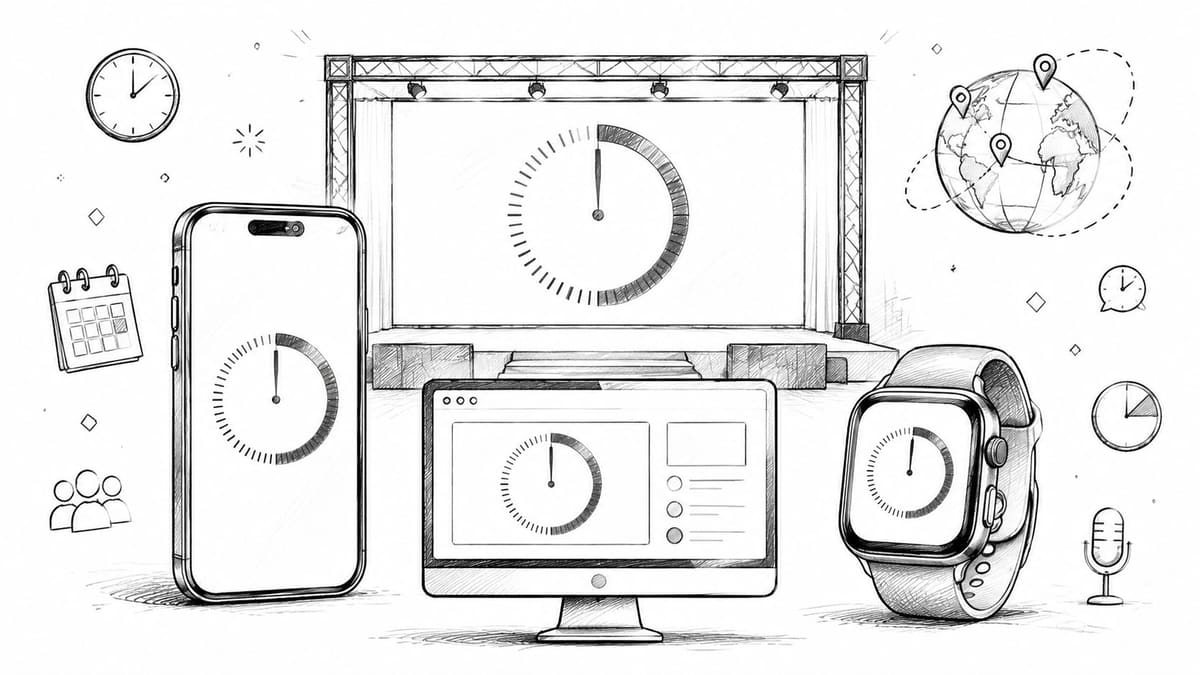
A modern conference countdown timer has to work as a unified timing layer across those channels. The timer on the website, the stage monitor, the green room display, and the personal device shouldn’t feel like separate systems. They should all point to the same schedule logic, the same warning states, and the same operational decisions.
Table of Contents
- Why Your Conference Needs More Than Just a Timer
- Designing a Countdown for Maximum Impact
- Personal Timers for Attendees and Speakers
- Deploying Timers on Websites and Digital Signage
- Advanced Scheduling and Time Zone Management
- Frequently Asked Questions About Conference Timers
- What’s the easiest free setup for a simple room?
- How do we remotely control a timer on stage?
- Can a conference countdown timer show messages as well as time?
- Should attendees see the same timer as the speaker?
- What’s the best way to handle accessibility?
- How do we handle a speaker who starts late?
- Is one timer enough for a hybrid event?
Why Your Conference Needs More Than Just a Timer
The old model was simple. Put a countdown on one screen, usually near the lectern, and assume the speaker will adapt. That still works for a small room with one presenter and a tight AV setup. It breaks down quickly in multi-track, sponsor-heavy, or hybrid events.
The hard part isn’t displaying time. The hard part is making sure everyone sees the right timing cue in the right place. Speakers need a low-effort signal they can read without losing their train of thought. Stage managers need control. Attendees need orientation. Remote teams need a reference that matches the live room.
A 2023 survey of 1,850 conference organizers found that 68% of meetings exceeded their scheduled time slots, and events using visible countdown timers reduced overruns by 42% only if the timer was integrated into how the meeting ran. The lesson isn’t “put up a clock.” It’s “make time visible where decisions happen.”
Where single-screen timers fail
A single public timer creates blind spots:
- Speakers miss it because it’s off-axis from their natural eyeline.
- Moderators ignore it because they’re focused on audience questions.
- Remote participants don’t see it if the stream layout crops it out.
- Attendees lose track between sessions because there’s no personal reference.
A conference countdown timer works when it reduces decision friction. If people have to hunt for time, the system has already failed.
What unified timing looks like
A unified setup usually includes these layers:
| Role | Best timer surface | Why it works |
|---|---|---|
| Speaker | Stage monitor, watch, phone | Fast glance, low cognitive load |
| Moderator | Tablet or laptop view | Easier to manage panel flow |
| Attendee | Phone widget or event website | Helps with room changes and start times |
| Remote viewer | Embedded web timer or stream overlay | Keeps virtual audience aligned |
| Stage manager | Control screen with status states | Lets ops react early |
This is why the phrase conference countdown timer can be misleading. For real events, we’re not deploying one timer. We’re deploying one timing system across several screens and behaviors.
Designing a Countdown for Maximum Impact
Design mistakes cause more timing trouble than is commonly anticipated. A timer can be technically correct and still fail on stage because nobody can read it from the lectern, the warning colors arrive too late, or the branding overwhelms the numbers.
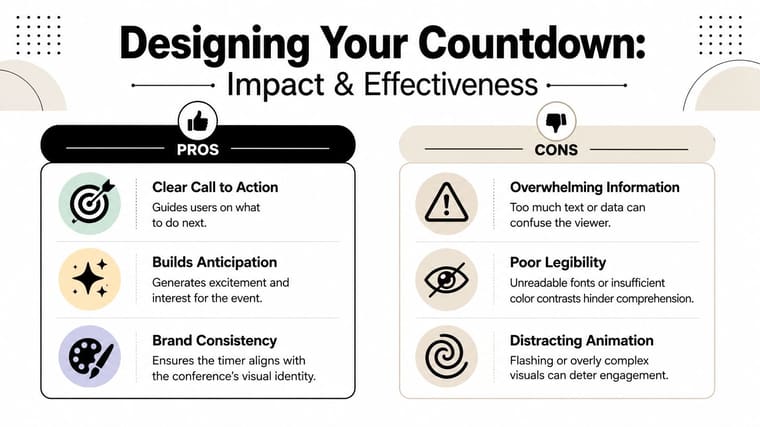
A good design starts with one rule. Legibility beats decoration. If you want a more visual countdown treatment for promotional use, this countdown clock graphic guide is useful. For live session timing, though, clarity has to win every time.
Build for distance first
If the presenter is reading the timer from across the stage, every design choice should support that use case.
Use this checklist:
- Large digits first. The remaining time is the main event. Labels, session titles, and sponsor marks should stay secondary.
- High contrast only. Dark background with bright text usually holds up better under stage wash and projector conditions.
- One font family. Sans-serif, heavy weight, wide numerals.
- Minimal animation. Movement draws attention away from speech flow.
Many teams over-design the public display and under-design the speaker display. That’s backwards. The speaker-facing screen is the one that protects the schedule.
Use staged urgency, not a single deadline
The most effective conference timers behave like traffic signals. Warning should arrive before the hard stop. Presentation timer setups commonly shift to amber at 3 minutes remaining and red at zero in order to give presenters a staged urgency signal instead of a sudden penalty state, as described in this conference timer reference on warning thresholds.
That matters because visible countdowns influence behavior. A 2016 Journal of Safety Research study found that traffic signal countdown timers reduced red-light violations by 22% to 36%, and drivers with 5 to 10 seconds of visible countdown time made stop decisions 31% more accurately in research covering 18 months and 4.2 million vehicle approaches across major U.S. cities. The core point translates cleanly to events: visible, real-time countdowns improve decision-making and adherence to time limits.
Practical rule: A timer should tell the speaker what to do next, not just what time it is.
A simple visual logic works well:
- Normal state for most of the session
- Amber warning when wrap-up should begin
- Red stop state at zero
- Optional overtime state if the moderator allows questions to continue
Branding without sabotage
Branding belongs in the frame, not in the numbers.
Keep logos small. Avoid gradients behind the digits. Don’t use event colors if they reduce contrast. If marketing wants a more styled version for the website, create a separate implementation from the stage timer. Public hype graphics and operational timing displays serve different jobs.
Personal Timers for Attendees and Speakers
Public displays keep the room aligned. Personal timers keep individuals calm. That second part matters more than teams admit.
Speakers often ask for a visible countdown, then ignore the confidence monitor once adrenaline kicks in. A discreet timer on a watch or phone gives them a fallback. Attendees benefit too, especially at multi-track events where room changes and short breaks create constant schedule pressure.
Set up a private timing layer
For personal devices, the goal isn’t to mirror every backstage control. The goal is to show the next deadline with almost no effort.
A practical setup uses:
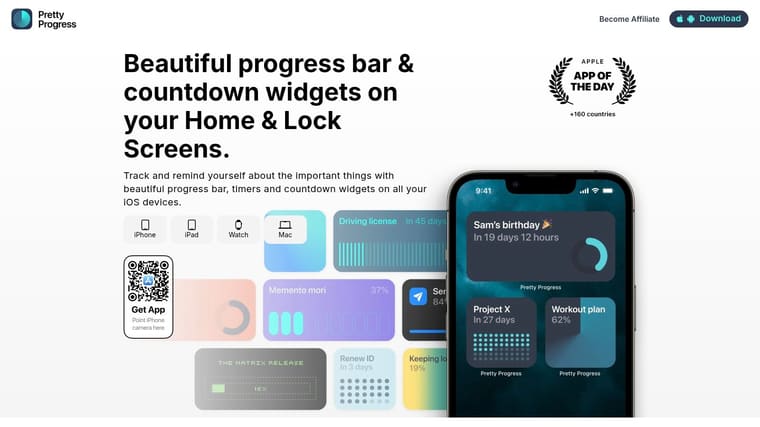
- A main event countdown on the phone home screen for attendees and staff.
- A session-specific timer on lock screen or watch for speakers.
- A desktop timer on Mac for moderators, producers, or remote coordinators.
If you’re building that personal layer with a widget app, keep the design consistent across devices. Matching colors and labels reduce hesitation. A speaker shouldn’t have to decode whether “Session End,” “Wrap,” and “Hard Stop” mean different things.
Match the device to the role
Different roles need different timer behavior.
For attendees
Attendees usually need orientation, not second-by-second pressure. The most useful personal setup is a countdown to the next important conference moment. That might be keynote start, lunch end, doors opening, or the beginning of a breakout block.
Use these rules:
- Home Screen widget for the next major session
- Lock Screen widget for quick checks while moving between rooms
- Simple label names such as “Registration Opens” or “Track B Starts”
- No overtime state unless the attendee is part of operations
For speakers
Speakers need something more private and more exact. A phone widget can help before they walk on stage. Once they’re live, a watch view or a glanceable lock screen is often more reliable than asking them to search the room for a monitor.
For a practical walkthrough of presentation-focused personal timing, this guide to a timer for presentation workflows is useful.
A speaker setup usually works better when it includes:
- One session-specific countdown
- A clear warning color
- A short label they instantly recognize
- A backup device, usually phone plus watch or phone plus confidence monitor
For staff and moderators
Moderators benefit from a desktop timer because they’re juggling audience cues, intros, sponsor mentions, and Q&A pacing. A persistent Mac display works well during rehearsals and during the show, especially if the moderator runs slides or notes from the same machine.
The most reliable personal timer is the one people already know how to read before rehearsal starts.
Keep personal timers aligned with show control
Many teams often run into trouble at this point. The public stage timer gets updated. Personal timers don’t. Suddenly the speaker’s phone says one thing and the room says another.
Avoid that by setting some operating rules:
- Use the same end time labels everywhere. If the session hard stop is 10:30, call it “Hard Stop 10:30” across all views.
- Separate public from private naming only when needed. “Wrap Q&A” may be useful backstage but confusing for attendees.
- Update late changes centrally. Don’t ask each speaker to rebuild a timer after a delayed start.
- Decide who owns exceptions. Usually that’s the stage manager or show caller.
One tool that fits the personal-device side is Pretty Progress, which supports countdown widgets on iPhone, iPad, Apple Watch, Mac, and Android. In practice, that cross-device reach is useful when your audience, speakers, and staff all rely on different screens during the same event.
Deploying Timers on Websites and Digital Signage
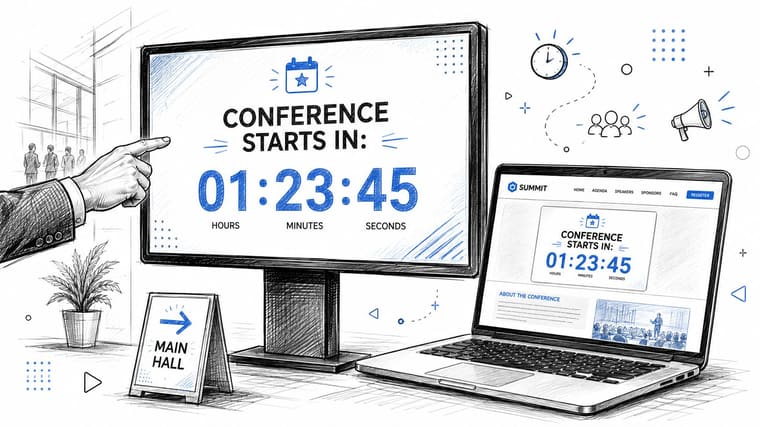
Website timers and venue timers should behave like two windows into the same schedule. When they don’t, people notice fast. Virtual attendees think the stream is late. On-site guests question room times. Sponsors ask whether their segment moved.
Use one source of truth
For browser-based displays, the timer logic matters. A reliable countdown timer should use an absolute-time scheduler, recalculating remaining time from a fixed target timestamp on each refresh instead of subtracting one second over and over. That approach avoids drift when a browser tab gets throttled or the UI thread gets delayed, as explained in this absolute-time countdown implementation guide.
That sounds technical, but the operational takeaway is simple. If your website timer and your stage timer are both browser views, they should both calculate time from the same target end time. Don’t let each screen “count down on its own.”
Choose display hardware by failure risk
Different display environments need different levels of simplicity.
For a conference website, the timer can sit on:
- The homepage, counting down to event start
- The agenda page, counting down to the next keynote or live stream
- A session page, tied to a specific room or track
For venue displays, common options include:
| Use case | Practical setup | Main trade-off |
|---|---|---|
| Small room | Laptop connected to display | Fast to deploy, less resilient |
| Main stage | Dedicated signage screen or browser-based output | Better visibility, needs tighter control |
| Green room | Tablet or spare monitor | Easy for speakers, can be ignored if placed badly |
| Registration | Lobby screen with event countdown | Great for orientation, less useful for speakers |
If you need a website-focused walkthrough for building a front-end timer component, Exclusive Addons’ countdown timer guide is a helpful reference. It’s useful for marketing pages, but for live event operations you still need to pair the visual layer with reliable scheduling logic.
What works on site
In practice, the strongest setups share a few habits:
- Put the speaker timer in the speaker’s eyeline. Off to the side is better than behind the audience, but center-front confidence positioning is better than both.
- Keep the operator controls separate. Never rely on the display machine as your only control surface.
- Use browser-based outputs when portability matters. They’re easy to deploy across multiple screens.
- Test late-start scenarios. A timer system that only works for on-time sessions isn’t production-ready.
If your conference countdown timer can’t survive a delayed keynote, a room swap, and a browser refresh, it isn’t ready for a real event.
Advanced Scheduling and Time Zone Management
Most timer guides assume the event starts at one time, ends at another time, and stays neatly on schedule. Real conferences don’t behave that way.
Speakers arrive late. Panels run over. One track pauses for sponsor filming while another moves ahead. Remote attendees join from different time zones and expect the agenda to make sense without doing mental conversion. A conference countdown timer has to handle those edge cases cleanly or it becomes a source of confusion.
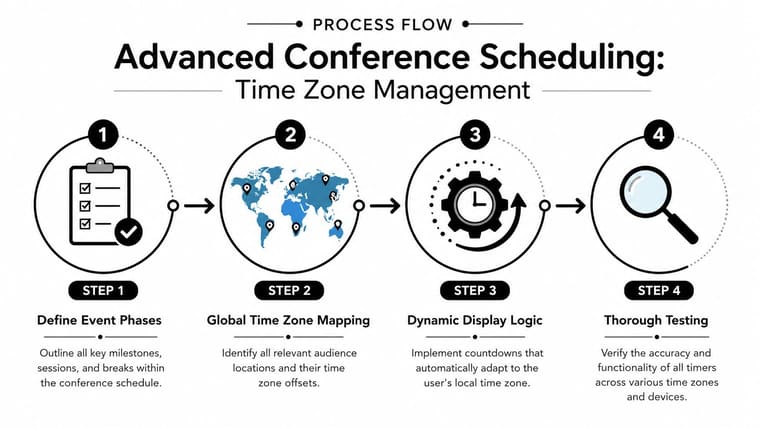
Count down to the next live moment
The most useful timer in a multi-day event usually isn’t “time until conference ends.” It’s “time until the next action that matters.”
That changes how we structure schedules. Instead of one monolithic countdown, build a chain of operational phases:
- doors open
- keynote starts
- break ends
- panel hard stop
- expo hall closes
- stream resumes
Event planning discipline matters. If you’re refining the broader schedule itself, Ticketsmith’s guide to creating successful event timelines is a practical companion because timer logic only works when the underlying run-of-show is clear.
Handle time zones as display logic
Time zone problems usually come from mixing two different jobs. One job is storing the official schedule. The other is displaying that schedule to each viewer.
Store the event schedule in its official event time. Then convert display output for each user context. The website should show local relevance where appropriate. The stage should always show venue time. Remote producers may need a separate control view entirely.
For teams that need quick conversions during planning, time calculator tools help with cross-checking offsets and session lengths before publishing updates.
A simple operating model works well:
| Display context | Time basis | Why |
|---|---|---|
| Stage monitor | Venue local time | Matches on-site show control |
| Event website | Viewer-aware local display | Reduces confusion for remote attendees |
| Internal run sheet | Official event time | Keeps ops aligned |
| Speaker briefing | Session local hard times | Easier to follow under pressure |
Decide what happens after zero
This is the part many timer setups ignore. Zero isn’t the end of the problem. It’s the moment a decision has to be made.
Expert-level conference timer tooling supports states beyond a simple countdown, including elapsed time and configurable color changes at warning thresholds, because the primary challenge is managing exceptions, not just displaying a number, as noted in this conference timer tooling discussion.
When the timer hits zero, choose one of these behaviors in advance:
-
Hard stop display
Best for tightly produced keynotes, investor sessions, and recorded segments. -
Overtime count-up
Useful for Q&A-heavy panels where moderation matters more than an exact stop. -
Message state
Display “Wrap Up,” “Take Final Question,” or “Hold for Reset” when stage management needs a visible instruction.
Don’t treat overtime as a failure state. Treat it as a managed state with clear rules.
If you don’t define that rule before show day, the moderator will define it in the moment. That usually means the session runs long.
Frequently Asked Questions About Conference Timers
What’s the easiest free setup for a simple room?
Use a browser-based timer on a laptop connected to a display. Keep the layout full-screen, high-contrast, and stripped of controls. This works well for a small room or internal meeting where one operator can monitor the screen.
How do we remotely control a timer on stage?
Separate the controller view from the display view. The display should stay full-screen on the stage monitor while a stage manager or show caller runs the timer from another device. That prevents accidental clicks on the presentation screen and makes late changes easier to manage.
Can a conference countdown timer show messages as well as time?
Yes, and it should when the event format calls for it. Time alone doesn’t always tell the speaker what action to take. In panel sessions, visible prompts such as “Final Question” or “Wrap Answer” are often more useful than another shrinking minute display.
Should attendees see the same timer as the speaker?
Usually no. Speakers need precision. Attendees need orientation. A public display for the room can show the current session timing, while attendee-facing channels should focus on next-session timing, room changes, and start cues.
What’s the best way to handle accessibility?
Keep contrast high, avoid low-contrast brand palettes, use large numerals, and don’t rely on color alone. If amber and red are part of the warning system, pair them with labels or state text so the display still makes sense to people who don’t distinguish color well.
How do we handle a speaker who starts late?
Don’t guess live. Decide your policy before doors open. Either preserve the original hard stop, allow controlled overtime, or shorten Q&A. The timer should reflect that decision immediately so the speaker, moderator, and room all get the same cue.
Is one timer enough for a hybrid event?
Rarely. Hybrid events usually need at least a public stage display, a website or virtual-facing display, and a control view for operations. Personal device timers are often worth adding for speakers and staff because they reduce missed cues during transitions.
If you want a personal device layer for your conference timing setup, Pretty Progress is a practical option for creating countdown widgets across phones, watches, and desktops so speakers, staff, and attendees can stay aligned with the live schedule.





